Lever - How do I link my sandbox account?
Last updated: May 28, 2025
Overview
To authenticate a Lever sandbox account, you will need to update your partner credentials in the Merge dashboard, register your sandbox, and log in with your credentials. This guide will walk you through all of those steps.
Prerequisites
Please ensure you fulfill all the requirements to set up the integration:
You have Administrator or Manager permissions in your company's Lever instance or someone has shared their access with you.
Instructions
Step 1: Register your sandbox
Use this link and enter the following details:
Integration Name (name of the product being connected to Lever)
Descriptions of your integration (must be between 20 and 140 characters)
Callback URI (ensure your callback URI is set to https://app.merge.dev/oauth/callback)
Square Logo (must be a link)
Required scopes (make sure to request exactly this set of scopes):
offline_accessapplications:read:adminarchive_reasons:read:admincontact:write:adminfeedback:write:adminfiles:write:adminforms:write:admininterviews:write:adminnotes:write:adminoffers:read:adminopportunities:write:adminpanels:write:adminpostings:write:adminreferrals:read:adminrequisition_fields:write:adminrequisitions:write:adminresumes:read:adminsources:read:adminstages:read:admintags:read:adminuploads:write:adminusers:write:adminwebhooks:write:admin
Step 2: Enter credentials in your Merge dashboard
Navigate to Integrations (left sidebar), then to ATS
Check the Lever partner box
Enter your Oauth Client ID, Oauth Client Secret, and Redirect URI.
The Redirect URI is: https://app.merge.dev/oauth/callback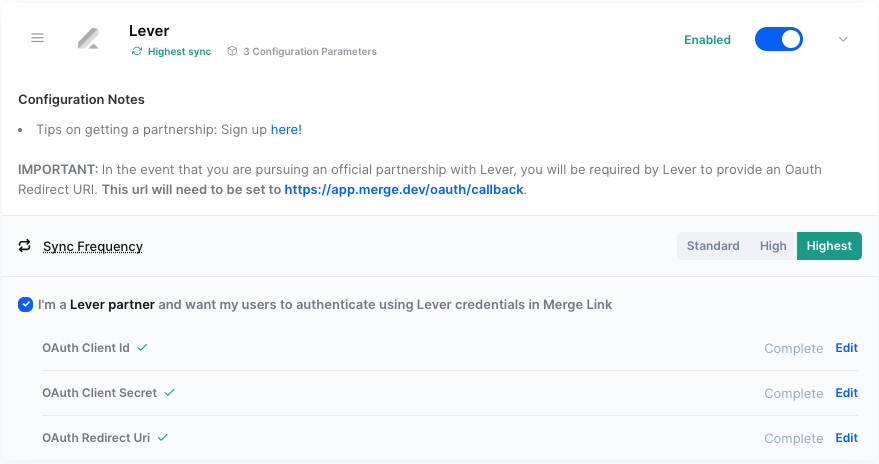
Step 3: Add a linked account
Navigate to Linked Accounts, click on Test Linked account, click on Launch Test Link
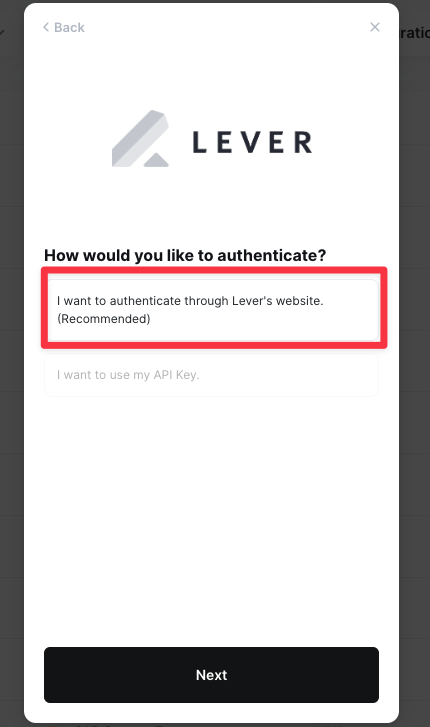
Select the "I want to authenticate through Lever's Website"
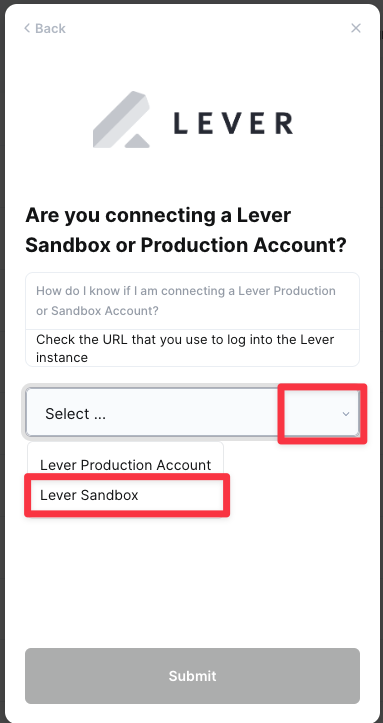
Select Lever Sandbox
This should open another window:
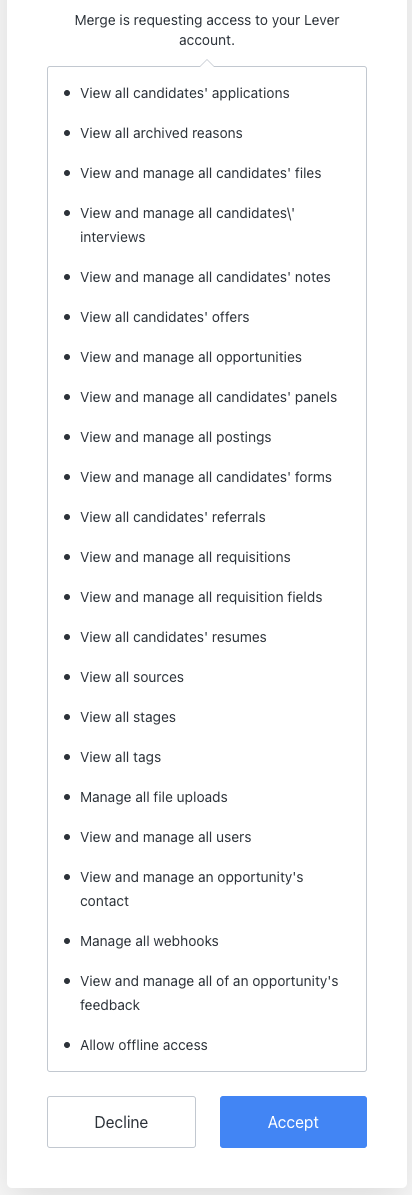
Accept, and proceed with the rest of the linking flow