Greenhouse - How do I link my account?
Last updated: May 28, 2025
Overview
To authenticate Greenhouse, you will need to provide the following information:
API Key
This guide will walk you through finding or creating those credentials within Greenhouse.
Instructions
Step 1: Get your API Key from Greenhouse
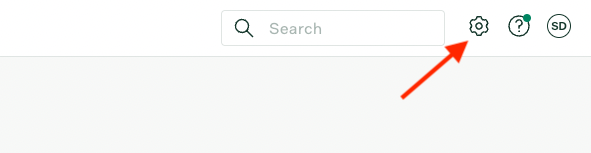
Log in and click the Configure (Settings) Icon on the upper right-hand corner of any page
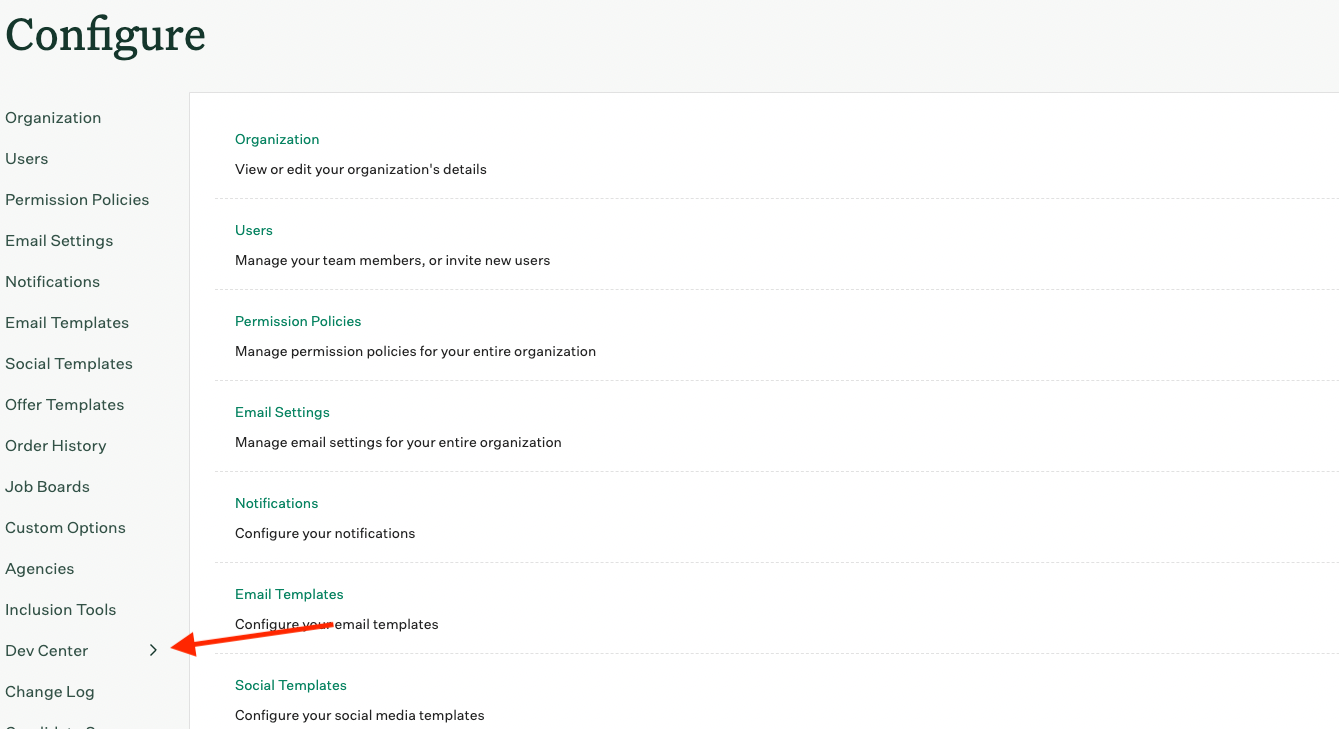
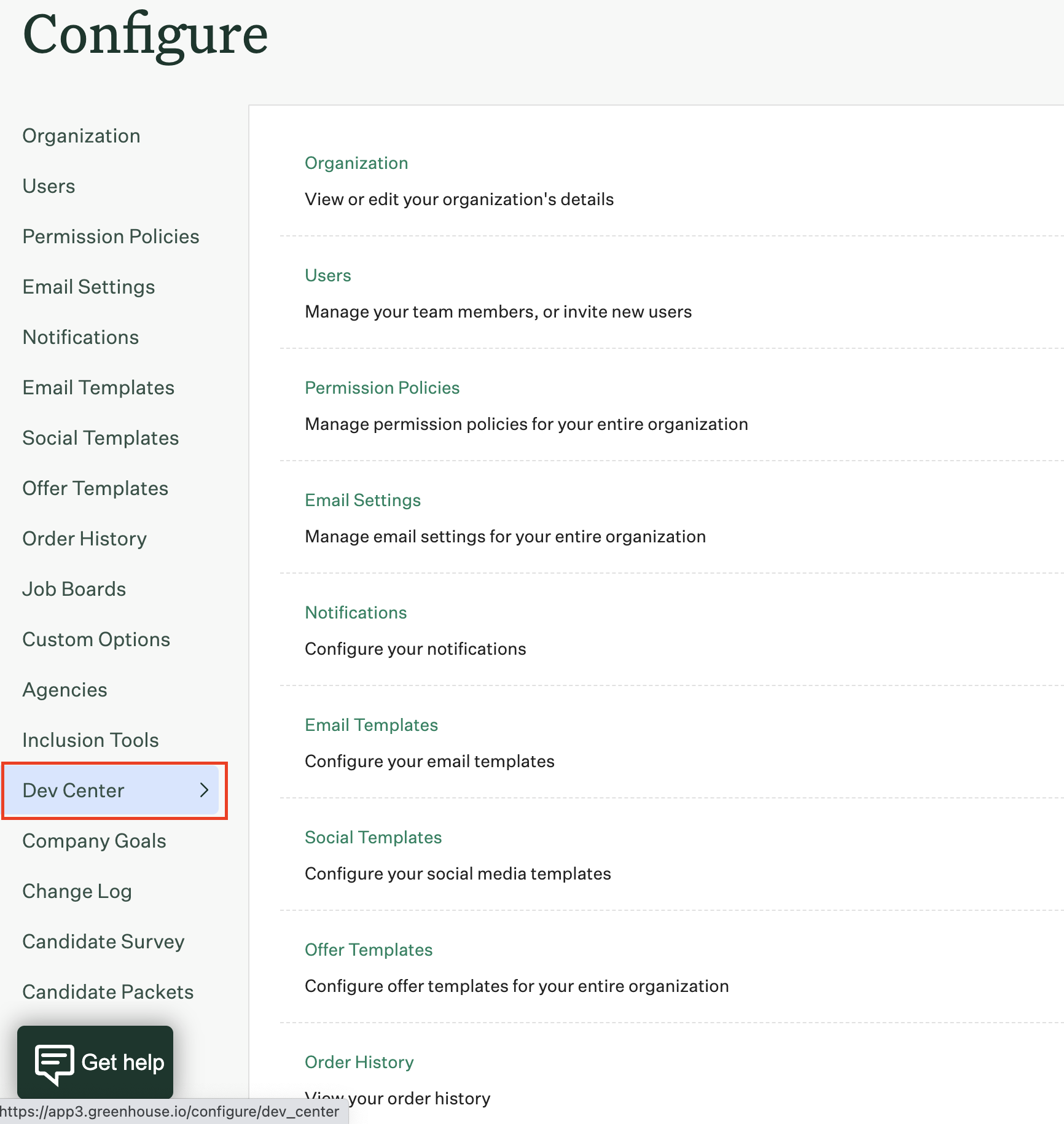
Click Dev Center in the left menu
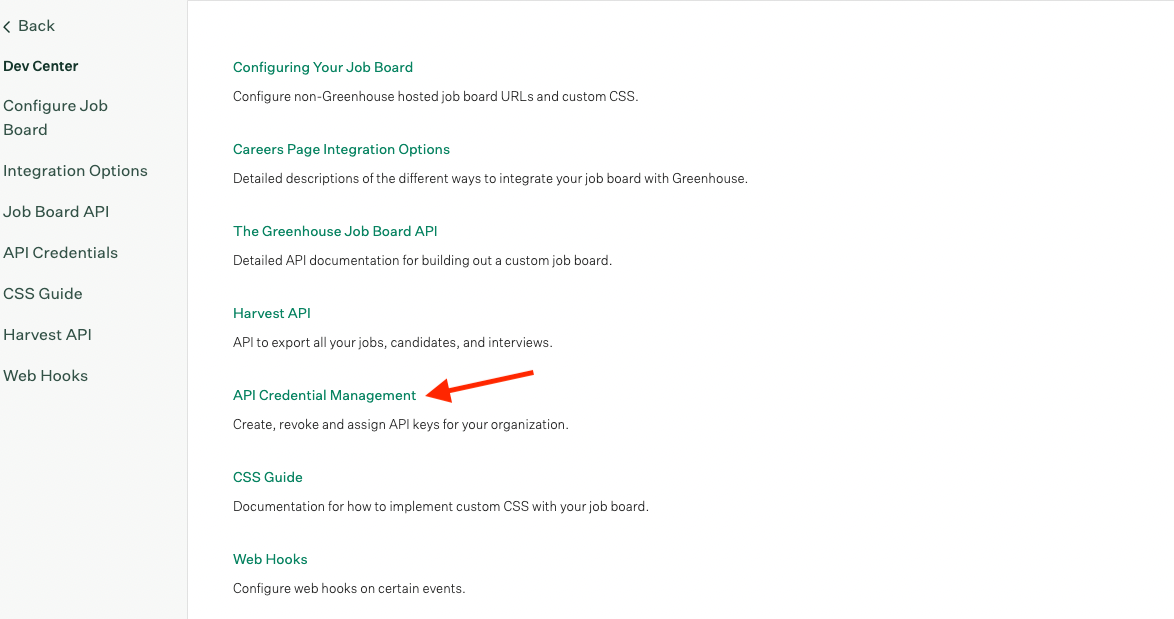
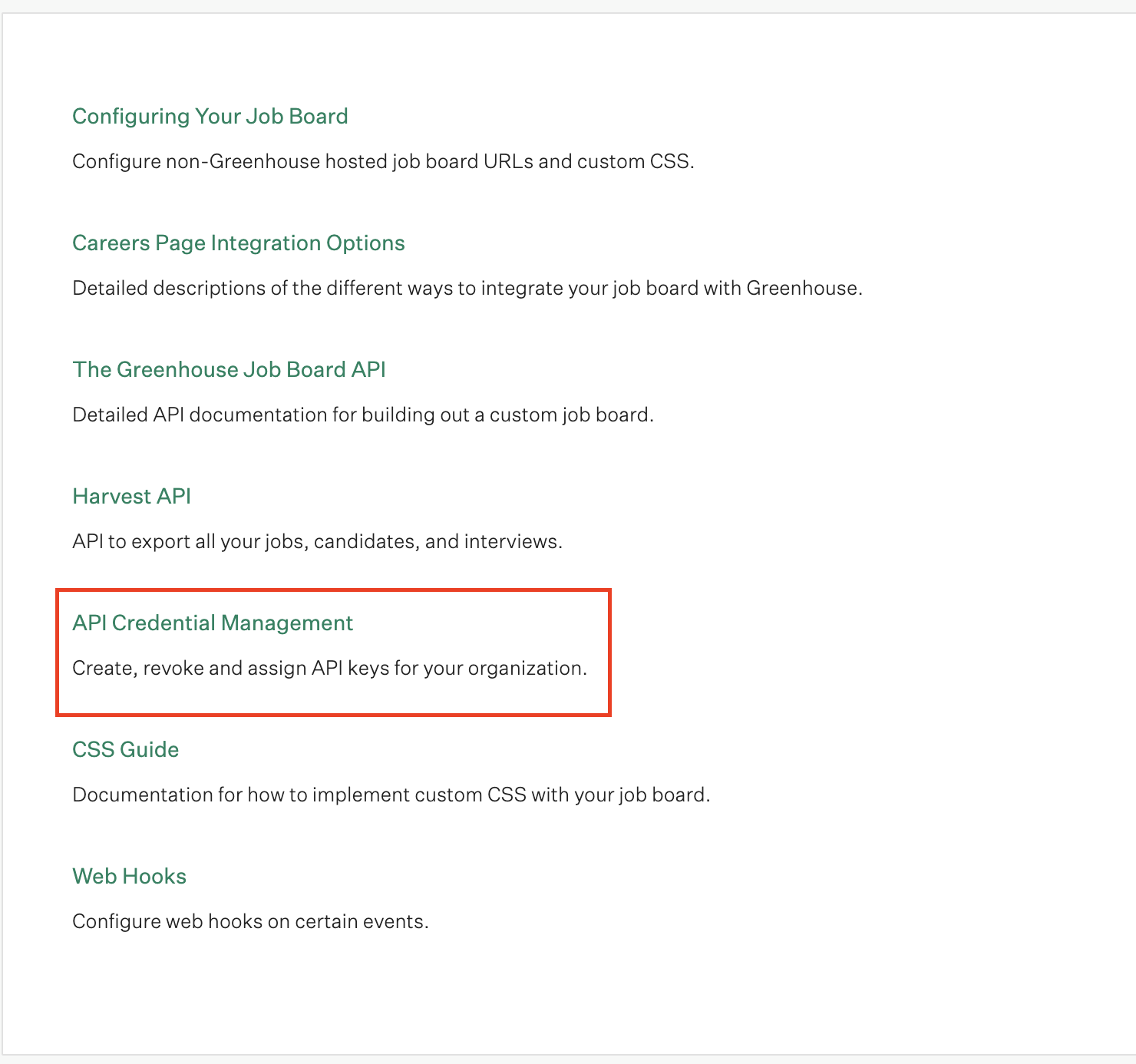
Select API Credential Management
Click the Create New API Key button

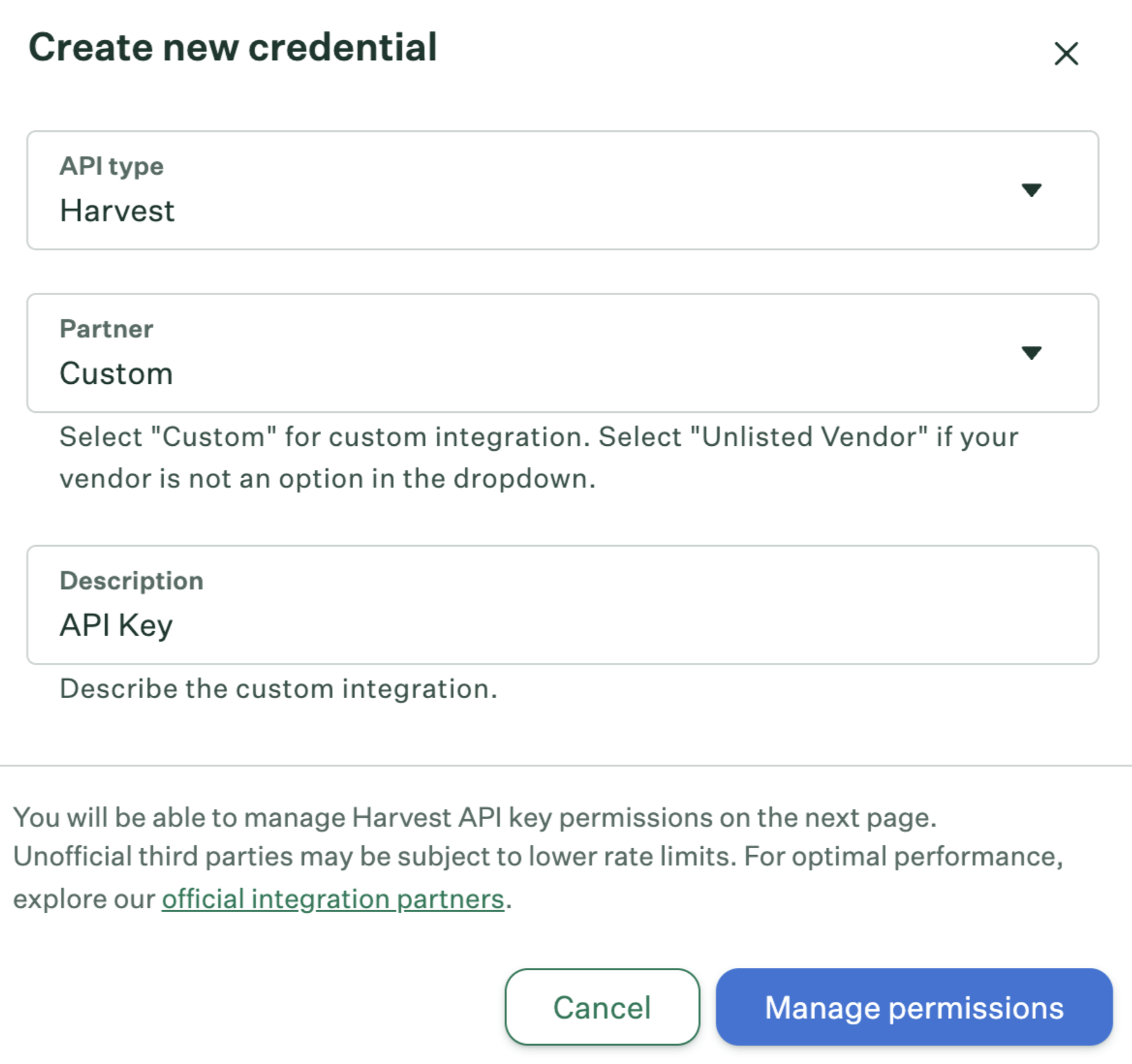
Select Harvest for the API Type, "Custom" under Partner, and enter a description for the API key. Then click Manage Permissions:
Click the Copy button, and paste the API key below. Next, click "I have stored the API key"
Note that you will not be able to copy this API Key again, so please store it somewhere safe!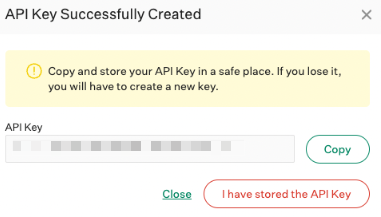
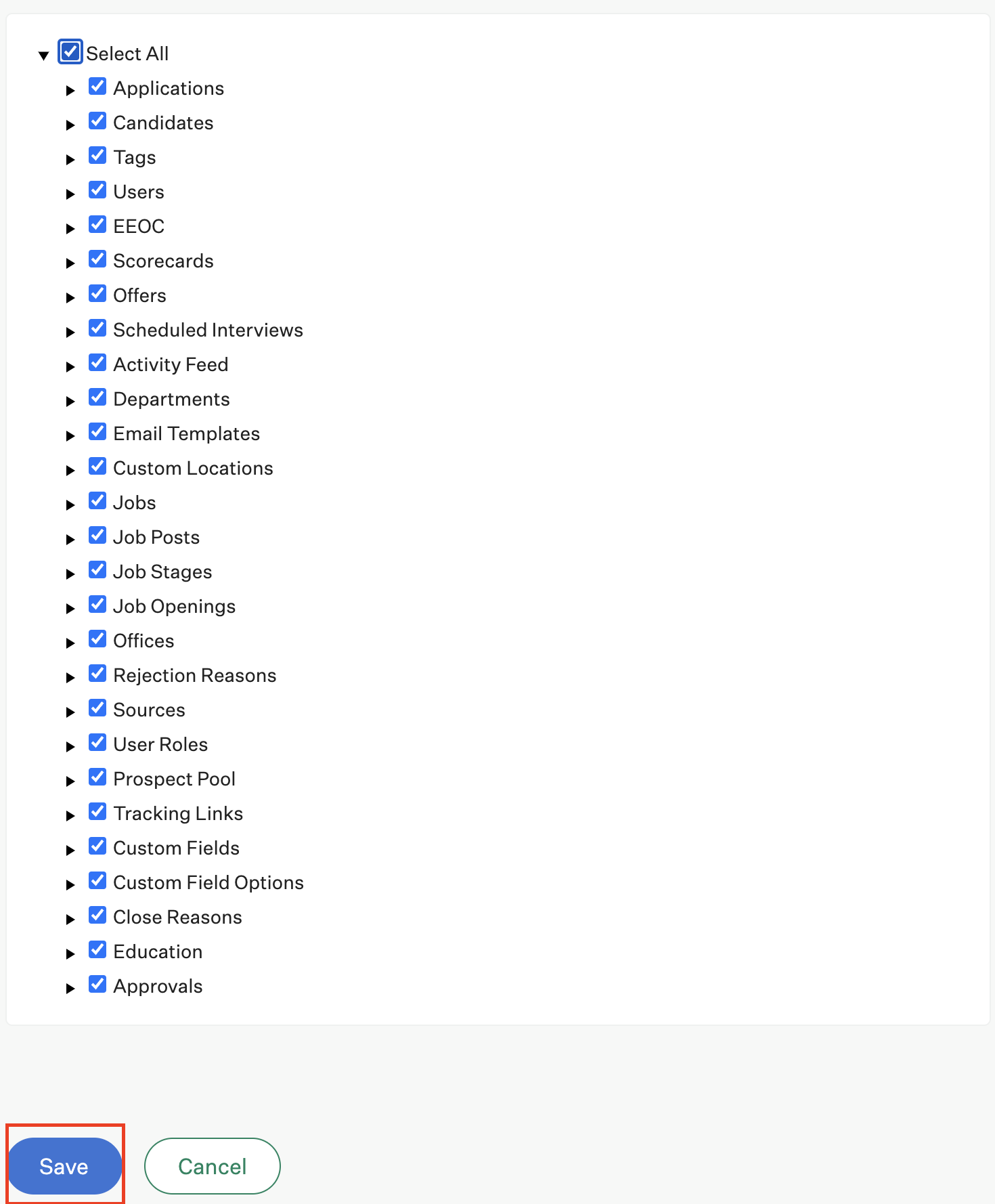
Select your permissions:
Click Select All or select the relevant permissions required for your use case
See below all of the permissions necessary for all data as part of this integration
To link your account, the minimum permissions you must select is the GET: List Users permission under Users

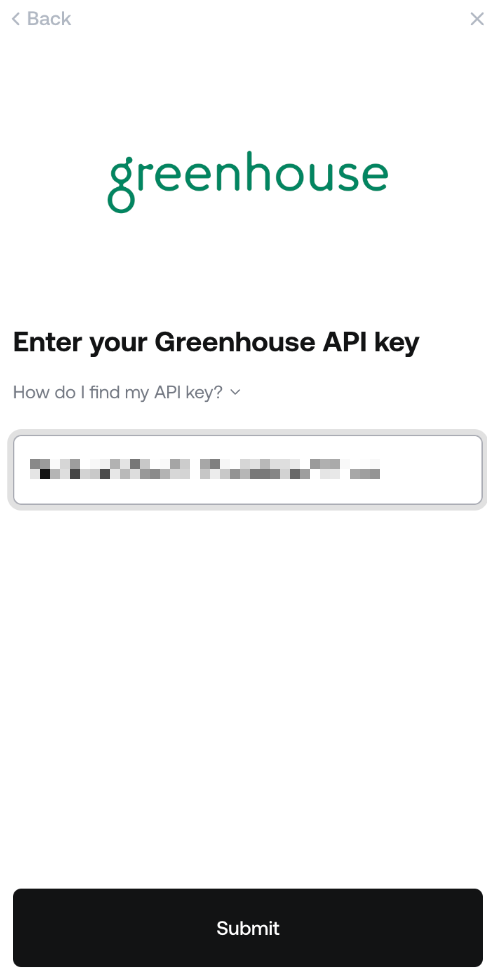
Step 2: Enter your API key in the linking flow
How to update permissions
Navigate back to the Dev Center and to API Credentials Management
Find the API Key used to link you Greenhouse integration
Click on the "Edit" icon on the row of your API Key

Update permissions and click save