Understanding data filtering options with Merge
Last updated: June 9, 2026
Overview
The data from third party systems can be filtered in many different ways before it resides in Merge database and then further into your database or product. This guide explains different filtering approaches and help you choose the right one for your use case.
Why filter your data?
There are three primary reasons why you should consider filtering data:
To store the relevant data in your database
You don't want to store data that won't be used in your product or isn't useful for your customers. For example, many customers using HRIS integrations filter employees by department or employment status to store only a relevant subset in their database. You can configure this as a default filter across all customer accounts, or allow admins to customize it during integration setup.
To build dynamic product workflows
Filtering enables you to build product features where users can view and interact with specific subsets of data. For example, in HRIS integrations, allowing managers to filter their team, department within their product UI.
Data flow diagram with filters
Data passes through multiple filter stages originating from 3rd party systems to showing up on your product UI. The diagram below illustrates how data flows through each filtering (diamond shaped) stage:
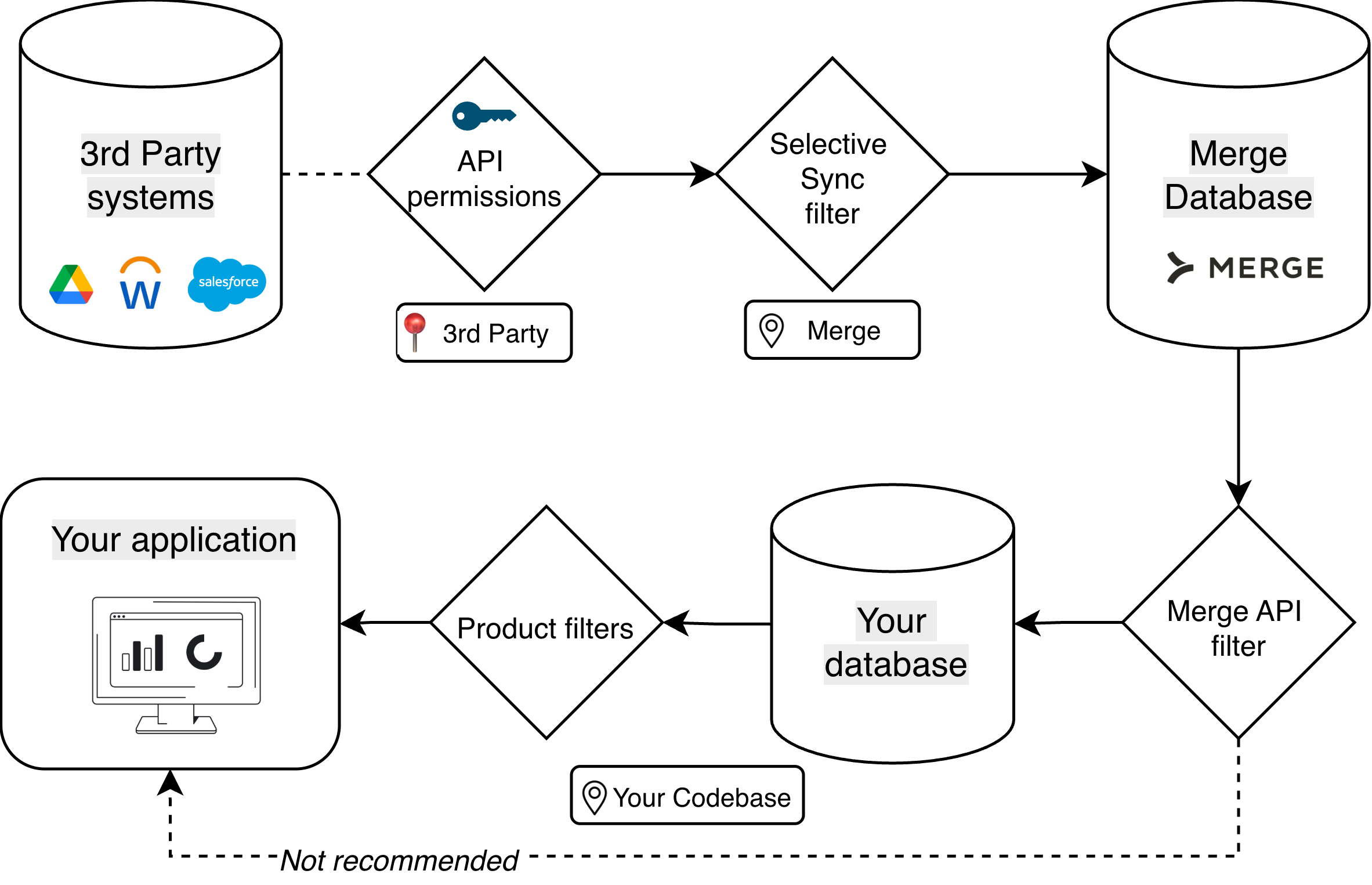
Data flow diagram legend:
Third party systems: Could be any supported integrations of Merge, eg. BambooHR, Google Drive, etc
API Permissions: End-user configuring API key/token with filter settings if available
Selective Sync filter: Source-side filters applied to a third party API before data is fetched into Merge.
Merge database: Merge's common model database
Merge API filters: Filters supported as query params in Merge API
Your database: Your product's database
Product filters: Any filters you apply before showing data on your application
Your product/application: The UI that your customer sees with filtered data
Filter options overview
The table below provides brief information about each of these filters and is followed by detailed explanation
Filter | Location | Use case | Example |
API permissions | 3rd party system (configured by end-user) | End user (typically Admin) control data access and scope at source | Grant access to employees in the Sales department, US division |
Selective Sync filter | Merge (configured by you/end-user) | Use this to avoid data explosion, and historical cut-offs | Tickets modified in last 6 months, Candidates applied in last 1 year |
Merge API filters | Your codebase (before syncing from Merge into your database) | Let admins choose what data syncs to your product | Filter employees with Employment status = Active |
Product filters | Your codebase (when querying your database) | Enable dynamic user-facing filters | Filter "My Team" to show up data of only our team. |
Filter options before Merge stores data
The most effective filtering happens at the source, before data is fetched from 3rd party systems into Merge. Source-side filtering reduces sync time, lowers storage costs, and ensures unnecessary data never enters your system. There are two types of filters that can be applied at the source:
Filtering with API permissions
Selective sync filters
API Permissions/Credentials
While API permissions and credentials are primarily used to set scopes (what functionalities and fields are accessible) and access levels (read/write), some HRIS systems also allow filtering at the API credential level. For example, BambooHR lets you filter by employee type (eg. full-time only), location and many other fields when configuring API access.
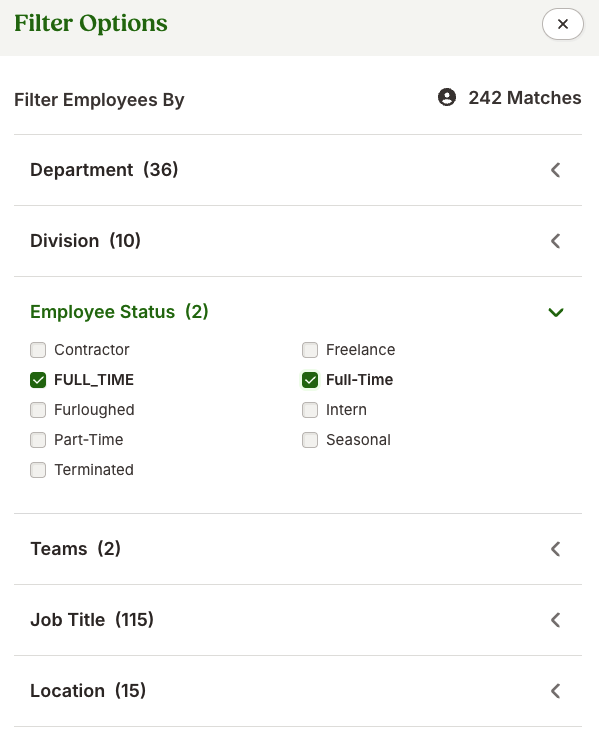
In the example above, when this BambooHR account is connected to Merge, only the 242 filtered employees will be accessible through BambooHR's API.
Note: This filtering option is available in only some HRIS systems. This includes common apps like BambooHR, HiBob, and SAP SuccessFactors. Contact us to check if this is supported for specific integrations.
Pros
No work is required on you (Merge customer) as your user would set up the filter
Suitable for security-conscious customers as this fully prevents access to filtered data/fields
Cons
Only supported by a limited number of HRIS systems
Less visibility for you into what data is actually being filtered
Selective Sync filters
The selective sync filters in Merge allows you to configure filters that can be applied at the source, i.e. on the 3rd party APIs before fetching and storing data into Merge database. These filters can be configured by you on Merge dashboard and has options to let your users adjust these filters during the integration (Learn more). It's recommended to set these filters, especially time based filters, to filter out historical data that won't be used in your product.
Most common use case for the selective sync filter include:
ATS: Candidates applied in the last 1 year
File storage: Files/Folders from a specific Drive (learn more here)
Pros
Avoids data explosion, resulting in faster syncs and better application performance
Can be configured by you or optionally customized by end-users during connection
Cons
Limited filtering options - depends on what's available in the 3rd party and what Merge has built
Must be configured during integration setup; not suitable for frequently changing filters
Note: Changing Selective Sync filters after a linked account is connected will only filter data in future syncs, unless a full resync is triggered.
Filter options after Merge stores data
Once data is in Merge's database, you control how it flows to your product through two filtering layers:
Merge API filters - Control what you fetch from Merge and store in your database
Product filters - Control what users see in your application
Merge API filters
After passing through API permissions and Selective Sync filters, data is stored in Merge's database. You can now fetch data from Merge and store it in your database, which connects to your application. If you don't want to sync all the data, you don't have to! You can:
Only sync and store the data that your application needs
Allow end-users to choose which data syncs to your product
Depending on the filters your end-users setup along with data needs of your product, you pass those as query params while fetching data from Merge. We prodive extensive filtering options for each of the GET endpoints. For example, GET /employees endpoint can be filtered with:
started_after/started_before: Filter employees based on their start datesemployment_status: Filter for Active/Inactive employeesemployment_type: Filter for Full-time, part-time, etc employees
You can find the entire list of supported filters on our API reference under Query & path parameters section.
Use the modified_after API filter to sync only changed/modified data avoiding large data syncs. Learn more
Pros
Enables admin-configurable integration settings (let users choose what syncs, check example below)
Reduces data stored in your database, lowering storage costs
Cons
Doesn't reduce data stored in Merge (only what you fetch from Merge)
Limited to filter parameters supported by Merge API for each endpoint
Leads to more complex syncing logic
Product filters
Product filters result in the same functionality as Merge API filters - the only difference is where the filters are applied. Instead of applying filters directly on your queries to Merge, you set up a "staging" table with all employees, unfiltered. Your product then uses the filters that have been set up in your app to pull only relevant data.
Pros
Enables admin-configurable integration settings (let users choose what syncs, check example below)
Users can change filters dynamically without any data re-syncing
Does not complicate syncing logic
Cons
Requires more database design and indexing for performance
Does not reduce the amount of data you store
Example: Employee filtering in an HRIS Integration
A common use case among Merge customers using HRIS integrations is letting end-users (typically admins) configure which employees sync to their product. This is usually implemented as part of an integration settings page in your application, similar to the example below:
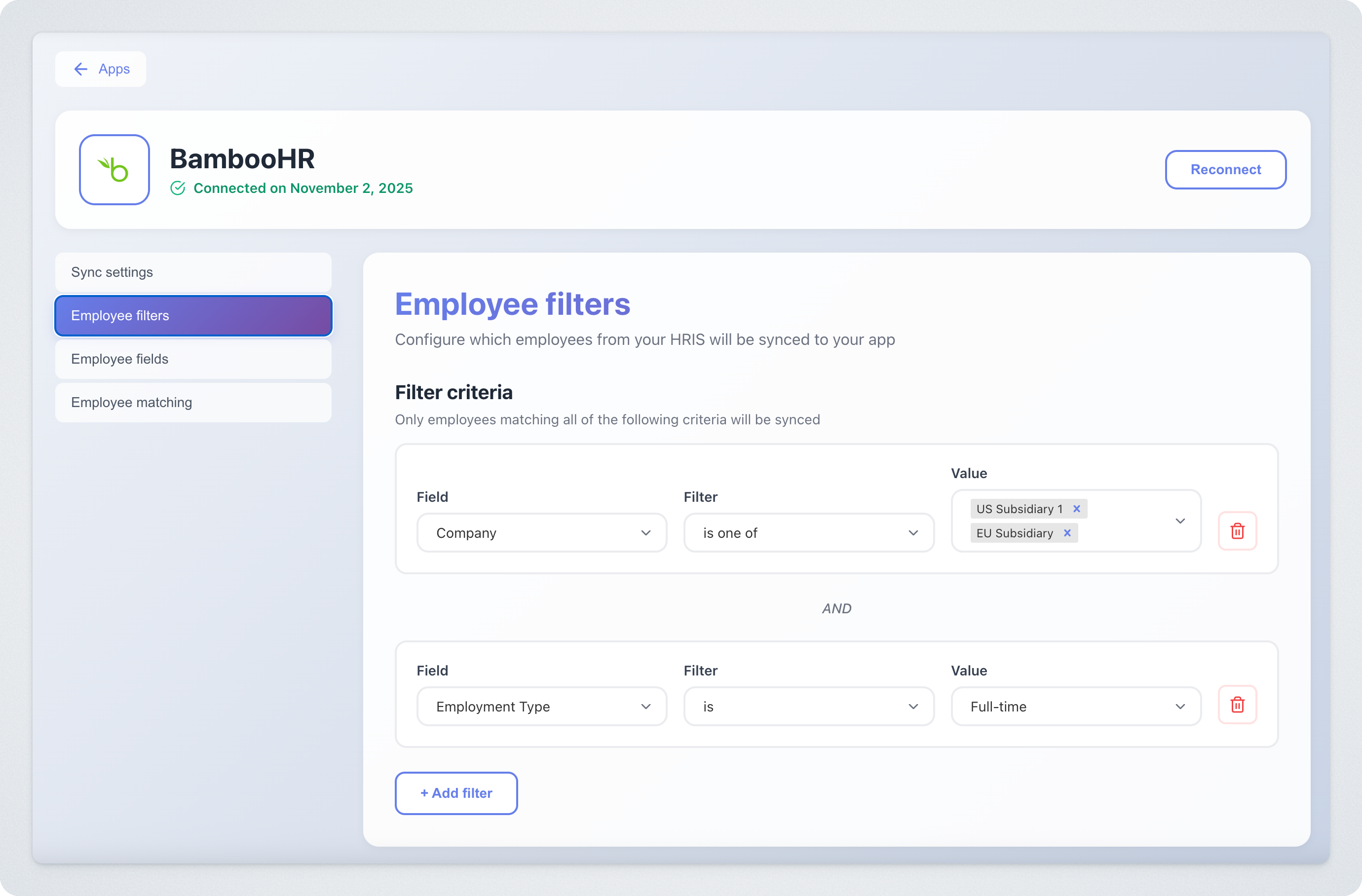
Using Merge API filters
If this example used Merge API filters (pre-storage) approach, the query to the /employees endpoint would be:
GET {base_url}/employees?employment_type=FULL_TIME&groups={group uuid 1},{group uuid 2}employment_type=FULL_TIMEfilters for full-time employees only -groupsparameter uses group UUIDs from the Groups common model (e.g., US Subsidiary, EU Subsidiary)
This filtered data is then stored in your database for use in your application.
Using Product filters
If this example use the Product filters (post-storage) approach, the queries to Merge would not be updated. Your product would filter employee data stored in your staging table to enable dynamic, real-time filtering within your application UI.
Considerations: Changing filters
Some of the filters mentioned in the guide above are supposed to be persistent and shouldn't ideally change often. However, there may be scenarios where these filters need to be modified after the integration is live. The table below suggests approaches you can take when filters are changed:
Filter being changed | Typical reason | Recommended action |
API permissions | More employees need to be added, such as another location or department | Data for these newly included employees won’t automatically sync to Merge unless a full resync is performed. Contact us to request a full resync. |
API permissions | Some employees need to be removed from the filter, eg. US division | Data for these employees will continue to exist in the Merge database. To fully remove them, create a new linked account with the updated permissions and delete the existing one. |
Selective Sync | You add a historical cut-off date of 2024 onwards, based on your data retention policy | Data before 2024 will continue to exist in Merge as Selective sync filters aren't retroactive |
Merge API filters | The admin modifies the filter on the integration settings page, adding or removing some employee filters | Adjust the query parameters accordingly when fetching data from the Merge API. If you want your database to reflect the new rules for historical data, you may need to re-run your data pipeline or perform a backfill. |
Product filters | The admin modifies the filter on the integration settings page, adding or removing some employee filters | Modify the query against your Employee staging table. |