Oracle Recruiting Cloud - How do I link my account?
Last updated: July 17, 2025
Overview
This article guides you through the process for integrating your Oracle Fusion - Oracle Recruiting Cloud account.
Prerequisites
Please ensure you fulfill all the requirements to set up the integration:
You are an Administrator in your company's Oracle instance, or someone has shared their access with you.
Instructions
Step 1: Find your username & password
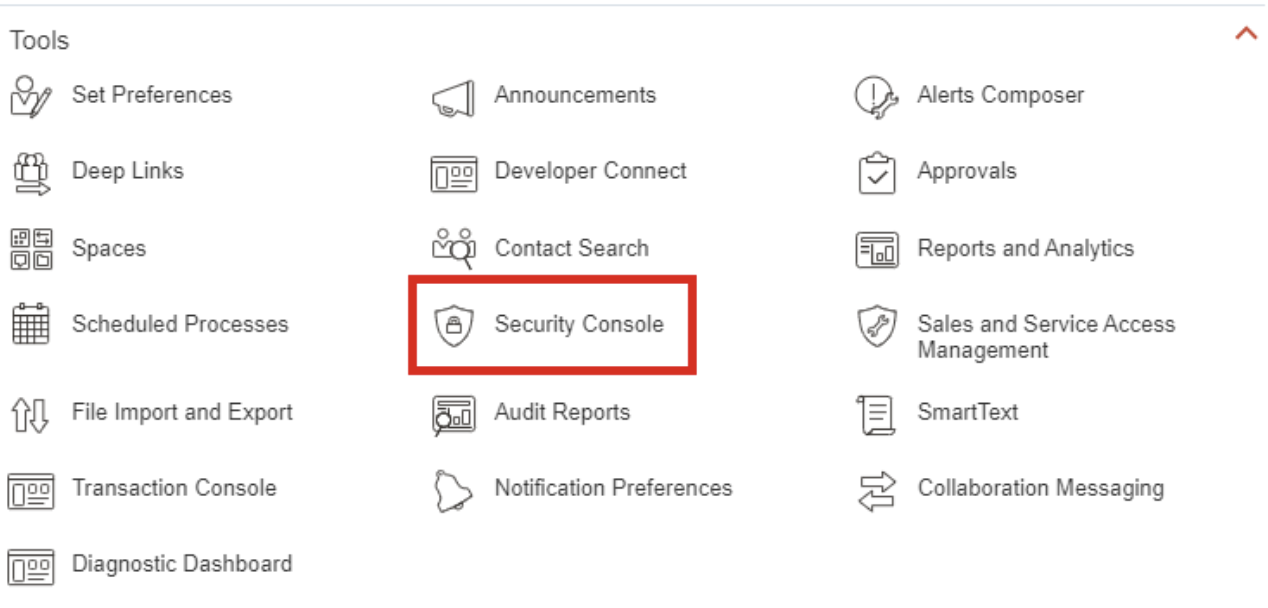
Select the navigation hamburger button on the upper left

Under the Tools section, select Security Console
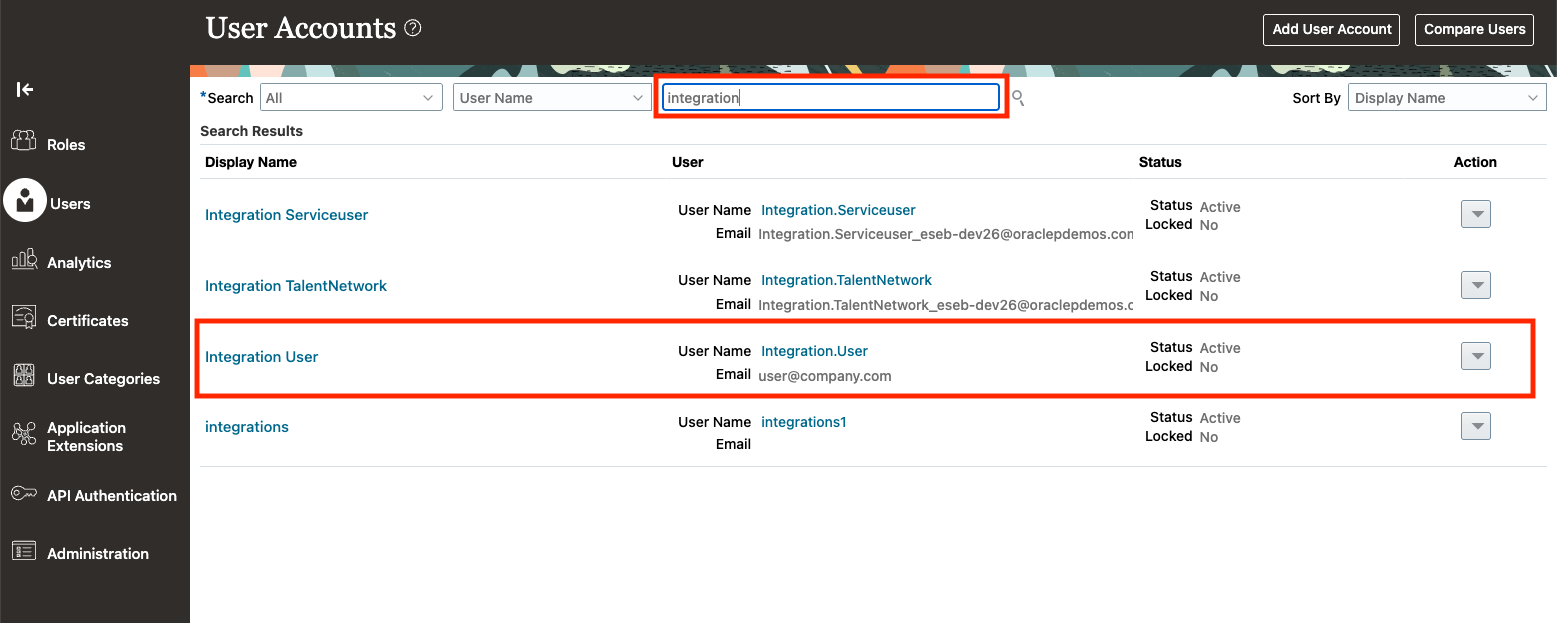
In the Security Console, select Users from the left menu, and then use the search bar to search for a user by name and select the user
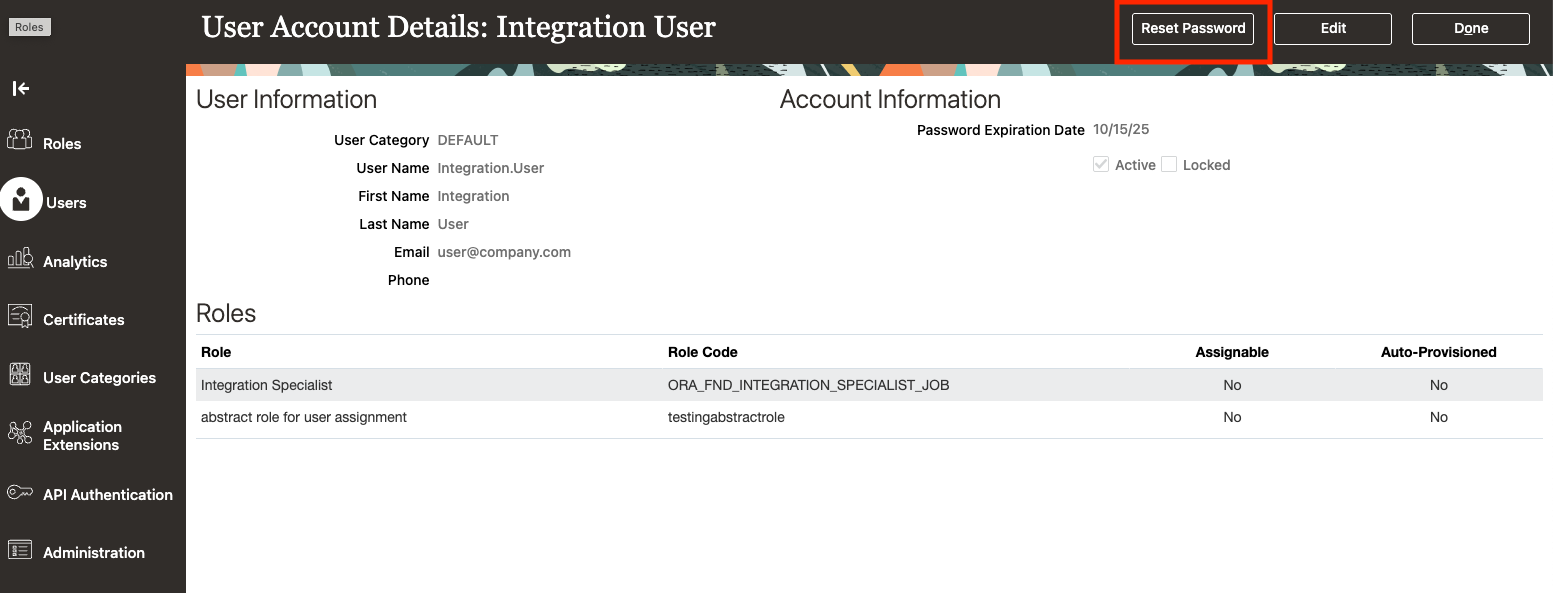
Click on the Reset Password button. Set a new password—this is the password you'll use when linking the account in Merge.
The username shown on this screen is also the one you'll enter during the Merge link step
Enter your username & password into the linking flow
Step 2: Find your API subdomain
This should be accessible in the url after you have logged in
https://{servername}.{location}.oraclecloud.com/
Input this value up to .xxx into the linking flow
Step 3: Create a user for integrations
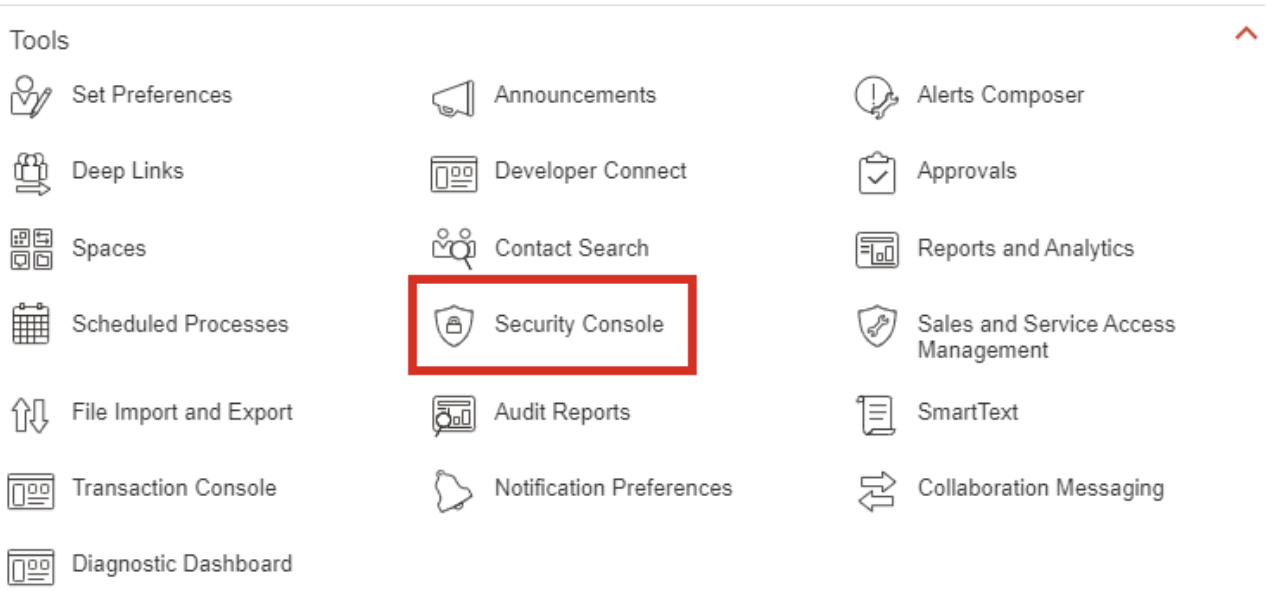
Select the navigation hamburger button in the upper left

Under the Tools section, select Security Console
In the Security Console, select Users from the left menu, and then click the Add User Account button in the upper right
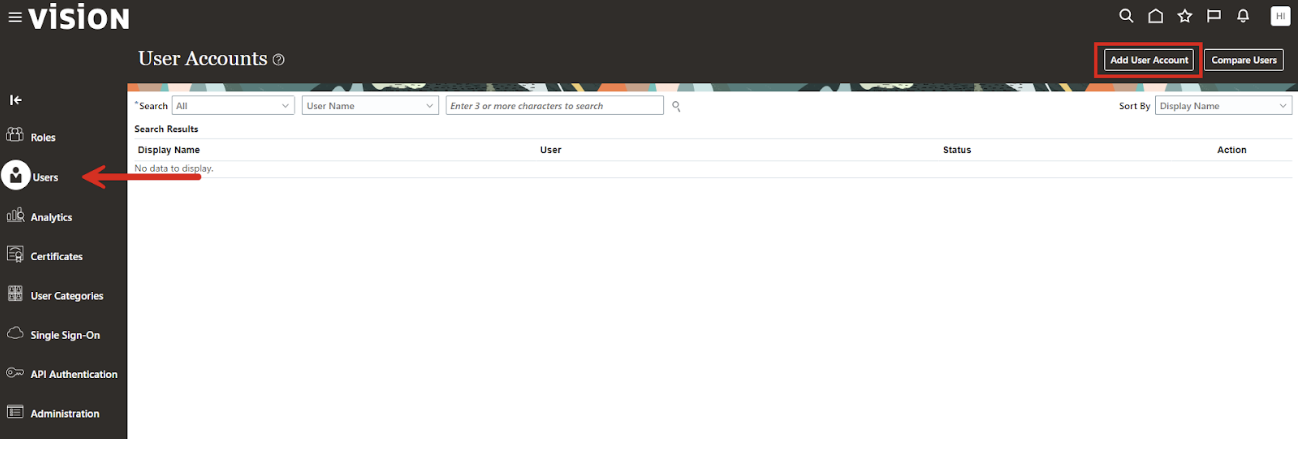
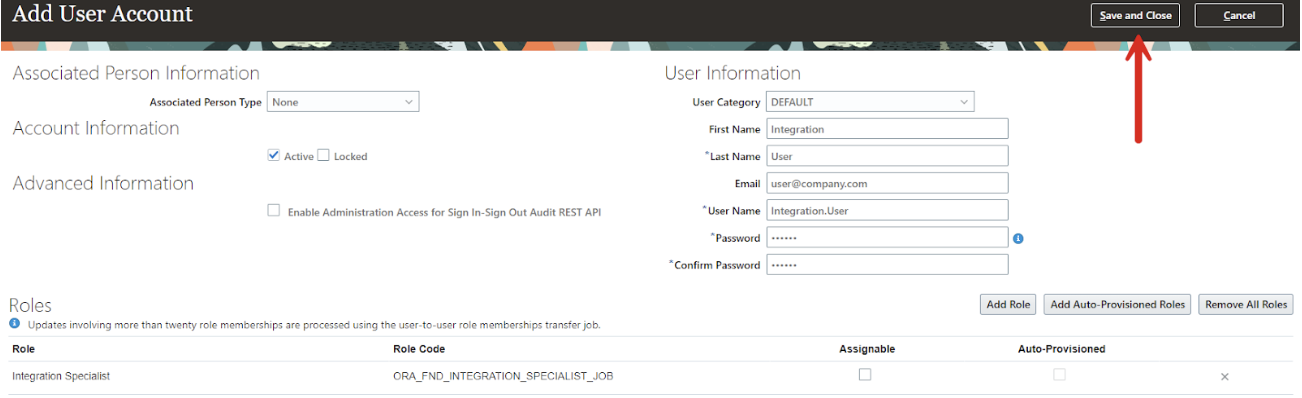
From the Add User Account screen enter the users information, user name, and password. Under the Roles section click Add Role
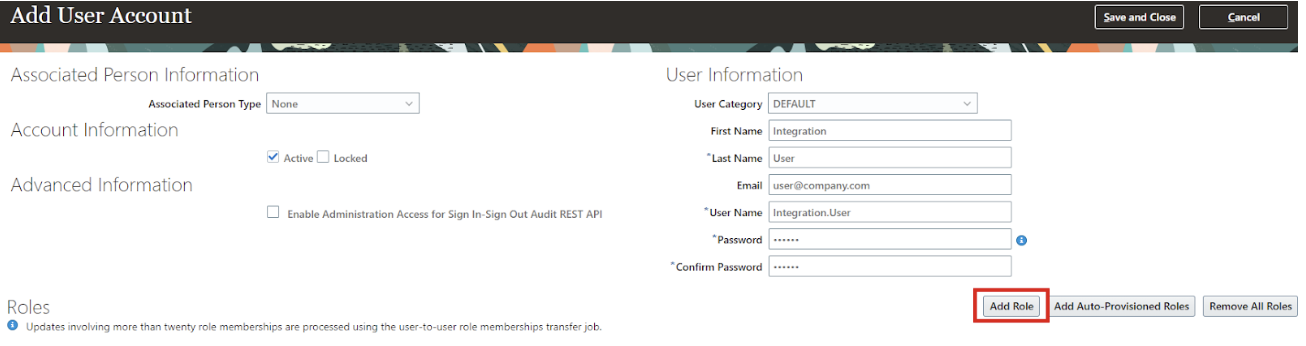
In the Add Role Membership from Role screen search for the “Integration Specialist” role and select it. Then click the Add Role Membership button in the lower right
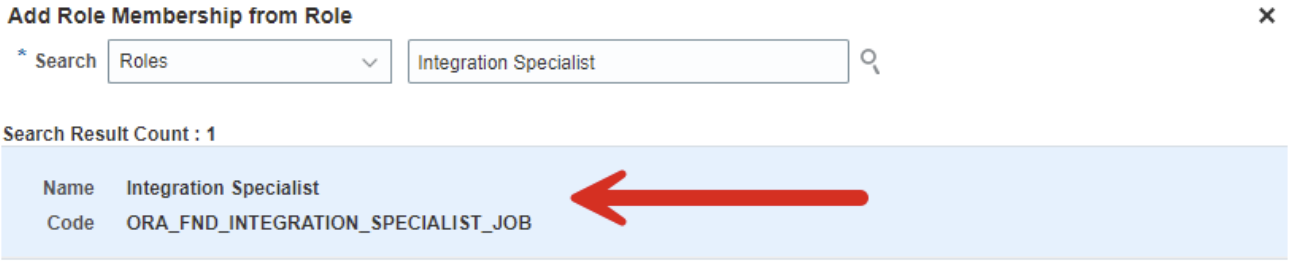
Then, create a data role on top of the job role with the requisite permissions. This data role will be assigned to the user you are using to authenticate with
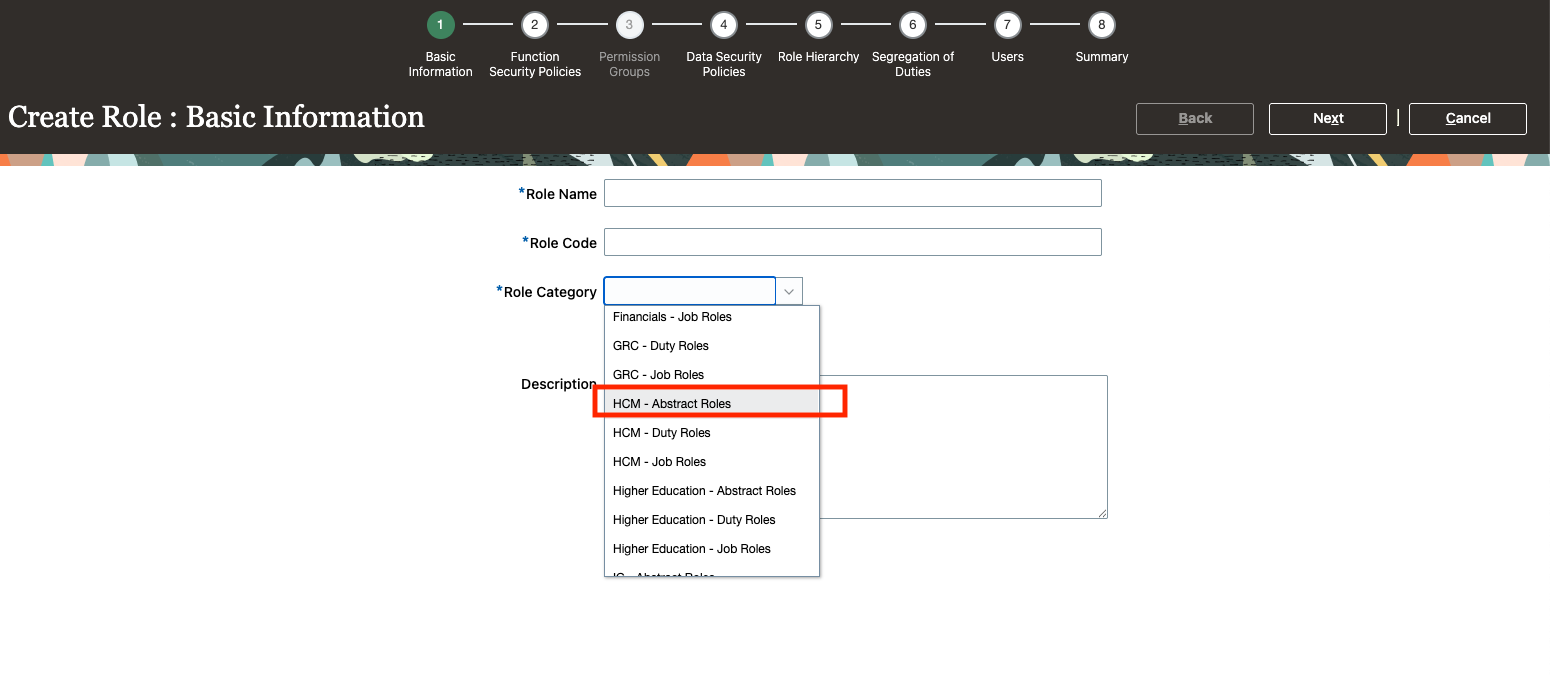
To create a data role, select Roles on the left side of the security console page and click Create Role
Give your role a descriptive name of your choice. For the role category, select HCM - Abstract Role. This role category ensures that this role can be assigned to a user
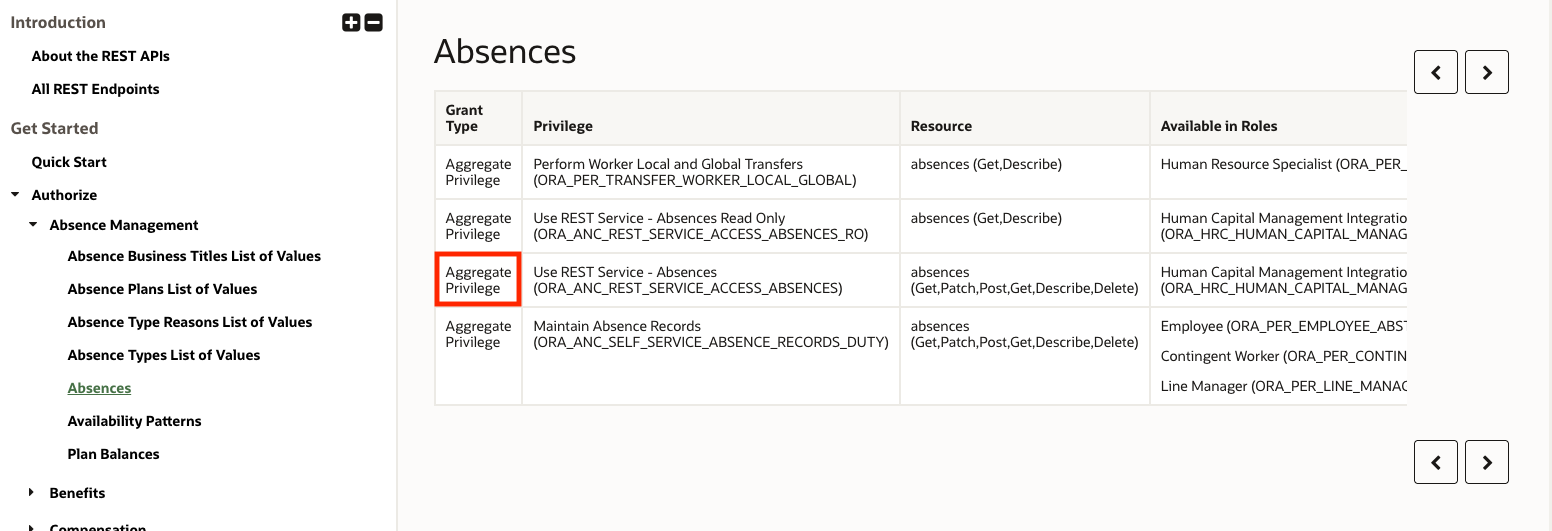
Now you can assign privileges to the role. Privileges required for to access different data are outlined here: https://docs.oracle.com/en/cloud/saas/human-resources/24d/farws/Authorize.html
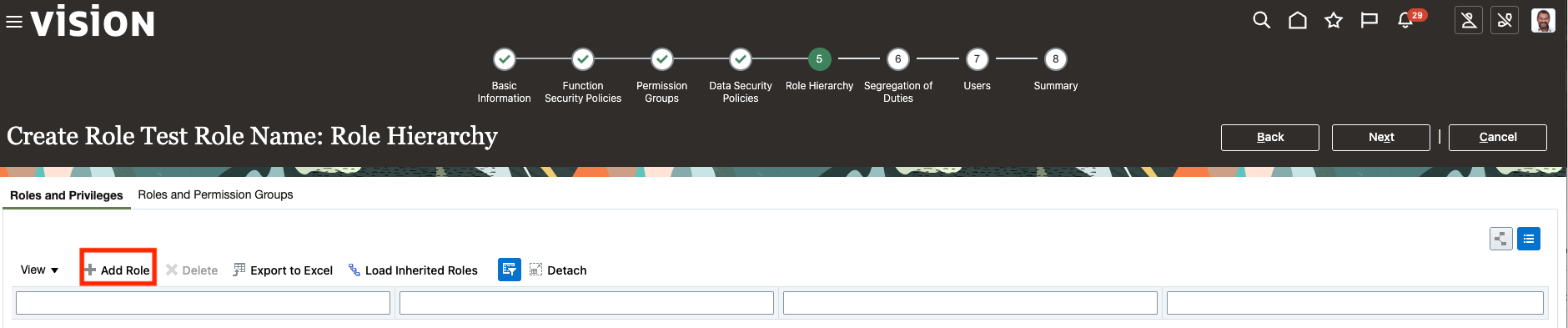
If the "Grant Type" is "Aggregate Privilege" as seen for absences, click on Add Role in the "Role Hierarchy" step to add the privilege
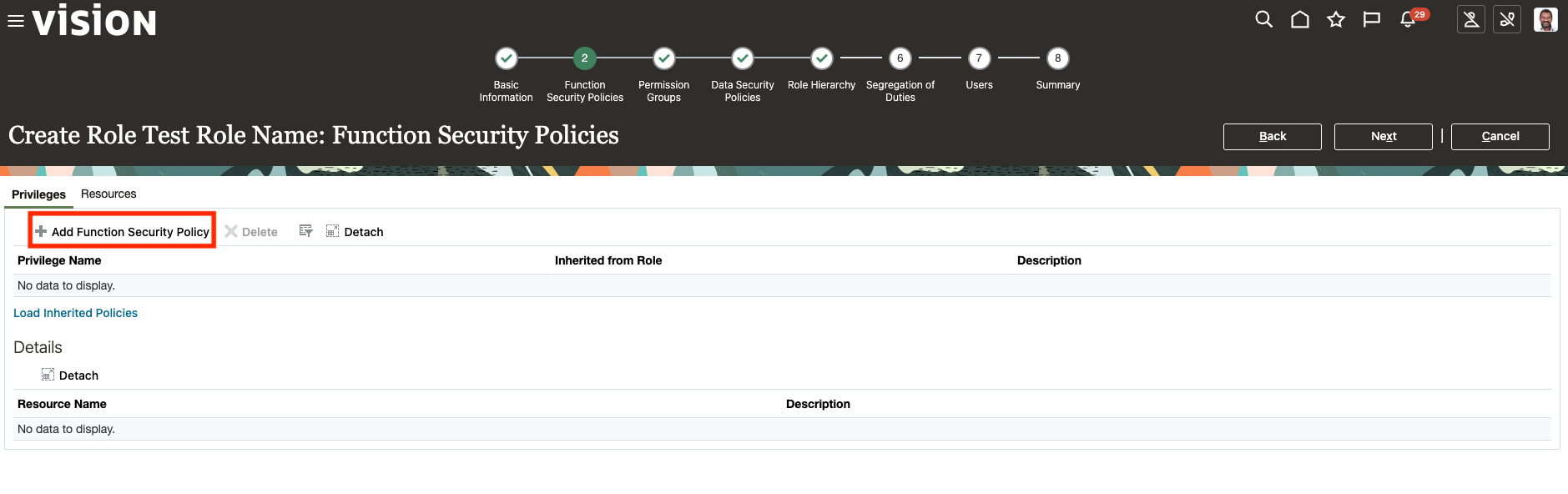
If the "Grant Type" is "Function Privilege" as seen for employees, click on Add Function Security Policy in the "Function Security Policies" step
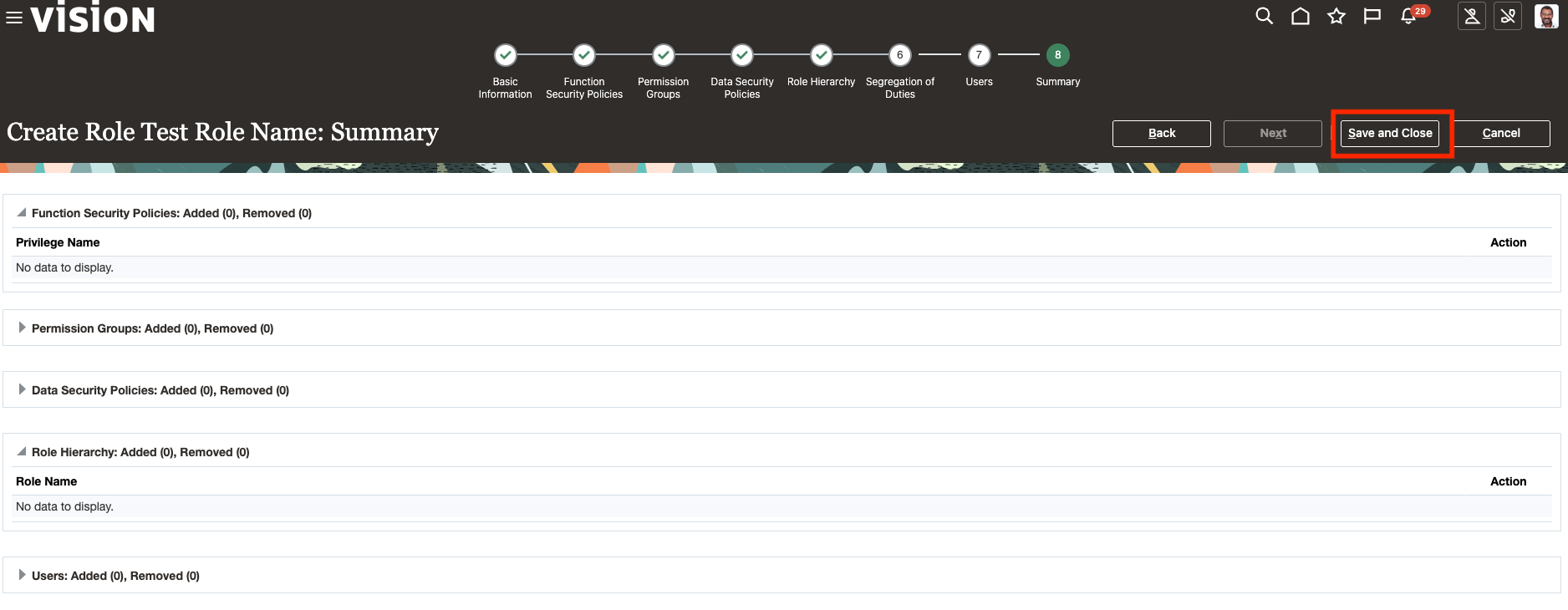
Once you have added all privileges you wish to grant the user, move to the "Summary" page and select Save and Close
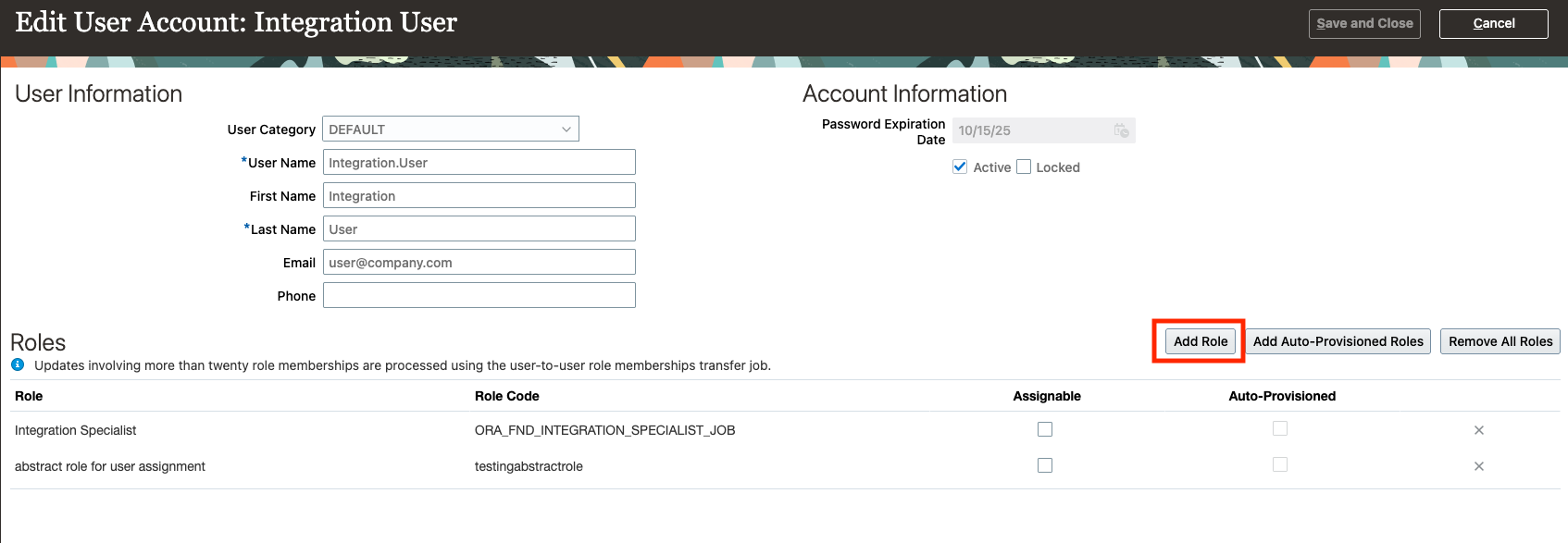
Now navigate back to the user you created previously, click Edit and then click Add Role. Here you can add the role that you just created with all the necessary privileges
Click the Save and Close button in the upper right
This user can now be used for API integrations