Gusto - How do I set up Merge to connect to a Gusto sandbox?
Last updated: May 5, 2026
Overview
Once the Gusto integration set up process has been complete (see this guide), your production API credentials will be delivered into your Gusto developer account. These credentials will be used to connect your clients’ production instances of Gusto. However, if you would like to connect a Gusto sandbox (demo company), there is a different process you will need to follow. This guide will outline the steps required to link a sandbox/test/demo instance of Gusto.
Prerequisites
There are a few prerequisites to connect to a Gusto sandbox.
You have created a Gusto developer account as outlined in the Gusto integration set-up guide.
You are on the Merge Professional or Enterprise plan. If you want to upgrade your plan, please contact us at [email protected] and our team will assist you.
Important note
At this time, your Merge organization can only be set up to connect to Gusto sandbox instances OR Gusto production instances. It cannot be set up to connect to both instance types at the same time.
If you have credentials for a Gusto app in a "demo" stage input, you will only be able to connect to sandbox instances
If you have credentials for a Gusto app in a "production" stage input, you will only be able to connect to production instances
Please read: If you change existing production credentials with demo credentials, this will break existing connections.
Instructions
Creating a Gusto demo app and setting up your Merge organization
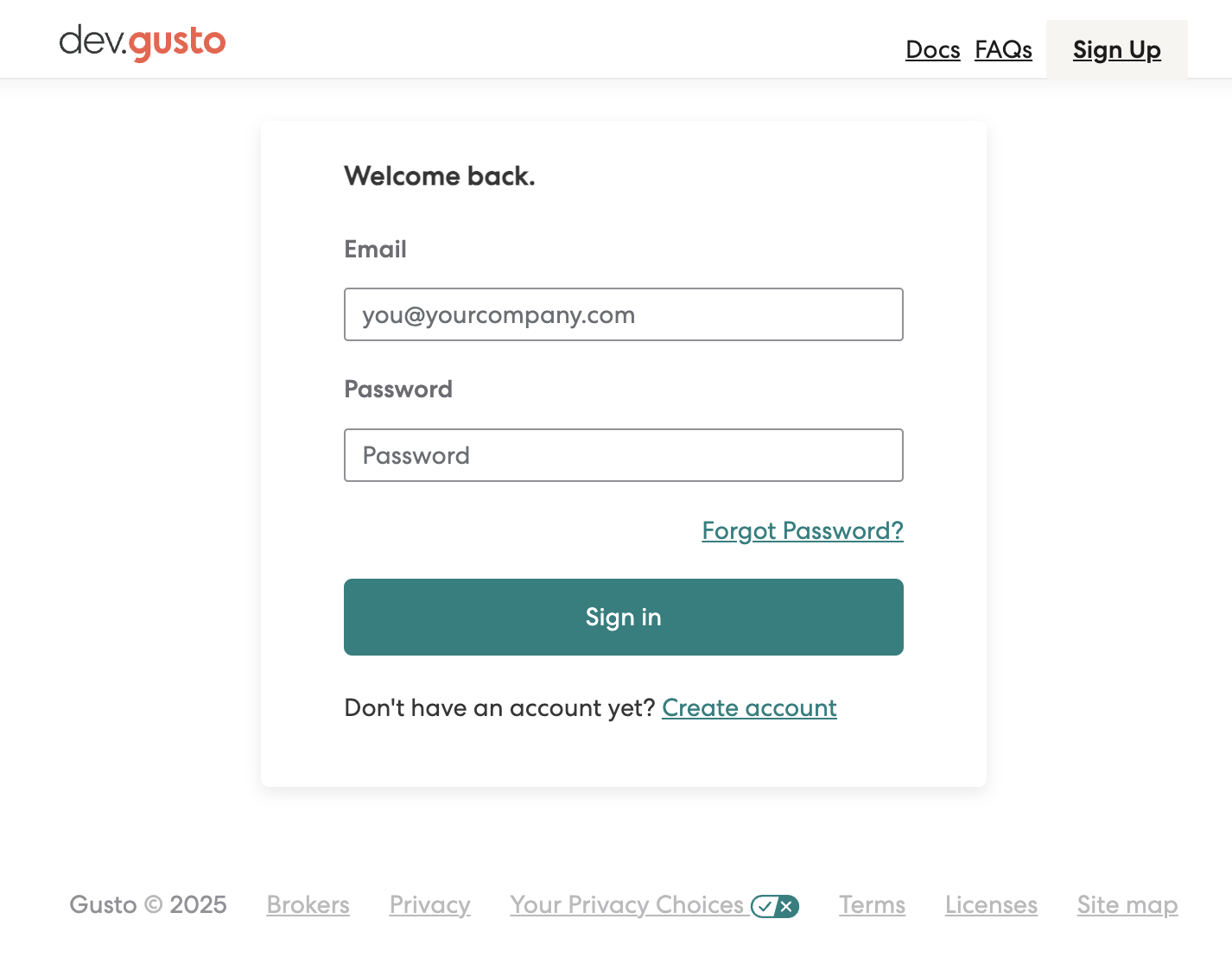
Step 1: Log into your Gusto developer account
From the Gusto developer portal, log into your Gusto developer account which was created during the partnership process.
Step 2: Create a demo application in your Gusto developer portal
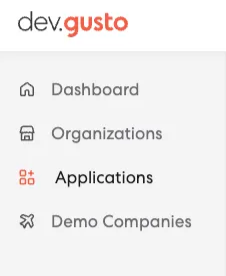
On the left-side menu, navigate to the Applications page in your portal.
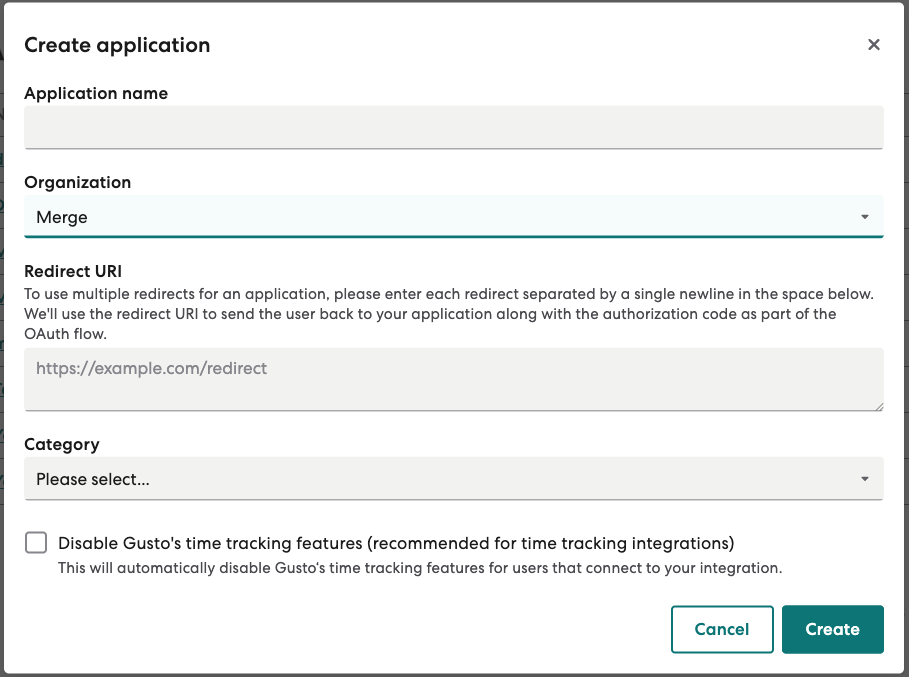
Click the “+ Create application” button the right-hand side, and complete the application creation.
Step 3: Collect your OAuth credentials from your demo/test application
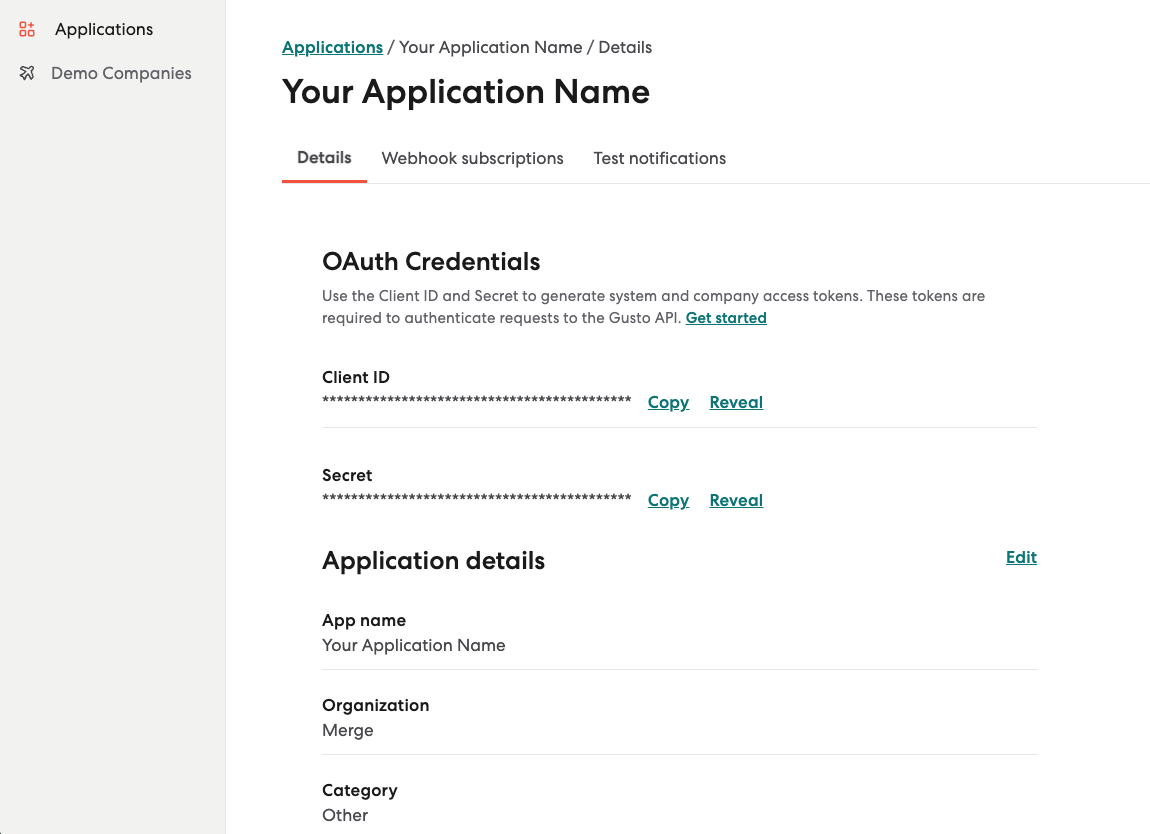
Once you have created the demo/test application, click into it from the Applications page of your Gusto developer portal. The listed OAuth credentials — Client ID and Secret — within that page are required for connecting your Gusto testing instance. Copy and store these credentials in a safe place.
Step 4: Input your demo/test application credentials into Merge
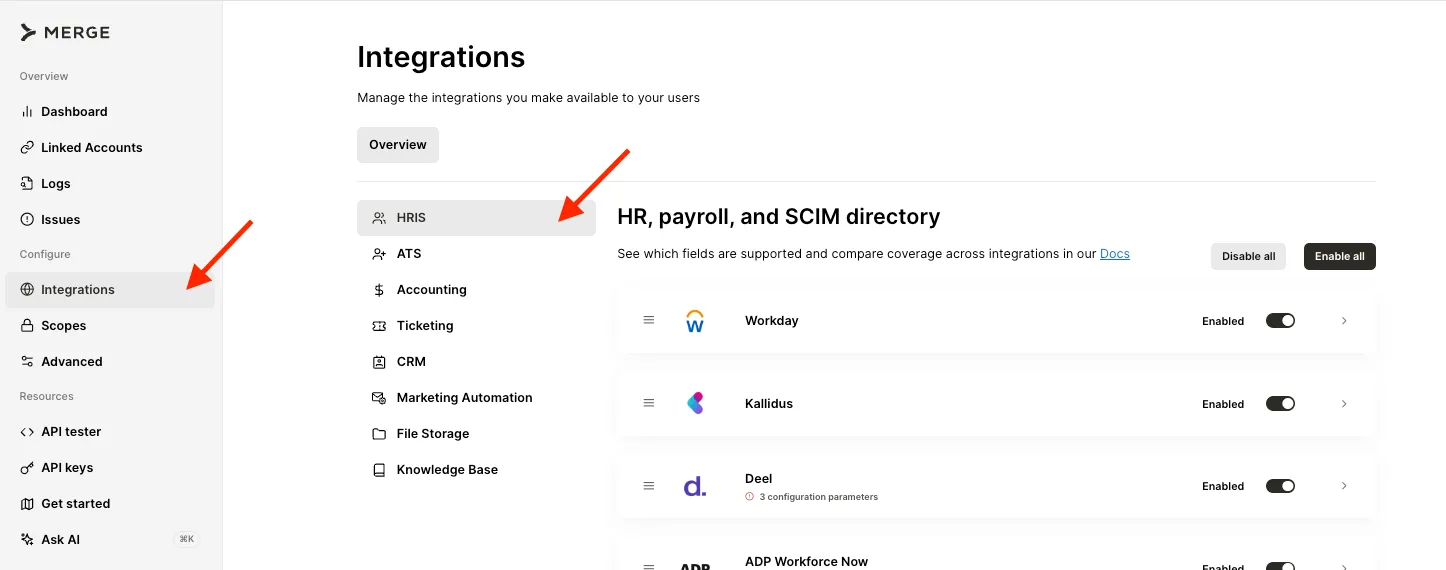
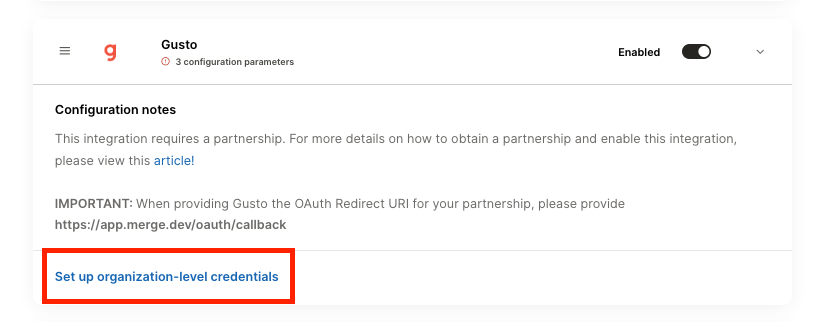
Navigate to your Merge dashboard, and click into the Integrations page on the left-side menu. Within the HRIS category, find and click into the Gusto integration. In the configuration notes, click into “Set up organization-level credentials”.
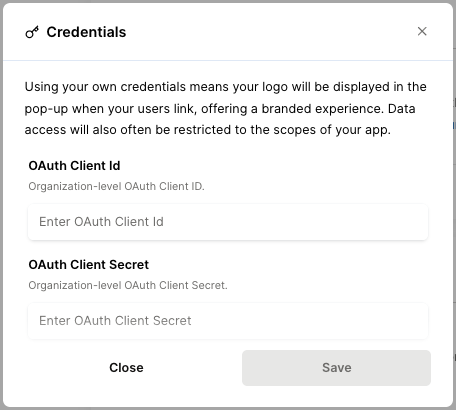
In the pop-up modal, input the OAuth Client ID and Client Secret associated with your application that you previously created from your Gusto developer portal. For the Redirect URI use: https://app.merge.dev/oauth/callback
Once complete, you will be able to connect demo/testing instances of Gusto via Merge Link.
Creating a Gusto Demo Company and connecting to it
Step 1: Create a Gusto Demo Company
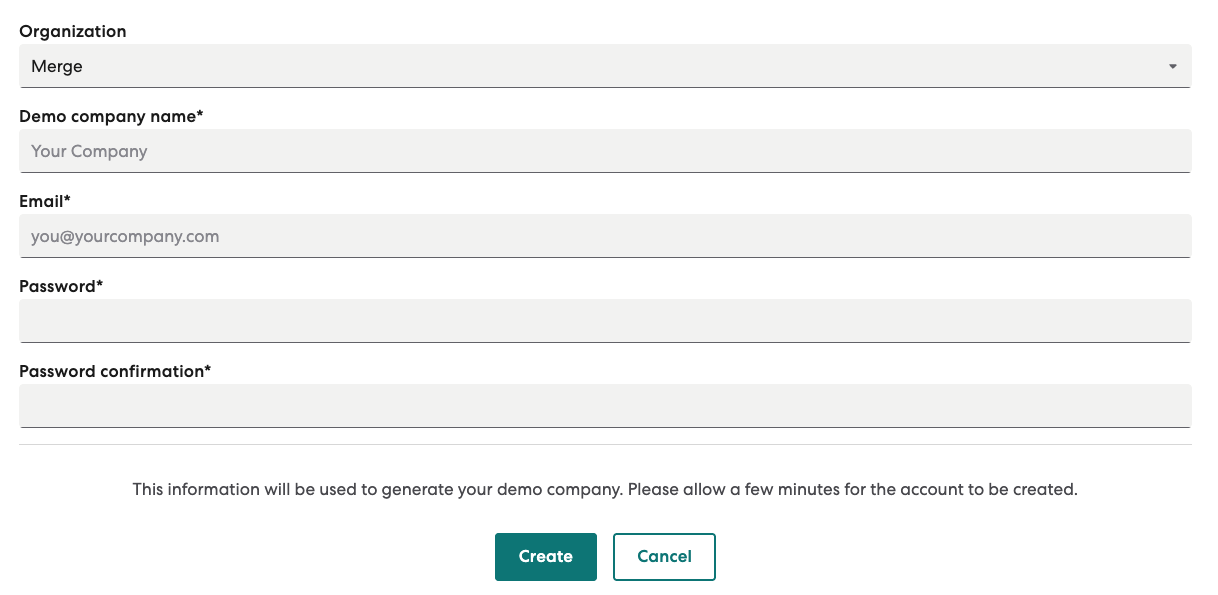
Within the Demo Companies page of your Gusto developer portal, click “+ Create demo company” and complete the creation of your demo company.

Step 2: Enter information in the linking flow
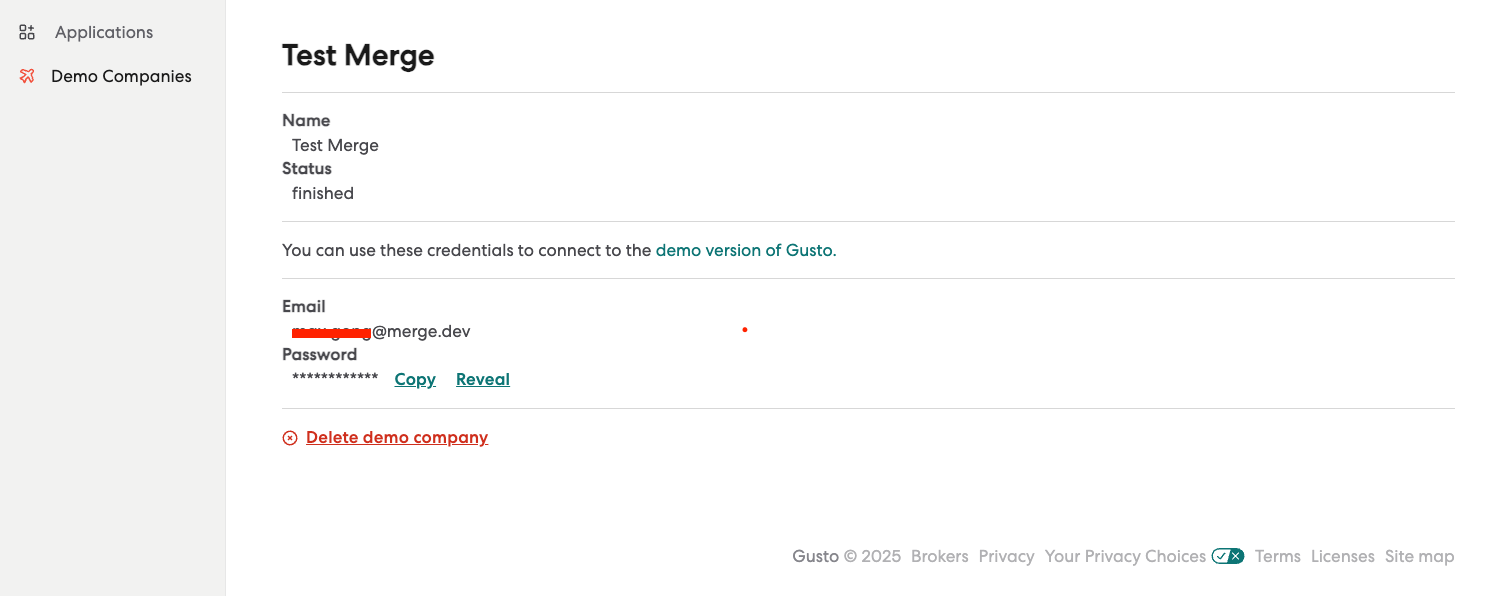
Click into your Demo Company from the Demo Companies page, then copy and store the associated email (User ID) and Password for the linking flow.
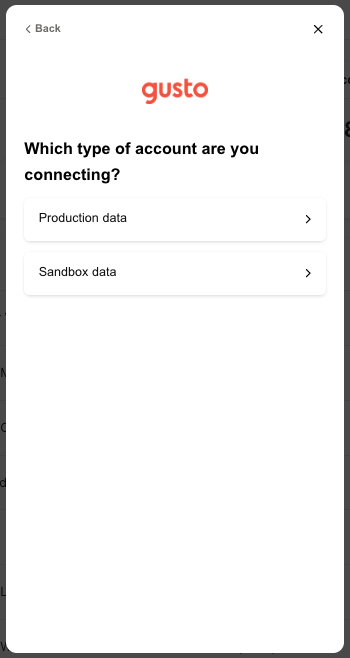
Navigate to your Merge dashboard and create a test linked account within Merge. Select “Sandbox data” in the linking flow.
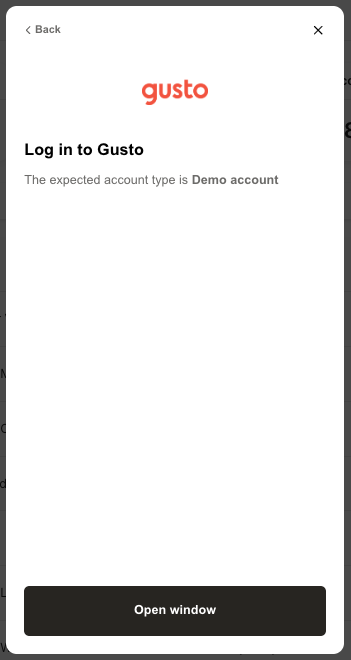
You will be prompted to log in to Gusto with Demo account type. Click “Open window” to log in.
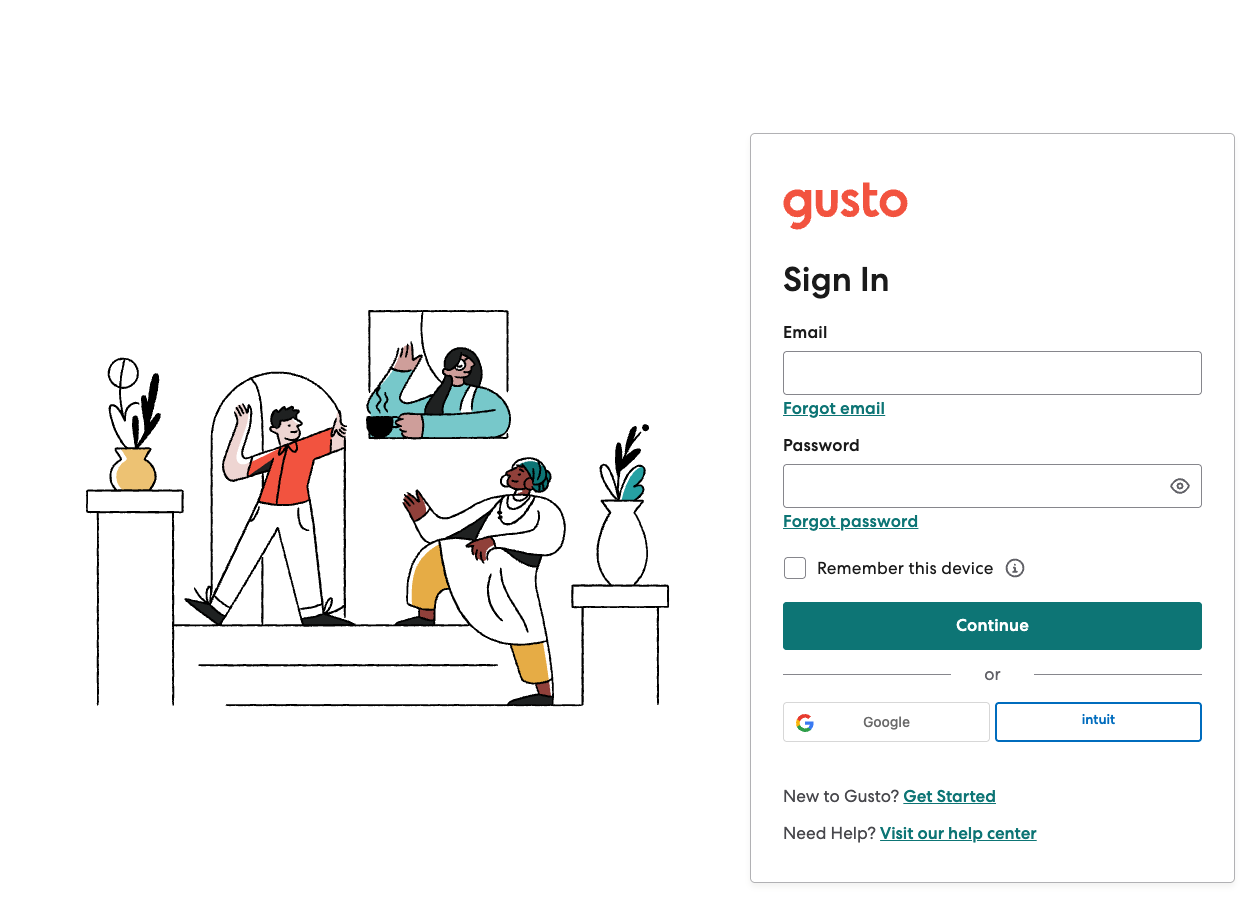
Input the demo company credentials that you previously copied and stored into the Gusto login pop-up window.
Select the Demo Company that you previously created in Step 5.
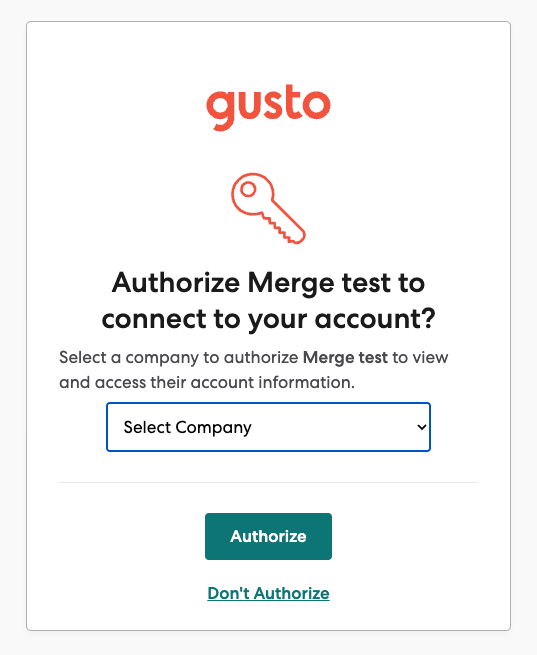
Once complete, your test instance will be connect, and you will be able to test your Gusto demo company account via Merge.