Darwinbox - How do I link using an API Key?
Last updated: April 2, 2026
Overview
This guide will walk you through creating an API key within Darwinbox and entering it into linking flow.
Instructions
Step 1: Contact your Darwinbox Rep
In preparation of accessing your Darwinbox data, please reach out to your Darwinbox rep to obtain the following information:
Username
Password
API Key and Dataset Key for All Active Employees
API Key and Dataset Key for All Inactive Employees
To access fields corresponding to employee data via Darwinbox's API, please request the following fields to be enabled for their masterapi:
"group_company",
"employee_id",
"department_name",
"designation_name",
"first_name",
"last_name",
"cost_center_id",
"cost_center_name",
"cost_center_effective_from",
"date_of_activation",
"latest_modified_timestamp",
"department_code",
"group_company_code",
"business_unit",
"business_unit_code",
"company_email_id",
"personal_email_id",
"personal_mobile_no",
"direct_manager_employee_id",
"gender",
"full_name",
"marital_status",
"date_of_birth",
"date_of_joining",
"employee_status",
"employee_type",
"date_of_exit",
"current_address",
"current_address_line_1",
"current_pin_code",
"current_city",
"current_city_code",
"current_country",
"permanent_address",
"permanent_address_line_1",
"permanent_pin_code",
"permanent_city",
"permanent_country",
"permanent_city_code",
"base_office_location",
"location_area",
"location_type",
"office_location",
"work_area_code",
"office_state",
"office_country",
"office_city"
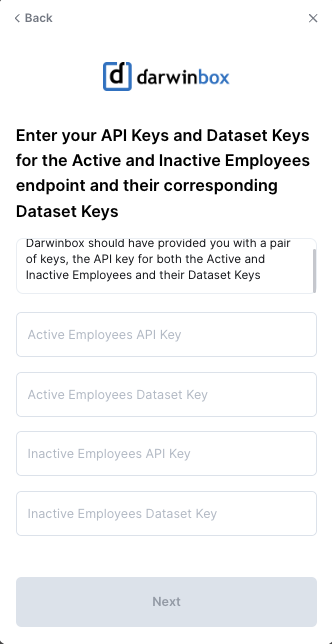
Step 2: Copy the key and enter it in the linking window
Go to your linking window and paste the API/Dataset Keys in the appropriate fields