Paylocity - How do I link using OAuth?
Last updated: September 8, 2026
Overview
To authenticate Paylocity, you will need to provide the following information:
Client ID
Client Secret
Company ID
This guide will walk you through finding or creating those credentials within Paylocity.
Prerequisites
Step 1: Fill out a Paylocity Web Services Access Request Form
Paylocity Web Services - Access Request Form.
How to fill in the form:
The Client Contact Information should contain information about your company (for example, your HR personnel).
The Vendor / Third-Party Contact Information should contain information for the company you are connecting to.
Under "Briefly describe use case," mention "we are using Merge to connect.".
You can ignore the "Webhook Push Notifications" section unless you plan to enable the Paylocity "Time Off" Webhooks.
Permissions:
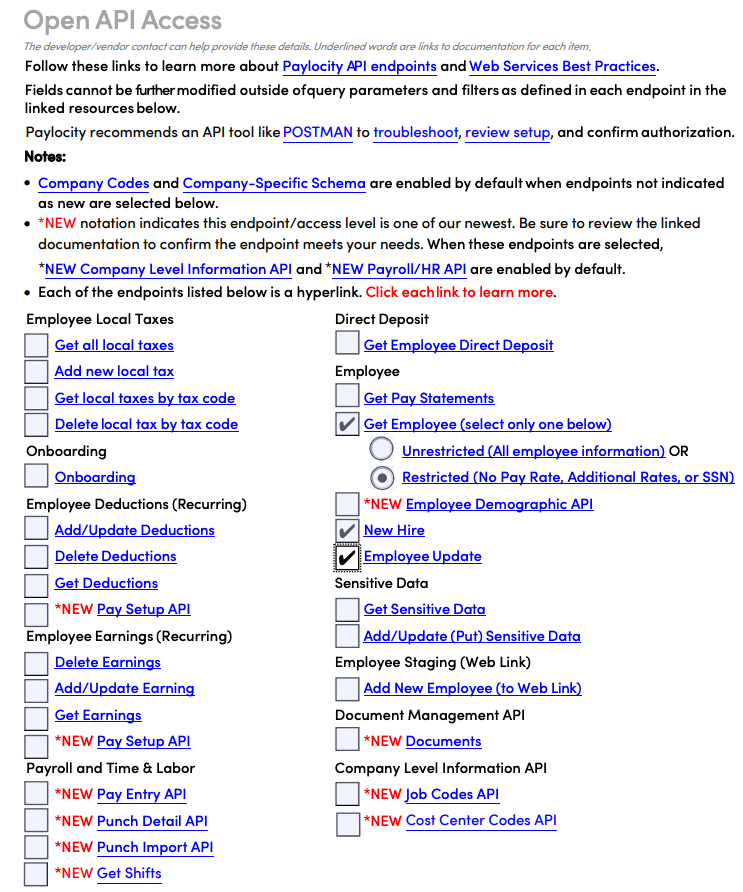
If you DO NOT need Pay Statements, Deductions, & Earnings, fill out the following:
If you DO need Pay Statements, Deductions, & Earnings fill out the following:
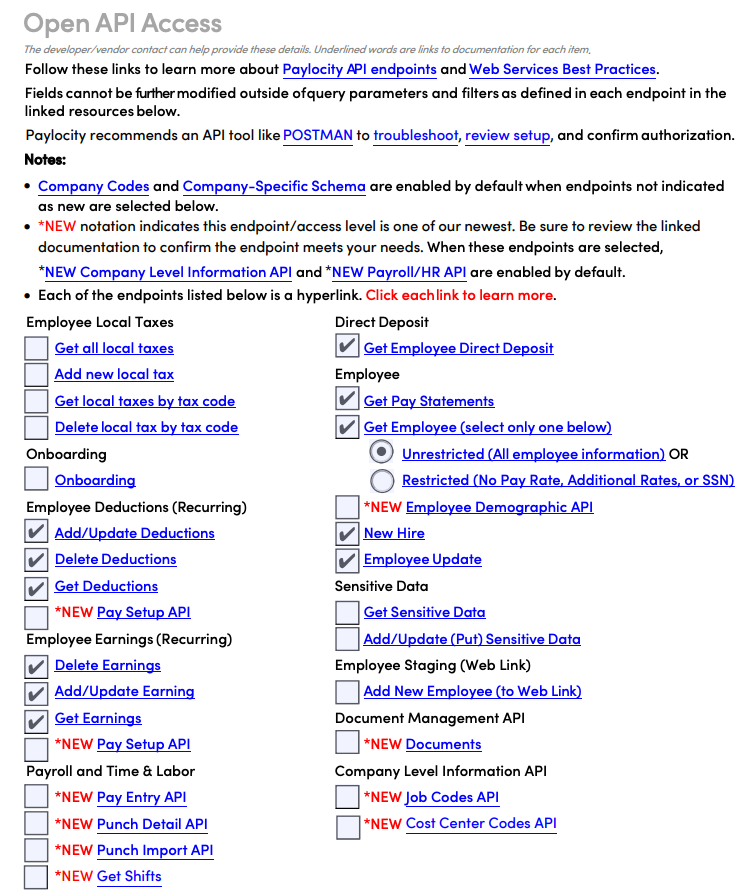
Get Employee is a required permission to authenticate the linking flow, but only endpoints needed for your integration should be selected. For example, if you don’t need Pay Statements, Deductions, or Earnings, remove those from the permissions.
Step 2: Send your completed form to [email protected]
The email body should contain the following:
Subject: Requesting Client ID and Client Secret


Hi Paylocity team, can we get access to a Client ID and Client Secret for API access? (https://www.paylocity.com/our-products/integrations/api-library/) We have attached the form specifying relevant permissions.
There may be a cost associated with the API setup & gathering of credentials from Paylocity.
Instructions
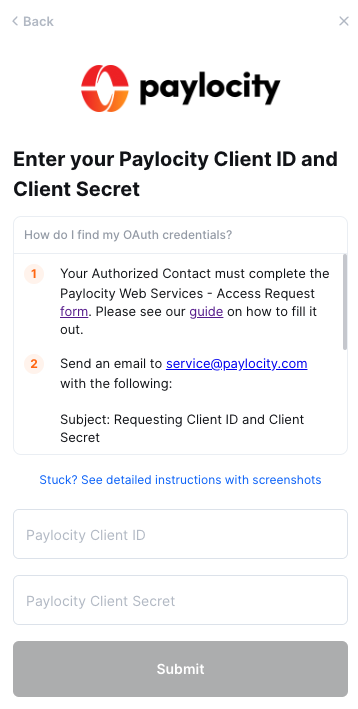
Step 1: Enter your Client ID & Secret into the linking flow
Paylocity will provide you with your Client ID and Client Secret, which you can enter into the linking flow. For further information, you can find full details on Paylocity's website here.
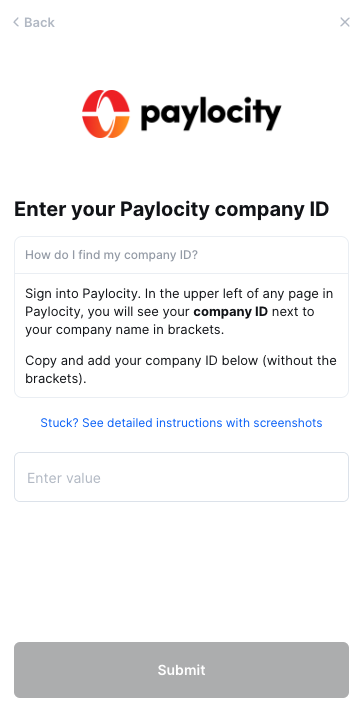
Step 2: Enter your Company ID into the linking flow
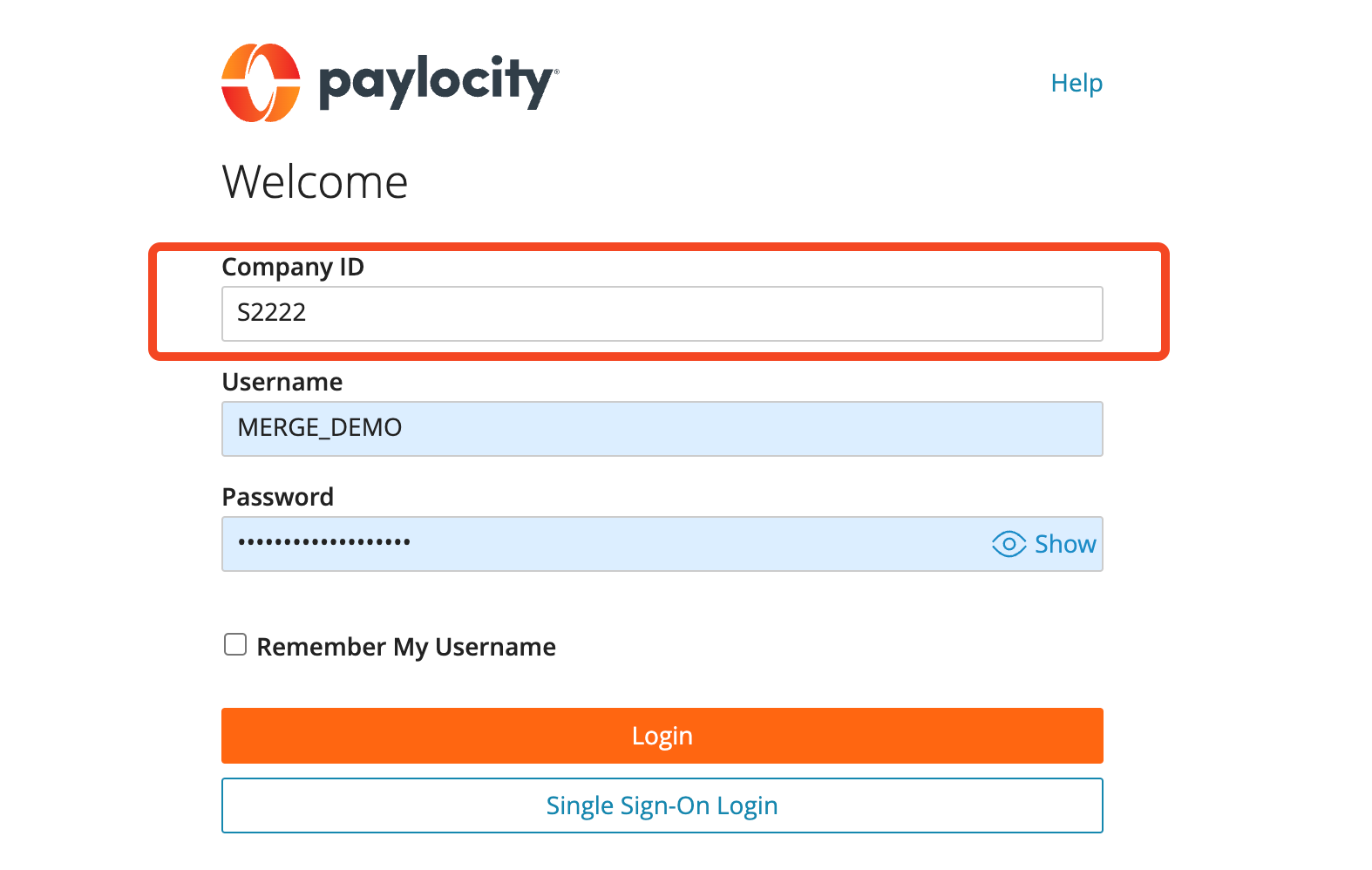
Your Company ID is the ID you used to login into Paylocity, and it will be the same ID you see in the upper left-hand corner of your Paylocity portal. Enter your Company ID into the linking flow.
If your Company ID includes “CS”, only enter the number that follows it. In all other cases, enter the ID exactly as it appears, because the values are case-sensitive.

Step 3: Enter additional company IDs
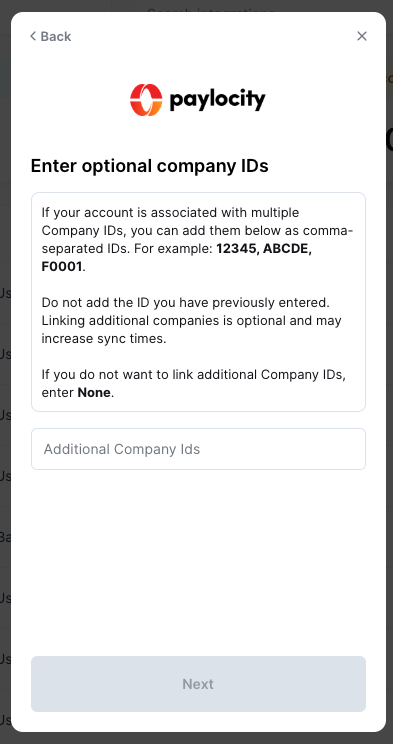
If you are using multiple companies within your Paylocity account which you want to link, enter any additional company IDs on the Enter optional company IDs step.
Company IDs are case-sensitive, so please enter it exactly as it appears in Paylocity.
Separate multiple IDs with a comma, for example
12345,ABCDE,F0001.Do not include a space after the comma.
Enter
Noneif you do not want to link multiple companies.Click Next once done.
Notes
When providing optional companies, be aware that the same person may be employed by more than one company during the course of their employment. In these cases you would see the same employee several times (once for each company).