HubSpot - How do I link my account?
Last updated: December 3, 2025
Overview
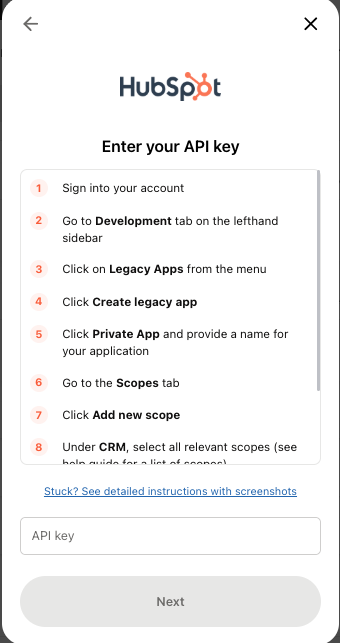
To authenticate HubSpot, you will need to provide an API Key. This guide will walk you through finding/creating the API Key in HubSpot.
Instructions
Step 1: Set up a private app
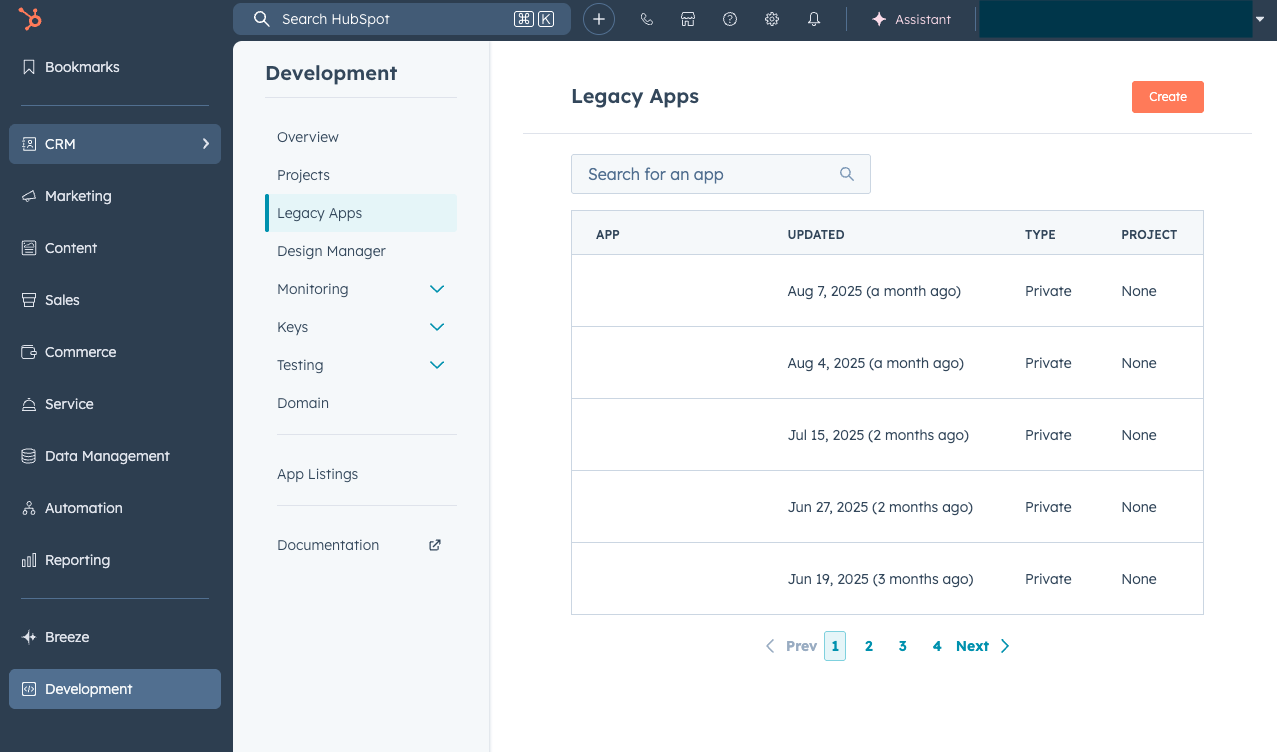
Go to the Development tab on the lefthand sidebar.
From here, select Legacy Apps from the menu -> click Create in the top right corner to open the Create Legacy App window.
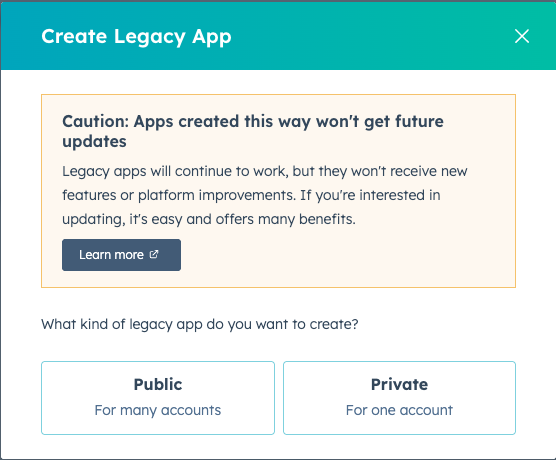
Select Private App and provide a name for your application.
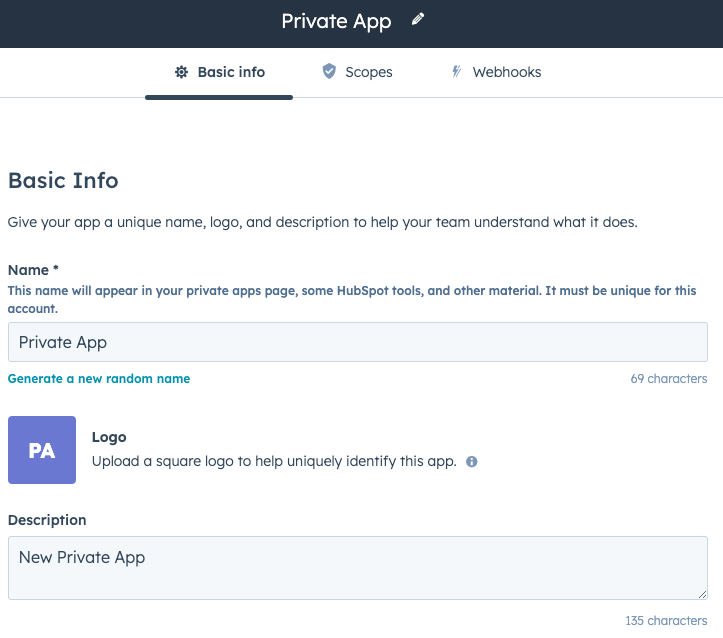
Go to the Scopes tab and enable the following scopes
Permission | Requirement | When it’s needed |
crm.objects.companies.read | Required | To read companies |
crm.objects.companies.write | Optional – only if writing | If you want Merge to create or update companies |
crm.objects.contacts.read | Required | To read contacts |
crm.objects.contacts.write | Optional – only if writing | If you want Merge to create or update contacts |
crm.objects.leads.read | Optional – leads only | To read leads (only available on HubSpot Premium plans) |
crm.objects.custom.read | Required | To read custom objects |
crm.objects.deals.read | Required | To read deals |
crm.objects.deals.write | Optional – only if writing | If you want Merge to create or update deals |
crm.objects.owners.read | Required | To read owners |
crm.schemas.custom.read | Optional – only for custom objects | To read custom objects’ schemas |
sales-email-read | Required | To read sales emails |
Step 2: Copy the generated key and enter it into the linking flow