iTrent - How do I link my account?
Last updated: July 6, 2026
Overview
To authenticate iTrent, you will need to provide the following information:
Web Server Name
Connection Name
Username
Password
Prerequisites
Please ensure you fulfill all the requirements to set up the integration:
You have Administrator permissions in your company's iTrent instance.
Instructions
Step 1: Create a user with API access
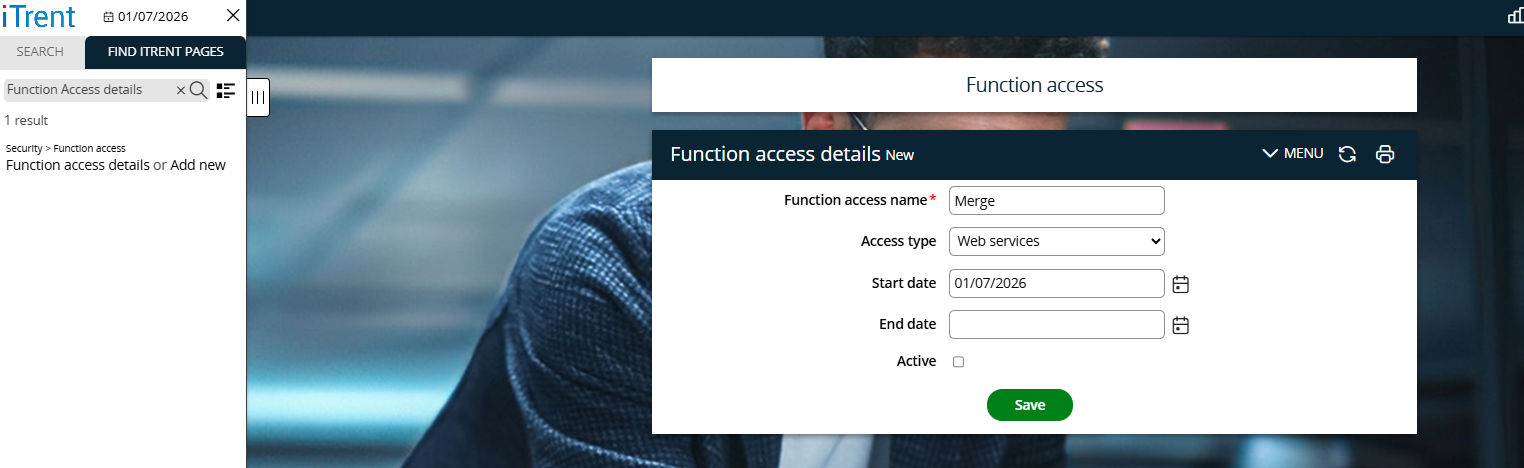
Firstly, you need to Add a new Function Access Details. Search for the page Function Access Details.
Give it a name.
Access type of Web Services.
Start Date (No End Date required).
Mark as Active.
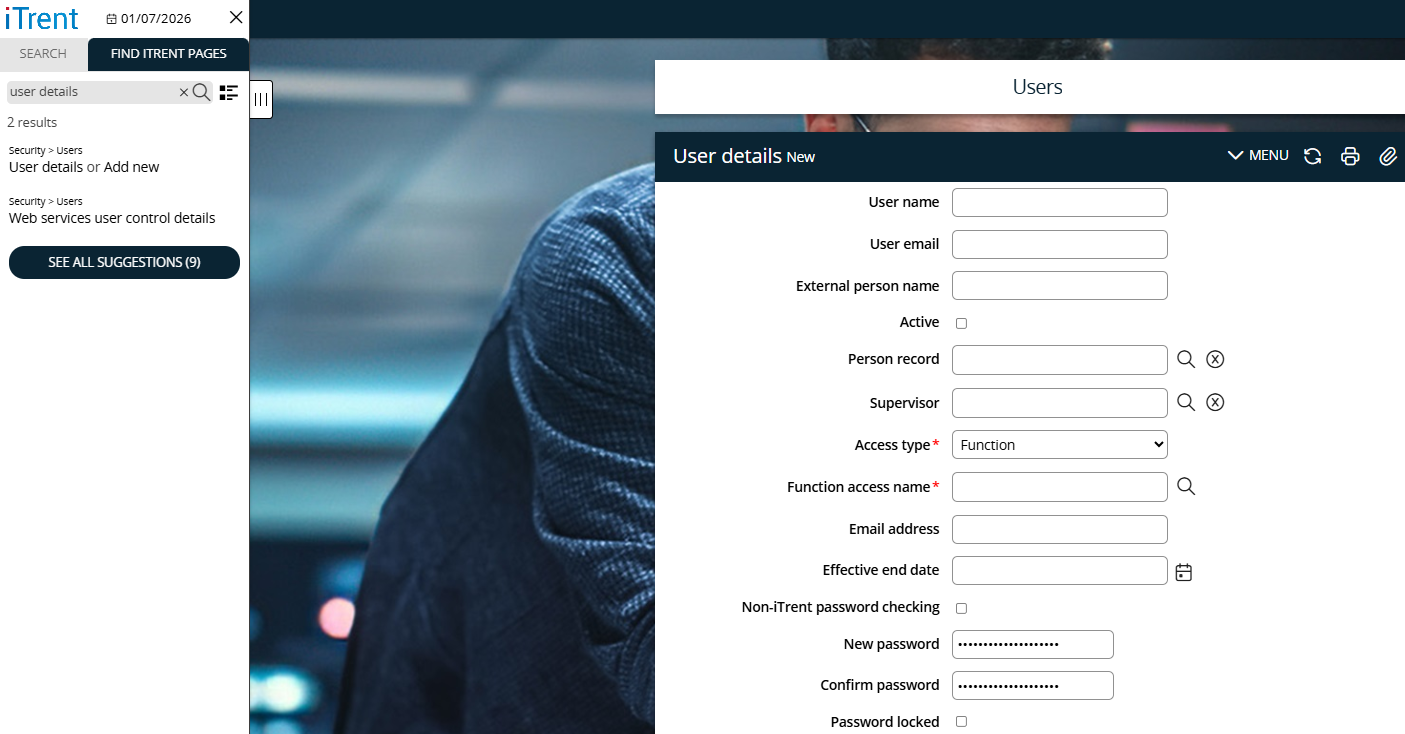
You then need to Add New User. Search for the User Details page.
Provide Username.
Access Type: Function Access.
Function Access Name – Search and select the name of the function access created in the step above.
Set Password and Save.
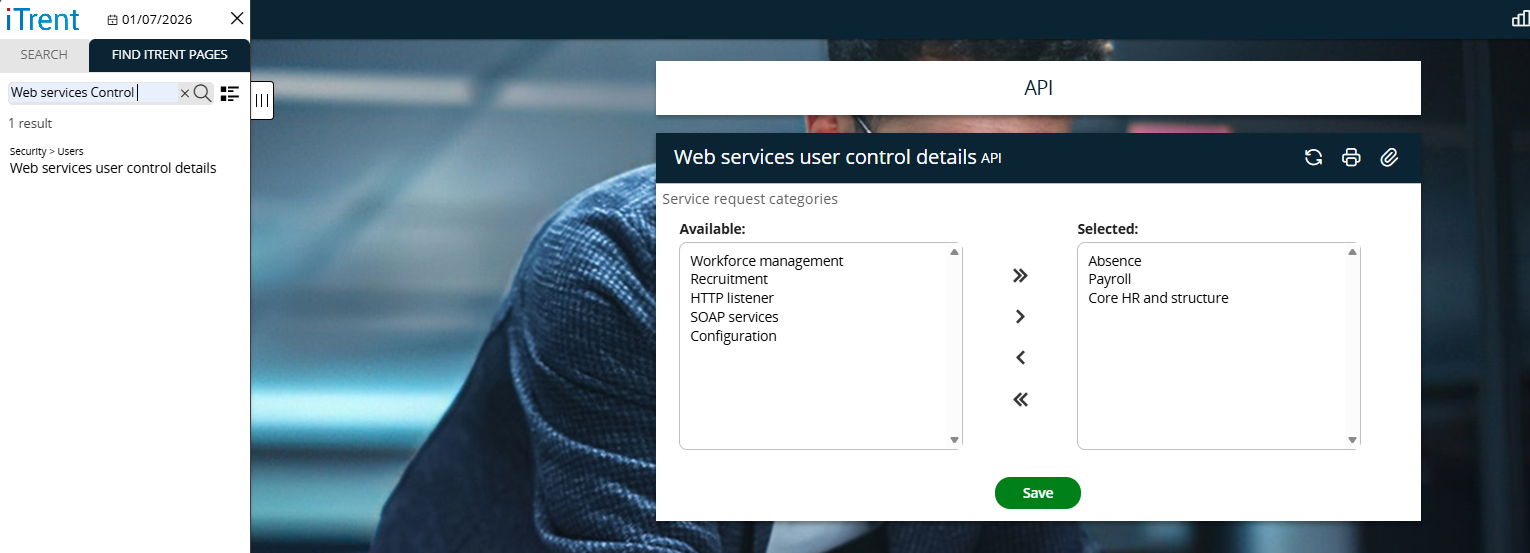
You then need to set the API access for that new user created – go to the Web Services User Control Details Page.
Search and select the newly created user.
Select the required API access areas and save.
If you search for a page called ‘User Details’, this is where you can set up new users and create credentials. This user will need to be provided with WEBSERVICES function Access.
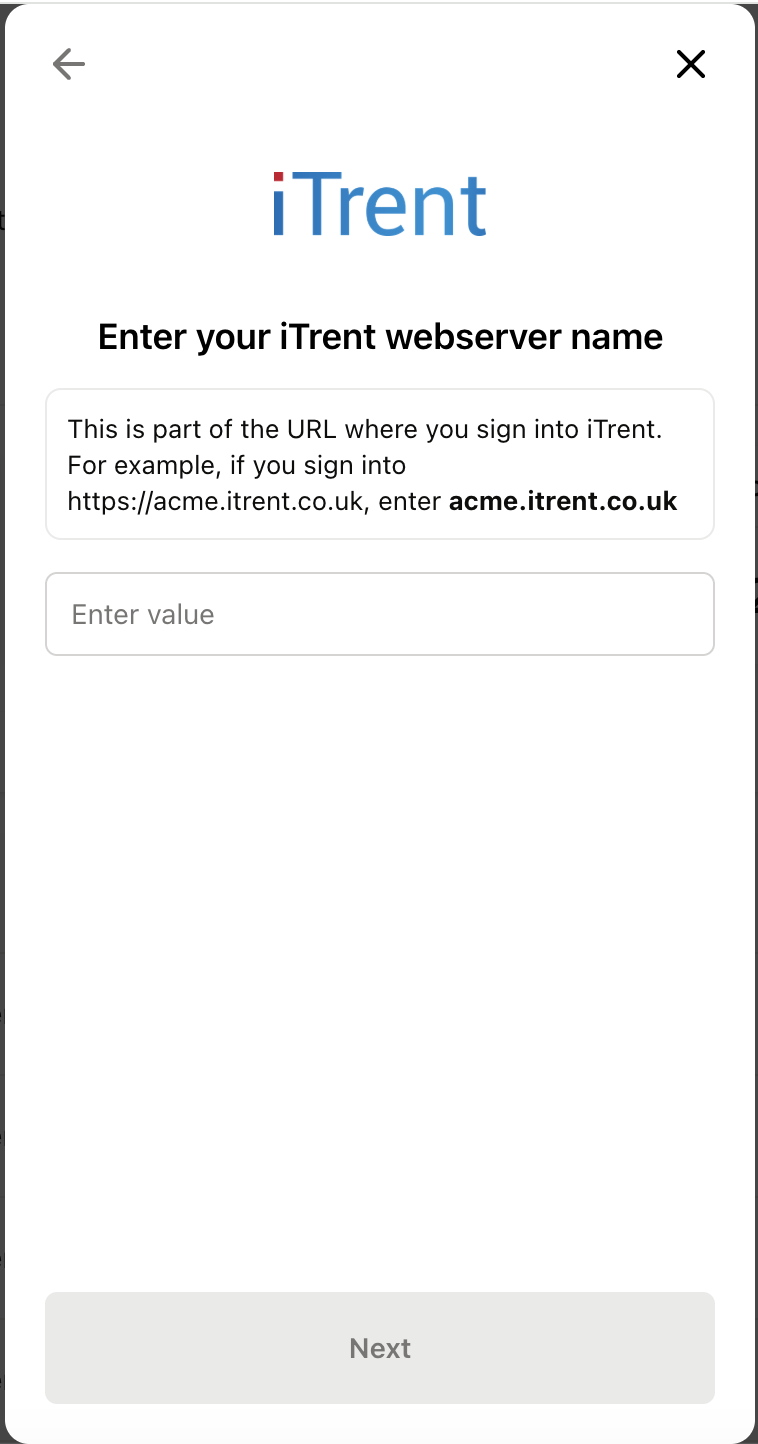
Step 2: Locate and enter the iTrent Web Server Name
Once logged into your iTrent account, find the Web Server Name. This is located within the URL once signed in. See the screenshot below as an example.

Enter the highlighted portion of the URL into Merge Link.
Step 3: Locate and enter the Connection Name
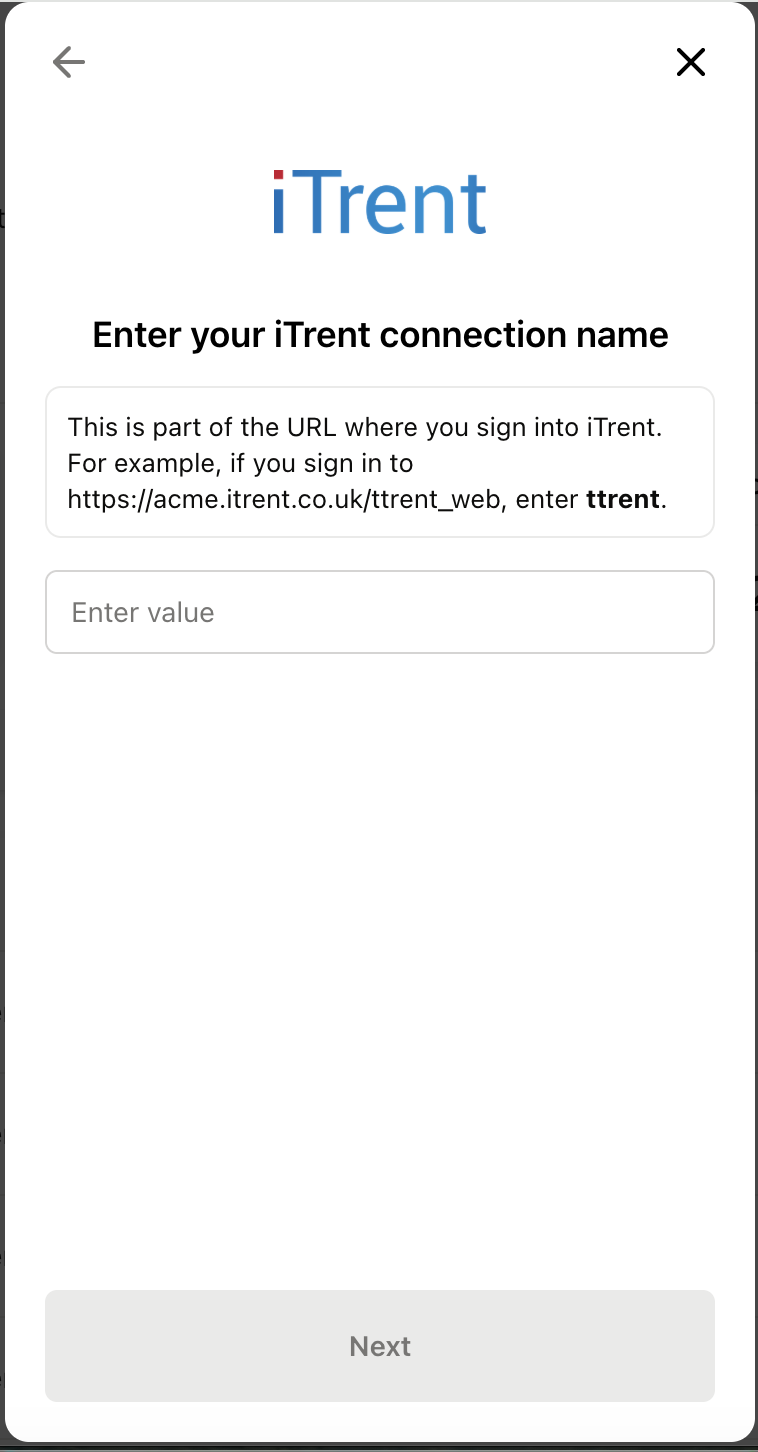
Once logged into your iTrent account, find the Connection Name. This is located within the same URL used above. See the screenshot below as an example.

Enter the highlighted portion of the URL into the linking flow.
Step 4: Locate and enter the organization name
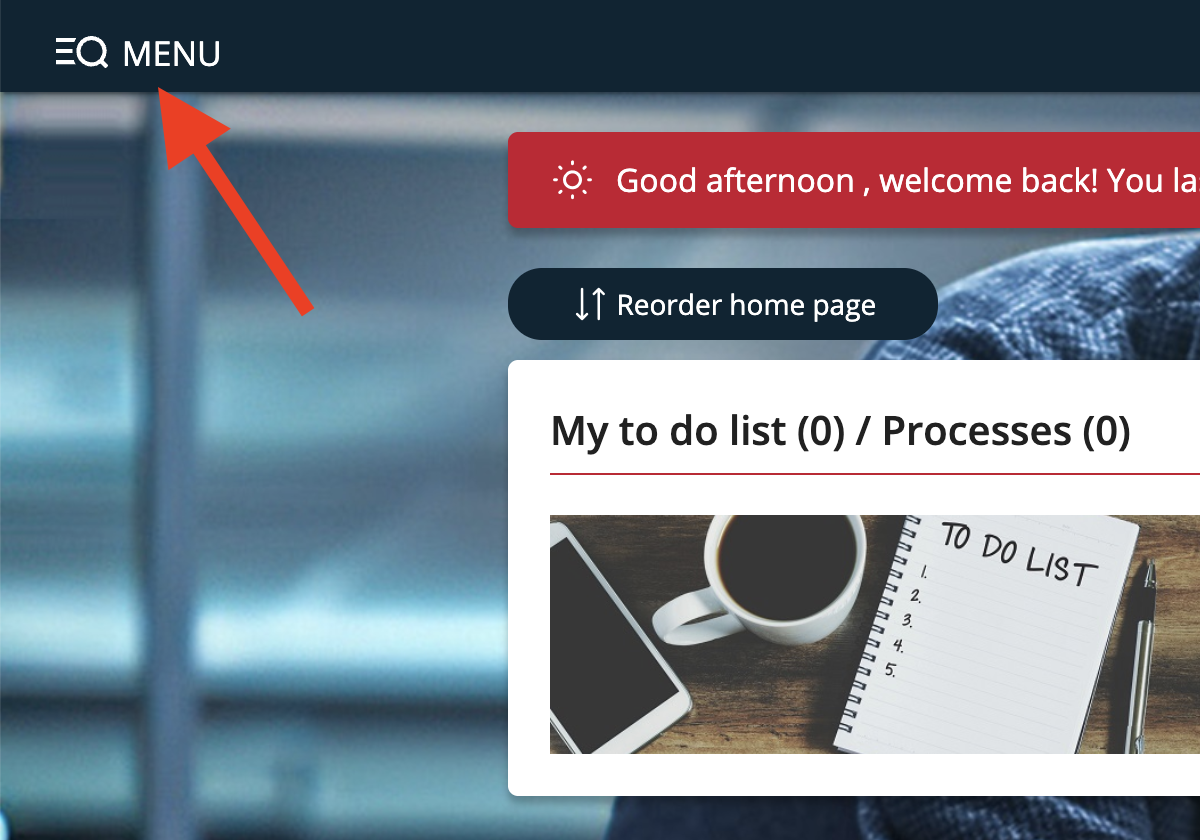
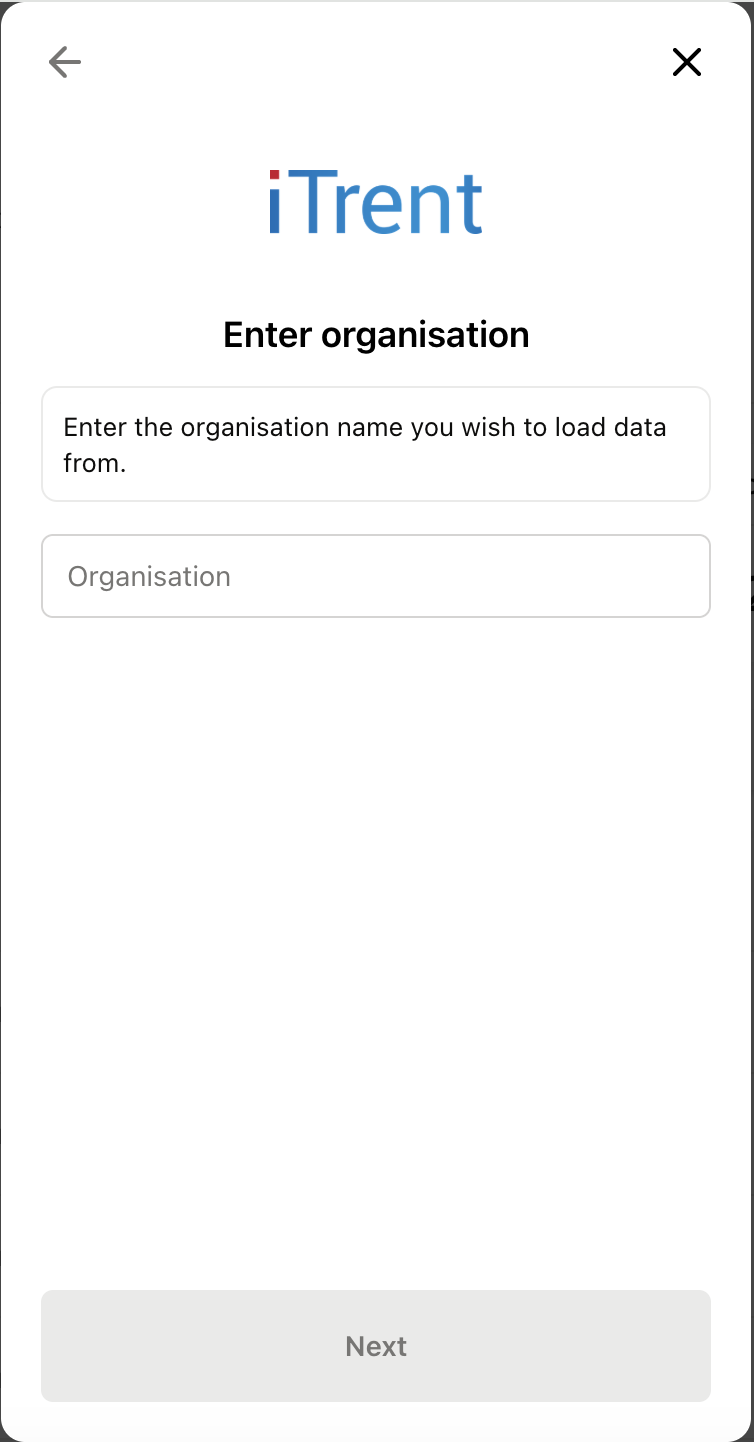
Enter the name of the organization you wish to load data from. This can be located within the iTrent platform home page, navigate to the Menu, and the name of the organisation will be listed on the left side bar. See screenshots below for examples.
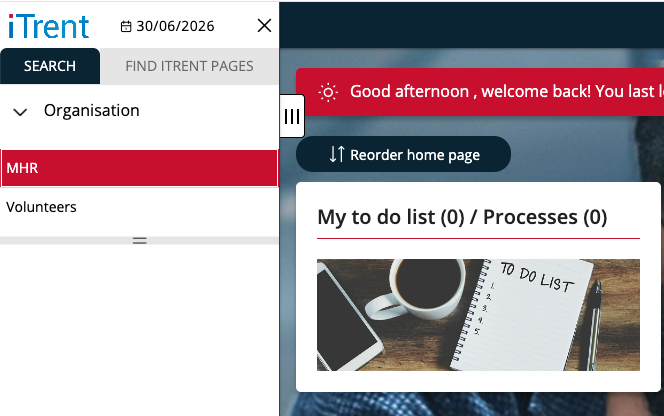
Input the name of the organisation into the Merge Link modal. In this example, the name would be "MHR".
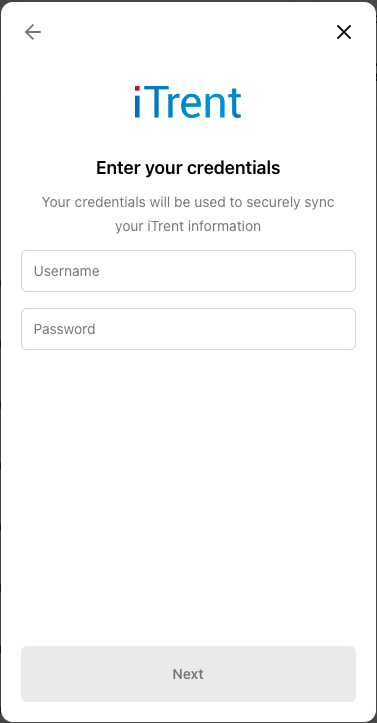
Step 5: Enter previously created Username and Password into Merge Link
Input the same credentials that were created in Step 1 for API access into the Merge Link modal.