Paycor - How do I link my account?
Last updated: April 3, 2026
Overview
To authenticate Paycor, you will need to provide the following information:
Company ID
Username
Password
This guide will walk you through finding or creating those credentials within Paycor.
Prerequisites
Please ensure you fulfill all the requirements to set up the integration:
You have a Paycor username & password with access to AppCreator. The Developer Portal is available to all Paycor clients, however, you must have an HR/Payroll/Company Admin create an App Creator account to utilize the API. There may be a cost associated with end users to retrieve the API Credentials from Paycor.
Instructions
Step 1: Log in to your Paycor Portal
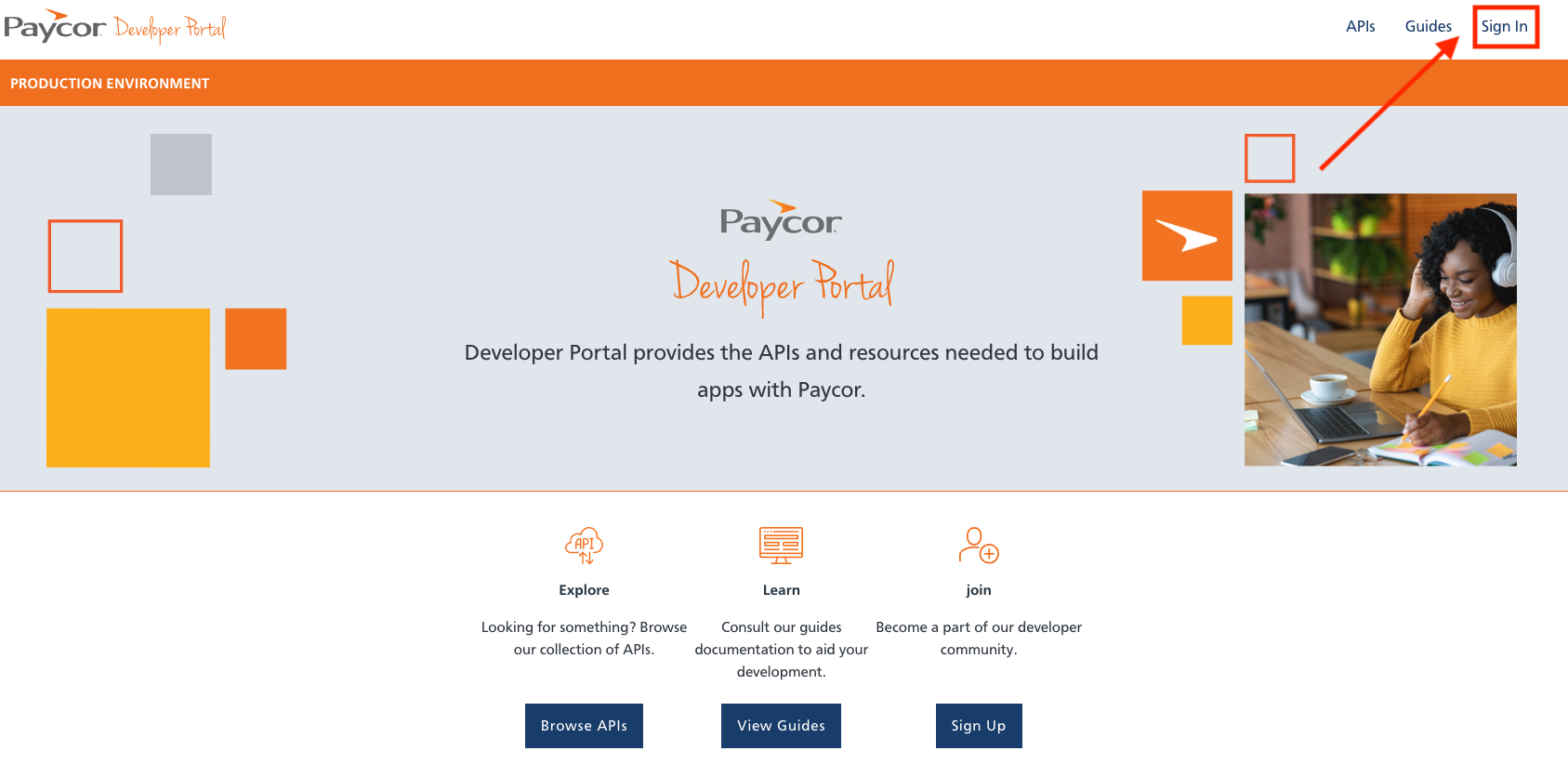
Go to developers.paycor.com
Click on “Sign In” in the upper-right hand corner and log in using your username and password
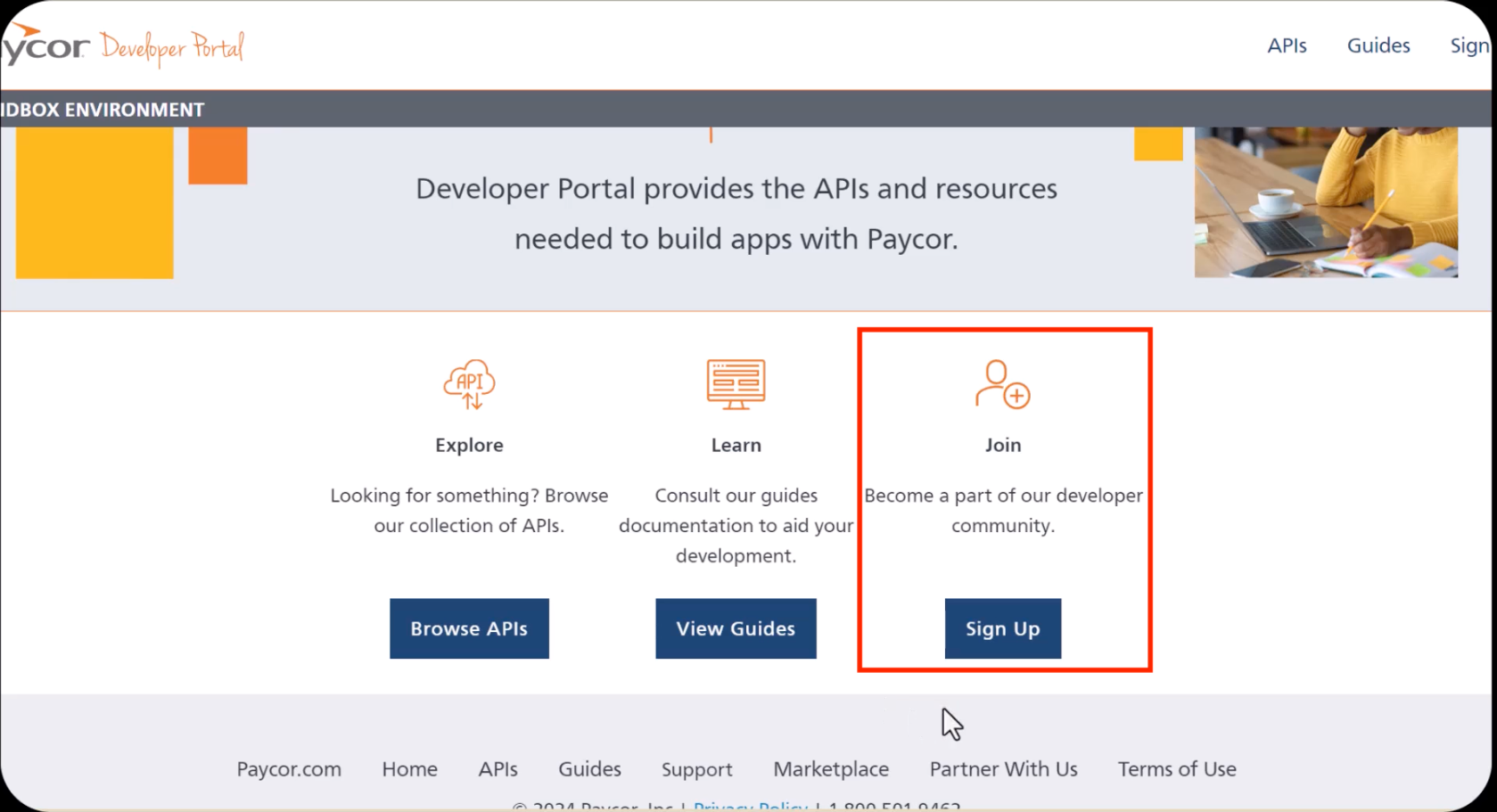
Return to the landing page at developers.paycor.com and select “Join”. The button may show "Sign Up" like below.
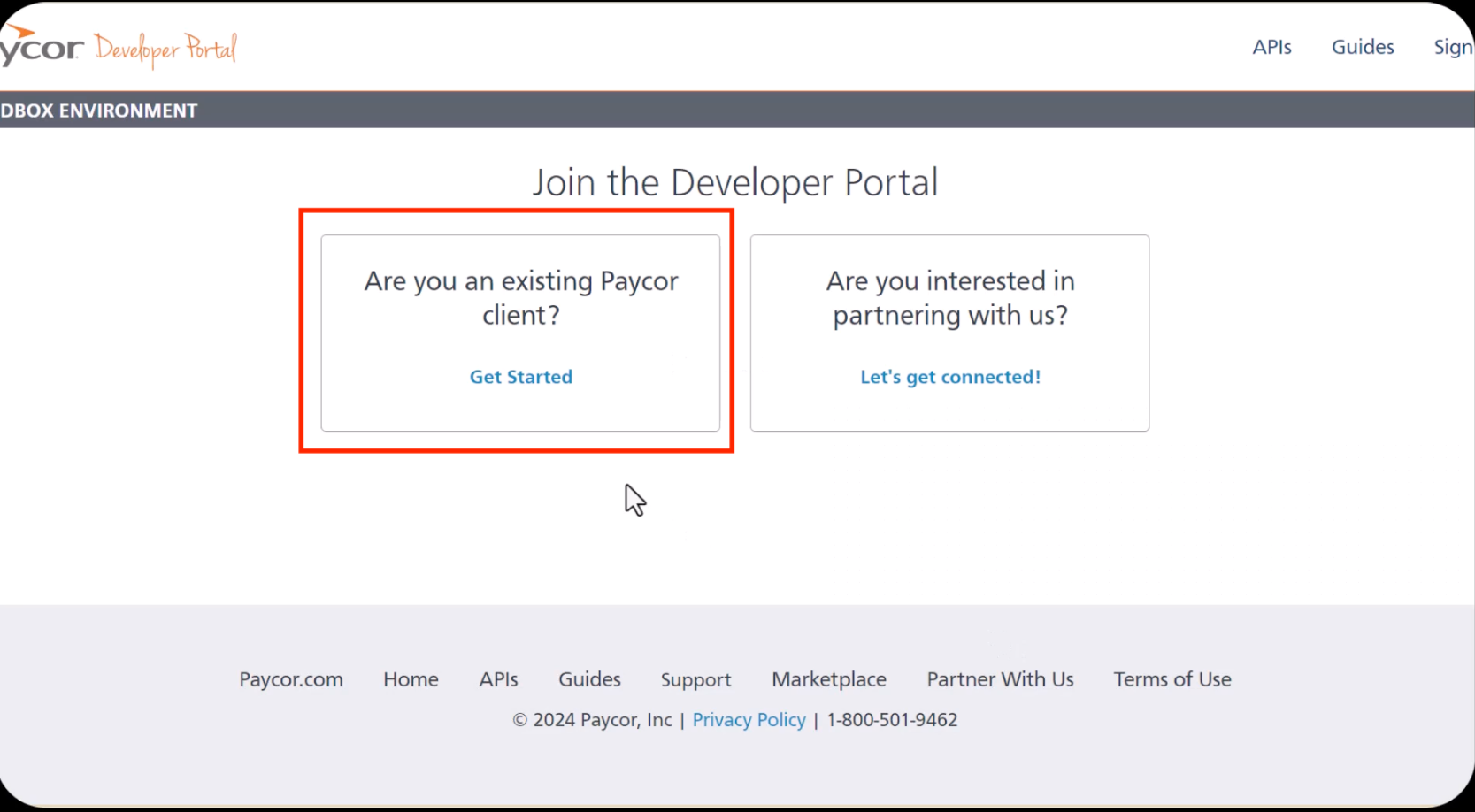
Select “Get Started” below “Are you an existing Paycor Client”
Select the Client IDs you would like to be eligible for this App Creator account. Alternatively, select All existing and Future Clients
Step 2: Find your Company ID
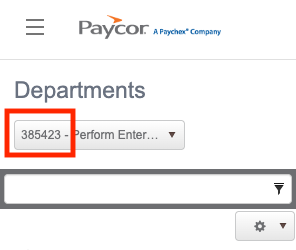
Click on the ☰ menu icon, then click on Company > Departments
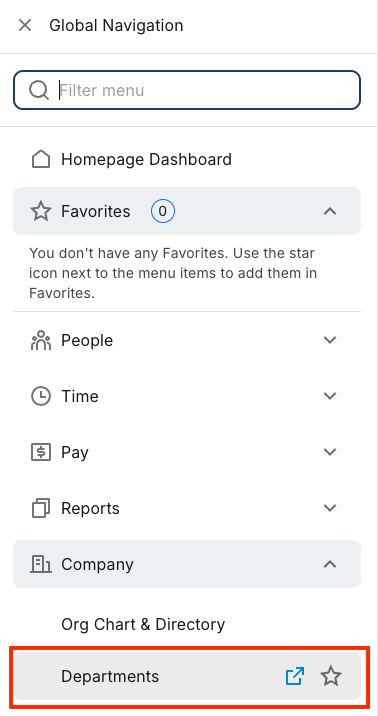
Retrieve your company ID from the top left. It will look something like "385423"
Step 3: Enter information in the linking flow
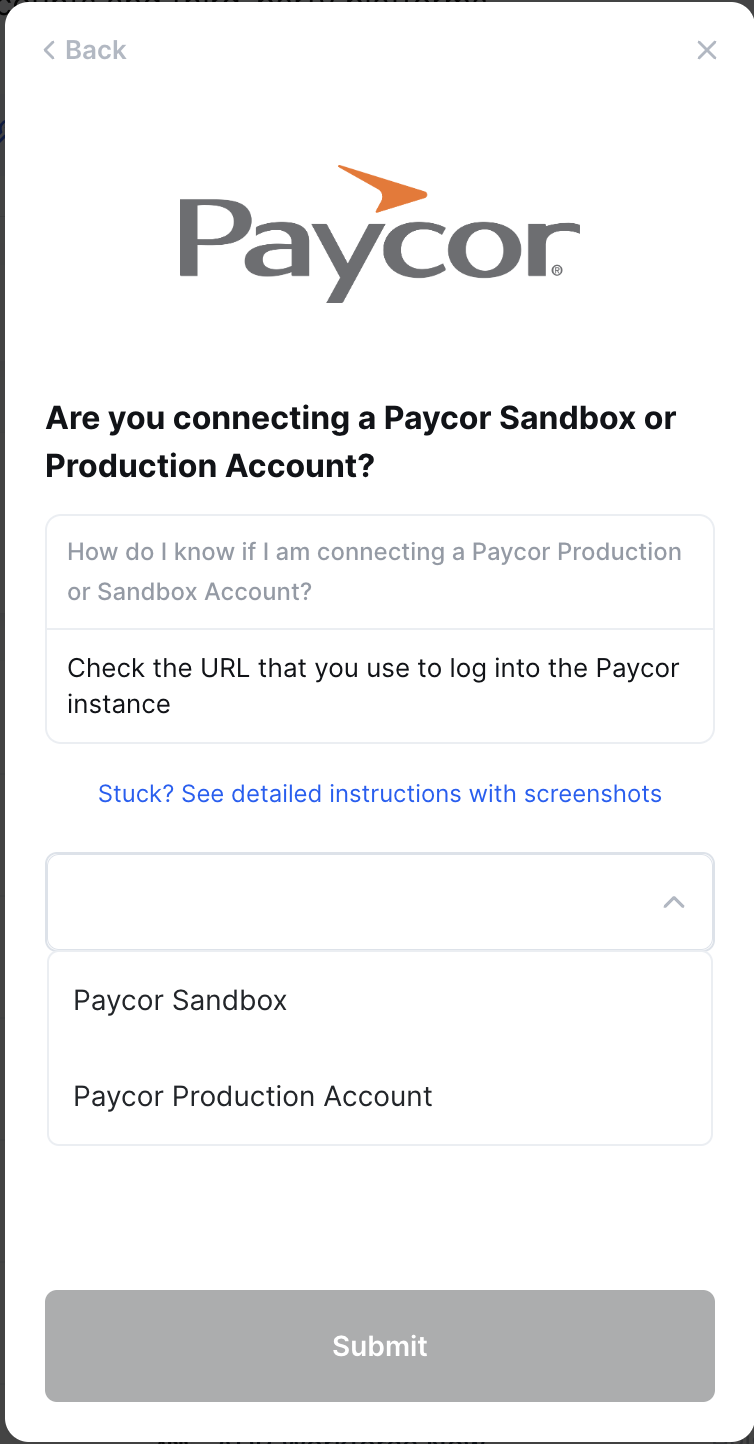
Back in the linking flow, select either Paycor Sandbox or Paycor Production Account, depending on the URL that you use to log into the Paycor instance
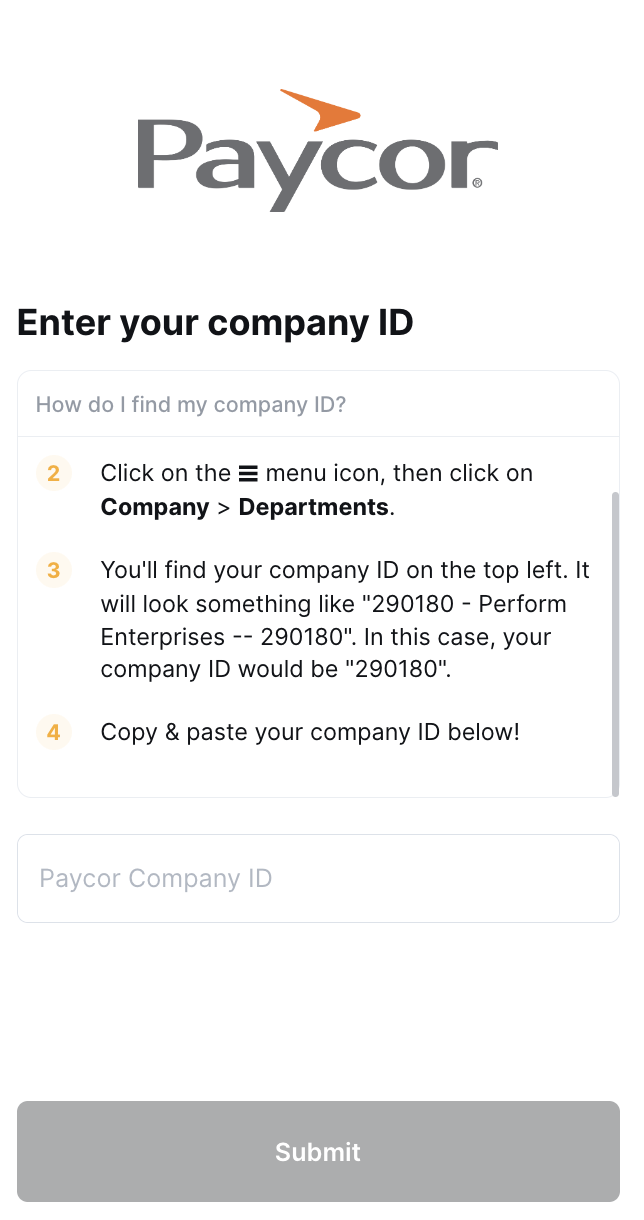
Next, enter the Company ID you found from step 2.2 above
On the next screen, click
Open window
A Paycor window will pop up. Log in using your Paycor username and password if you are not already
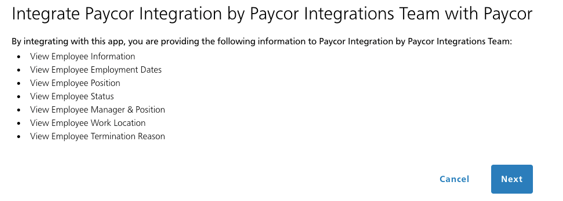
Review the access being requested and click "Next"
Select one Paycor Client IDs (Legal Entity IDs) to integrate with
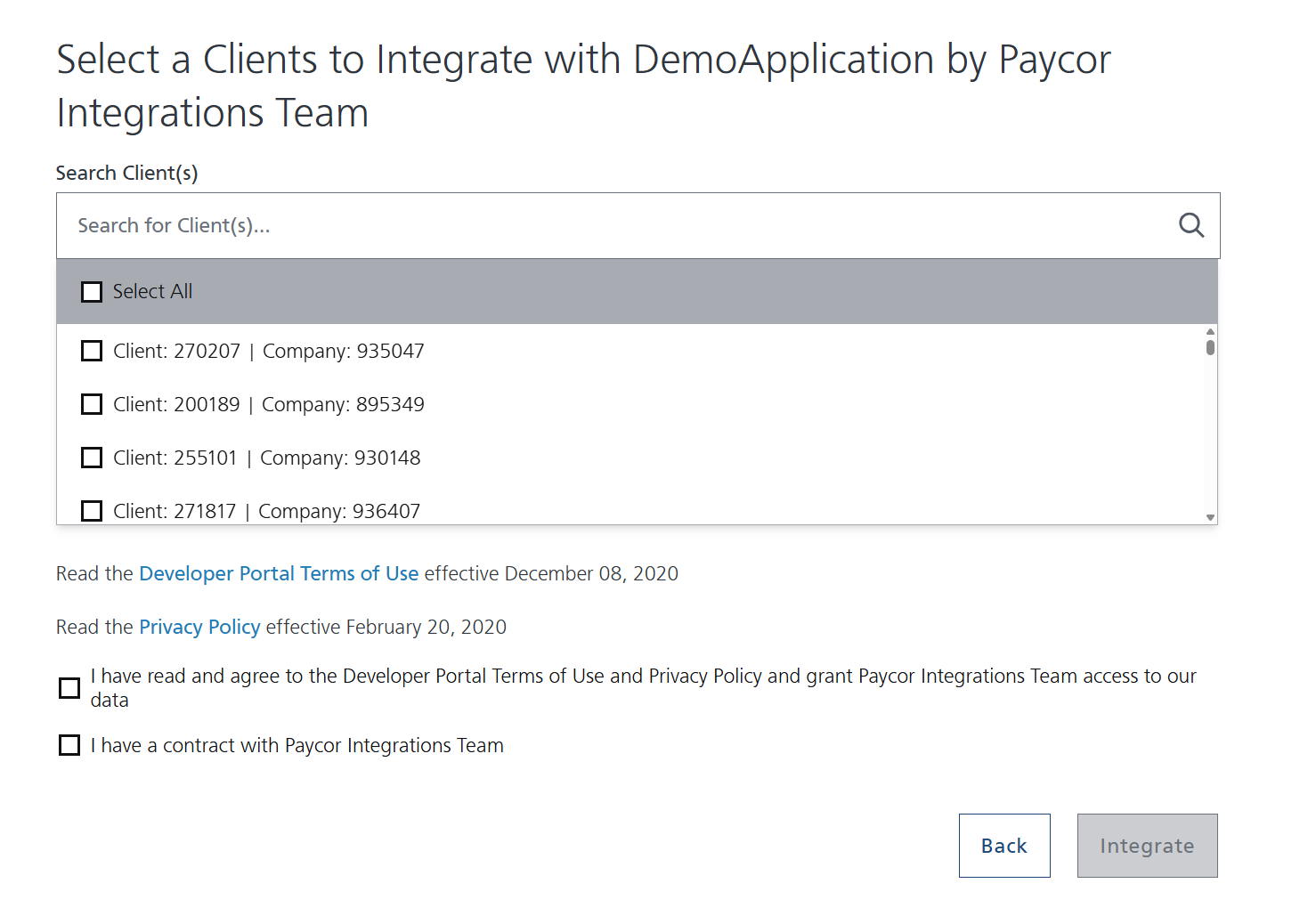
Agree and check the boxes to the Developer Portal Terms of Use, Privacy Policy and contract agreement with your integrator to access data
Click "Integrate"
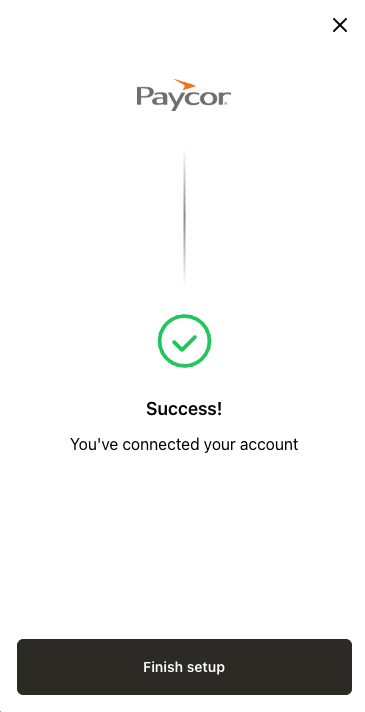
After this, you'll be redirected back to the linking flow while we finalize the connection with Paycor. Once finalized, you're all done!
Notes
Paycor currently does not allow multiple company IDs in a single connection. Instead, you will need to create a connection for each company ID you want to integrate with. If you do, you may need to contact your integrator for assistance.