TriNet HR Platform - How do I link with my API key?
Last updated: March 19, 2026
Overview
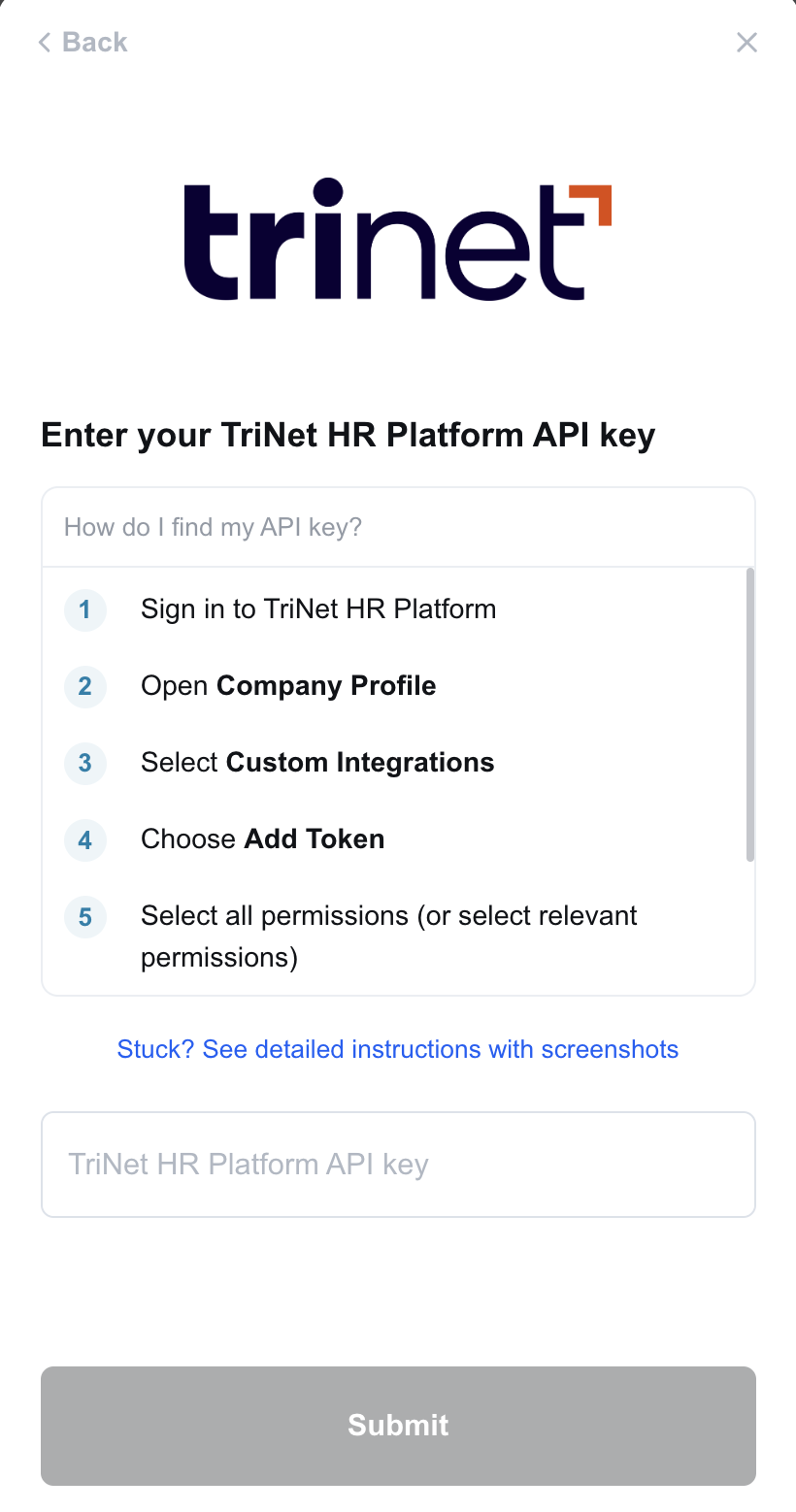
This guide will walk you through creating an API key within TriNet and entering it into linking flow.
Prerequisites
You have to have Admin permissions in your company's TriNet instance or someone has shared their access with you.
Before continuing, please make sure you are trying to connect to TriNet HR Platform and not TriNet PEO. This guide is for TriNet HR Platform.
Not sure?
TriNet HR Platform was formerly known as Zenefits. If you notice
zenefitsin the URL, you're in the right place!If the UI looks much different from the below screenshots, you're probably using TriNet PEO. In the linking flow, go back and select the TriNet option - not Trinet HR.
Instructions
Step 1: Generating your API key
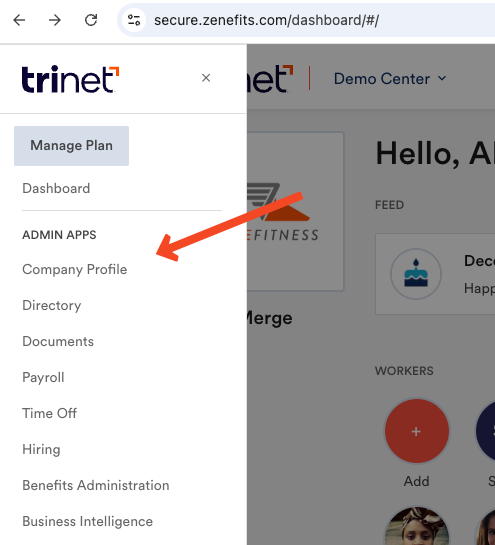
Open Company Profile, under Admin Apps
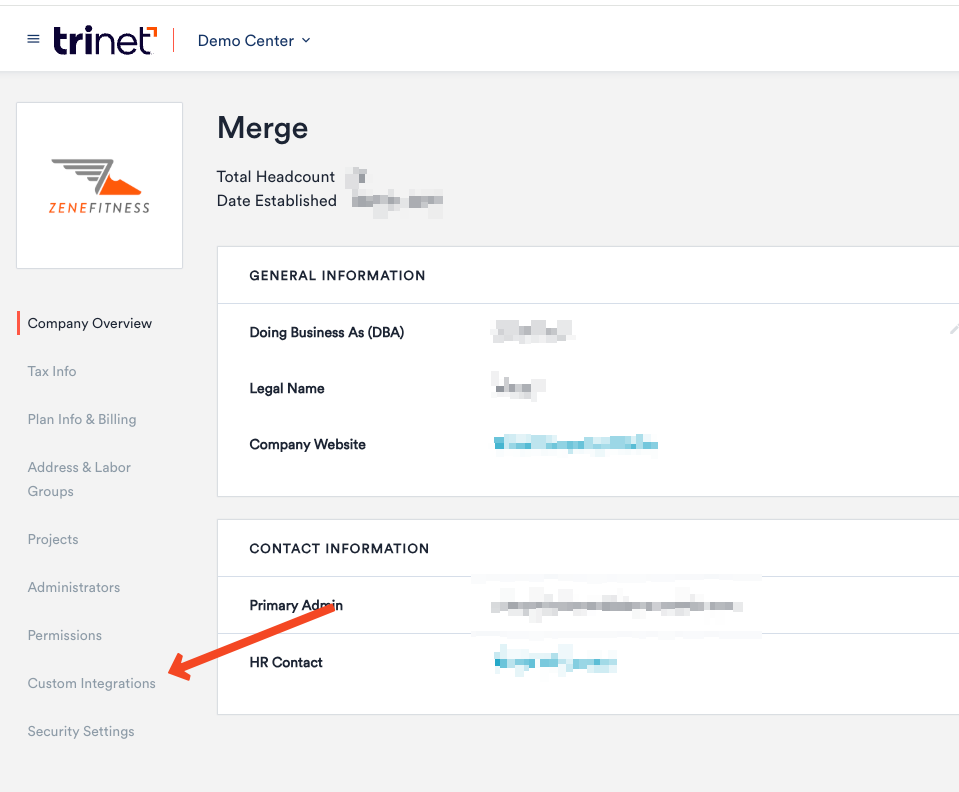
Click on Custom Integrations
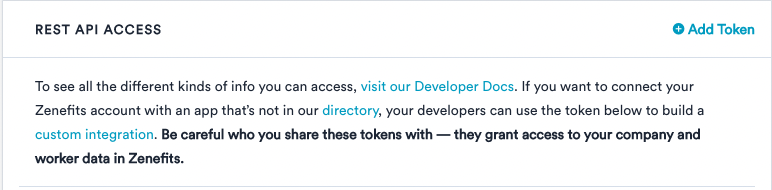
Under Rest API Access, select Add Token
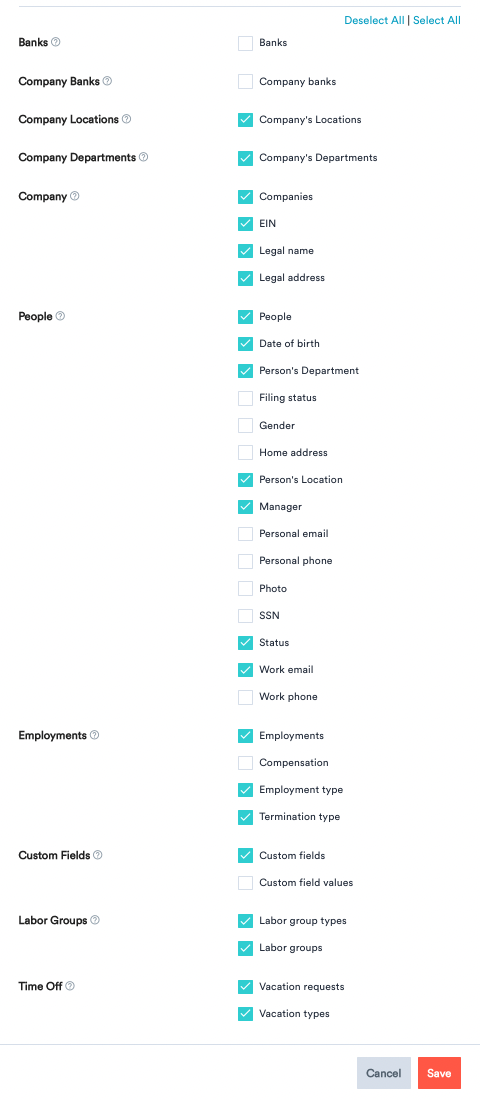
When you configure the Permissions that you'd like to give access to the company you are connecting to, press Save!
Step 2: Copy and Paste API Token into Link
You have to click on the "eye" icon to reveal the API Token. From there, you can Copy and Paste this Token into the linking flow!

Permissions
Make sure the specific items you want to grant access to under People are checked off.
It's important to note that these are subject to the specific use-case of the company you are connecting to. The below screenshot is just an example.