UKG Pro Workforce Management - How do I link my account?
Last updated: January 28, 2026
Overview
To authenticate your UKG Pro Workforce Management account, you will need the following:
Client ID - typically provided when your tenant is provisioned
Client Secret - typically provided when your tenant is provisioned
Username
Password
To configure your account properly, you'll need to:
Create an API User
Ensure a function access profile is assigned to that user with the appropriate permissions.
See instructions below on how to accomplish this.
If you don’t have access to your Client ID or Client Secret, please contact UKG Global Support for assistance.
Prerequisites
Please ensure you fulfill all the requirements to set up the integration:
You are an Administrator in your company's UKG Pro instance, or someone has shared their access with you
Creating an API User:
Identify an existing admin user who has access to all employees, locations, etc. (It’s easiest to start with an account that has the permissions needed to run APIs.)
Go to menu > Maintenance > People Information
Duplicate the user account by selecting the person and going to Person > Duplicate.
In the new profile:
Select Edit Licenses and confirm at least a Manager license is selected. Other licenses may be needed depending on the required access.
Under the Information section:
Set the last name to APIUser.
Set the ID to APIUser (or another unused user ID).
Assign a new username (e.g., APIUser).
Set the Username to APIUser.
Set the Authentication Type to Basic.
Assign and confirm a password.
Check the box next to API Only User. This ensures the password does not expire. Once checked, the user cannot log in via browser or mobile app.
Under the Access Profiles section:
These settings should be duplicated from the original user.
Typically, the Function Access Profile and Display Profile should be set to Super Access, though more restrictive access can be configured if needed.
The remaining fields are usually not required for an API user.
Creating a Function Access Profile (if needed)
This step is only necessary if you don't copy the function access profile from the step above.
Log into WFM with an administrative account that has access to Setup
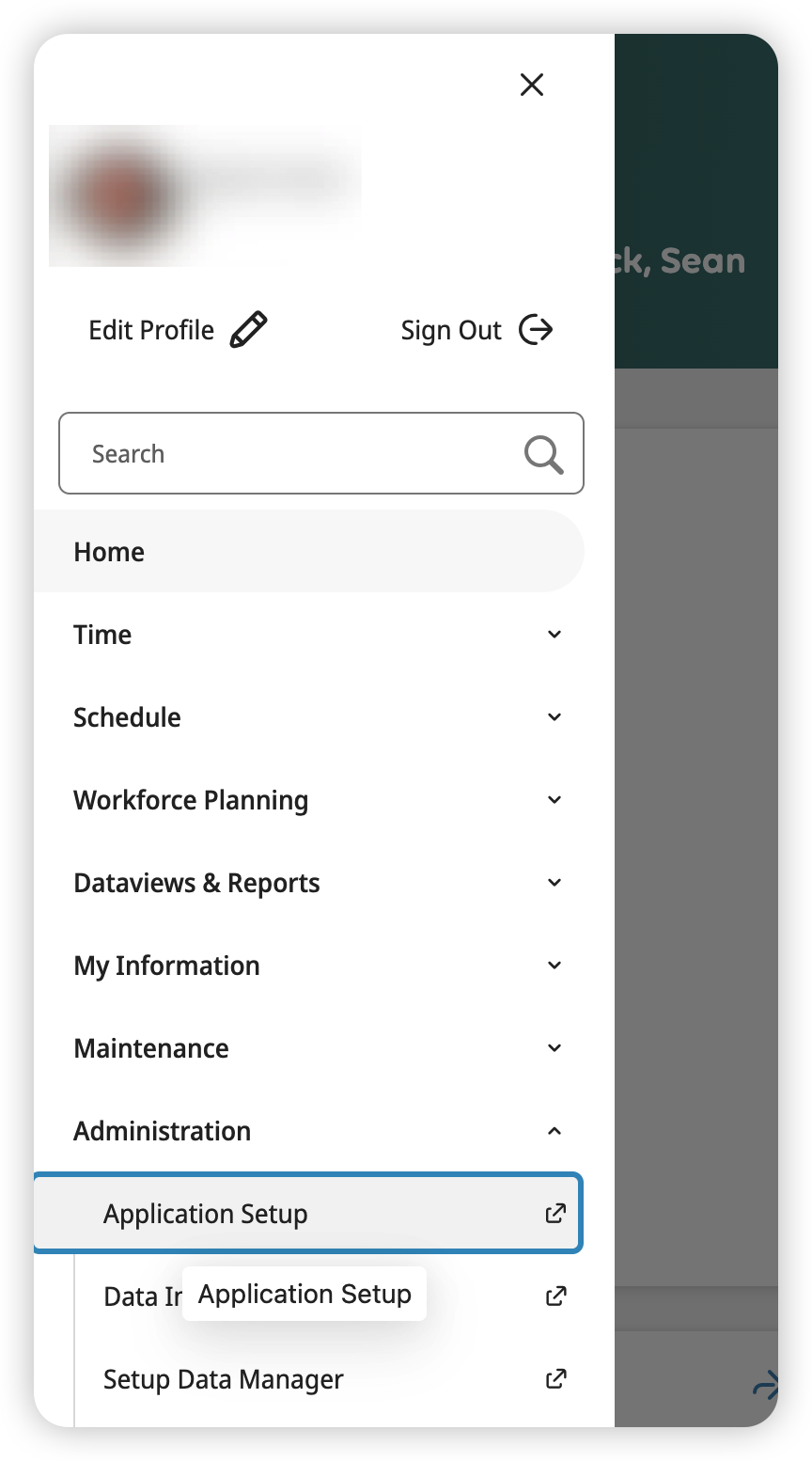
Navigate to Administration > Application Setup
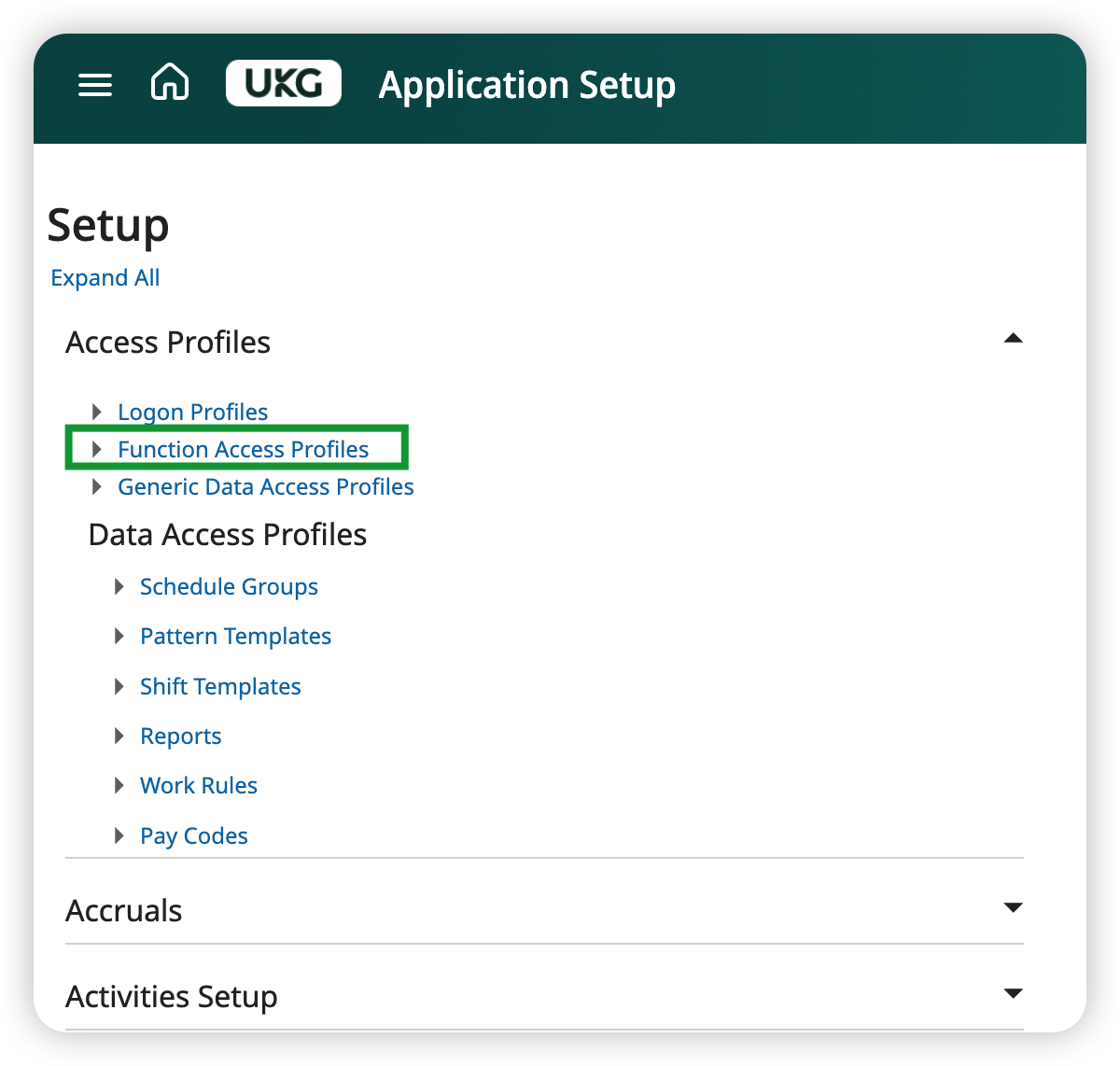
Expand Access Profiles and click on Function Access Profiles
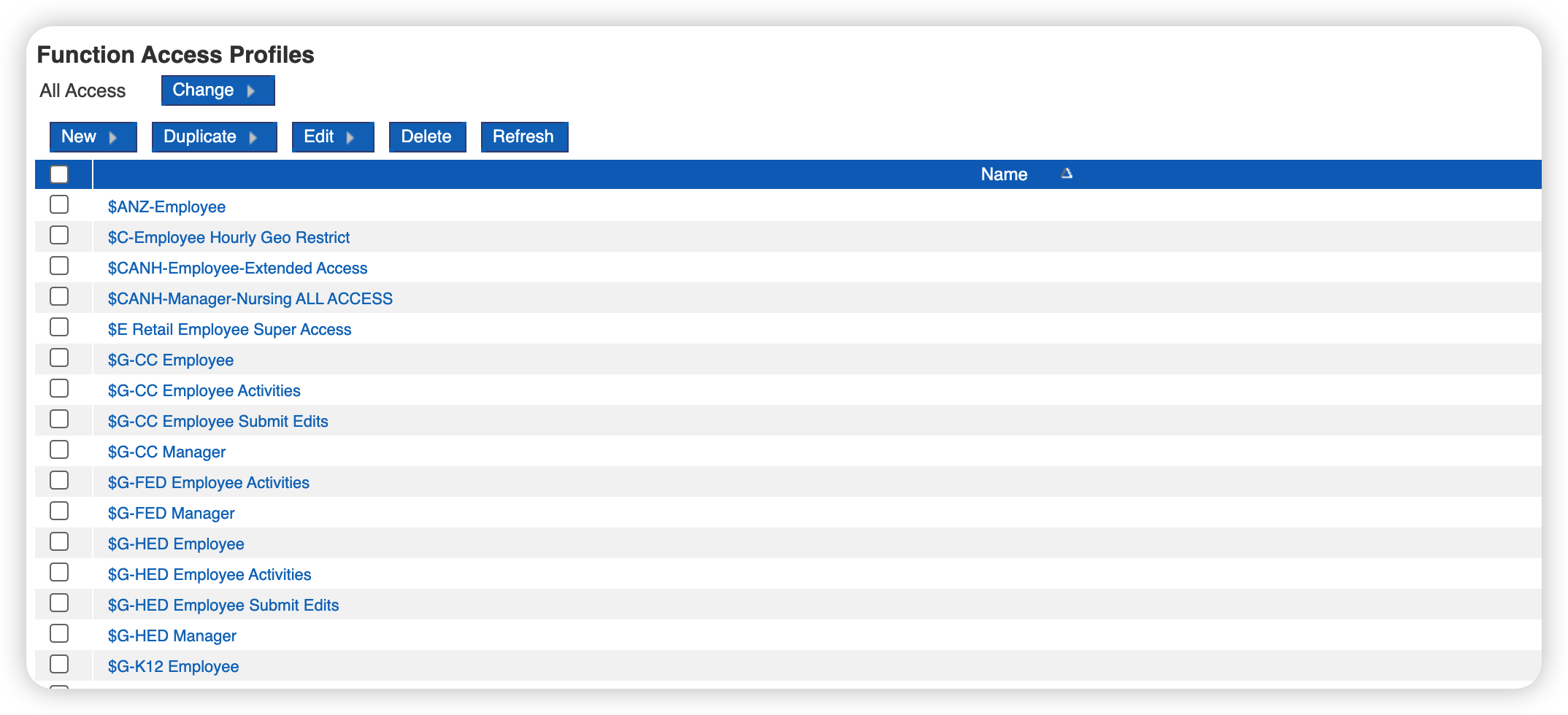
Click on New
Populate details in the New Function Access Profile screen:
The Name can be anything, though it's best to pick a name you'll remember, like the name of the application you're connecting to
Set the function access profile to Super Admin access. All control points are disallowed by default.
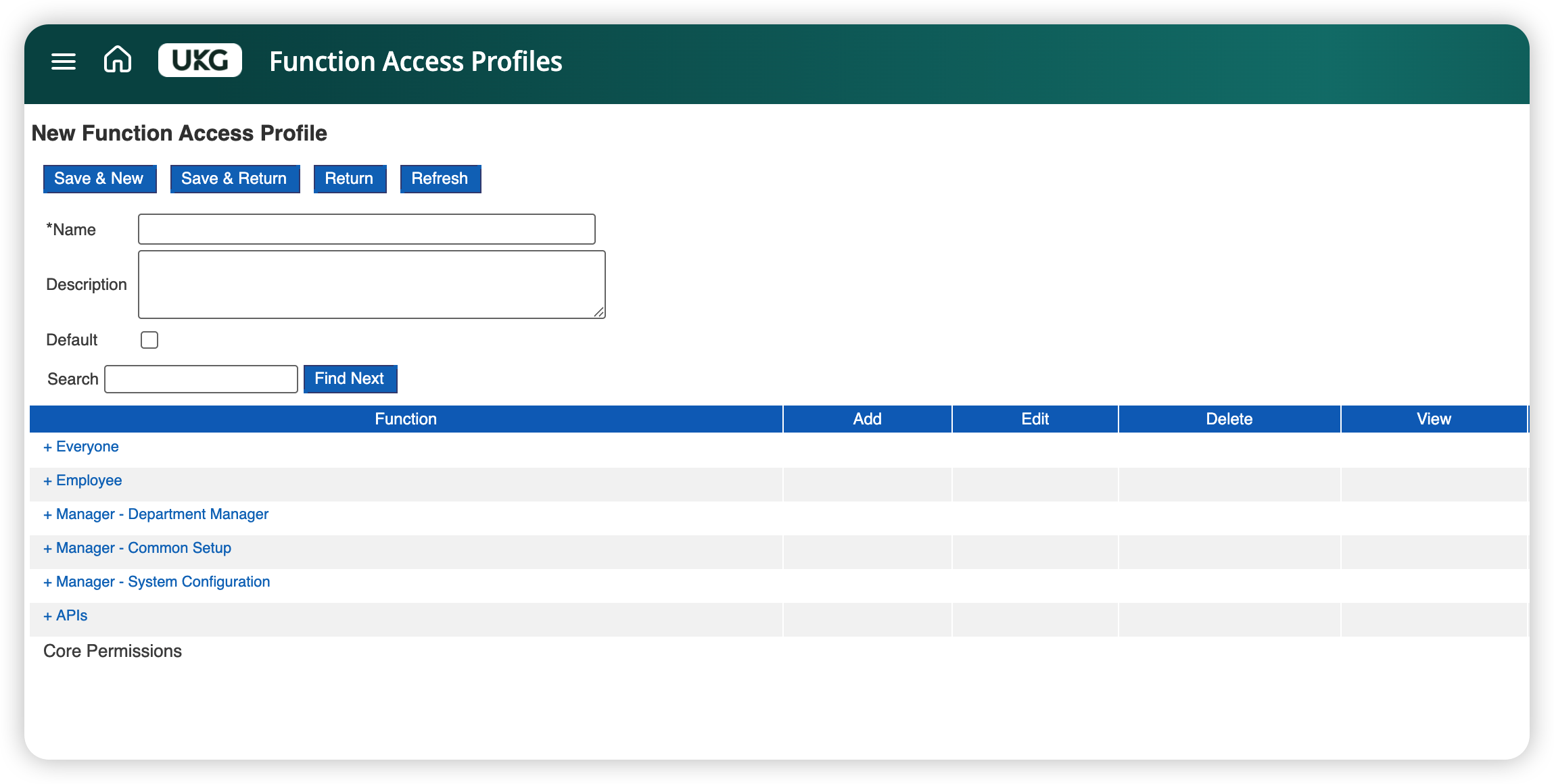
Click Save & Return.
When you define your account / user in people setup, assign this function access profile.
Linking Instructions
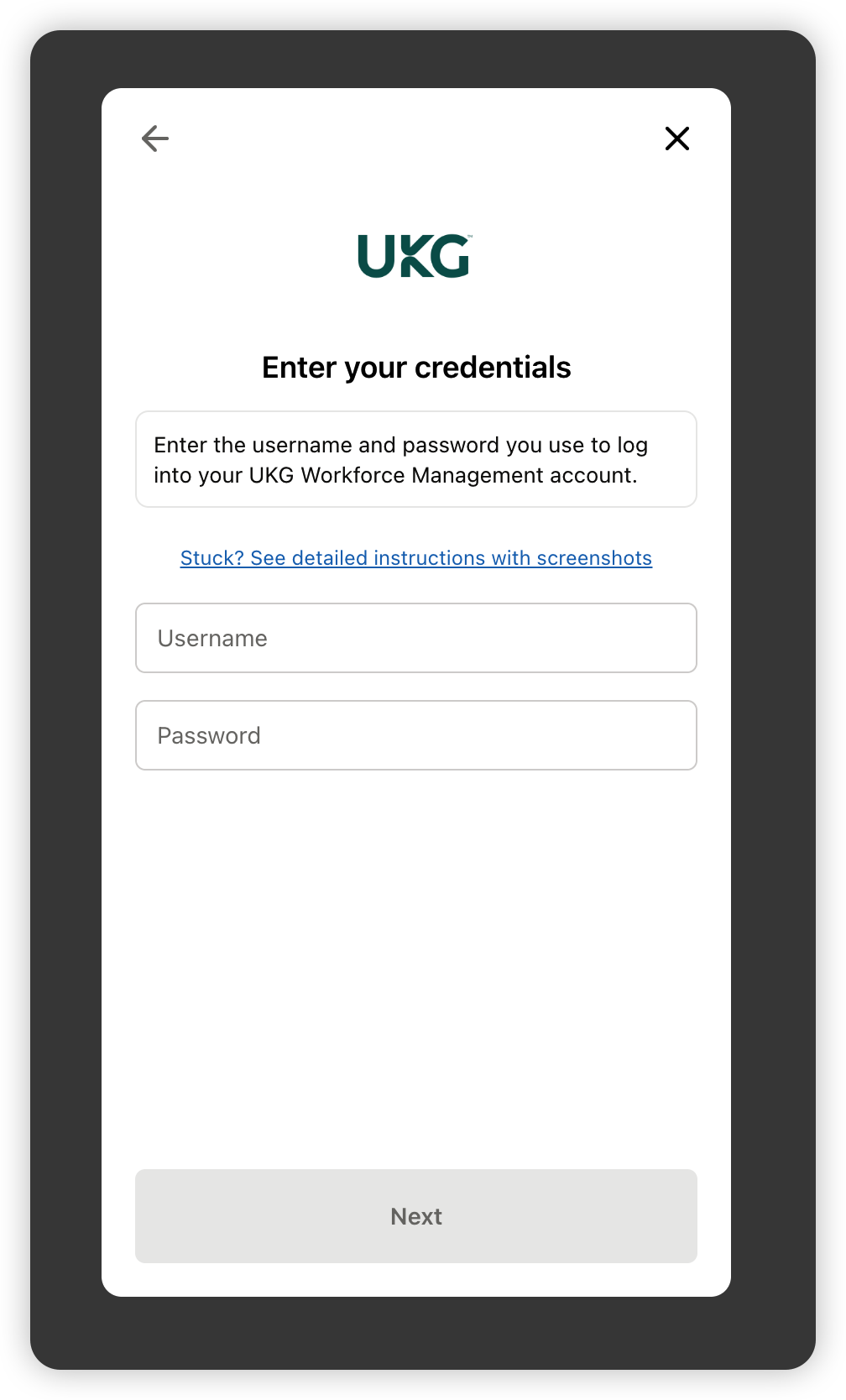
Step 1: Enter your Username and Password
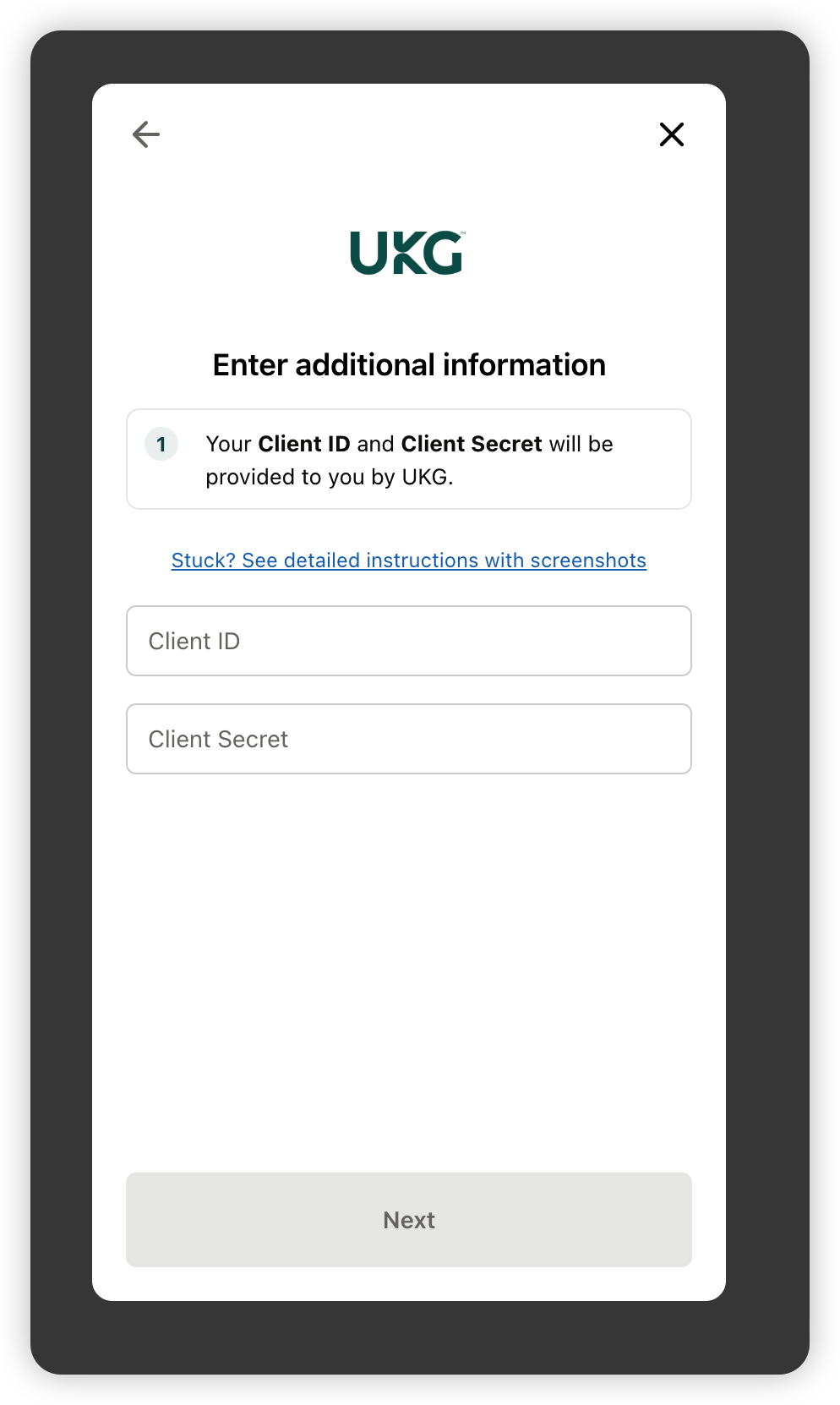
Step 2: Enter your Client ID and Client Secret
Step 3: Enter your subdomain
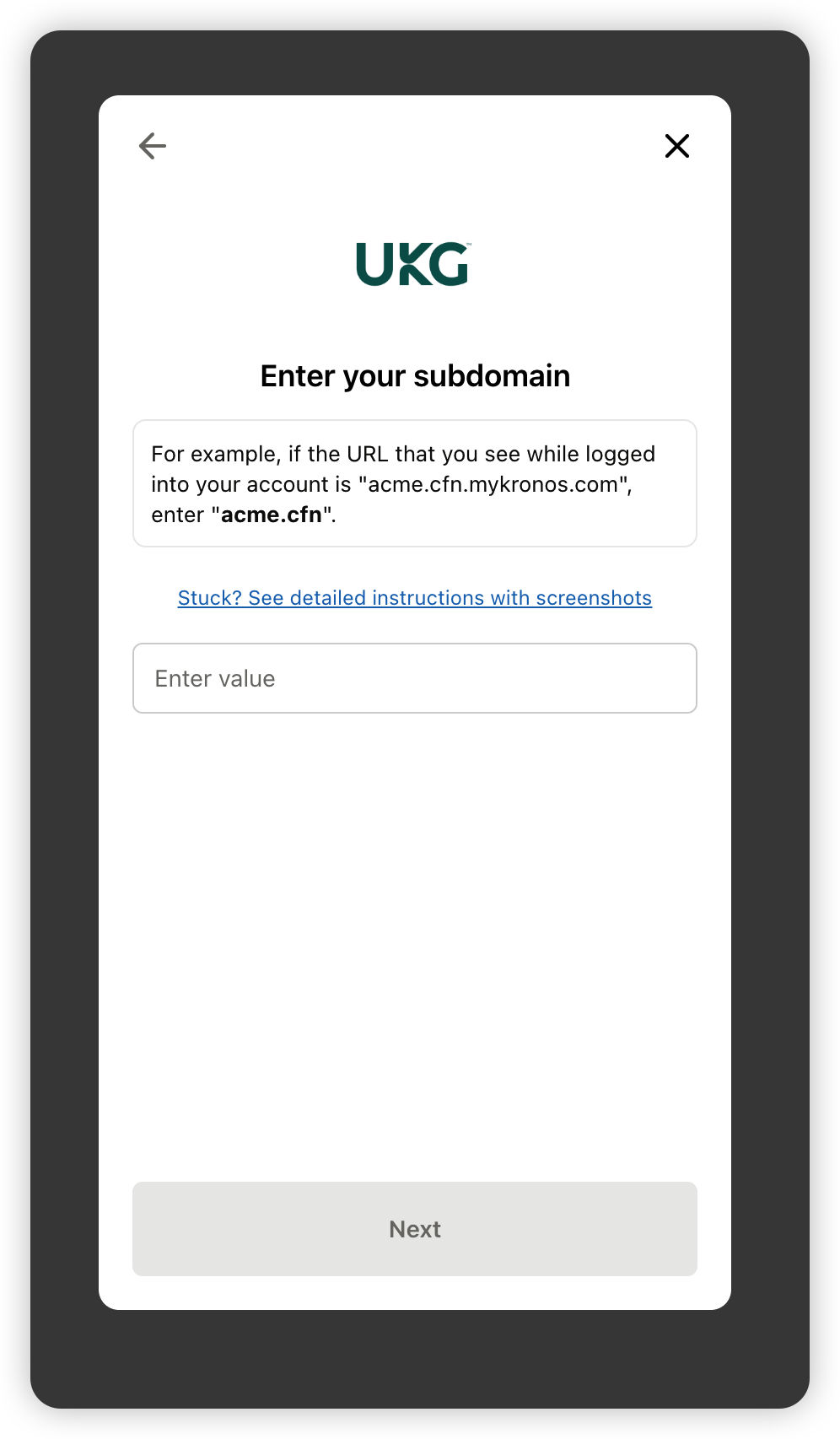
You may need to remove “-sso” from the URL if it’s present. For example, if your URL is merge-sso.prd.mykronos.com, enter merge.prd instead.