QuickBooks Online - How do I set up partner credentials?
Last updated: September 4, 2026
This article is aimed at Merge customers rather than end users. If you are looking for our guide on how to link your QuickBooks Online account to our client's system, you can find it here!
Overview
To allow your customers to link QuickBooks Online accounts, you will need to set up a QuickBooks Online App, get approved by Intuit, and enter your application credentials within Merge. This also unlocks a branded OAuth experience, access to the analytics functionality within Intuit, and the ability to connect to QuickBooks Online sandbox accounts.
Instructions
Step 1: QuickBooks Online app creation
Follow the latest instructions provided by Intuit to register a developer account and app.
While creating an app, you will have to select the scopes required by the app. Merge uses the
com.intuit.quickbooks.accountingscope only.After registering your app, you will see Client ID and Client secret values provided by Intuit. These are your sandbox credentials only and do not allow you to connect to production instances.
If you want to test in your sandbox, you'll need to configure the Redirect URI under Settings as
https://app.merge.dev/oauth/callbackand input your Development credentials in the Integrations page of the Merge Dashboard.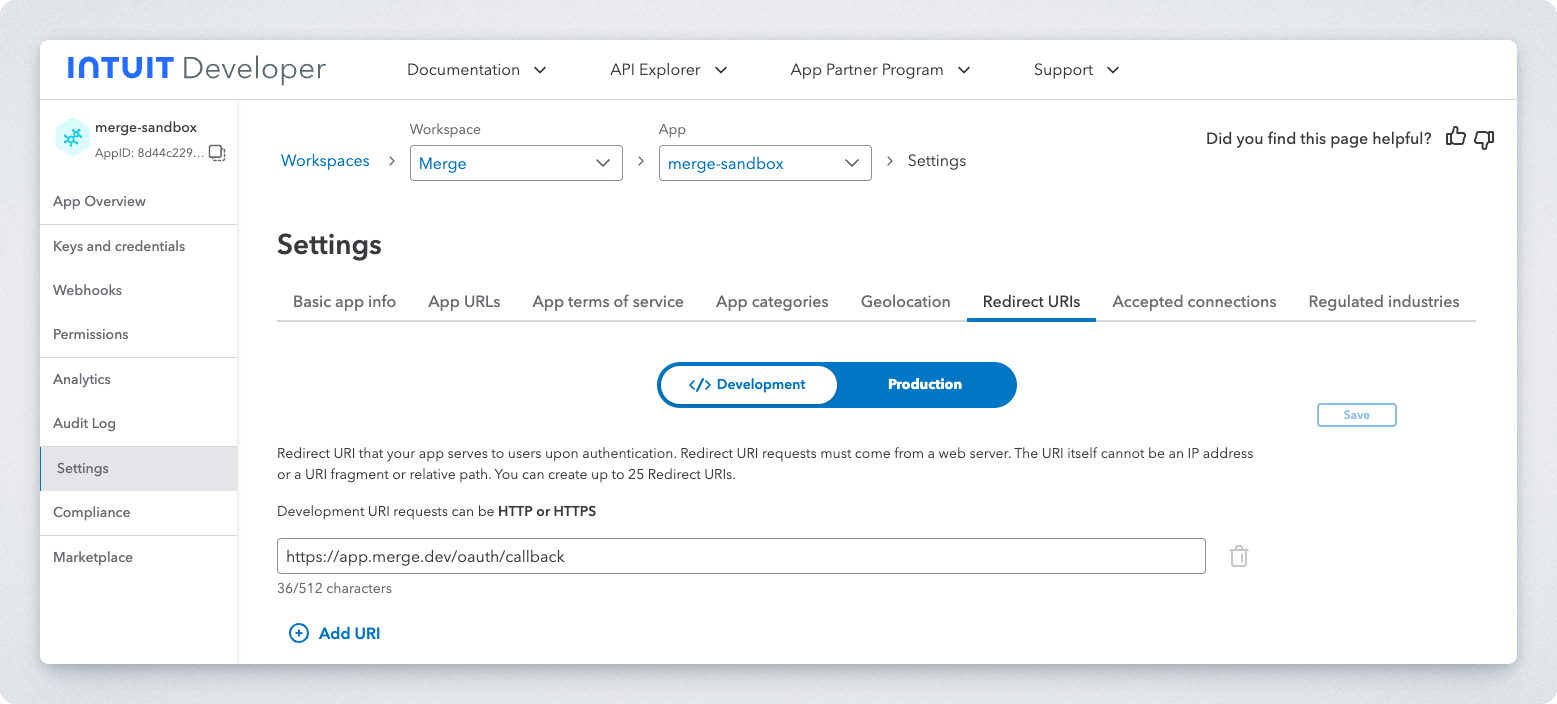
Want your own QuickBooks Online sandbox? After creating a developer app, you can create one with pre-populated data for free at the link below.
Step 2: Approval process - App details
After creating your app, you will need to receive production approval. Assuming you input the form correctly, Intuit typically approves you and grants you your production credentials in a few days.
To begin filling out the production approval form, navigate to Keys & credentials > Production within your app.
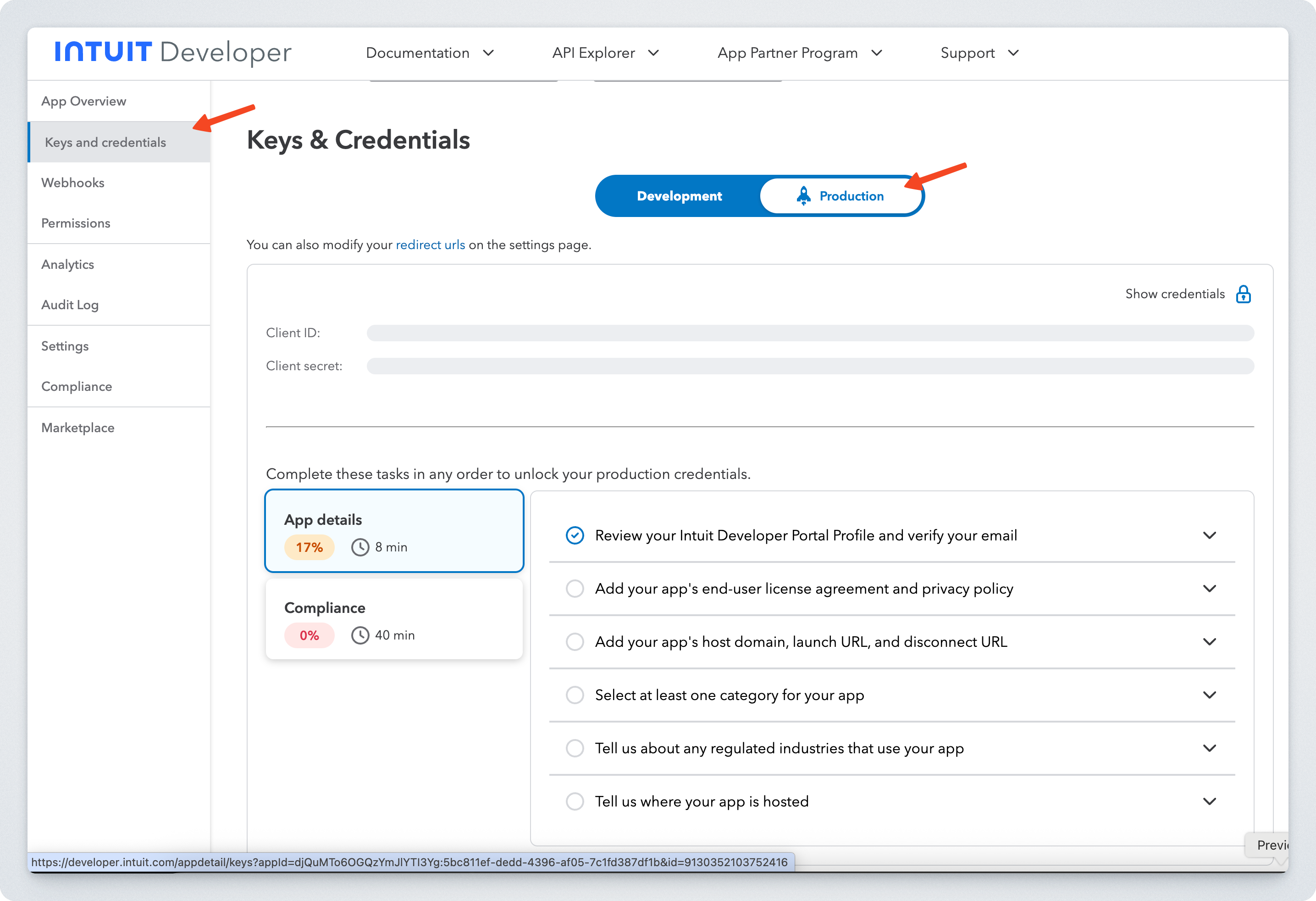
Begin with the App details section filling out the form. These are all questions about your app, that only you are able to fill out. The only questions that may need clarification are:
Launch URL: The launch URL is where users will go to access your application. It's essentially the entry point for your app.
Disconnect URL: This should be the URL of the page in your app that a logged in user can disconnect their QuickBooks connection. If you do not have a page, the launch URL will suffice.
IP address: These are the IP addresses of your app, not Merge's.
Step 3: Approval process - Questionnaire
Once the App details section is complete, you can now proceed to the questionnaire by selecting the Compliance box and clicking Start questionnaire.
A new tab with a list of questions will be opened. By using Merge, you have access to a streamlined questionnaire. Follow the steps below to complete it:
Answer the General Questions about your company and app.
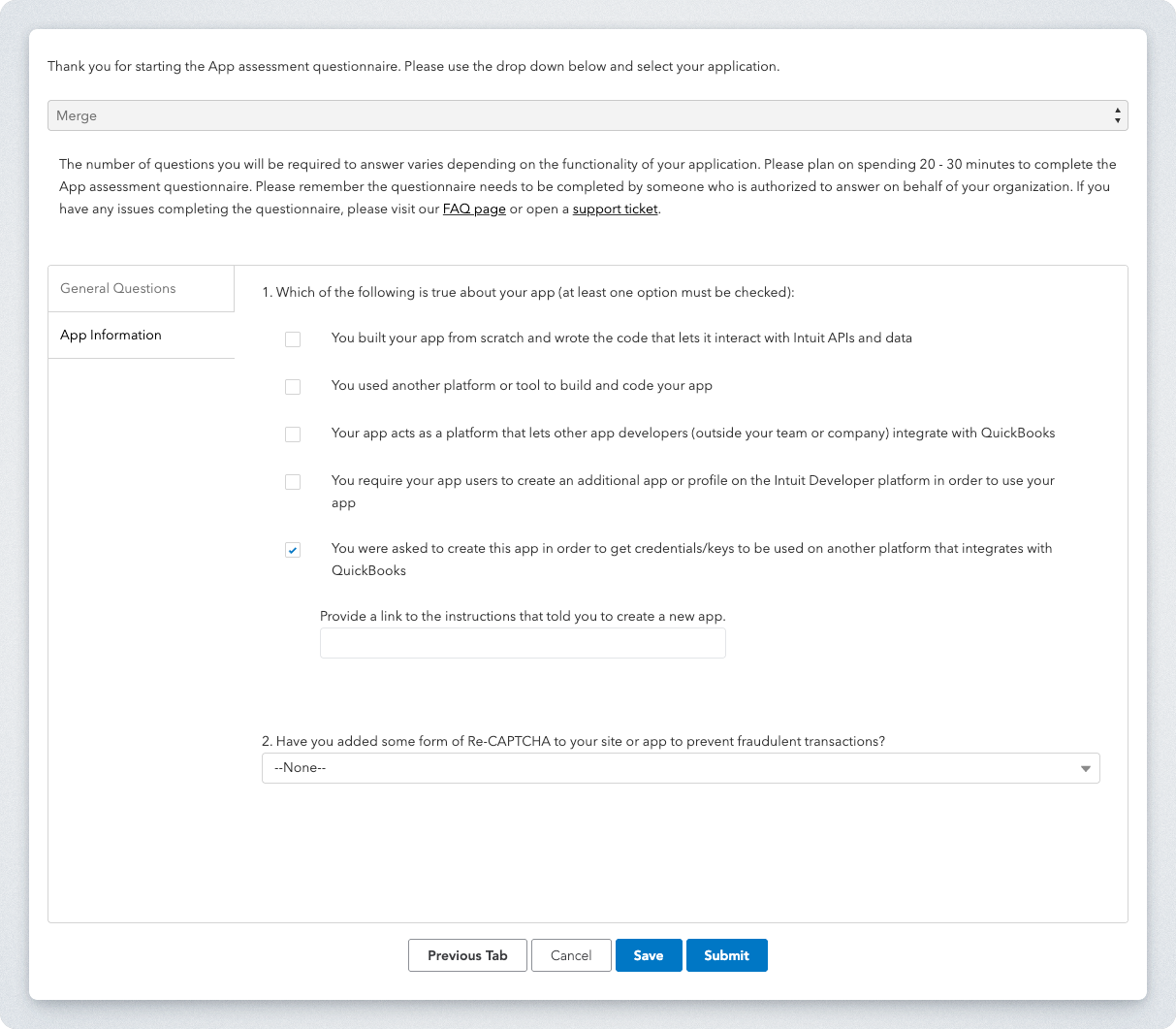
Under App Information, choose the last option: You were asked to create this app in order to get credentials/keys to be used on another platform that integrates with QuickBooks
Provide the URL of this page in the new field that appears (see below)
https://help.merge.dev/articles/9833261-quickbooks-online-how-do-i-set-up-partner-credentials
Answer the final question about Re-CAPTCHA and Submit your questionnaire.
Note, do not just populate None as shown in the screenshot below. You should choose the answer that most closely describes to your app.
Step 4: Once approved, finalize your app and configure Merge
Intuit will notify you once your questionnaire is approved. Again, Intuit typically takes a few days to review and approve your app. The next, and final step, is to input them in the Merge Dashboard for use!
Note: QuickBooks Online does not allow you to connect to Sandboxes instances with Production credentials. Once you input your Production credentials, you will not be able to connect to QuickBooks Online sandbox instances.
Suggested workaround: Create/use a separate Merge organization for development and testing. Use your QuickBooks Online sandbox credentials in that separate Merge organization to connect to sandboxes.
In the Settings > Redirect URI section of your QuickBooks Online app, make sure the
https://app.merge.dev/oauth/callbackis configured as a redirect URI for your app.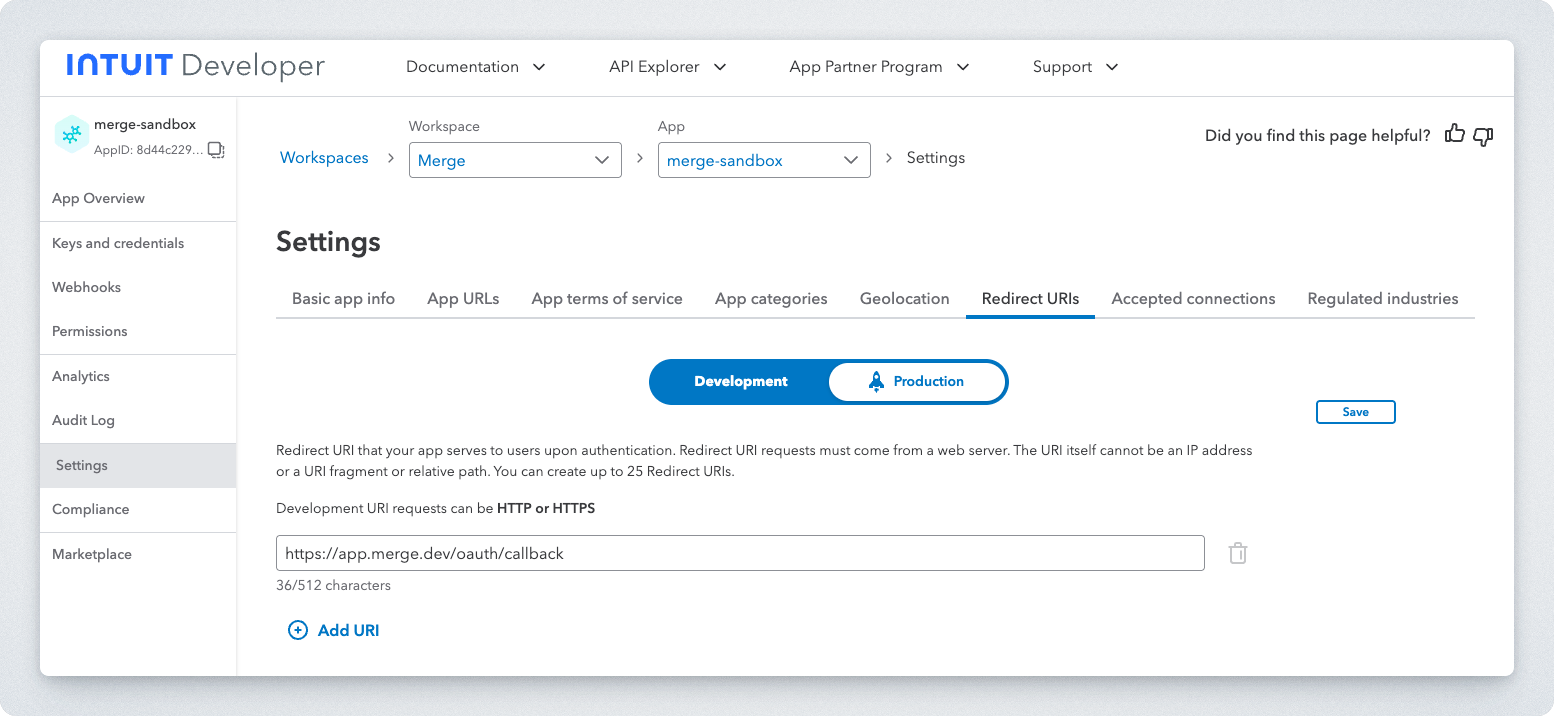
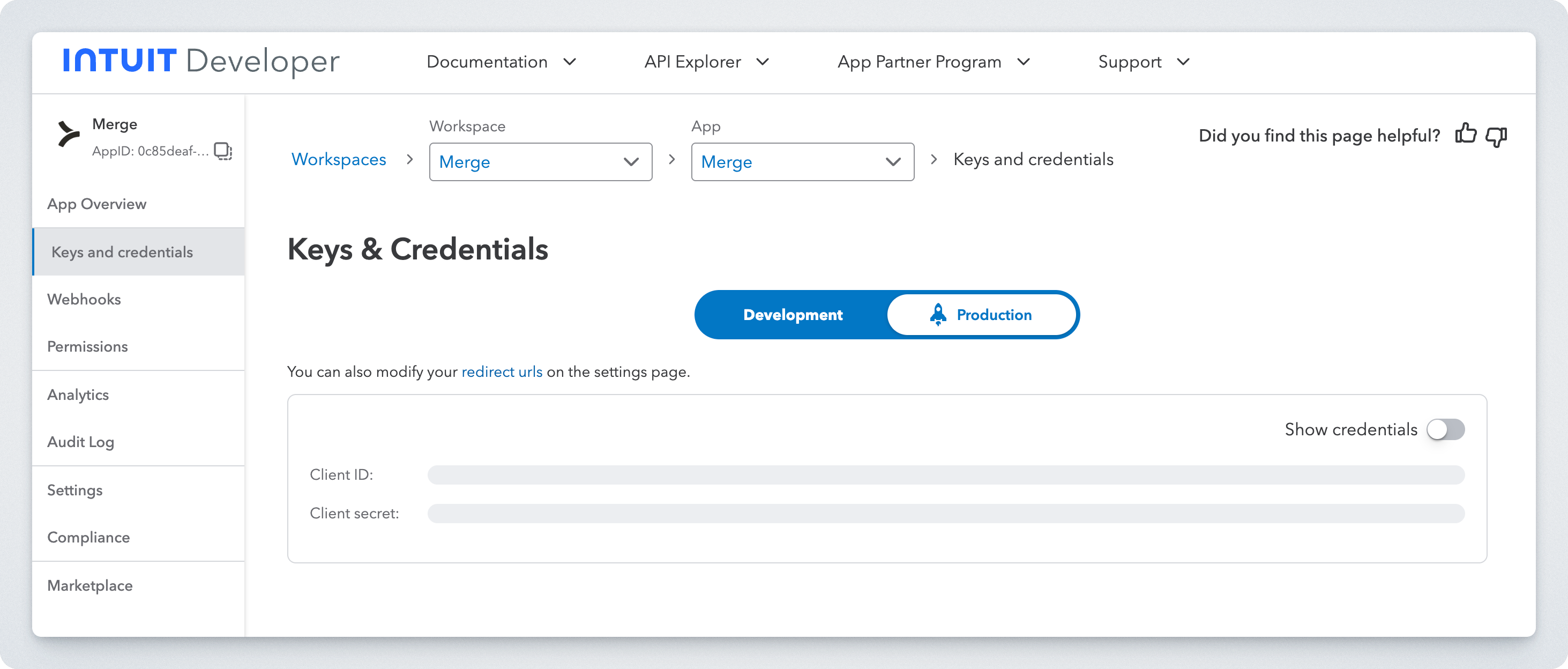
Locate your Production Client Id and Client Secret from the Keys & Credentials page in your app dashboard.
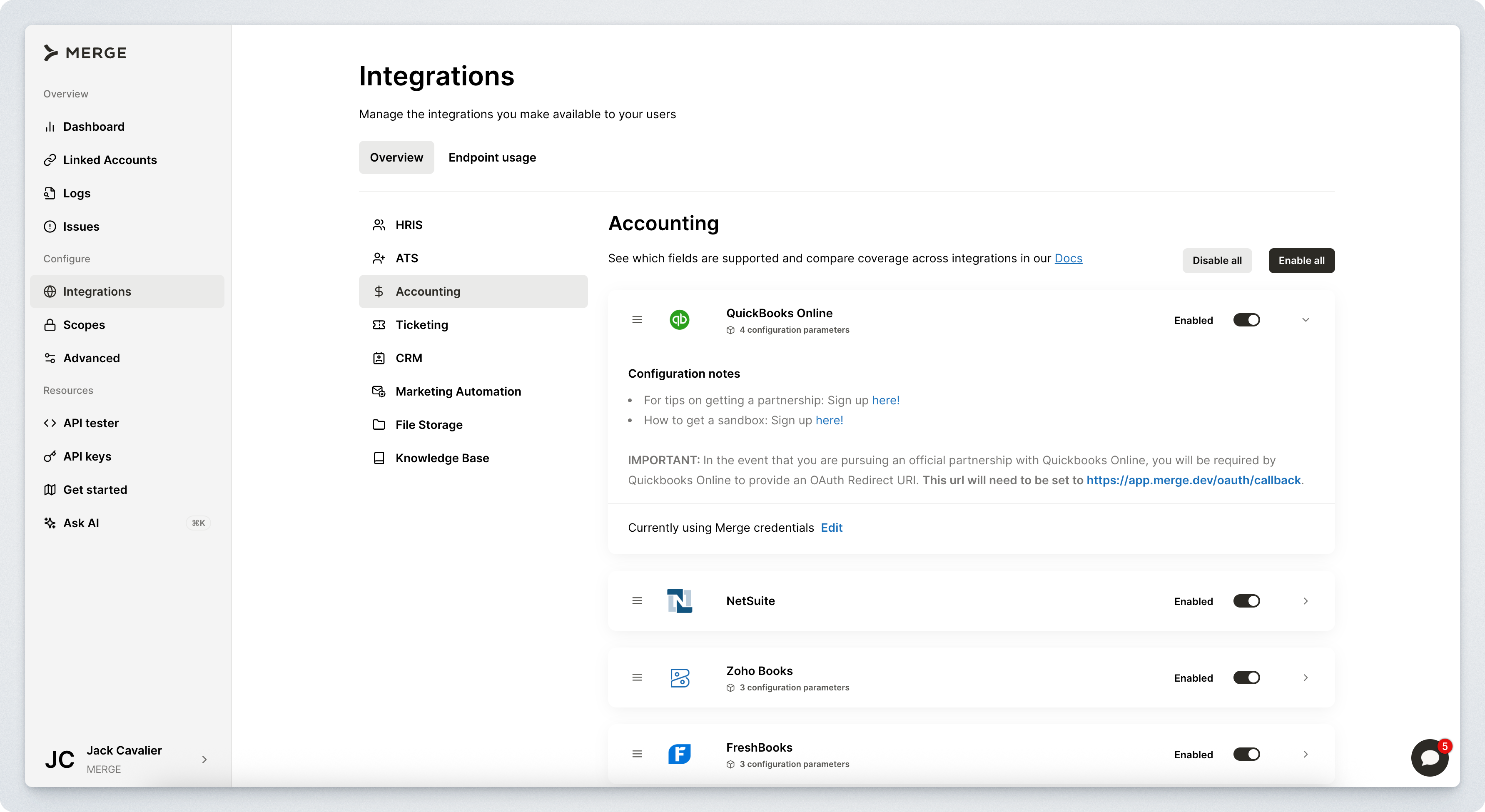
Within your Merge dashboard, open the Integrations > Accounting page. Extend the QuickBooks Online section and click on Edit:
Click on My credentials, then enter the credentials from step 2 above in the OAuth Client Id and OAuth Client Secret fields.
Enter
https://app.merge.dev/oauth/callbackas the OAuth Redirect Uri.At this stage you will also be able to provide a Verifier Token in order to support QuickBooks Online third party webhooks. Leave this null for now. If you are interested in enabling third party webhooks, follow our separate guide for detailed instructions.
Click Save once done.
Important note
QuickBooks Online does not allow you to connect to Sandboxes instances with Production credentials and vice versa. Once you input your Production credentials, you will not be able to connect to QuickBooks Online sandbox instances.
Suggested workaround: Create/use a separate Merge organization for development/testing. Use your QuickBooks Online sandboxes using sandbox credentials in that separate Merge organization.