Xero - How do I set up third-party webhooks?
Last updated: January 12, 2026
Overview
This guide will walk you through how to set up receiving webhooks for Xero. Currently, Xero only supports webhooks for Invoices and Contacts.
Prerequisites
You've set up your Xero OAuth app and entered your partner credentials in the Merge Dashboard.
If you've not yet completed this, please follow this guide.
You've created a Xero Linked Account.
Webhooks can be created automatically for all new Linked Accounts after this setup is complete, but you must have a Xero Linked Account to begin the process.
Instructions
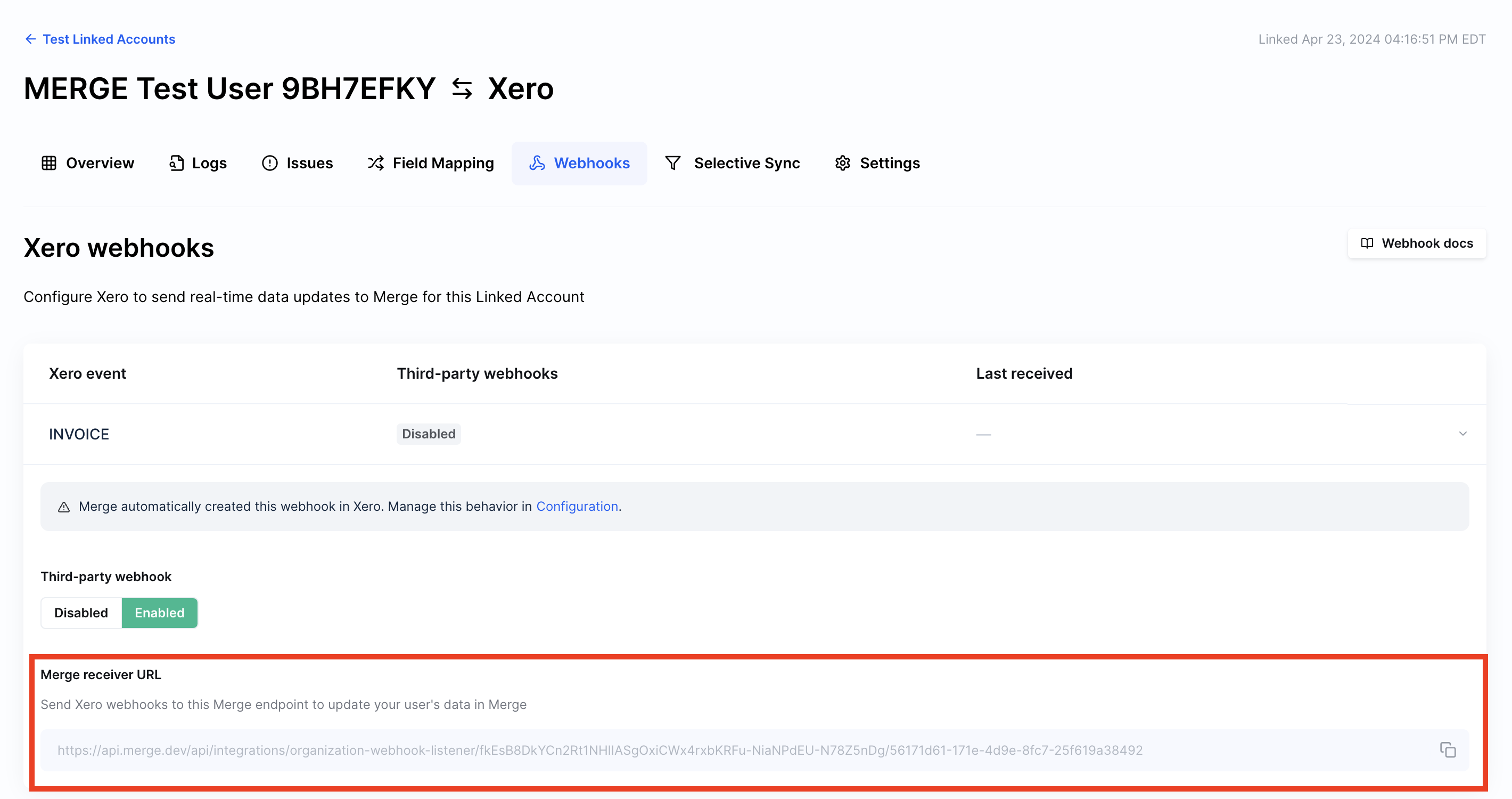
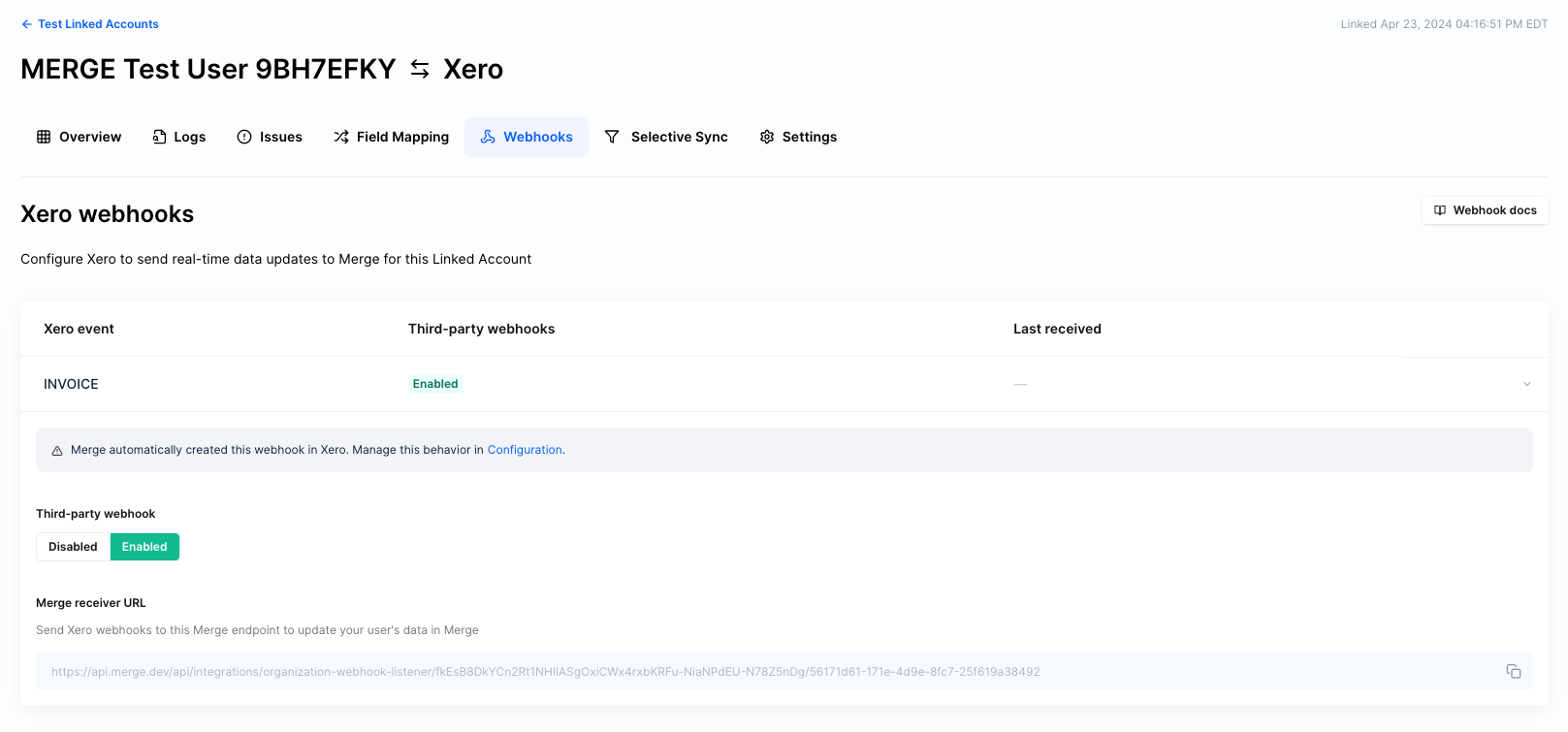
Navigate to the Webhooks tab of any Xero Linked Account
Copy the Merge Receiver URL (either event can be used)
Navigate to the webhook setup section of your developer app here
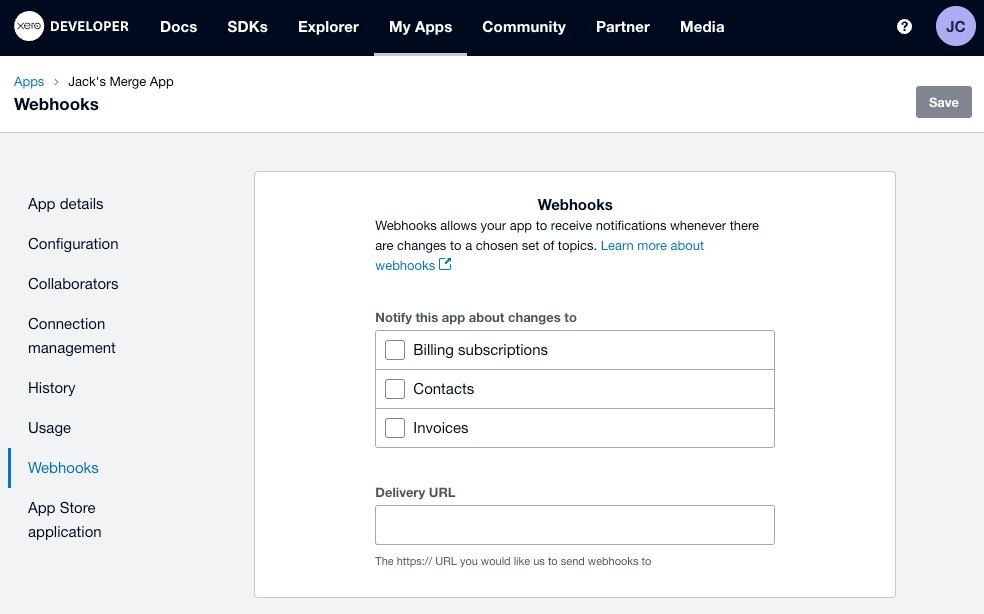
Select which events you wish to enable
Merge currently only supports Contacts and Invoices
Copy the Merge Receiver URL in to the Delivery URL Box
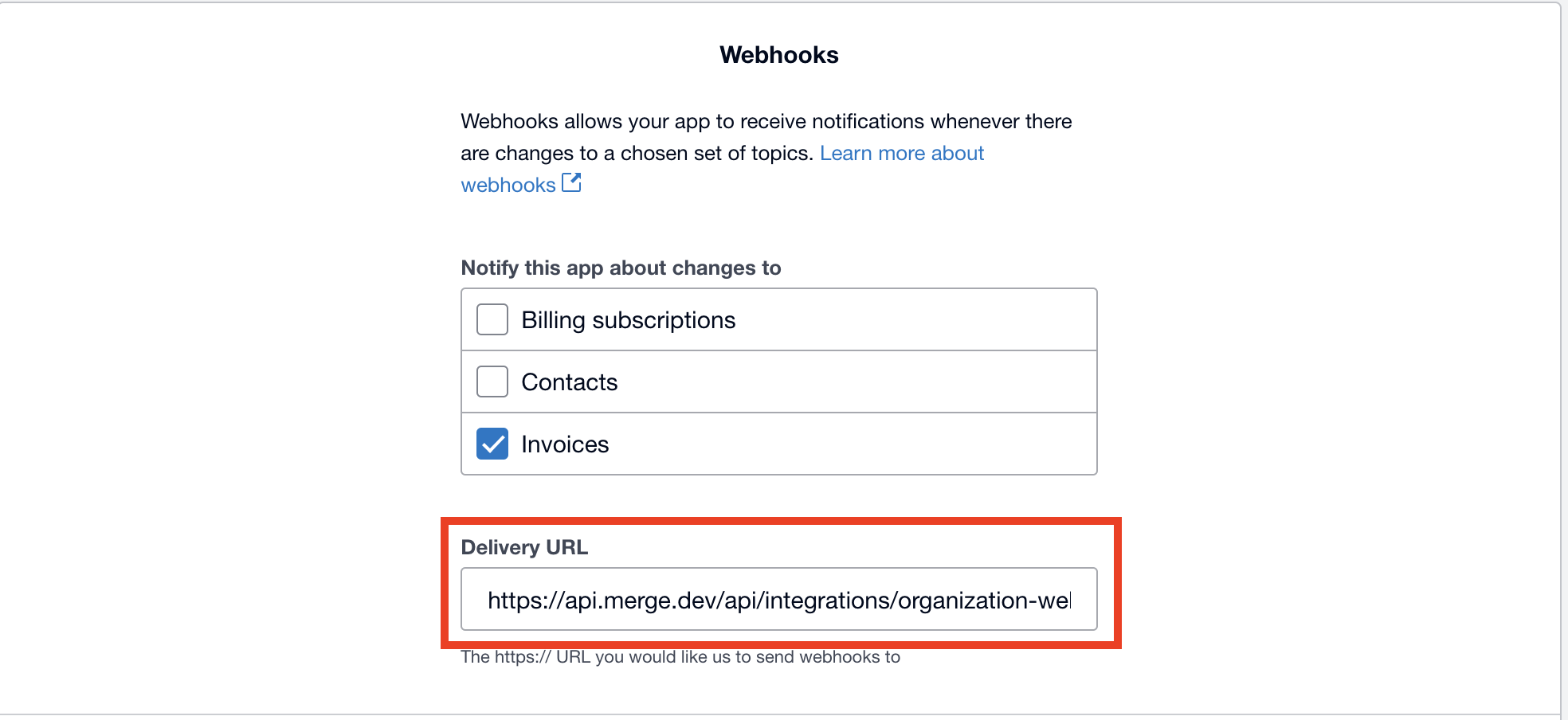
Click Save
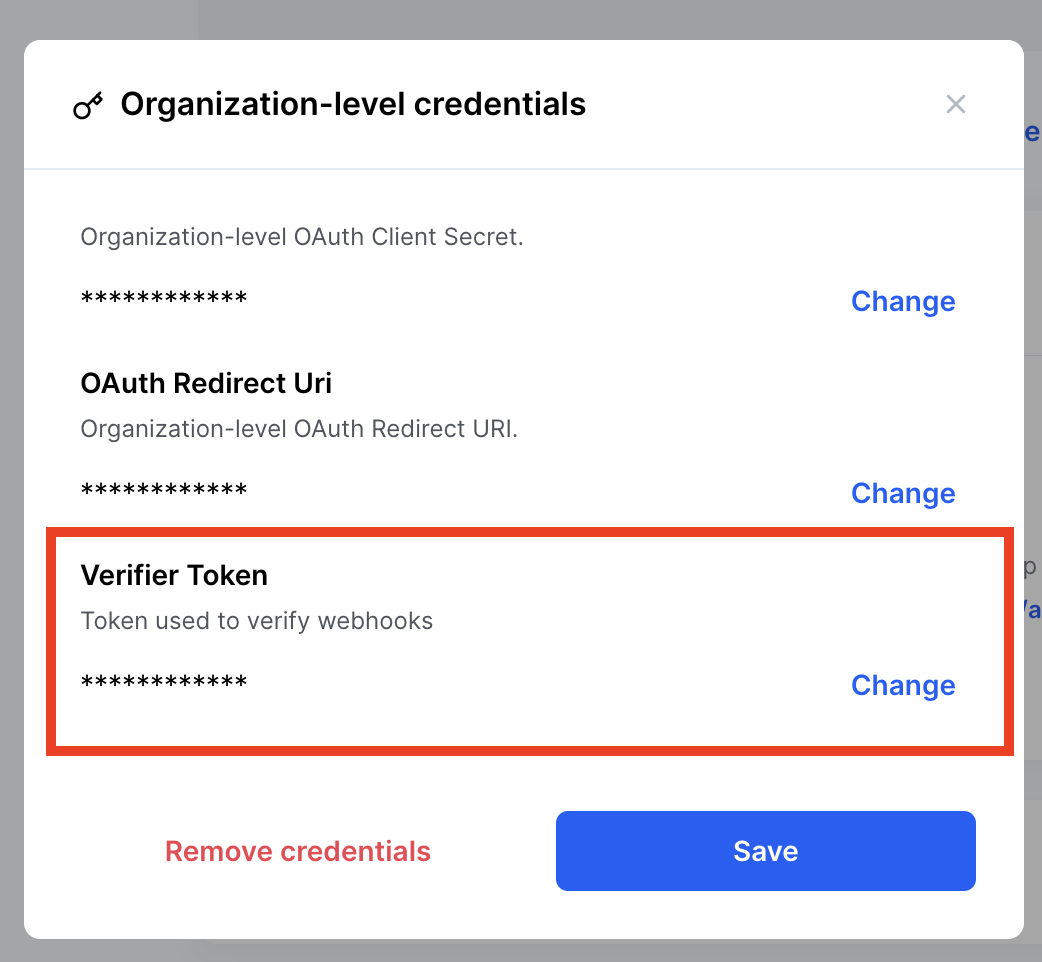
Copy the Webhooks key, and input this in to your Xero credentials in the Integrations page of the Merge Dashboard
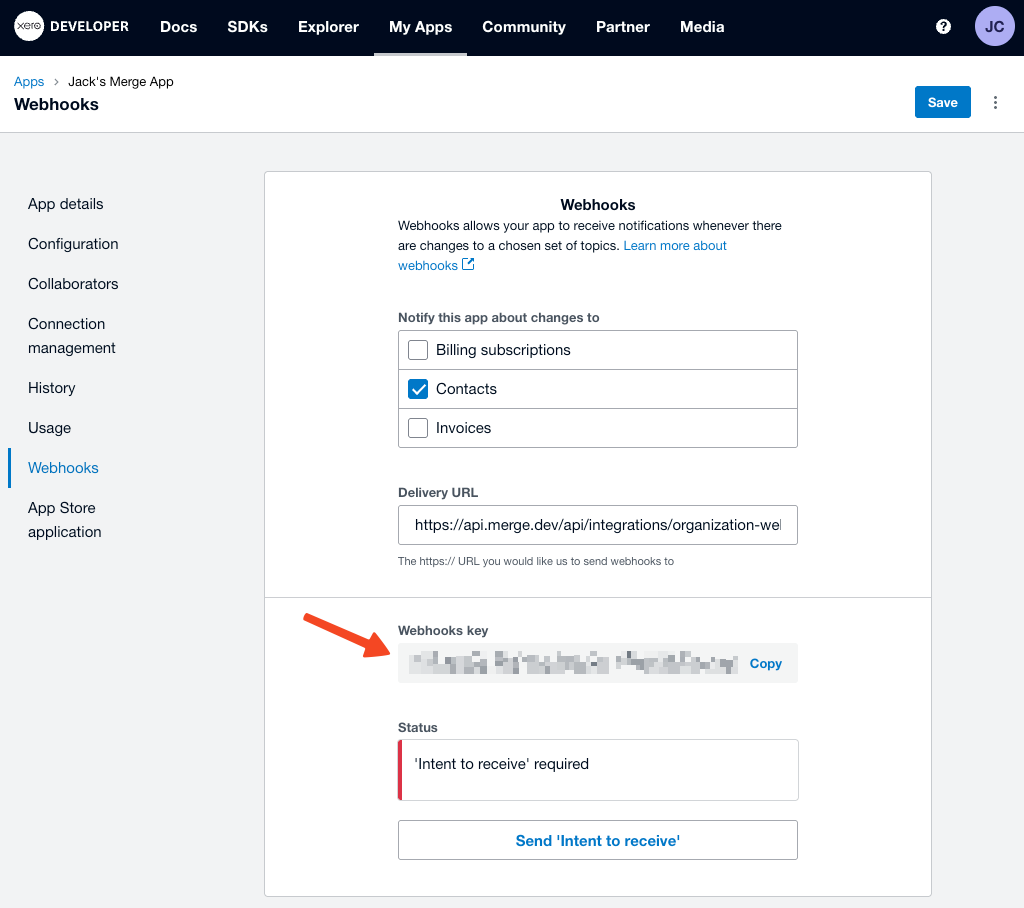
Navigate back to the Webhooks tab of the desired linked account, and click Enabled on the event(s) you enabled
Navigate back to the Xero webhook setup page, and click Send ‘Intent To Receive
Once the Status is Ok, you are good to go
After performing the steps above we suggest enabling Automatic third-party webhook creation. This will ensure webhooks are automatically enabled for all new Xero Linked Accounts, no manual intervention needed. To enable automatic webhooks, go to Advanced > Webhooks > Third Party in your dashboard.
Note, Merge will turn on both the Invoice and Contact webhook receivers automatically. However, we'll still only process the types you've enable in Xero.