HiBob - How do I link my account with a Service User?
Last updated: June 10, 2026
Overview
To authenticate HiBob using a Service Account, you will need to provide the following information:
Service Account User ID
Service Account Token
Prerequisites
Please ensure you fulfill all the requirements to set up the integration:
You have Administrator permissions in your company's HiBob instance
Video Guide
Note: The written instructions below are updated more frequently than our video guide, which may not always reflect the latest changes to HiBob's own user interface.
Instructions
Step 1: Create the Service User in your HiBob Account
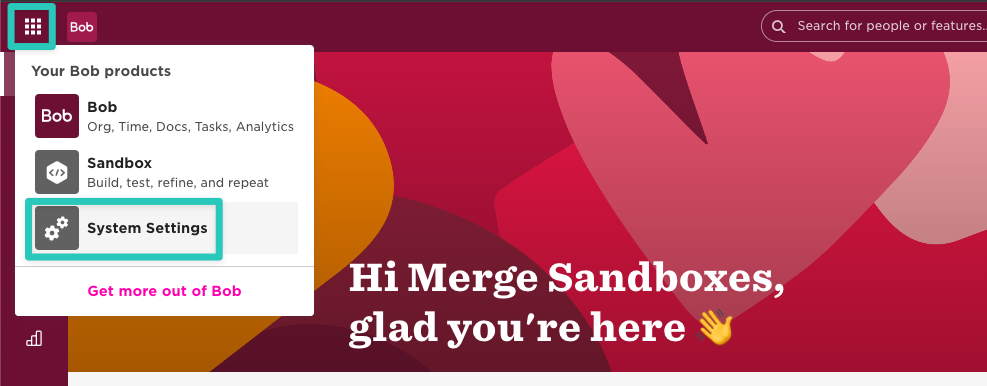
Navigate to your HiBob System Settings
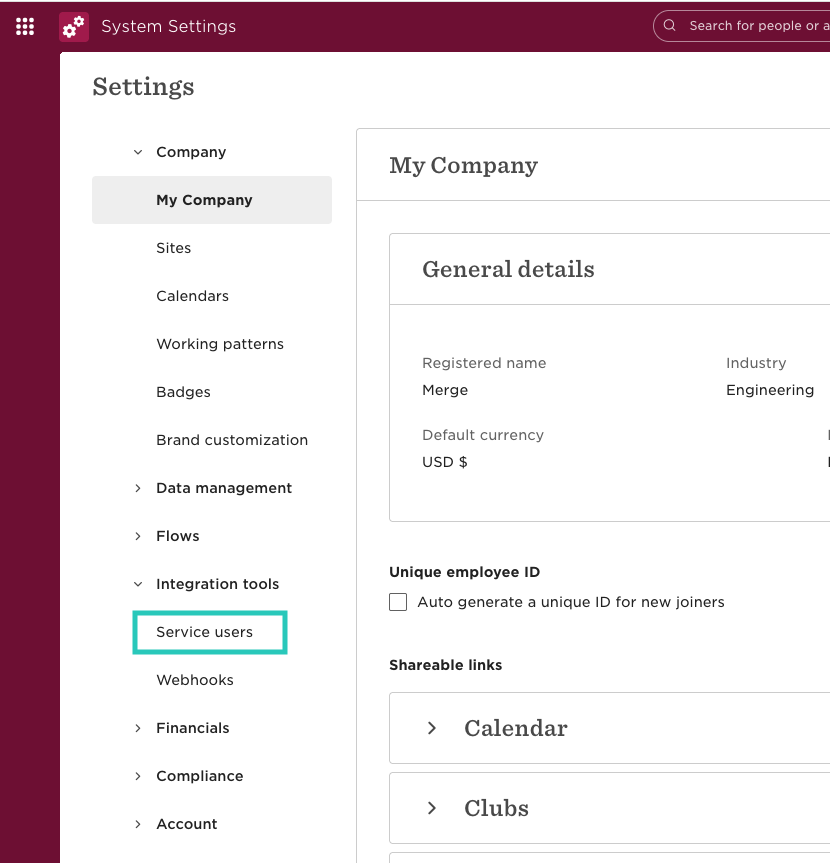
On the Settings screen, open the Integrations dropdown and click Service users
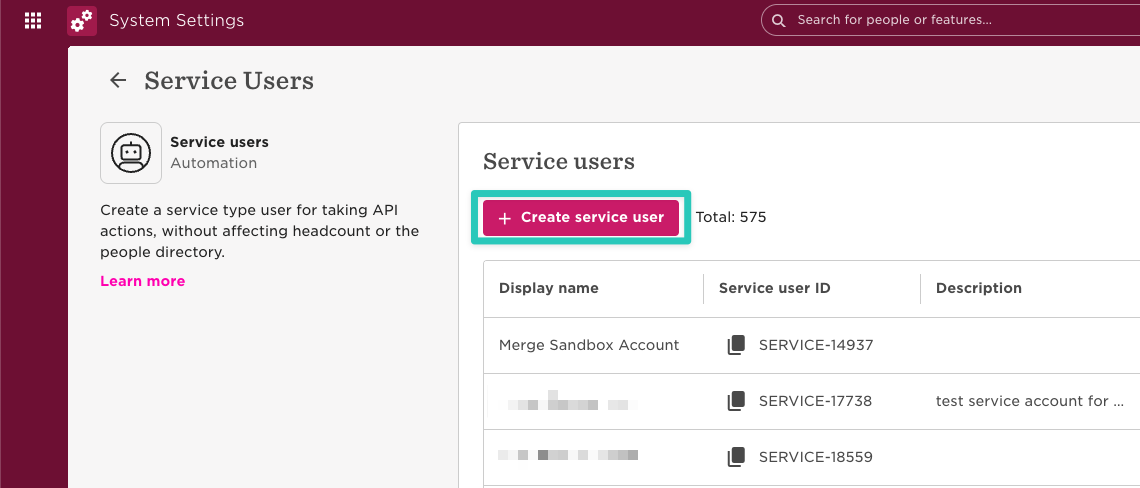
Click on Create service user
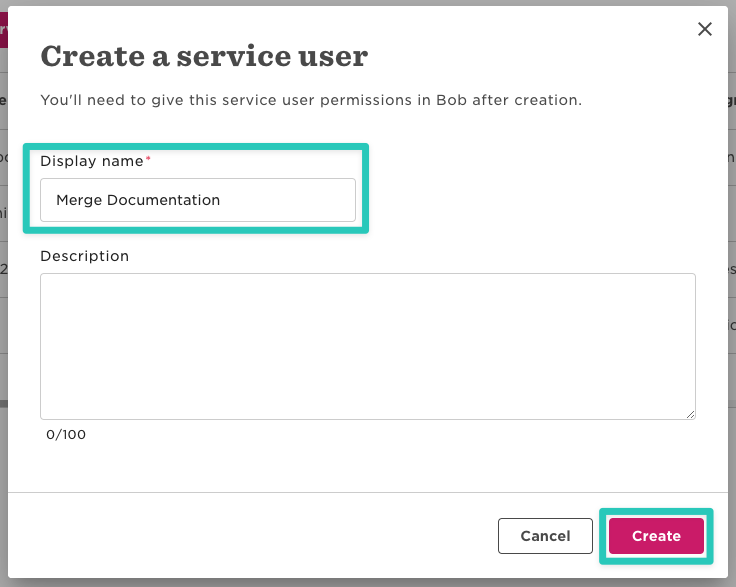
Enter any Display name and click Create
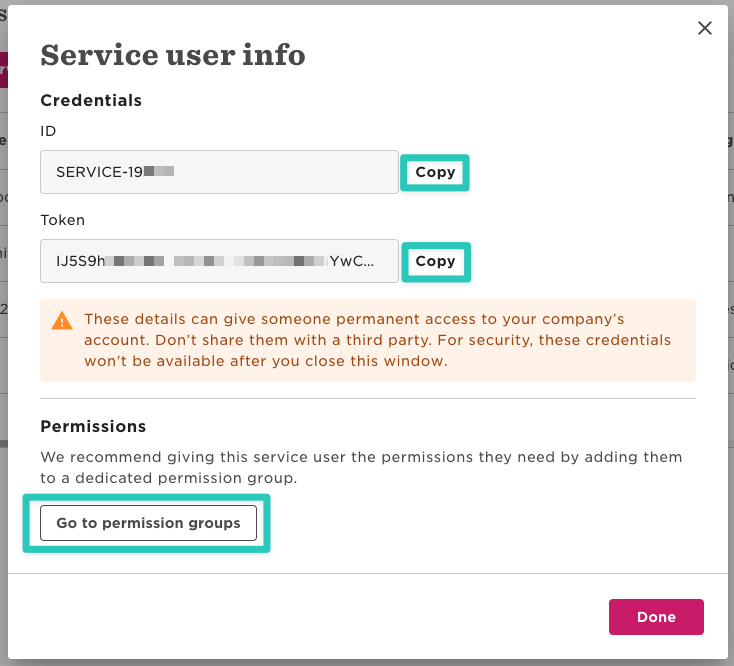
On the next screen, HiBob display the credentials for your new service user. Make a note of both the ID and the Token, then click on Go to permission groups and proceed with the next step
Step 2: Create a Permission Group
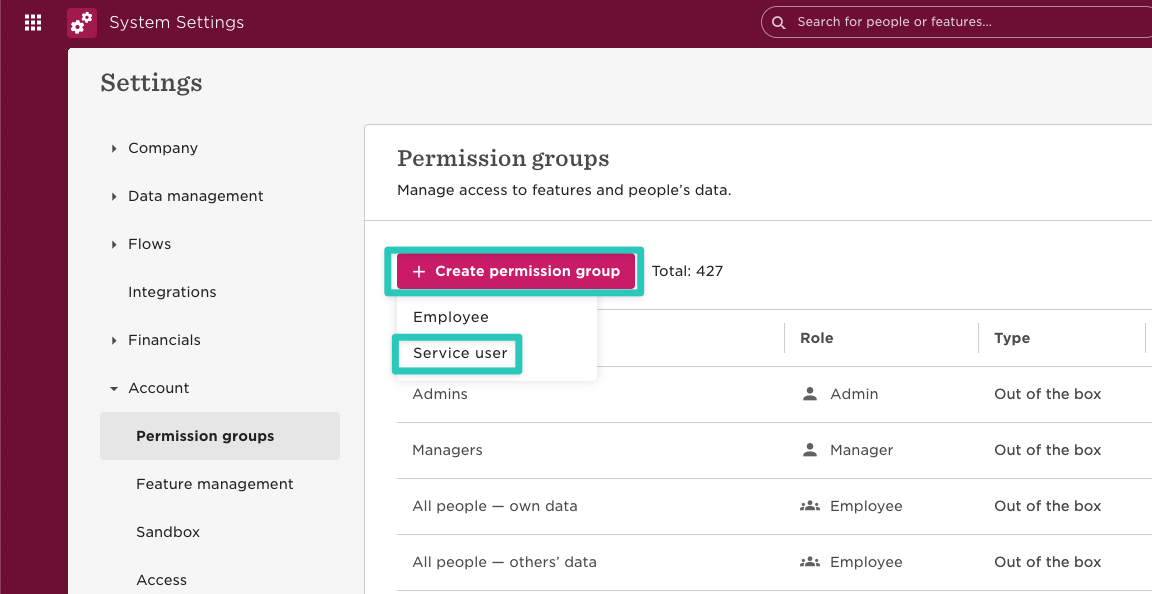
Click Create permission group, then Service user
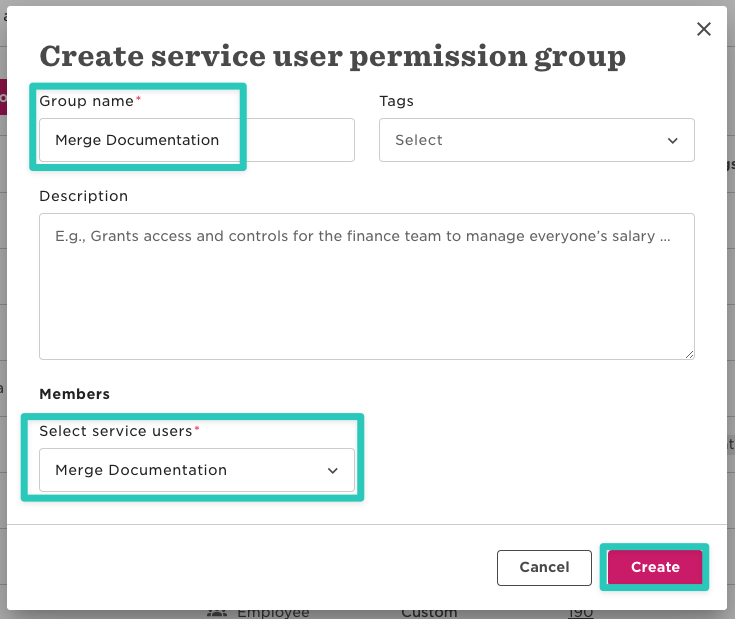
Enter any Group name, select your new service user under Select service users and click Create
When asked to confirm the changes, click Confirm
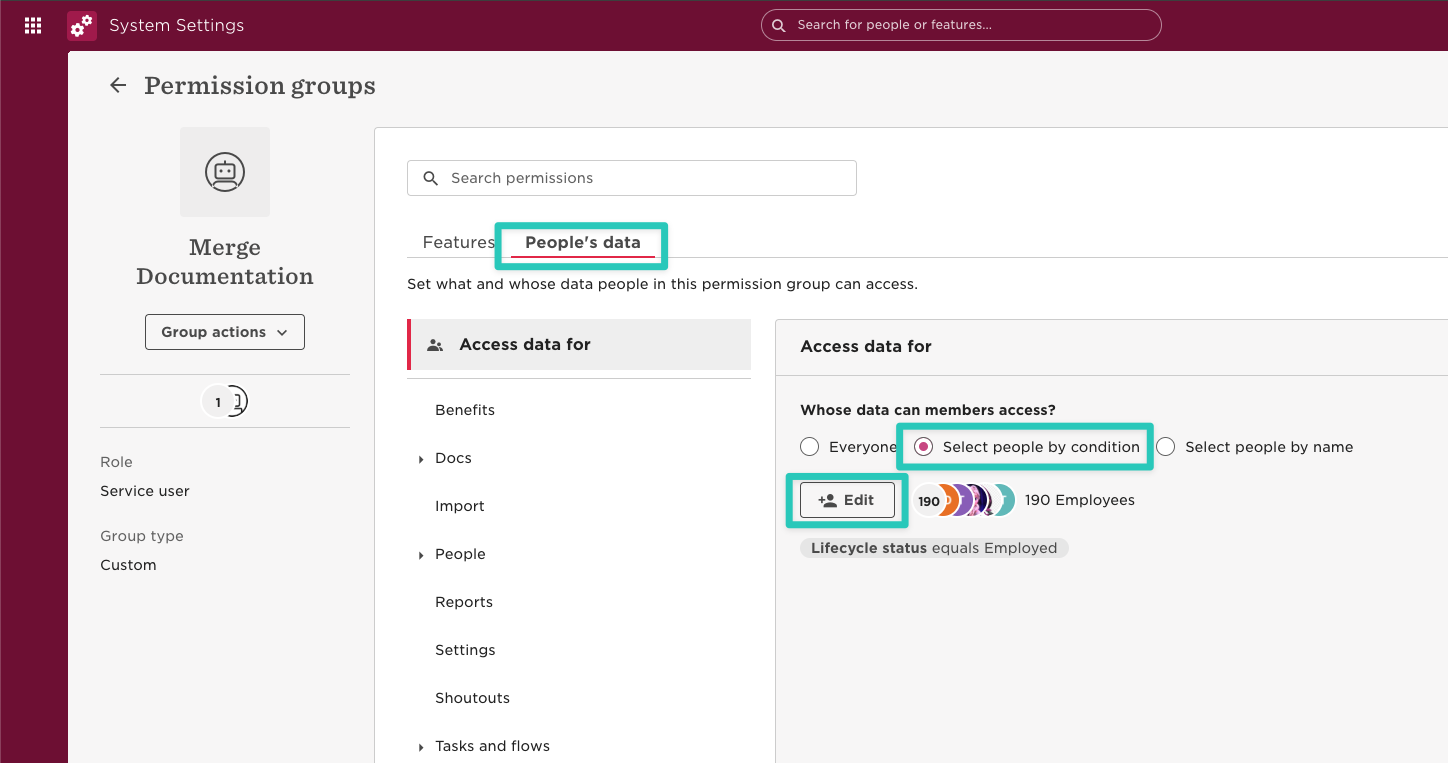
Switch to the People's data tab of the new Permission Group and click Access data for. Click Edit permissions on the top right corner. Pick "Select people by condition" under Whose data can members access?, then click on Edit to select the people the integration can access
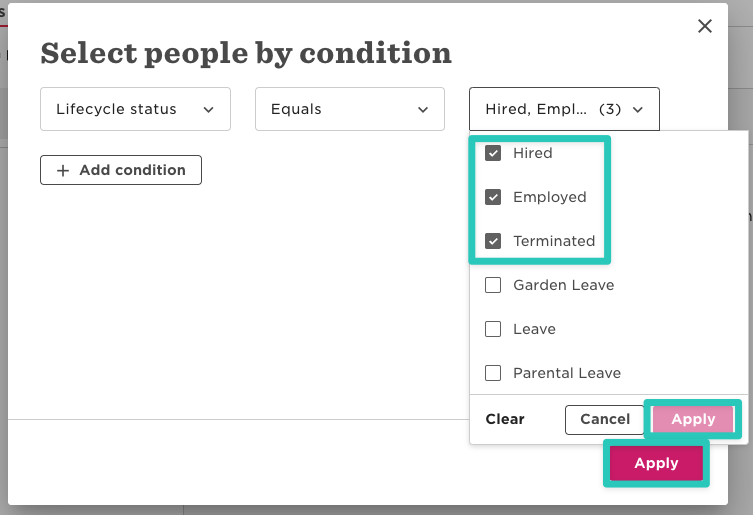
In the Select people by condition pop-up, select all relevant Lifecycle Statuses. In most scenarios this will include Hired, Employed, and Terminated. Click Apply twice once done:
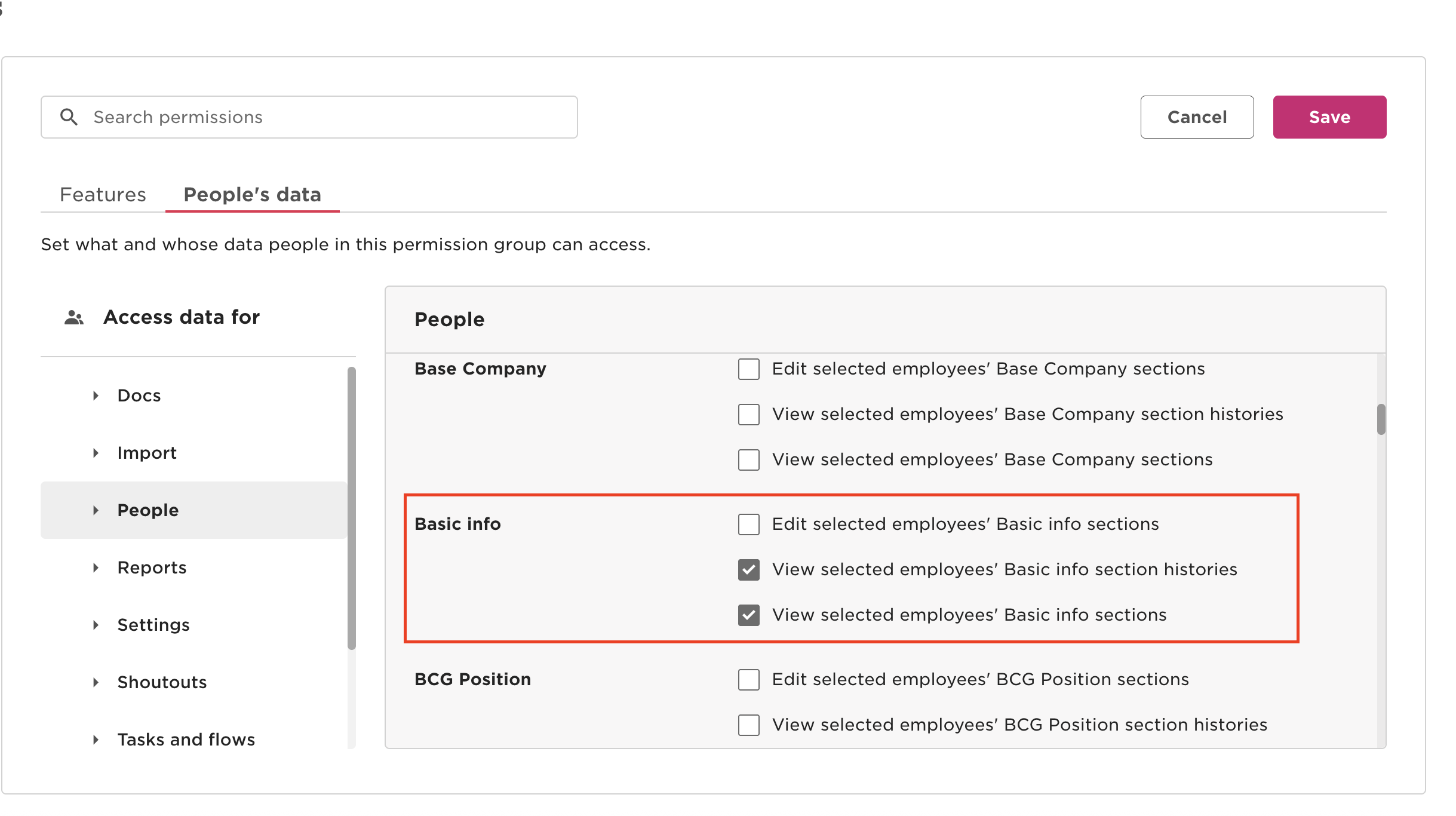
Back in the People's Data add the following permissions based on the required fields you need to share for your integration:
For each permission category, select the View selected employees' [Permission] sections and View selected employees' [Permission] section histories permission.
If you need Date of Birth or the full unobscured SSN fields, you must include both View and Edit access for the appropriate permission. Note that we will NOT edit any employee sections.
People > Basic Info Example:
HiBob Permission | Associated Fields |
People > Basic Info (required) | Name |
People > Employment People > Work | Company Employee Number Manager Start Date Termination Date Work Email Work Location Department Job Title Employment Type FLSA Code |
People > Work contact details | Work Email |
People > Personal | Date of Birth (requires Edit permission) Mobile Phone Number |
People > Personal contact details | Mobile Phone Number Personal Email |
People > Home | Gender Marital Status Personal Email |
People > Lifecycle | Employment Status |
People > Identification | SSN (requires Edit permission for the full unobscured SSN fields) |
People > Address | Home Location |
People > EEO | Ethnicity |
People > Payroll | Pay Rate Payroll Runs |
People > About | Avatar |
People > Financial | Bank Information |
Timeoff > Balance | Timeoff |
Timeoff > Requests | Timeoff |
Timeoff > See who's out today | Timeoff |
The additional permissions below are optional and may be required for use cases that extend beyond a standard HiBob HRIS integration. If applicable to your use case, include all of them. If not, they may be omitted.
HiBob Permission | Associated Fields |
People > Equity | Equity Grants |
Once done adding the above permissions, finish creating the Permission Group by selecting Save and Apply the changes.
Step 3: Link your HiBob account
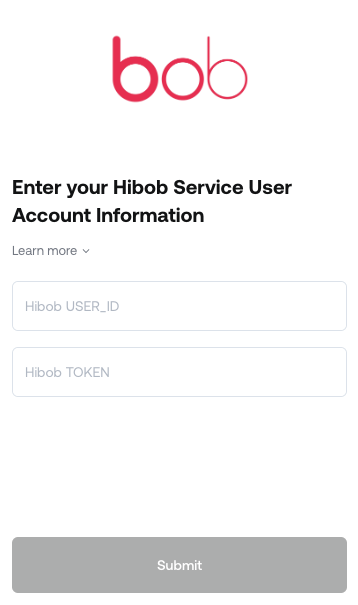
Copy and paste the Service Account User ID and Token created in part 1 into the linking flow
Notes
HiBob allows moving fields into categories other than those listed in the guide above. If some fields are missing after linking your HiBob account, view a sample employee in HiBob and confirm under which category (e.g. Personal, Work, About) the missing field can be found. Then add View permissions under People's data for that category as described above (for particularly sensitive fields you would also need to grant Edit permissions so Merge can read the respective field values).