Guide on creating Field Mappings
Last updated: March 23, 2026
Overview
Merge retrieves data from each third-party platform and normalizes that data into common models. In most cases, you don't need to worry about the nuances of every field in every platform, but there are situations where you might.
For example, a customer may use a custom BambooHR field called Family Name instead of the standard Last Name field, or you may want to adjust how Merge maps a specific field for an integration. In these cases, Merge’s field mapping feature lets you map additional fields to common model fields or modify the default mappings using the Override Common Model Field option.
How to map a new target field
Use this when you need to map a field that isn’t part of Merge’s common model fields, typically because it’s custom, unique, or only relevant for this customer/account.
Navigate to the Field Mapping tab of the linked account
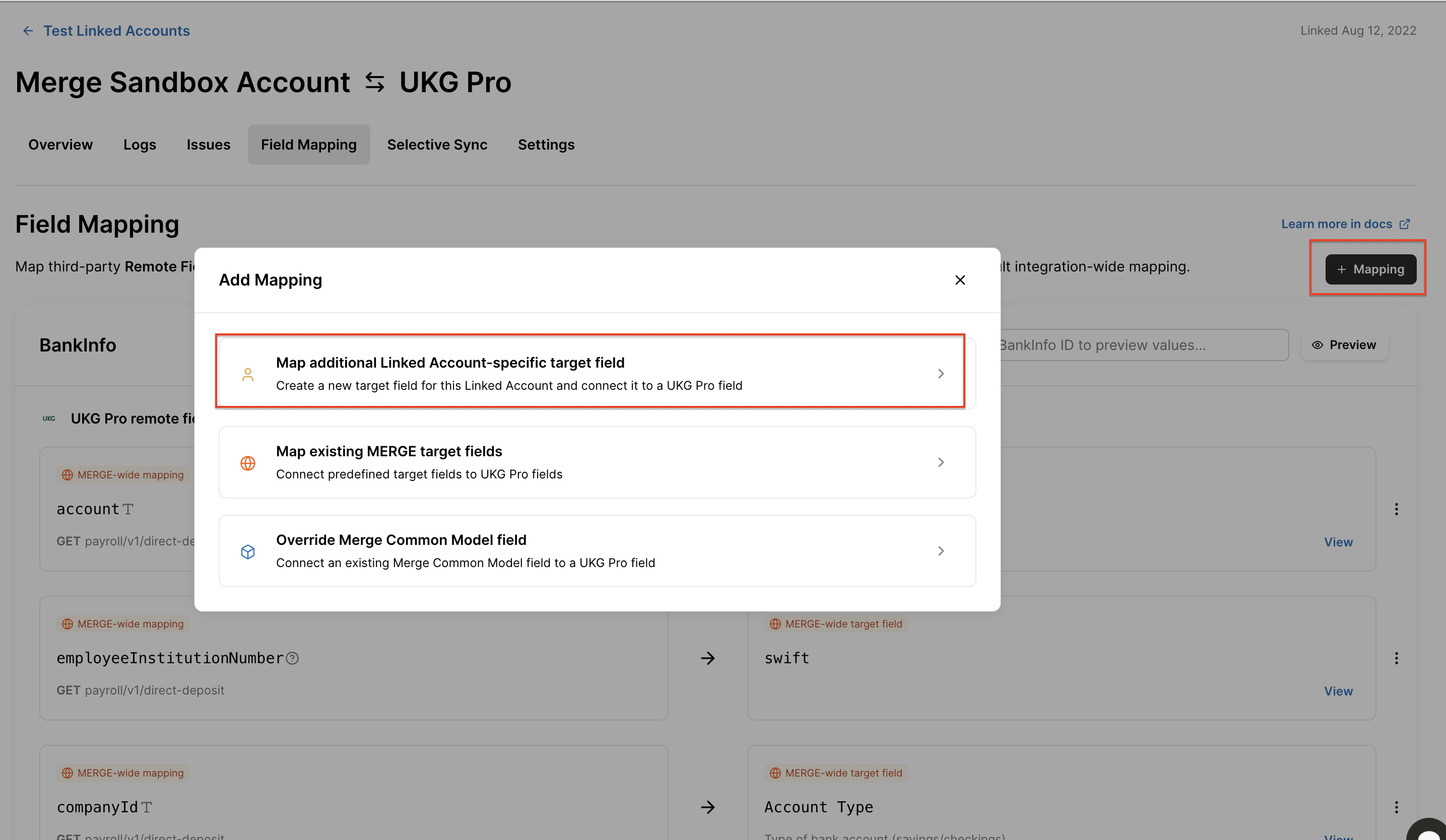
Select + Mapping in the upper right hand corner, then select Map additional Linked Account specific target field.
Search for the third-party field you want to map. If you see multiple fields with the same name, check the Model on each option to ensure you choose the one that corresponds with the Merge model you want to add the mapping to.
Example: Merge includes a
start_datefield, but the end user also wants to pull a seniority date. When you search, you may see two similar options. If you want the seniority date to populate on the Employee model in Merge, select the option associated with the Employee model.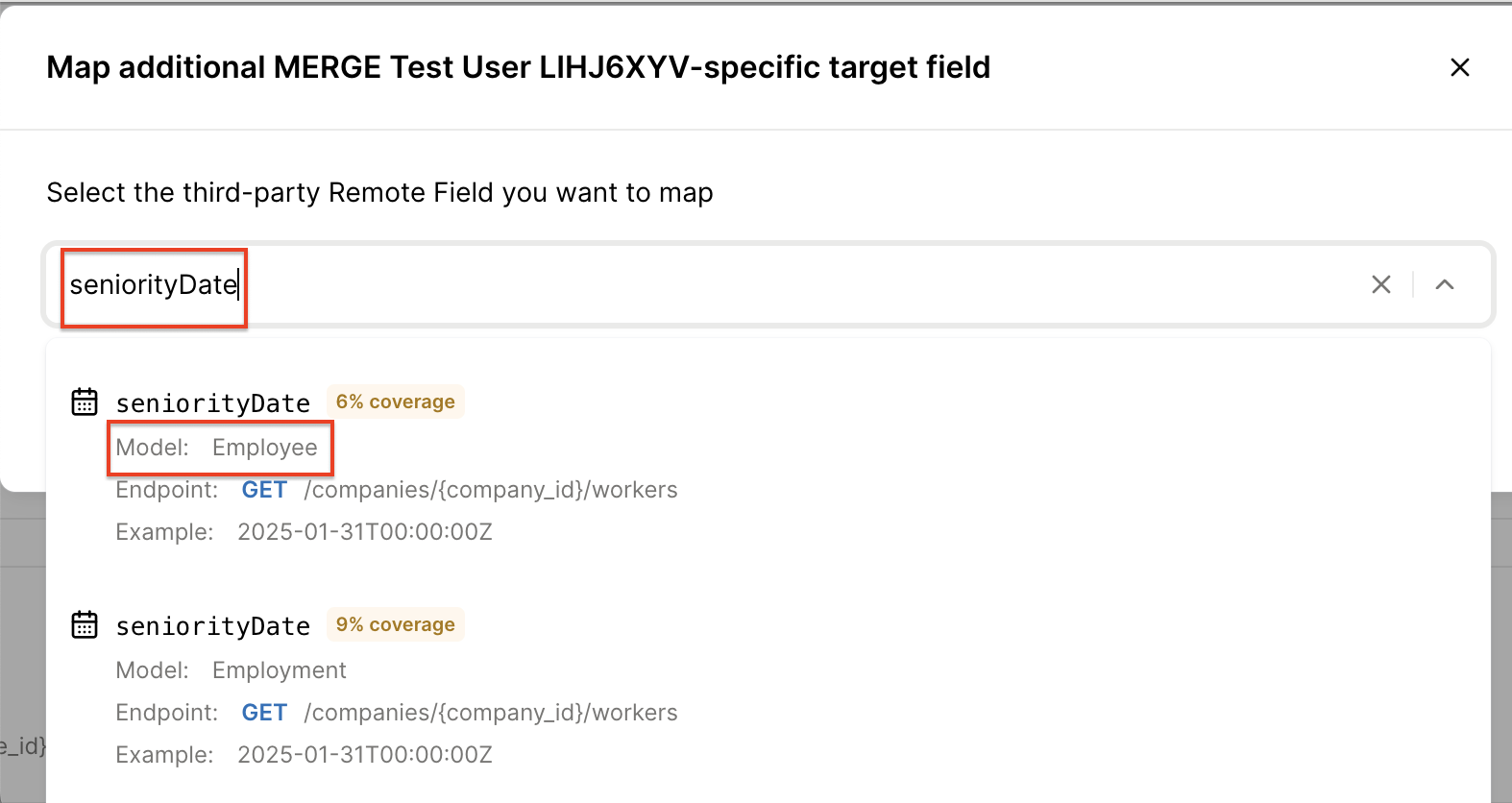
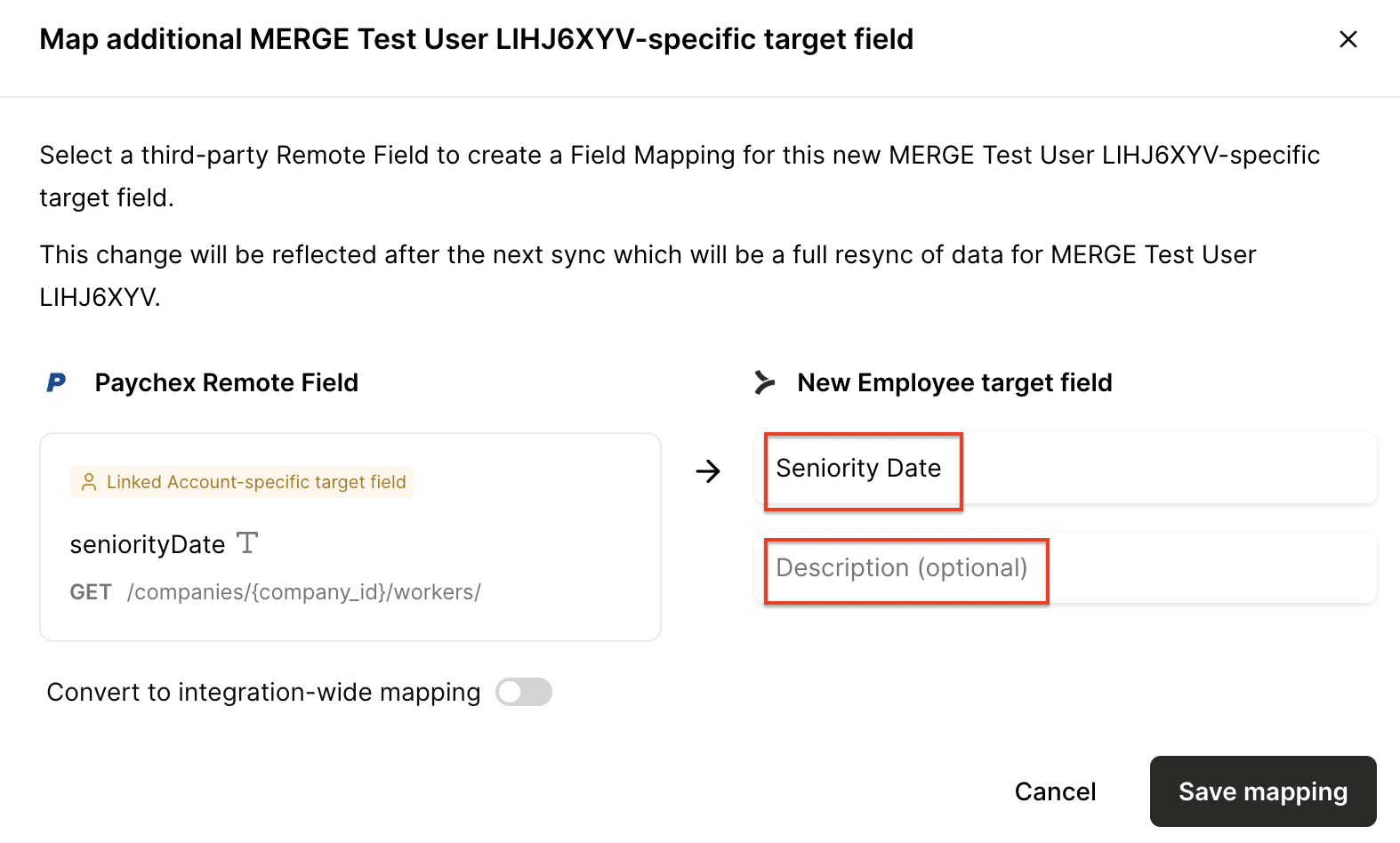
Click Next, enter a name and, optionally, a description for the new target field. Click Save mapping.
Your field mapping should start to populate following the next scheduled sync!
How to override a Common Model field
Use this when the field exists in the Merge common model, but the default mapping doesn’t meet your goal or desire, and you need to redirect which underlying source field populates that common model field.
The Common Model override feature only supports GET use cases. If a Common Model field is overridden, you will no longer be able to POST data to that field.
Navigate to the Field Mapping tab of the linked account
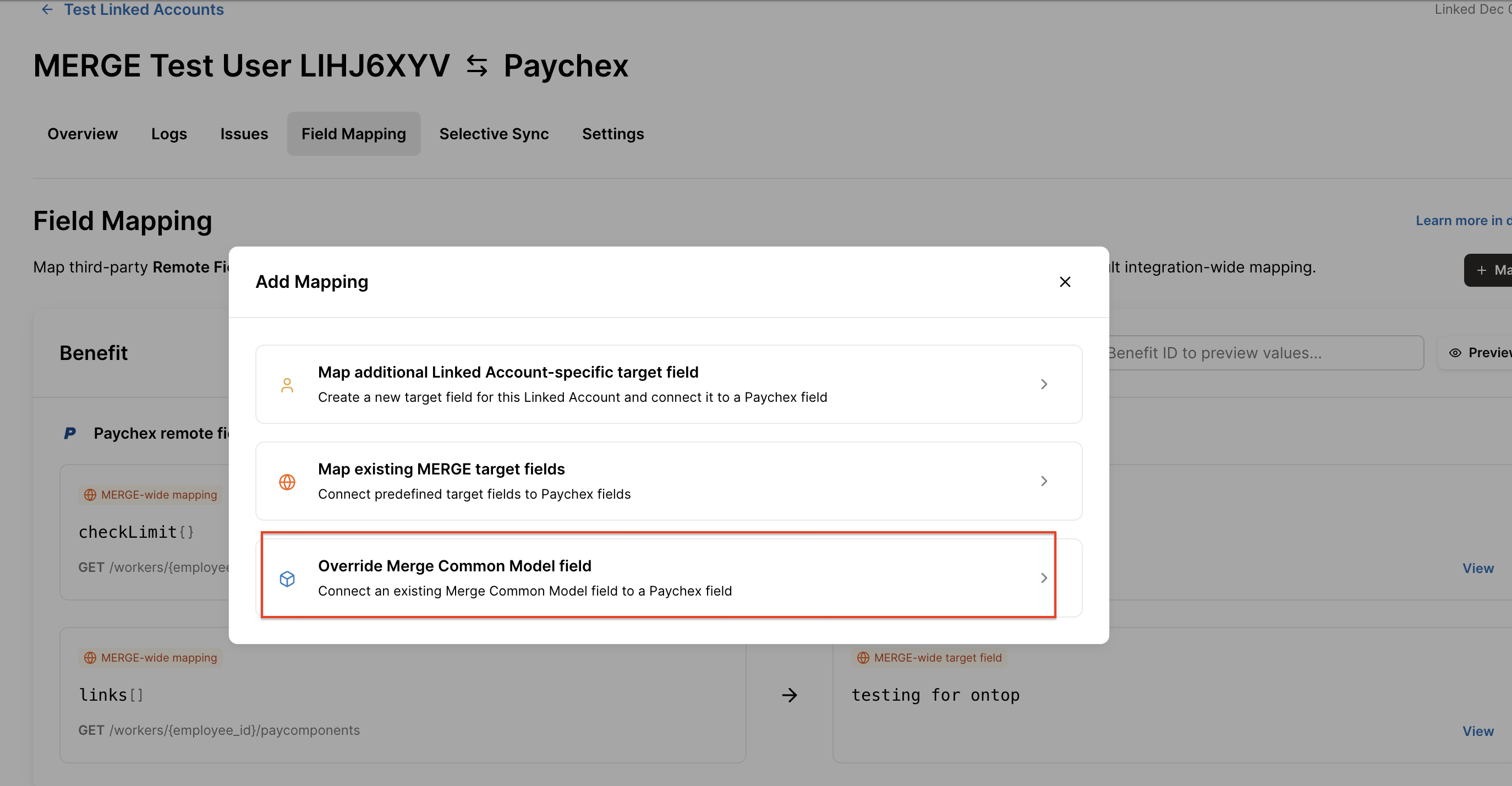
Select + Mapping in the upper right hand corner, then select Override Merge Common Model field.
Search for and select the third-party field you want to map from.
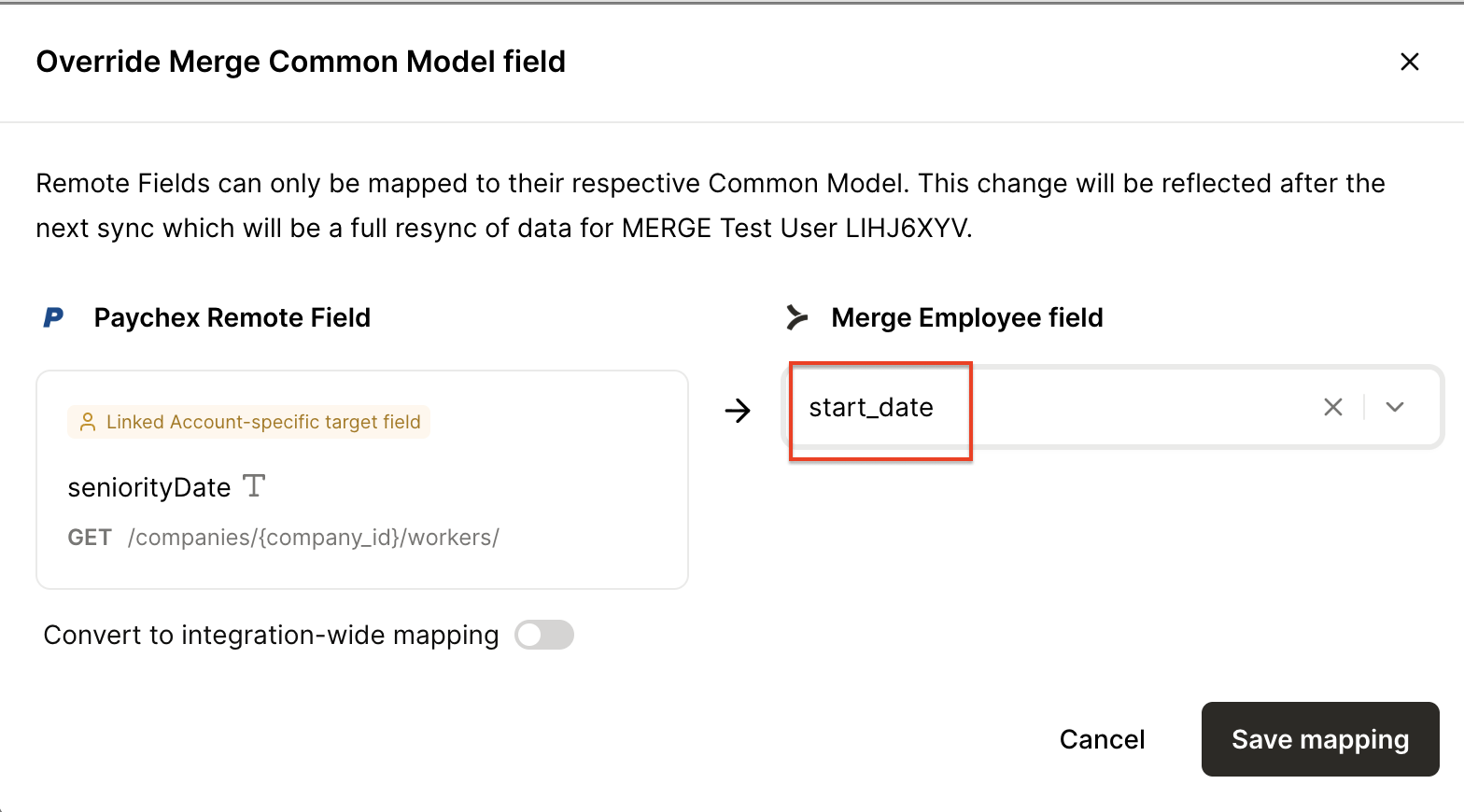
On the next page, select the Merge Common Model field you want to override.
Example: The customer wants the Merge field
start_dateto be populated using their seniority date field.
How to add a field mapping at the integration level
Use this when Merge has not yet mapped a specific field for this integration, or when you need to override Merge’s default mapping for that integration.
Navigate to the Field Mapping tab on the Advanced configuration page.
In the drop down select the category you want to add the mapping for (HIRS, ATS, Accounting, etc).
If you have not created this mapping for any other integration, click + Field and choose whether you want to override a Merge Common Model field or map a new target field.
Select the target field or override you want to map.
Search for the integration you'd like to add the mapping to, then select the remote_field you want to use:
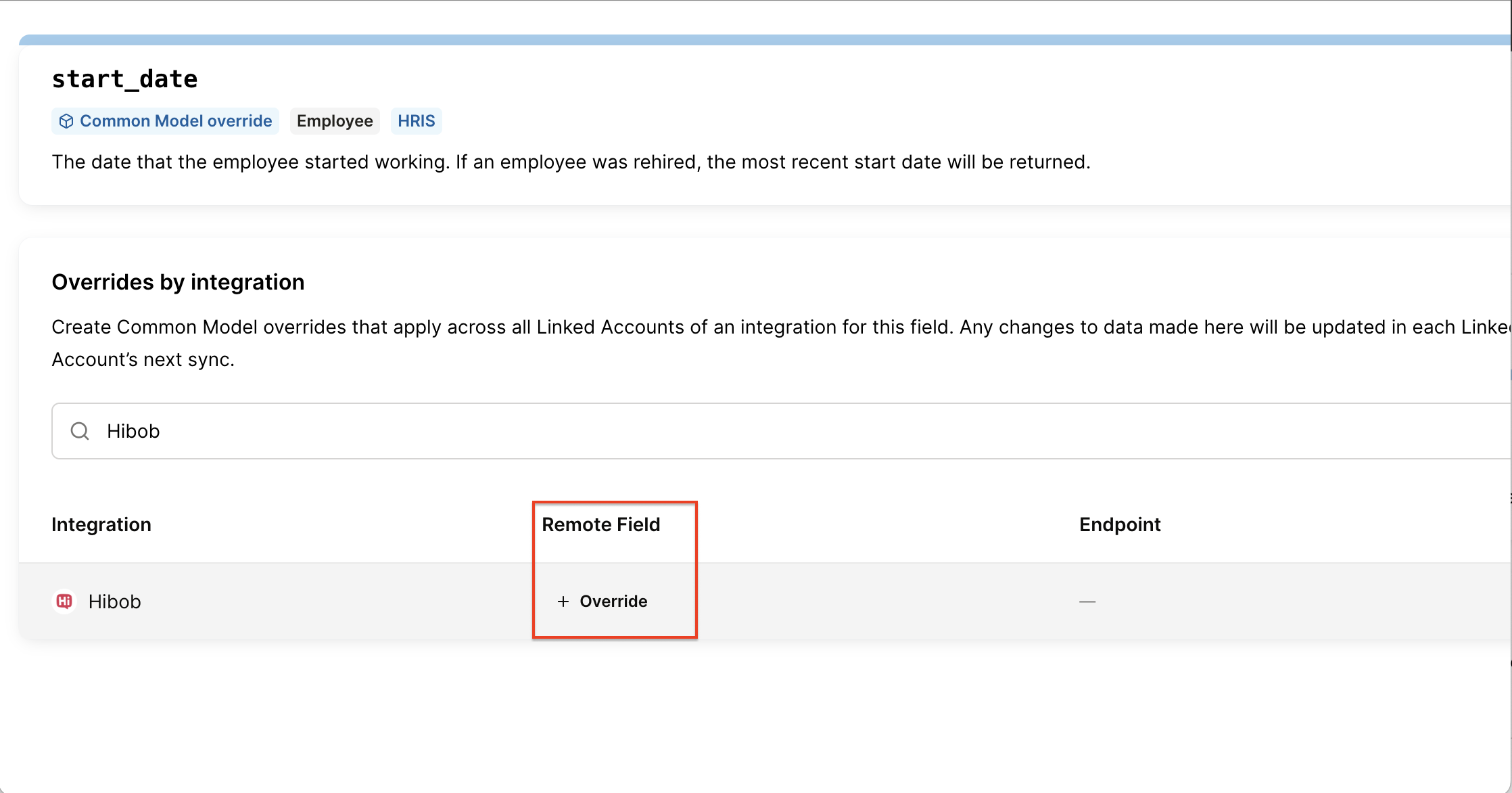
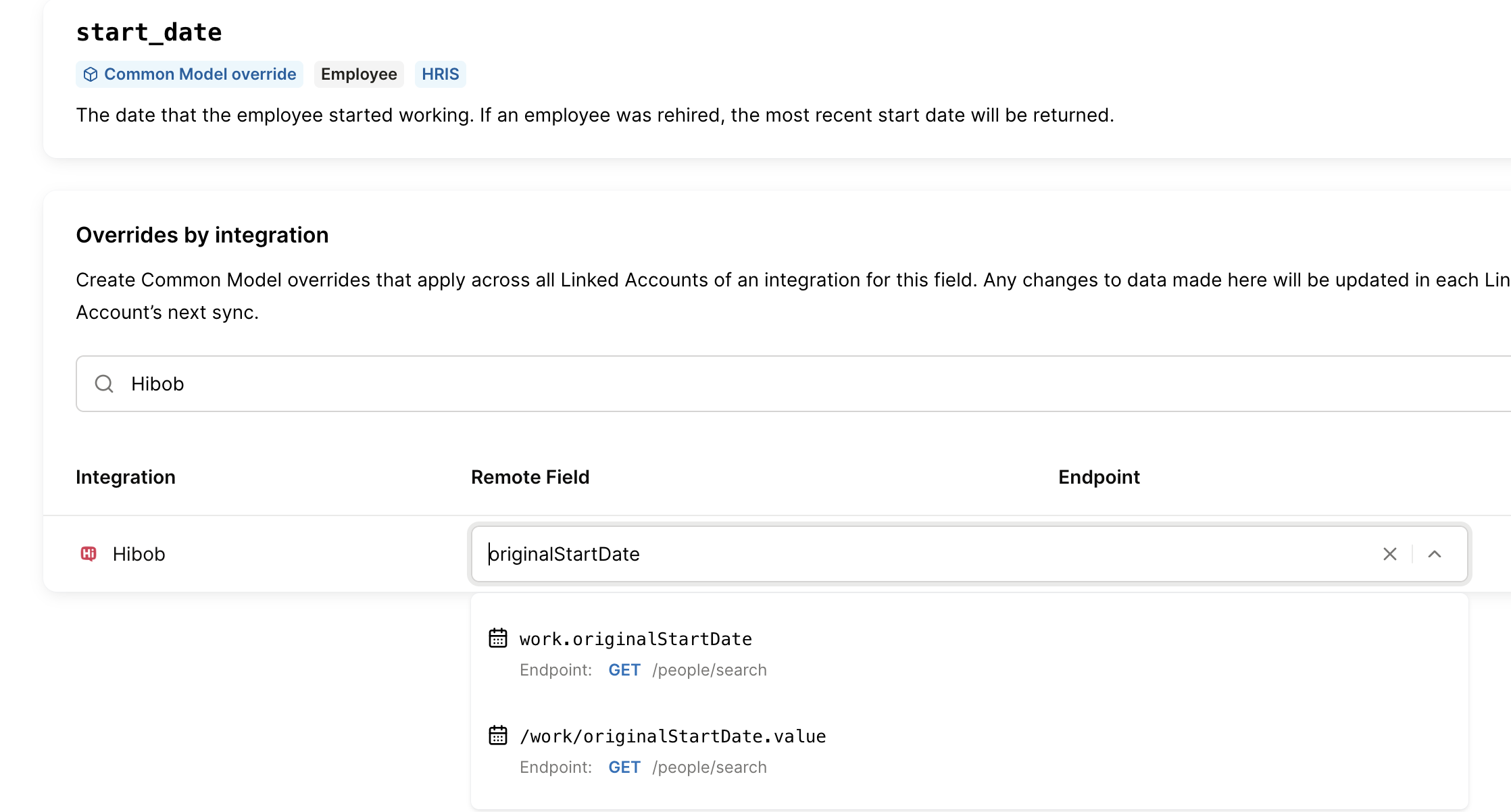
This integration-wide mapping will automatically apply to all existing and newly created Linked Accounts for that integration. In each Linked Account’s Field Mapping page, it will appear as an organization-wide mapping.
Not seeing the Remote Field you want in the dropdown?
A Remote Field must be returned in 95% of all Production Linked Accounts in Merge to be available for integration-wide mapping. Any integration that does not have at least 25 Production Linked Accounts will not show any fields as available for integration-wide Field Mappings.
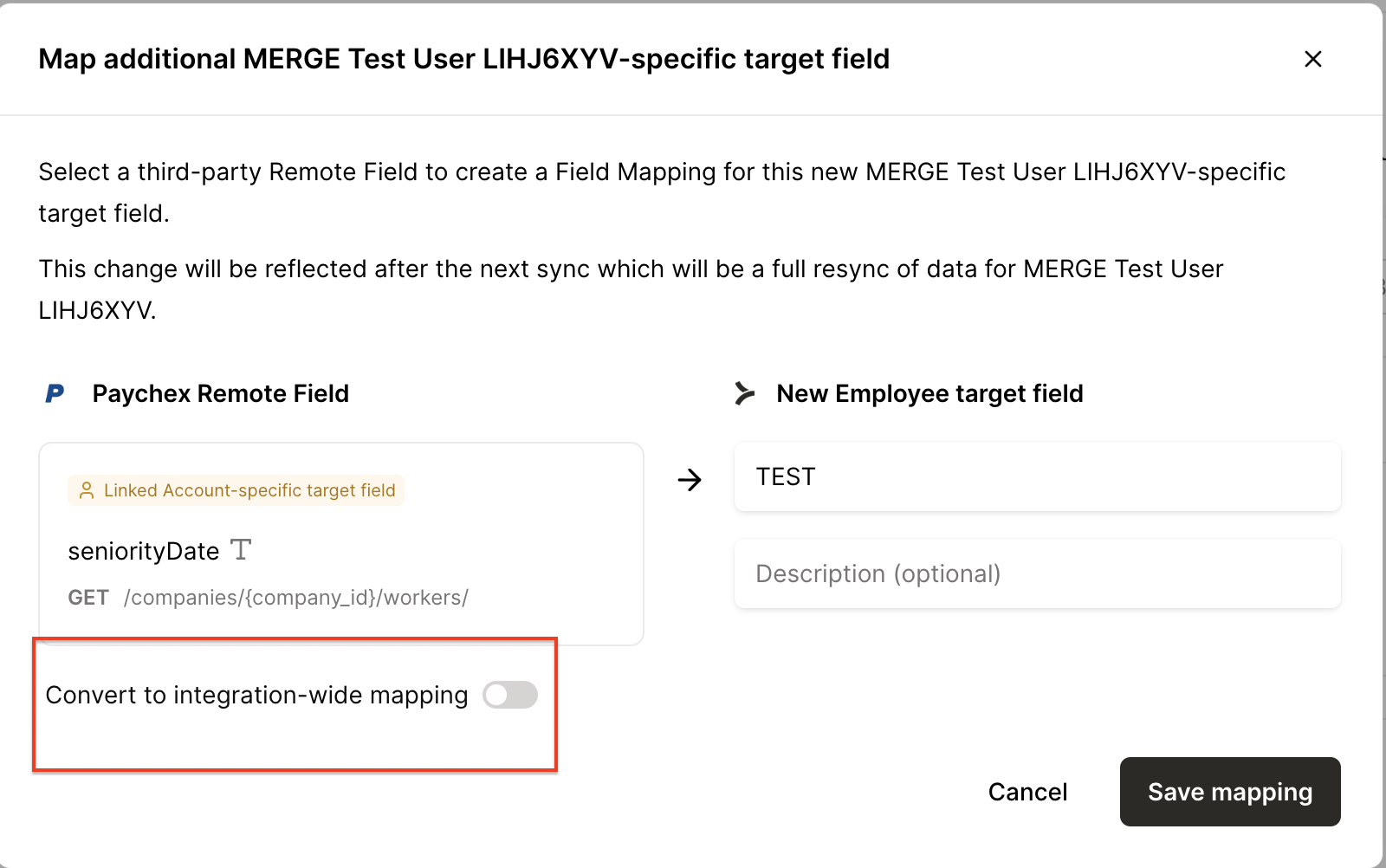
If the remote field you want is not available, create the mapping at the Linked Account level instead, then select Convert to integration-wide mapping on the last step.
How to create an advanced field mapping
Use this when the Remote Field you’re mapping is an array ([]) or object ({}), and you need to extract a specific nested value (or apply JMESPath logic/filters) so only the intended value syncs into your target field.
When you select an eligible remote field from the Remote Fields dropdown in the Merge dashboard or Merge Link, you will see an Advanced mapping option.
Select the remote field.
Click Add advanced mapping.
You will see an example JSON payload and a field to enter a JMESPath query.
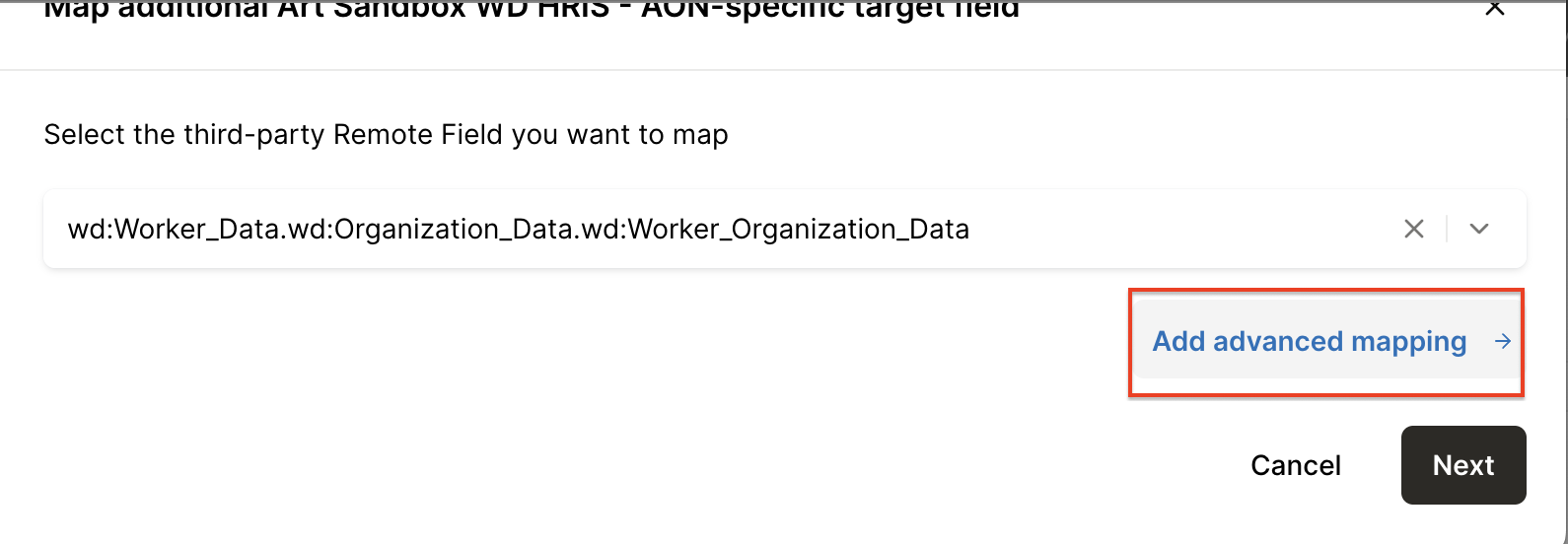
You can proceed in one of two ways
For simple mappings, select the line you want from the example JSON. Merge will automatically generate the JMESPath query.
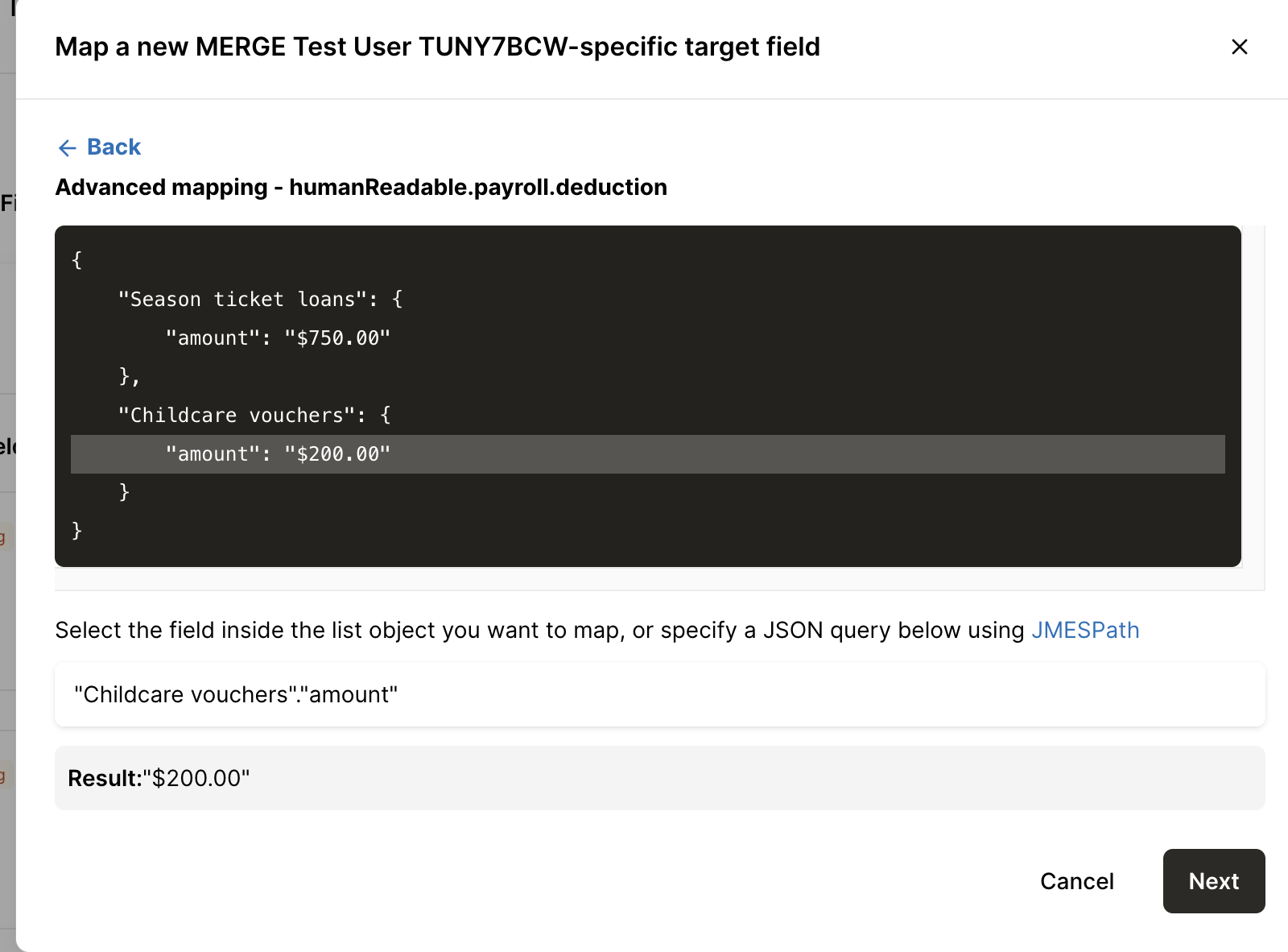
For more complex mappings, write your own JMESPath query. This is required when you need to choose a specific object within an array or apply additional logic. More details are available in our JMESPath documentation.
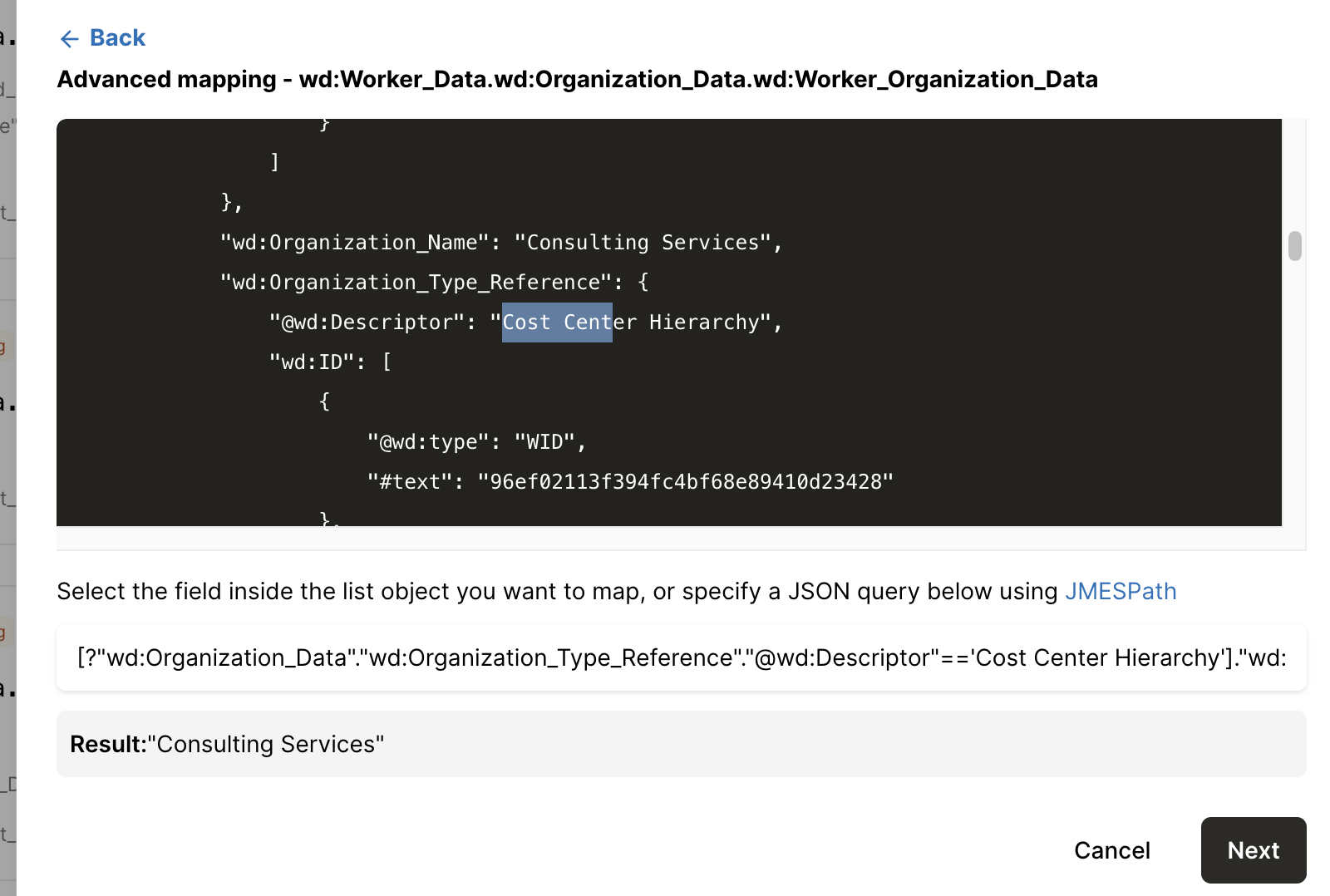
We’ve put together a list of commonly requested JMESPath queries. You may need to log in to the Help Center using your work email address to view it.