Suggested approaches to reading custom fields
Last updated: March 23, 2026
Many third-party systems include custom fields and data points that fall outside of the Merge's standard Common Models. To help you access, unify, and operationalize these fields, Merge offers several flexible mechanisms through its Supplemental Data features: Remote Data and Field Mapping.
This guide outlines our suggestions when implementing custom fields. It briefly outlines the options you have to populate Field Mappings, but for more information, refer to our official documentation:
Understanding supplemental data
Before selecting an approach, it helps to understand the mechanisms Merge provides to handle custom fields:
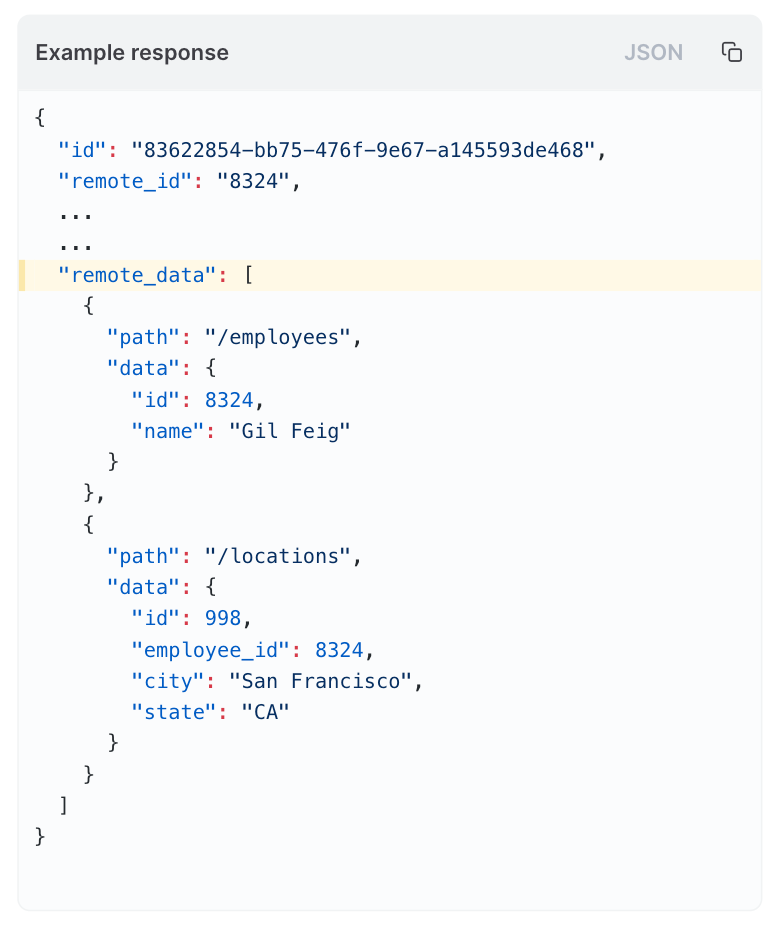
Remote data
Remote Data lets you access the latest data from third-party integrations in its original format, even if it's not included in our Common Model
Best for viewing extra fields where our common data model does not offer specific fields that you are interested in.
Structure and naming depend entirely on the integration
Remote Data will only be updated in a sync if there's a change to Common Model field. If you need updates to other non Common Model related fields found in Remote Data, you should create Field Mappings for those fields as Field Mappings are considered Common Model fields.
Field Mapping
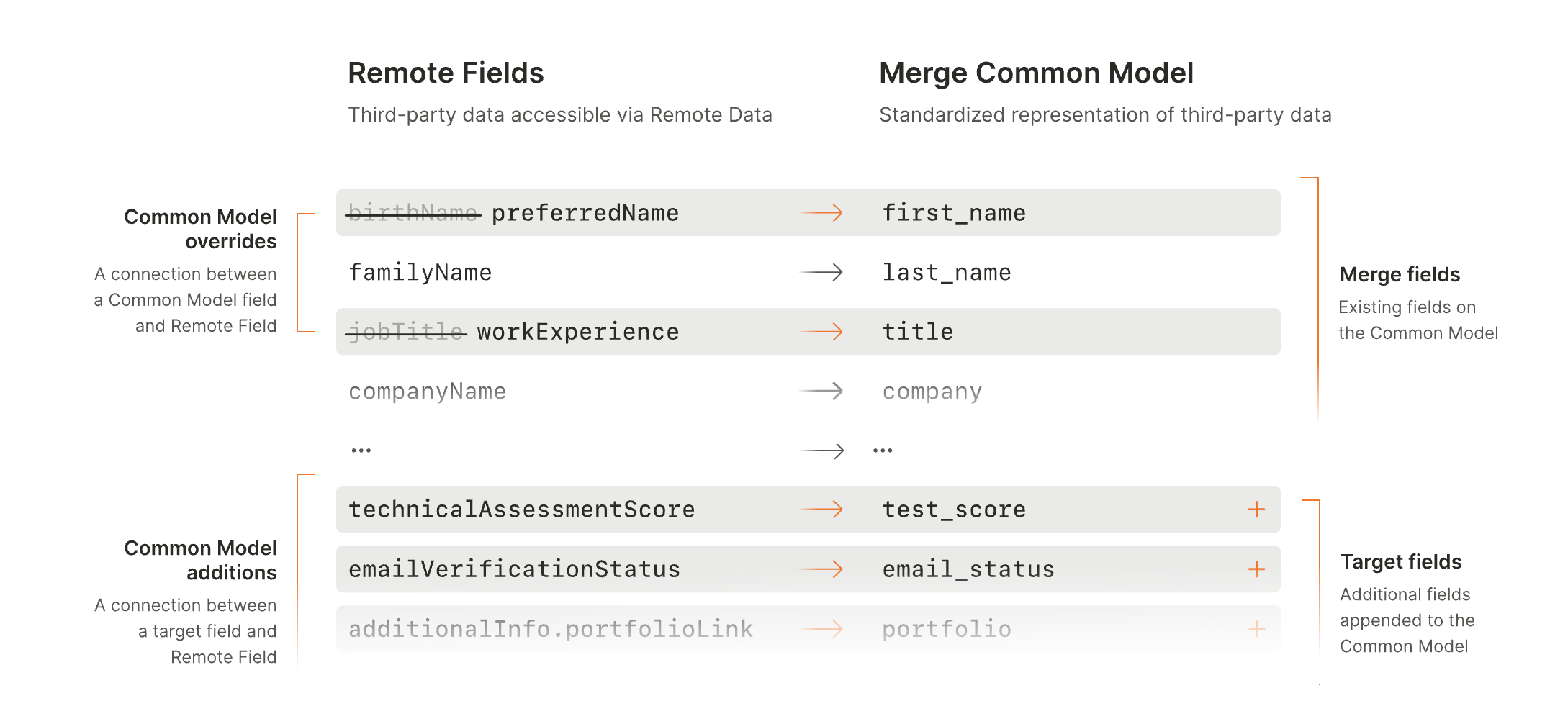
Predefine fields to extend the Merge Common Model, pre-populate these fields with you mappings, and optionally allows your customers to map their custom fields into your application’s fields.
Remote Data must be enabled to create target fields and mappings on a Common Model
Once a Field Mapping is applied, the next scheduled sync will be a full resync and will populate the mapping(s) that you created.
Supports:
Field Mapping setup in your Merge Dashboard.
Self-serve Field Mapping during Merge Link linking flow.
Programmatic Field Mapping management via the API.
Best for reading fields from the third-party by mapping them to extend the Merge Common Model
Approaches to reading custom fields
Field Mappings are the primary and recommended method for handling custom fields across integrations in Merge. They provide normalization, consistency, and flexibility by letting you define the internal schema your product requires while allowing customers to map their own custom fields to it.
Below is a breakdown of the two suggested approaches of implementing Field Mappings.
You can combine approaches! For example, you can configure a few, default fields across integrations, while also allowing your customers to create their own custom fields.
Approach 1: Configure pre-defined custom fields (most common)
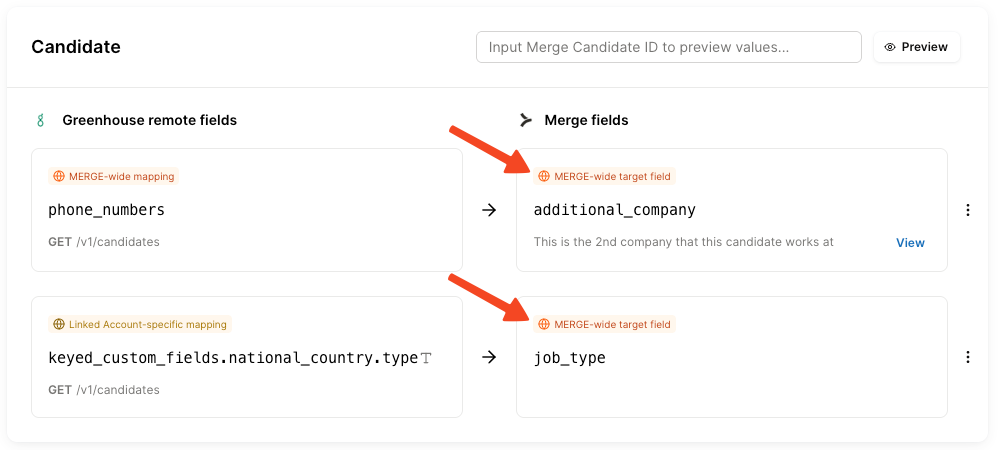
In this approach, your team predefines Org-wide target fields, making sure the names of the custom fields are static. In this approach, you can even pre-populate fields with integration-specific mappings!
When to use this approach
You want full control over the custom fields your product supports.
For example, your data model has a field called
t_shirt_size(orcustom_field_01) and you want to your customers to be able to define where that field comes from in their HRIS
How it works
You define the target field names (e.g.,
t_shirt_sizeorcustom_field_01) on your target Common Models.The target fields are either mapped across an integration or for a specific Linked Account.
Merge stores and applies the mappings.
You ingest these mappings' values in your normal syncs from Merge to you via the field_mappings field.
Approach 2: Allow end-users to define their custom field names
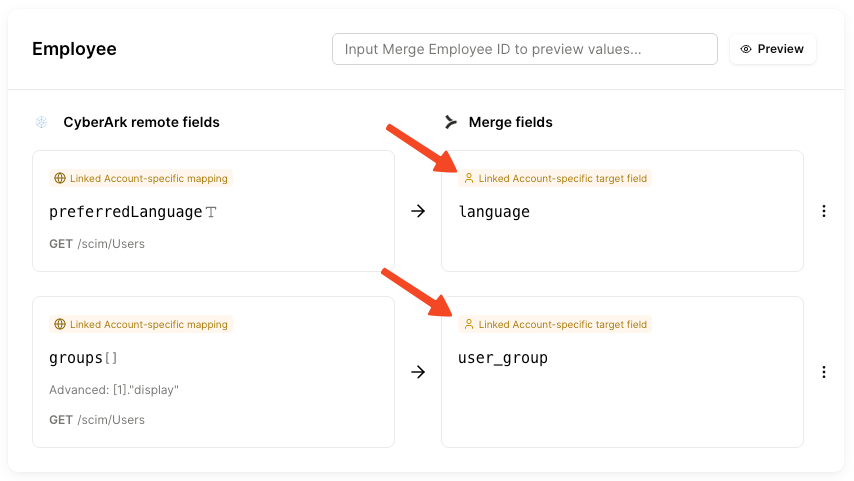
This approach allows your customers to define their own custom field names through Linked Account-specific target fields.
When to use this approach
Your product allows customers to define their own custom fields.
Every customer may have a different name for their custom fields.
How it works
Target Field Mappings are defined on a Linked Account by Linked Account basis, all with different names.
Your syncing logic is set up to read all fields defined for a specific Linked Account - see Handling linked account-defined targets for full details
How custom fields can be populated
There are a few different ways you or your customers can populate custom fields.
This section briefly outlines the options you have to populate Field Mappings, but for more information, refer to our official documentation:
Across an integration, without no per-Linked Account work
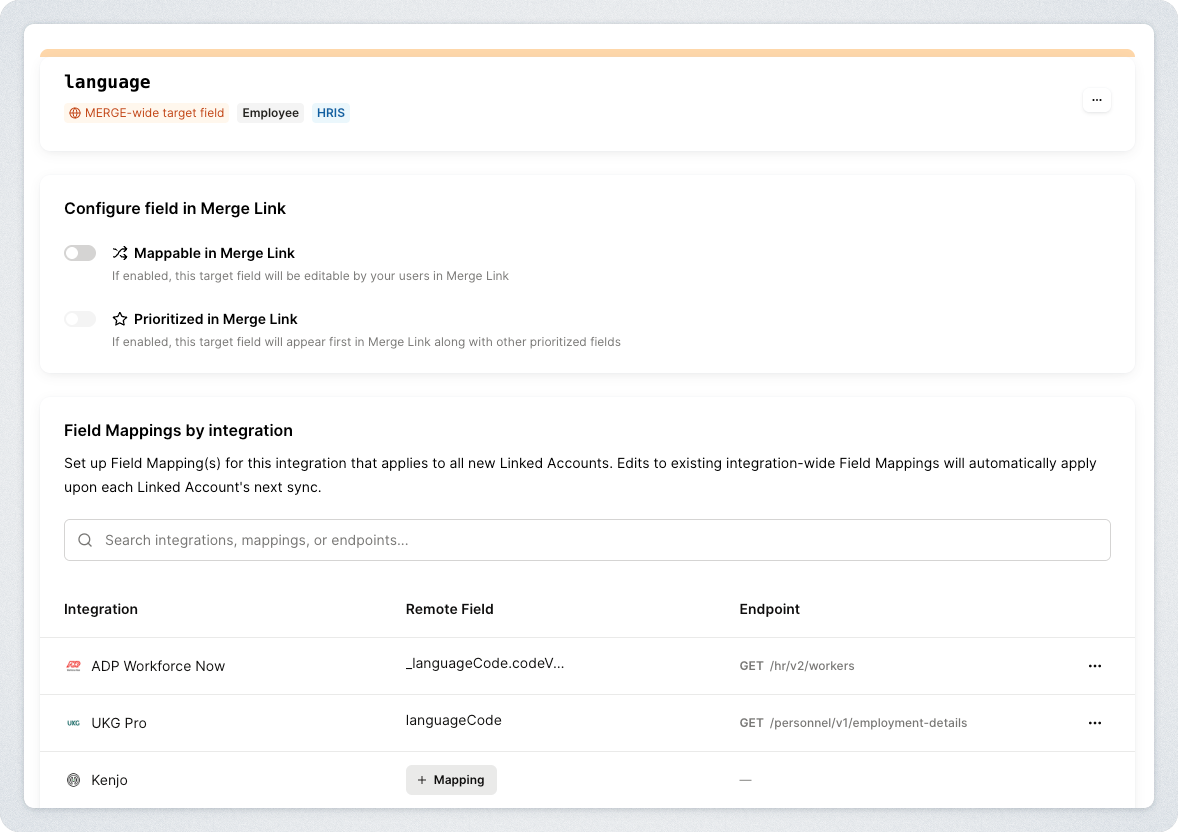
If a third party platform supports a field out of the box, you map the field across all Linked Accounts. This will only work with with Approach 1 outlined above.
For example, if your product has a field for and Employee's "Preferred Language". While Merge doesn't support a preferred language field in the Employee common model, some HRIS applications capture this by default. With this approach, you can extend Merge's common model with a language field across various integrations!
Per Linked Account, by you, in the Merge Dashboard
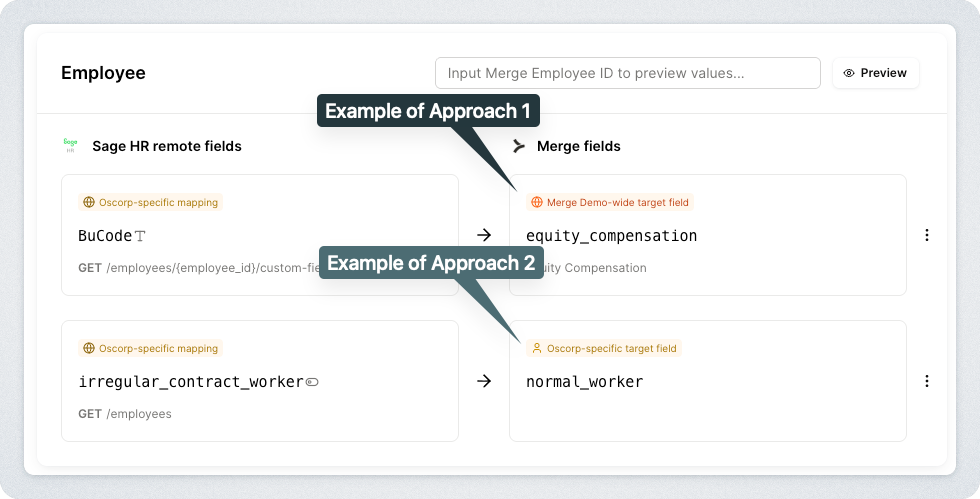
Your Support team, Implementation team, or Customer Success team can provide white glove support to your customers by populating Field Mappings within the Merge Dashboard. This will work with both Approach 1 and Approach 2 outlined above. See our official documentation for the full process!
Per Linked Account, by your customer, in Merge Link
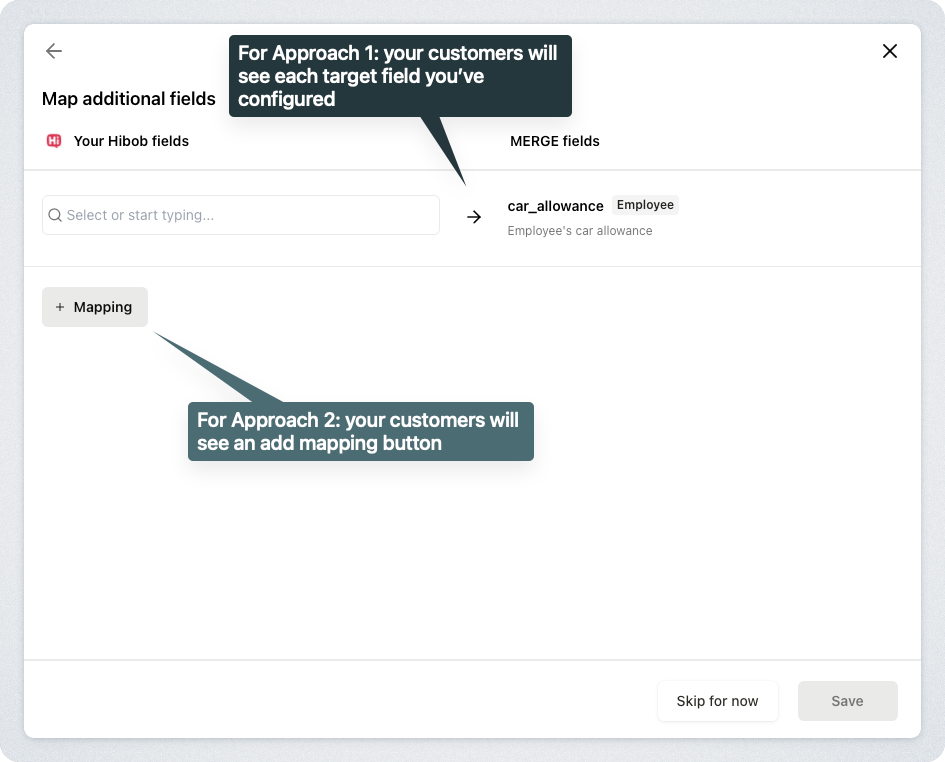
Your customers can self-serve the population of Field Mappings directly in Merge Link. This will work with both Approach 1 and Approach 2 outlined above. See our official documentation for the full process!
Per Linked Account, through a custom mapping UI in your product
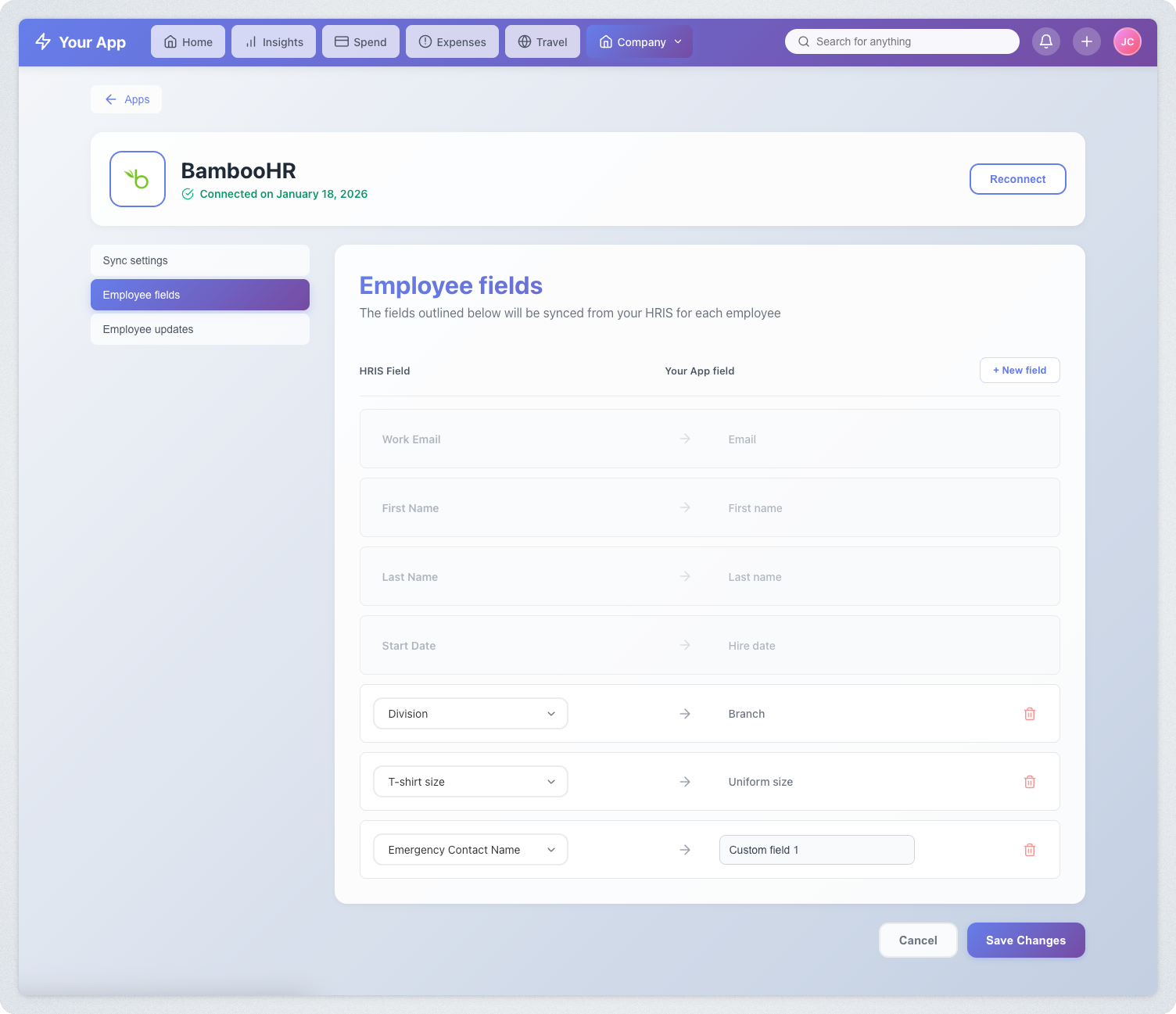
This approach relies on Field Mappings via API. This feature is only available to Merge customers on the Enterprise plan.
This approach gives customers end-to-end control over field mappings inside your own product, powered by Merge’s Field Mapping APIs. This will only work with Approach 1 outlined above.
When to use this approach
You want a native mapping experience deeply integrated into your product’s workflow.
You want a more advanced mapping user experience than Merge Link
How it works
Fetch current Field Mappings with POST /field-mapping.
Display fields available for Field Mapping with /remote-fields.
Your UI collects user mapping selections.
You create these mappings with POST /field-mapping or update them with PATCH /field-mapping.
Merge applies and stores the mapping(s).
You ingest these mappings' values in your normal syncs from Merge to you via the field_mappings field.
Incorporating Field Mappings in your syncing logic
After Field Mappings are created, they appear as additional properties on the corresponding Merge Common Model. Organization-wide targets are separated from Linked Account–specific targets so you can easily distinguish between the two. An example is provided below, but feel free to check out our official Field Mapping documentation for more detail.
{
    "id": "92e8a369-fffe-430d-b93a-f7e8a16563f1",
    "remote_id": "98796",
    "candidate": "2872ba14-4084-492b-be96-e5eee6fc33ef",
    "job": "52bf9b5e-0beb-4f6f-8a72-cd4dca7ca633",
    "applied_at": "2021-10-15T00:00:00Z",
    "rejected_at": "2021-11-15T00:00:00Z",
    "source": "Campus recruiting event",
    "credited_to": "58166795-8d68-4b30-9bfb-bfd402479484",
    "current_stage": "d578dfdc-7b0a-4ab6-a2b0-4b40f20eb9ea",
    "reject_reason": "59b25f2b-da02-40f5-9656-9fa0db555784",
    "remote_was_deleted": false,
    "field_mappings": {
        "organization_defined_targets": {
            "technical_assessment_score": {
                "value": 4
            },
            "max_degree": {
                "value": "Master's"
            }
        },
        "linked_account_defined_targets": {
            "previous_role": {
                "value": "Management Consultant"
            }
        }
    }
}
Handling organization-defined targets (Approach 1)
You’ve most likely already incorporated organization-defined targets into your syncing logic, since they are common properties across your customer base. One important detail to keep in mind is that if an organization-defined target is not mapped for a given integration or Linked Account, it will be omitted from the response.
For example, if the max_degree field in the example above were only mapped for the Greenhouse integration, then linking an Ashby account would result in the following response:
{
    ...
    "field_mappings": {
        "organization_defined_targets": {
            "technical_assessment_score": {
                "value": 4
            }
        },
        "linked_account_defined_targets": {
            "previous_role": {
                "value": "Management Consultant"
            }
        }
    }
}
Handling linked account-defined targets (Approach 2)
Linked Account-defined targets will vary end-user by end-user, so your syncing logic should be able to account for differing values. The most common way to handle this is to iterate over the keys of the linked_account_defined_targets object, extracting the key, value pair. Sample code snippet below!
const laTargets = data.field_mappings.linked_account_defined_targets || {};
const extracted = Object.entries(laTargets).map(([key, obj]) => ({
  key,
  value: obj.value
}));
Frequently asked questions (FAQ)
Can I rely solely on remote data to access custom fields?
Partially - Remote Data always contains all fields returned from the upstream system, including custom ones. However, this approach places the burden on your engineering team to interpret each integration’s raw field names and structure. If your product needs consistent field names across customers or requires capturing updates to these fields, Field Mapping is a better choice.
Do I need to enable Field Mapping for every integration?
No. Field Mapping is optional and configurable per category and per model. You can enable it only for object types where you expect customers will need to map custom fields (e.g., CRM Contacts or HRIS Employees).
Where do my end-users map fields?
Your users can map fields either:
Inside Merge Link, during account connection or later when updating their configuration, or
Inside your own product, if you choose to use Merge’s Field Mapping APIs and build your own mapping UI.
Can Field Mappings change over time?
Yes. Customers may update remote fields in their systems or modify mapping choices. Your application should be prepared to refresh mappings periodically or fetch the latest mappings when syncing data.