Jira Data Center - How do I link using OAuth?
Last updated: July 8, 2025
Overview
To authenticate your Jira Data Center account, you will need to provide the following information:
OAuth Client ID (Client ID in Jira Data Center)
OAuth Client secret (Client secret in Jira Data Center)
Prerequisites
Please ensure you fulfill all the requirements to set up the integration:
You have Administrator permissions in your company's Jira Data Center instance
Instructions
Step 1: Enter your subdomain in the linking flow
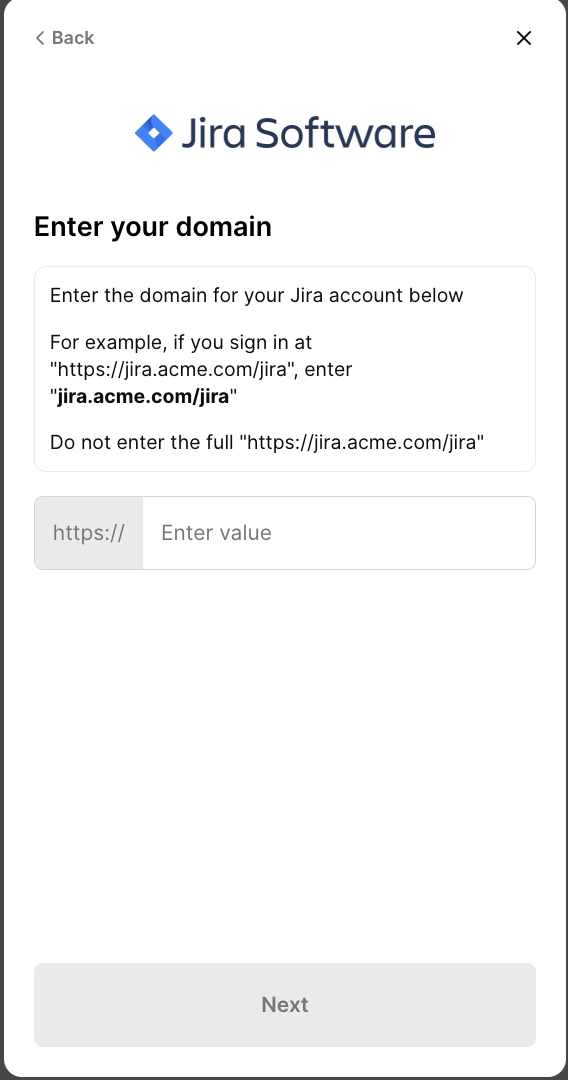
Step 2: Create an application link
This step needs to be done by a Jira Data Center Administrator.
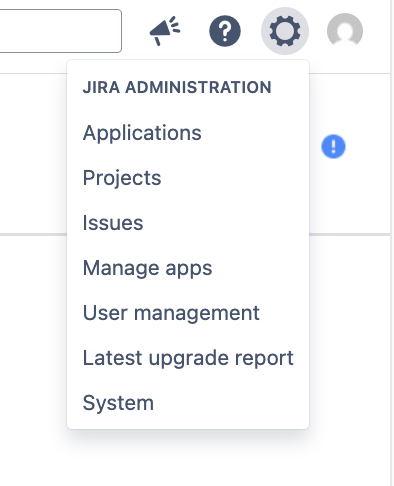
Click the Gear icon on the top right and select Applications
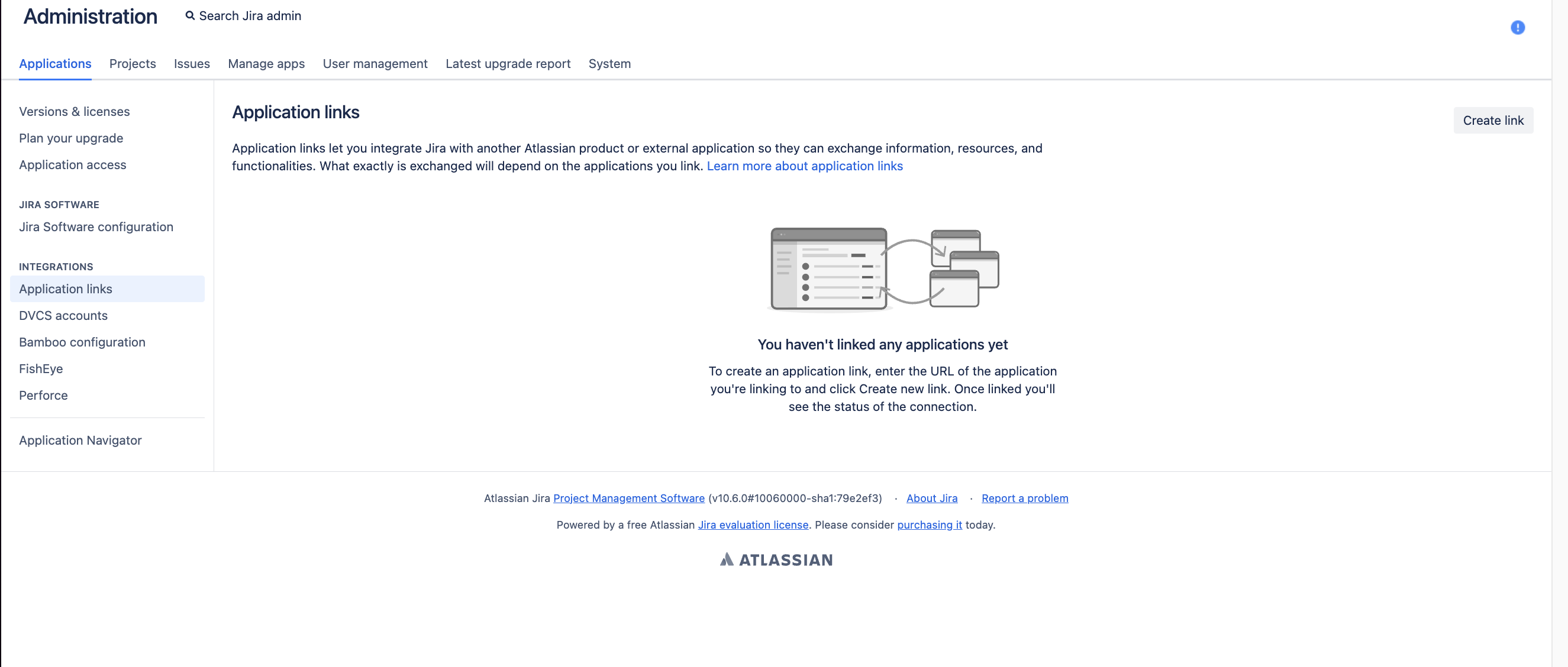
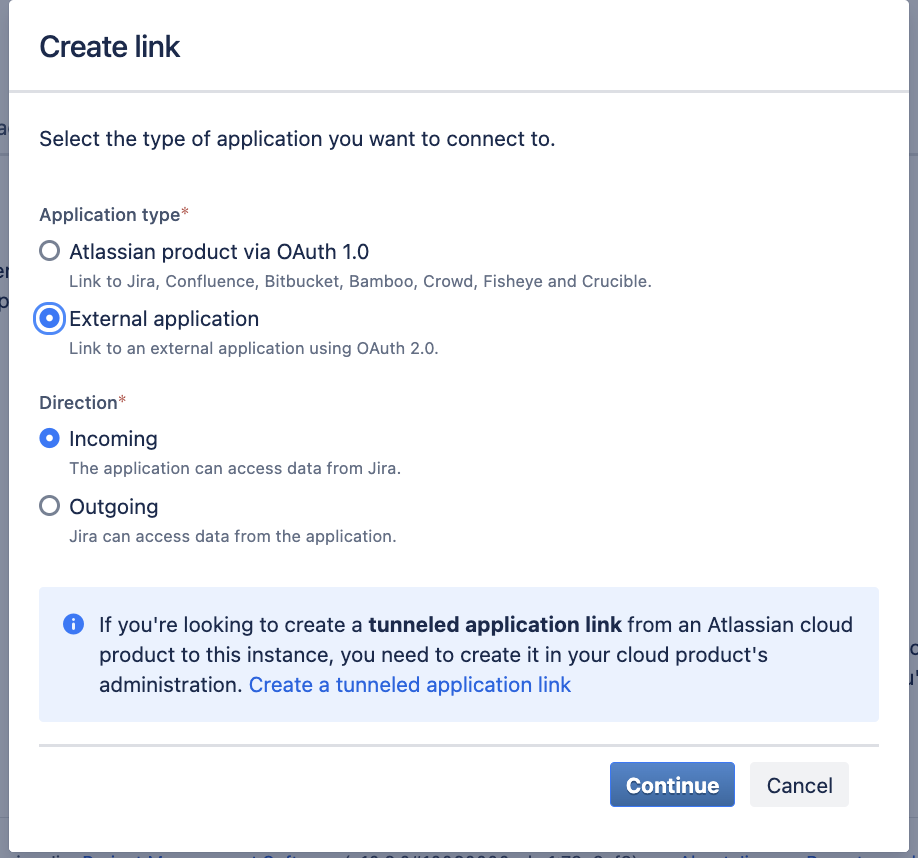
Click on Application links in the side panel and press “Create link”
Select “External application” and “Incoming” and press Continue
Enter a link name, populate the redirect url with https://app.merge.dev/oauth/callback and select the permission you wish to grant.
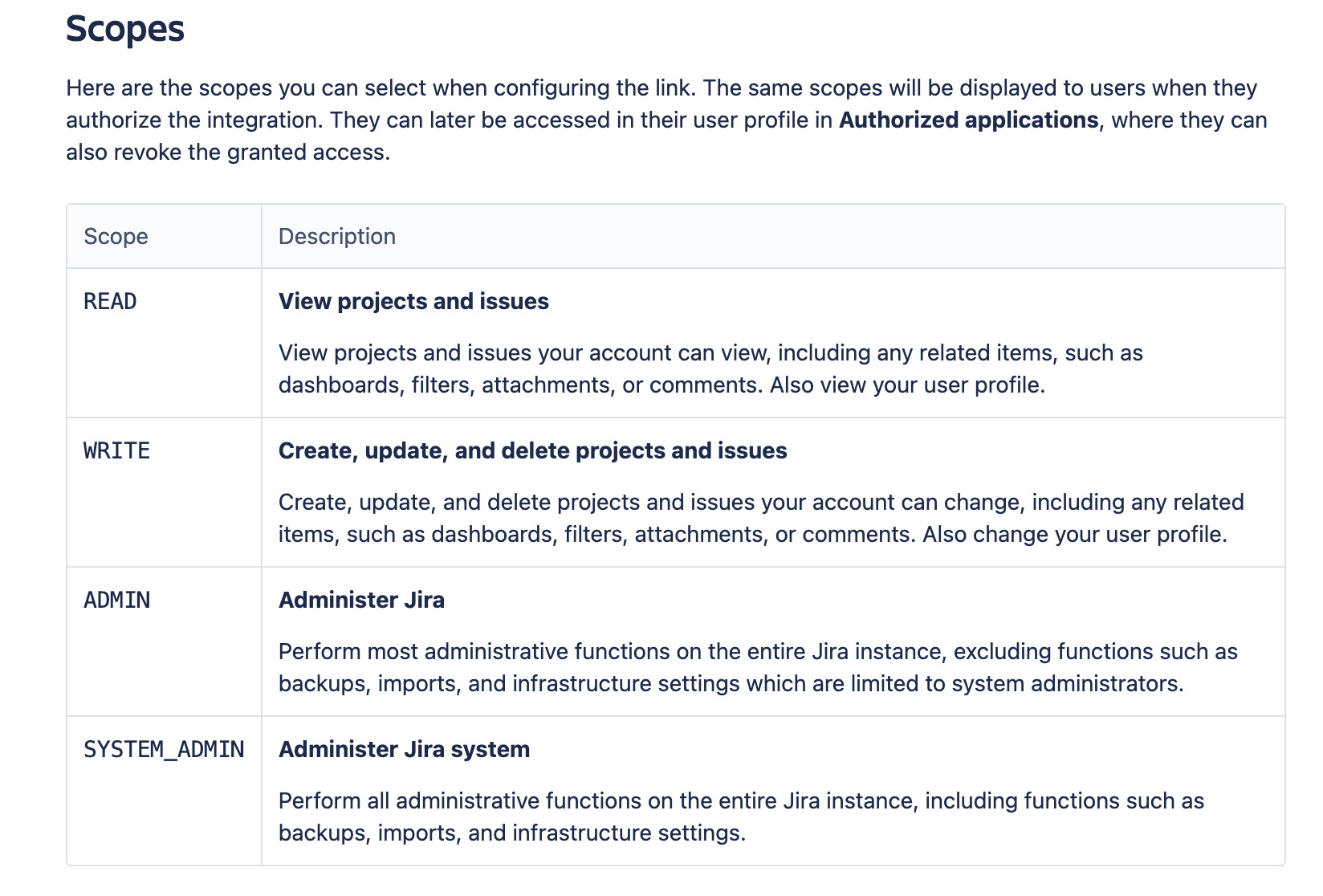
WRITE scope or higher is needed in order to POST data to Jira Data Center, if you plan on only using GET endpoints a READ scope is sufficient. ADMIN permissions are required for syncing Group or User data.
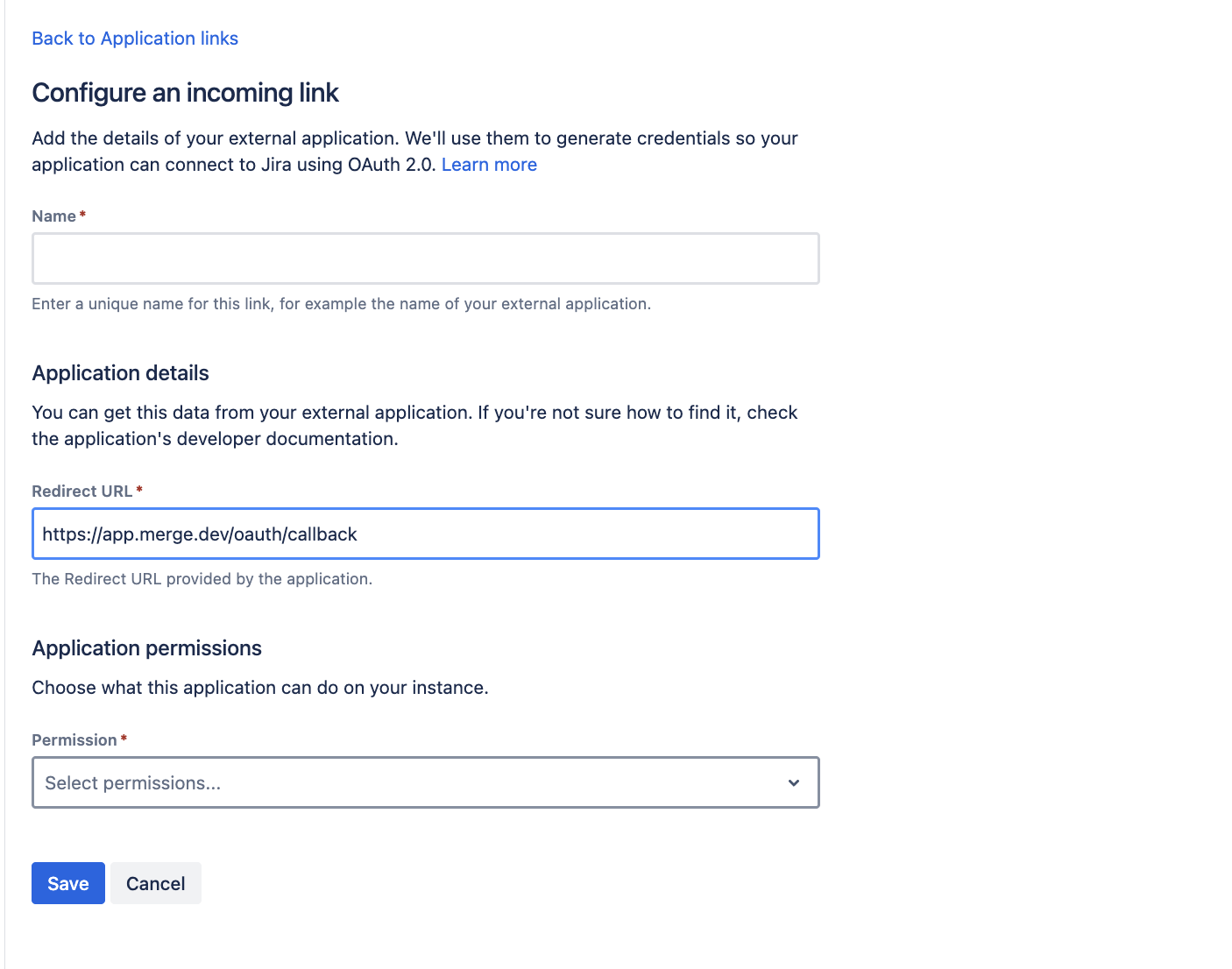
After you press Save you will get a Client ID and a Client secret, make a note of these as you will be entering them in the linking flow.
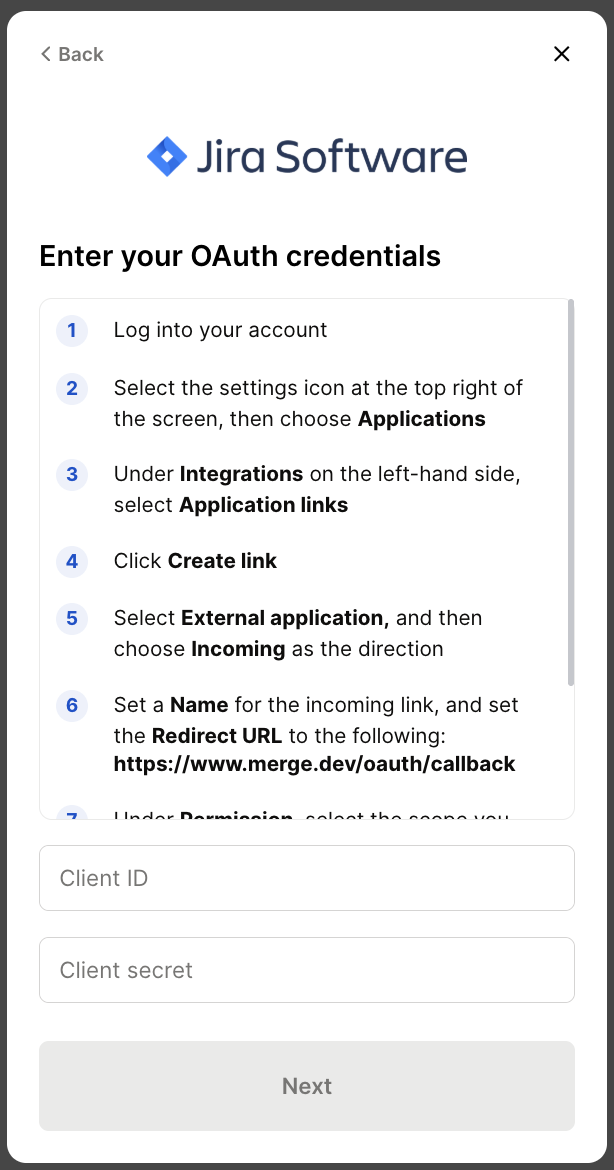
Step 3: Enter your Jira Data Center credentials
Your Client ID is the same as what is in the application link created in the previous step
Your Client secret is the same as what is in the application link created in the previous step
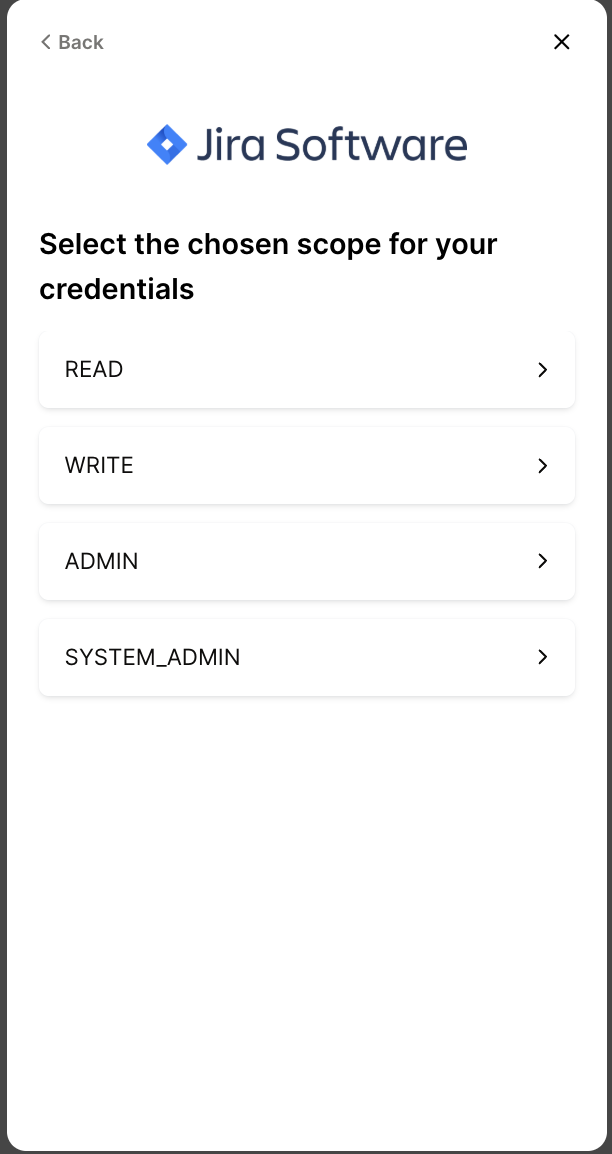
Step 4: Select your chosen Jira Data Center scope