Wrike - How do I link using OAuth?
Last updated: May 29, 2026
Overview
This guide will walk you through finding finding your Wrike subdomain and authenticating your account.
Instructions
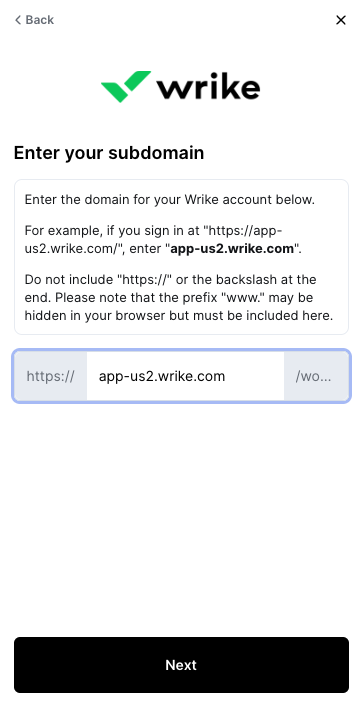
Step 1: Enter your subdomain in the linking flow
If you sign in at https://app-us2.wrike.com/ or when you're in workspace https://app-us2.wrike.com/workspace{restOfUrl}, enter app-us2.wrike.com.
Do not include
https://Do not include the backslash at the end
If your login or dashboard url does not have a subdomain, please use
www.wrike.com. Please note that the prefixwww.may be hidden in your browser but must be included here.
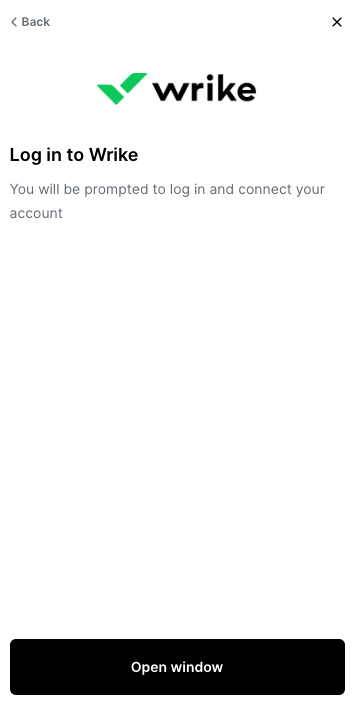
Step 2: Log in to your Wrike account
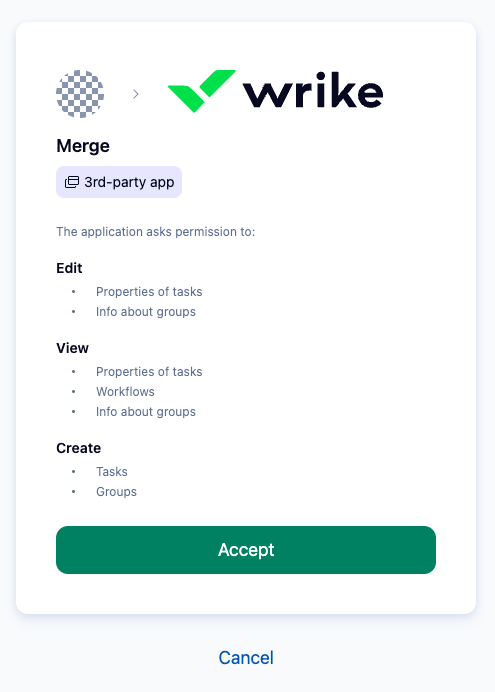
Step 3: Review and accept permissions
Review the requested permissions and select Accept to continue.
Permission requests may vary depending on the specific Wrike use case for you. The below screenshot is just an example.
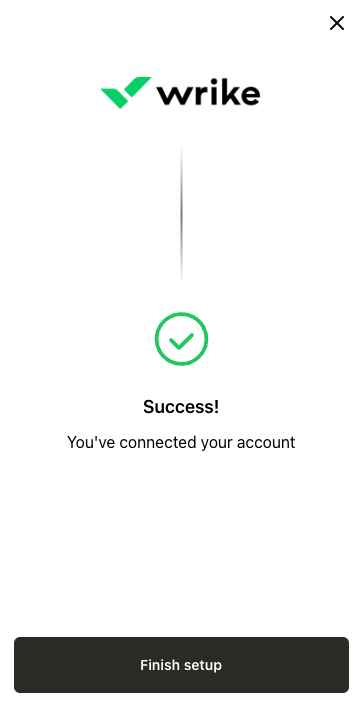
After you accept the permissions, you’ll be redirected back to the connection flow. Once you finish any remaining steps, your Wrike account is successfully authenticated!