Workday Field Mapping guide
Last updated: April 21, 2026
This guide walks through how to create and manage Field Mappings specific to Workday within Merge. Use Field Mapping when you need to populate additional fields outside of the Common Model, align Workday-specific fields to your internal target fields, or override how a Merge Common Model field is derived for a particular Linked Account.
Active/inactive vs. pending employees
Merge’s Workday integration supports active/inactive employees as well as pending employees (new hires). Because Workday uses different endpoints for active/inactive employees versus pending employees, you can configure separate Field Mappings for each.
To set up an Employee Field Mapping:
Go to the Linked Account page
Go to the Field Mapping tab
Click + Mapping > Map additional Linked Account-specific target field
Depending on your use case, you can also choose Map existing {your company name} target fields or Override Merge Common Model field instead
Select the Field Mapping option for the Employee common model and name your target field
Choose the correct Workday field option (active/inactive vs. pending)
When selecting a Workday field in the dropdown, some fields may appear twice, once for active/inactive employees and once for pending employees.
Example: Mapping the Descriptor from Workday’s Job_Family_Reference field
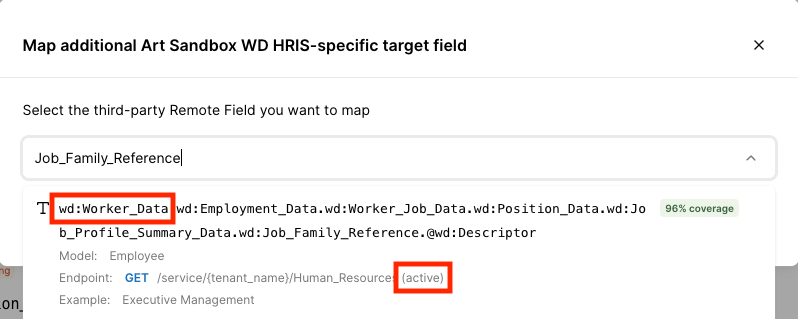
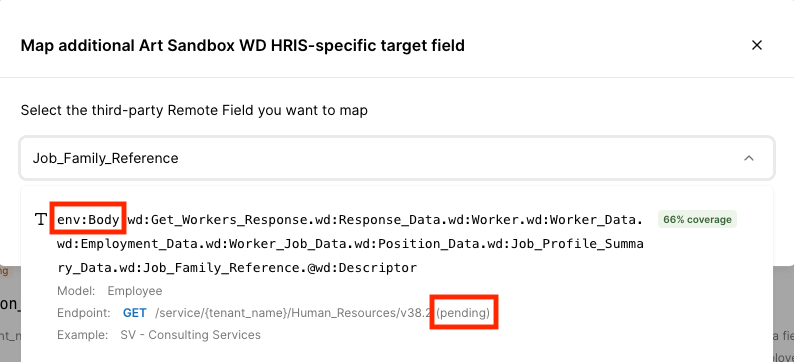
As an example, let's say we want to map the Descriptor field from the Job_Family_Reference field in Workday. There will be two field options for that field in the dropdown selector to map to Employee.
For active/inactive employees: select the option where the field begins with
wd:Worker_Dataand the endpoint includes(active).
For pending employees: select the option where the field begins with
env:Bodyand the endpoint includes(pending).
If you need both active/inactive and pending support
To map the same field for both active/inactive and pending employees, you must create two separate mappings:
one using the
wd:Worker_Data (active)option, andone using the
env:Body (pending)option.
Syncing calculated fields
Merge's Workday integration supports syncing calculated fields, often custom fields in your client's Workday instance. After you or your client configures the Selective Sync Filter to ingest the calculated field, we recommend setting your Field Mapping(s) as described in this step of that guide.