Box - How do I set up my partner credentials for OAuth?
Last updated: February 4, 2026
Overview
This guide will walk you through the steps generate your client credentials within Box and input them into the Merge Dashboard. Please note that generating your own client credentials is not required for the Box integration to work, but rather an optional step to create your own OAuth Application.
Pre-requisites
In order to complete the steps below, you must have a Box developer account. If you do not, you can sign up for a free Box trial to get started! Box provides documentation on creating developer accounts on their developer site.
Instructions
Step 1: Create a Box Developer App
Login to your Box application developer console.
In the top right, click New App.
On the Create a New App popup, name your application.
Select an App Type of OAuth 2.0.
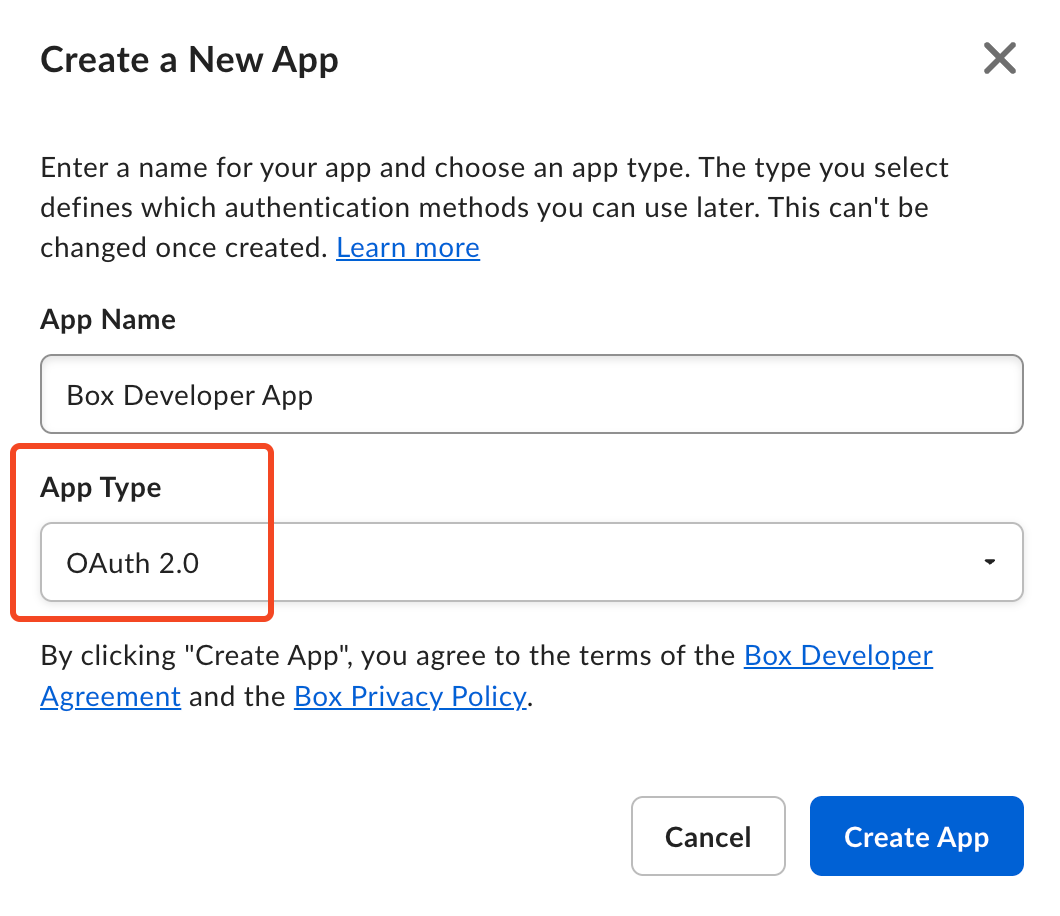
Click Create App to create your application.
Step 2: Configure Your Application
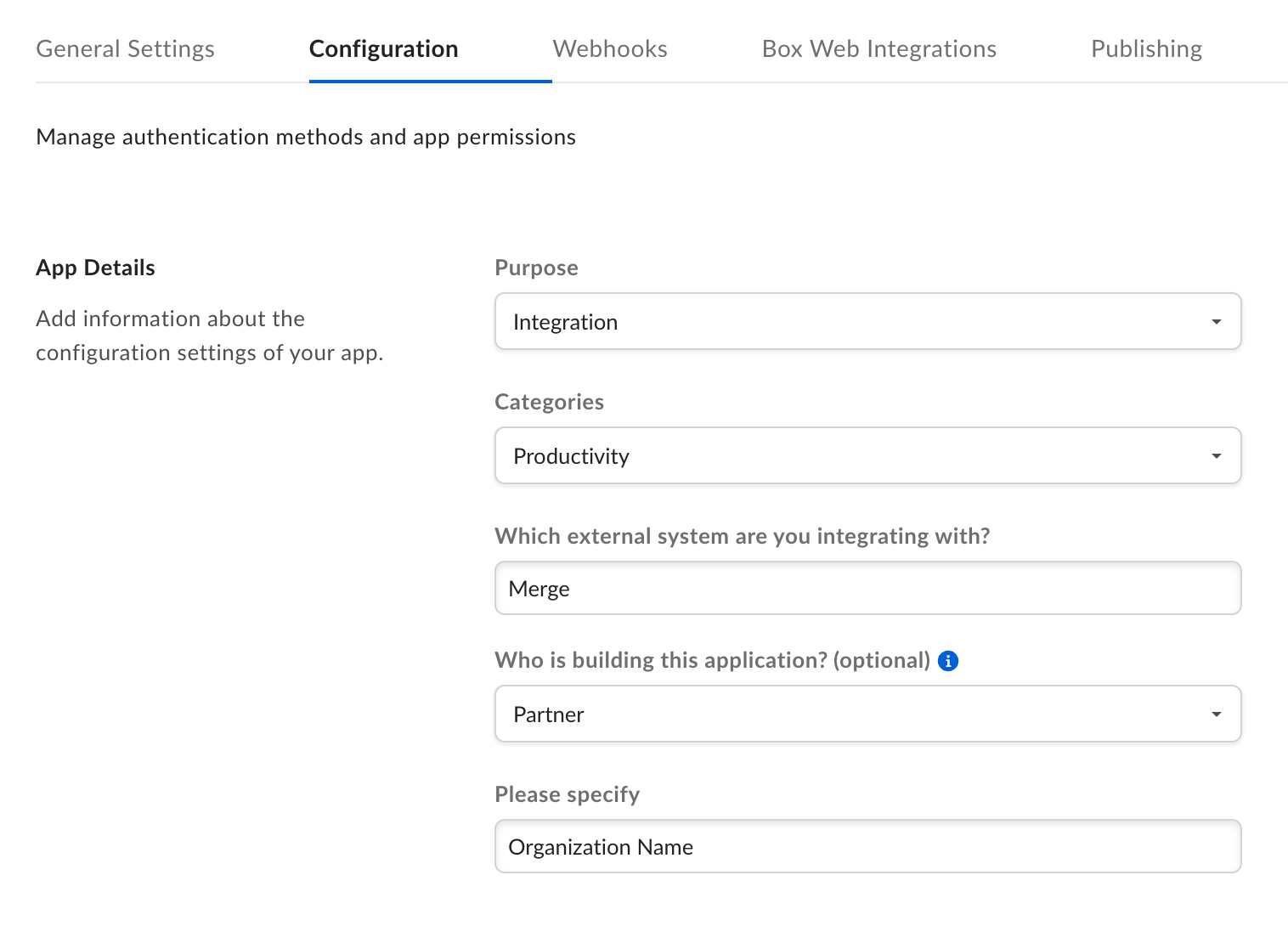
On the Configuration tab of your Box application, fill out the appropriate fields under App Details.
Purpose: Integration
Categories: Productivity
Which external system are you integration with: Merge
Who is building this application: Partner
Please Specify: {Your organization name}
Still on the Configuration tab of your Box application, scroll down to the OAuth 2.0 Redirect URIs section.
Add the following Redirect URI:
https://app.merge.dev/oauth/callback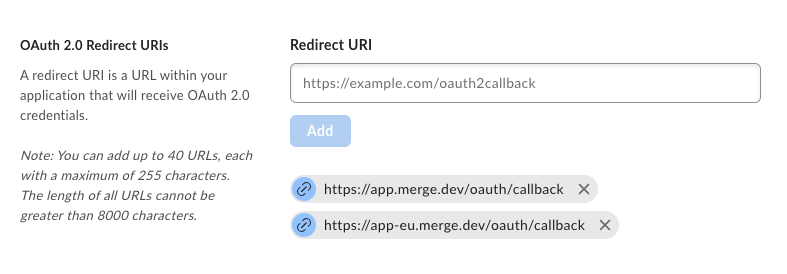
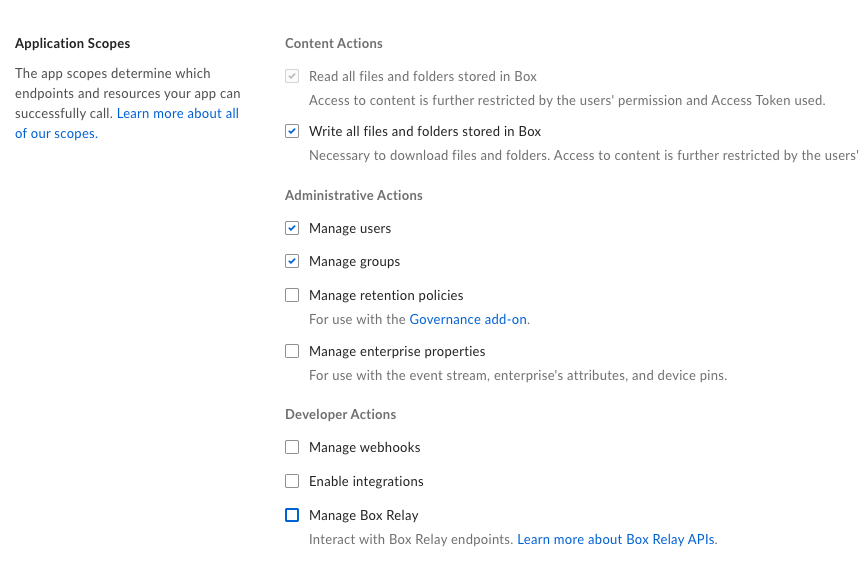
Still on the Configuration tab of your Box application, scroll down to the Application Scopes section.
Enable the following scopes for your Box app:
Read all files and folders stored in Box (required)
Write all files and folders stored in Box (optional)
Necessary to download files and folders
Manage users (optional)
For ACLs
Manage groups (optional)
For ACLs
Save your changes.
Step 3: Add your Box client credentials to Merge
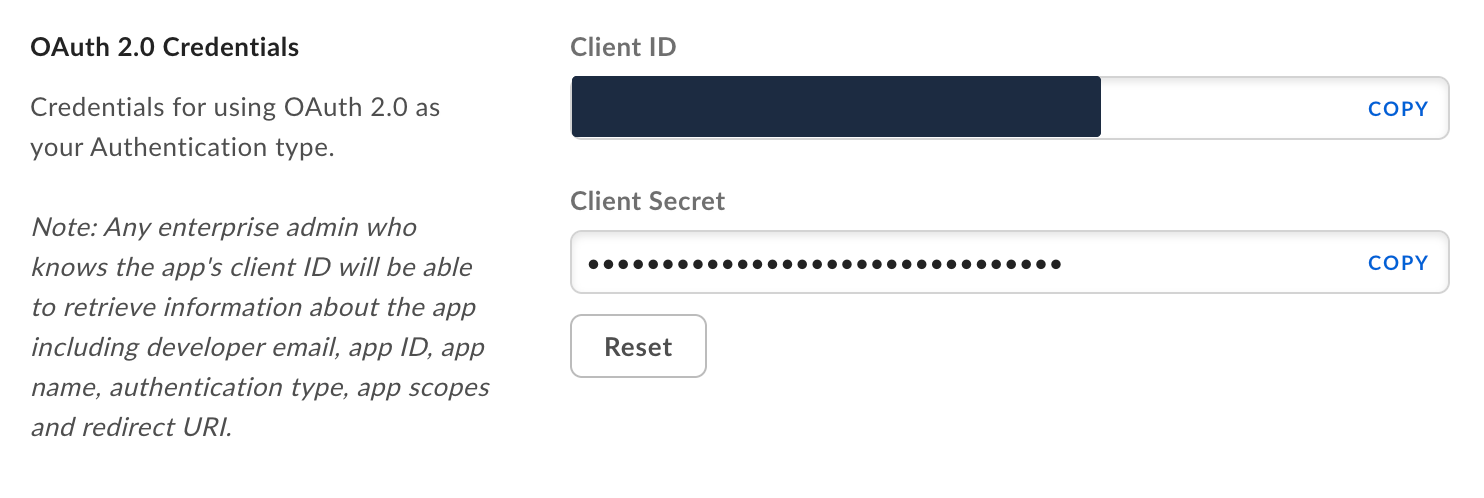
On the Configuration tab of your Box developer app you created, locate the OAuth 2.0 Credentials section. Copy your Client ID and Client Secret.
On the Merge Dashboard, navigate to the Integrations tab.
Under File Storage, identify the Box integration.
Enable the integration using the toggle on the right.
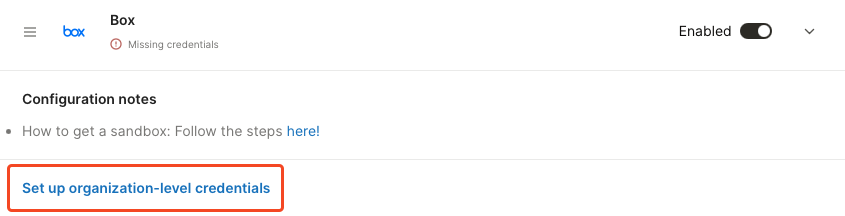
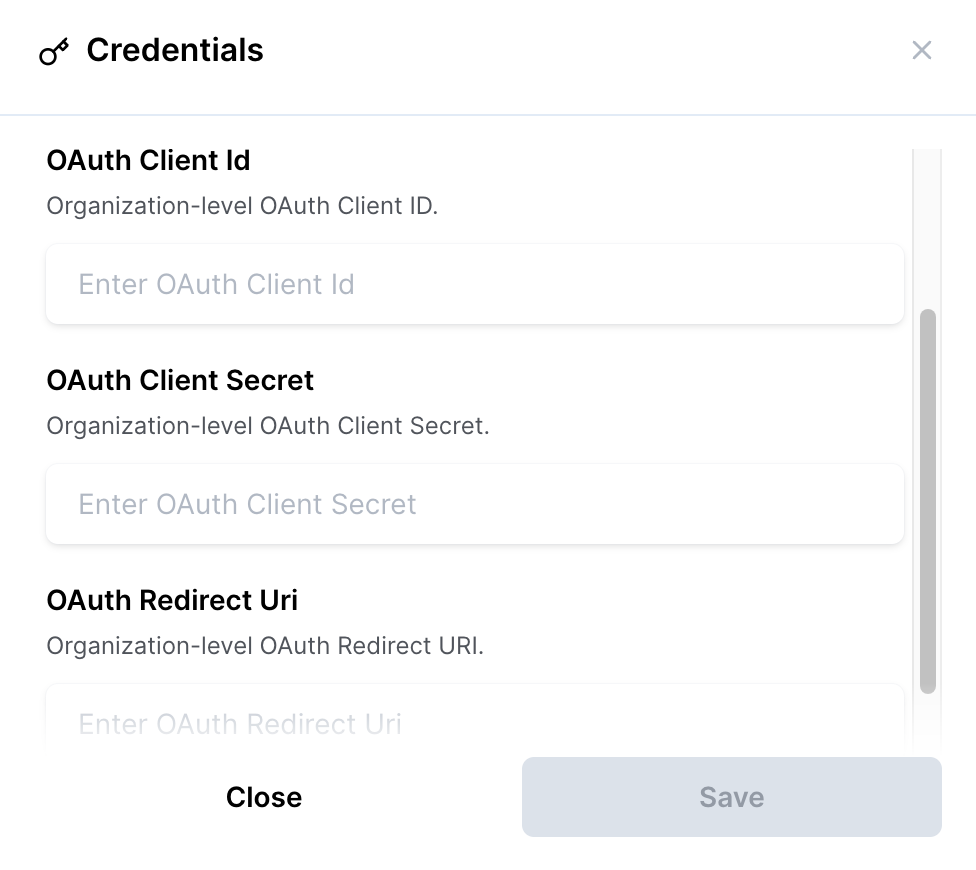
Click Set up organization-level credentials.
Enter the following information in the corresponding fields
OAuth Client Id: Client ID
OAuth Client Secret: Client Secret
OAuth Redirect URI: https://app.merge.dev/oauth/callback