Dropbox - How do I set up my partner credentials for OAuth?
Last updated: June 17, 2026
Overview
Dropbox requires each customer to host their own OAuth app. You can still use our Merge Demo OAuth app for testing purposes, but before you launch into production, you must use your own Dropbox OAuth app.
Below are instructions on how to get your Dropbox OAuth app set up with Merge.
Instructions
Step 1: Create a developer account
Sign up for a developer account at https://www.dropbox.com/developers.
Click Create apps to sign up.
Step 2: Set up your Dropbox OAuth app
Once you're done signing up, navigate to Developers Apps.
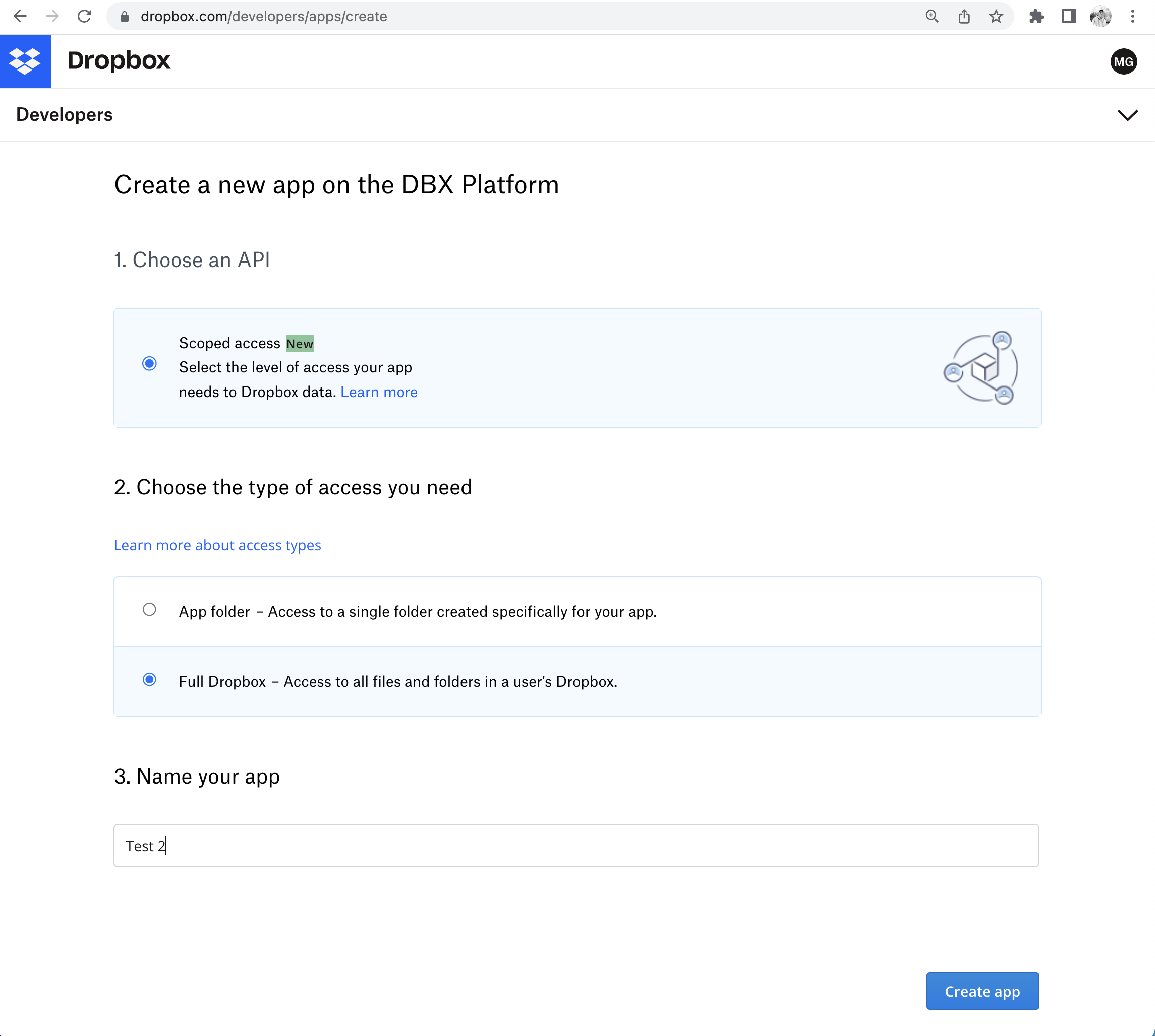
Click Create app.
Choose Scoped access and Full Dropbox, so that your app has access to all files and folders.
On the Settings page for the app, set the following items:
Click Enable additional teams to enable your end users in teams to link their Dropbox app.
Click Enable additional users to enable your end users to link their Dropbox app.
Add
https://app.merge.dev/oauth/callbackto the Redirect URIs field.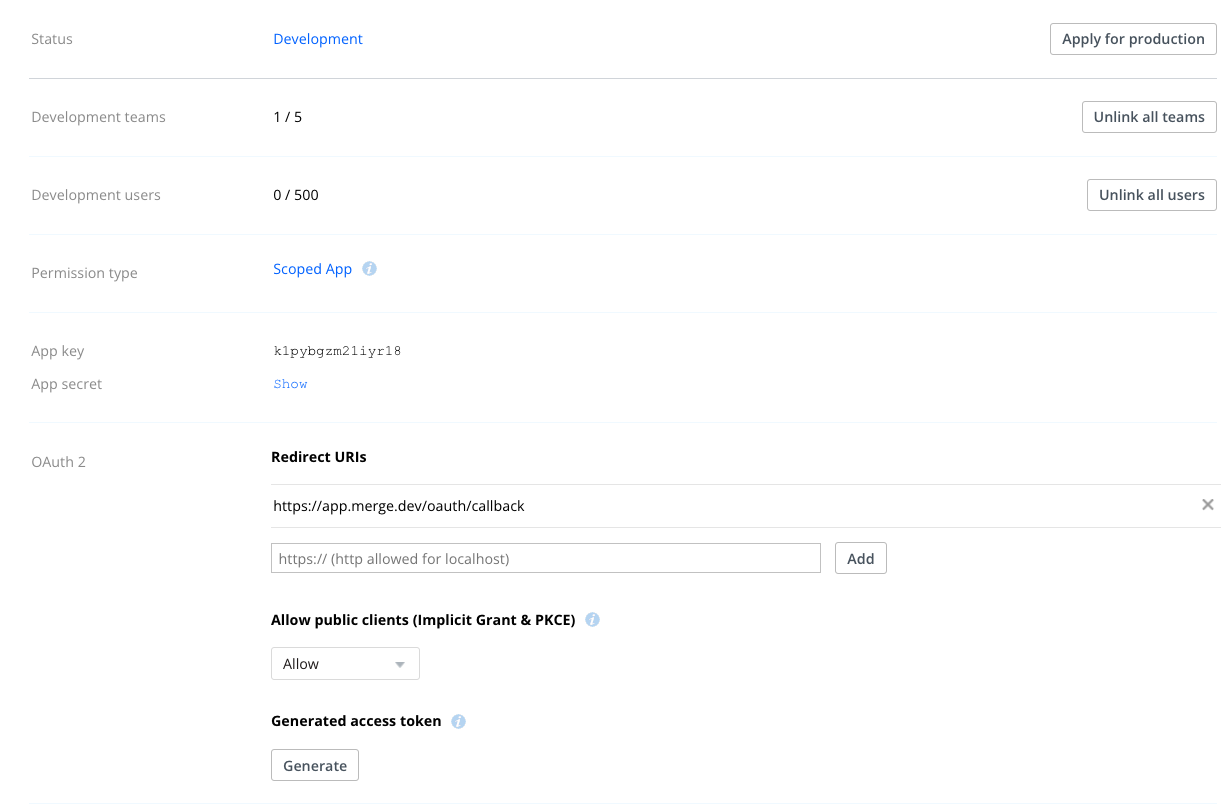
On the Permissions page for the app, enable the permissions listed below. View the table at the bottom of this page for a more granular breakdown of the permission details per use case.
account_info.readfiles.metadata.writefiles.metadata.readfiles.content.writefiles.content.readsharing.writesharing.read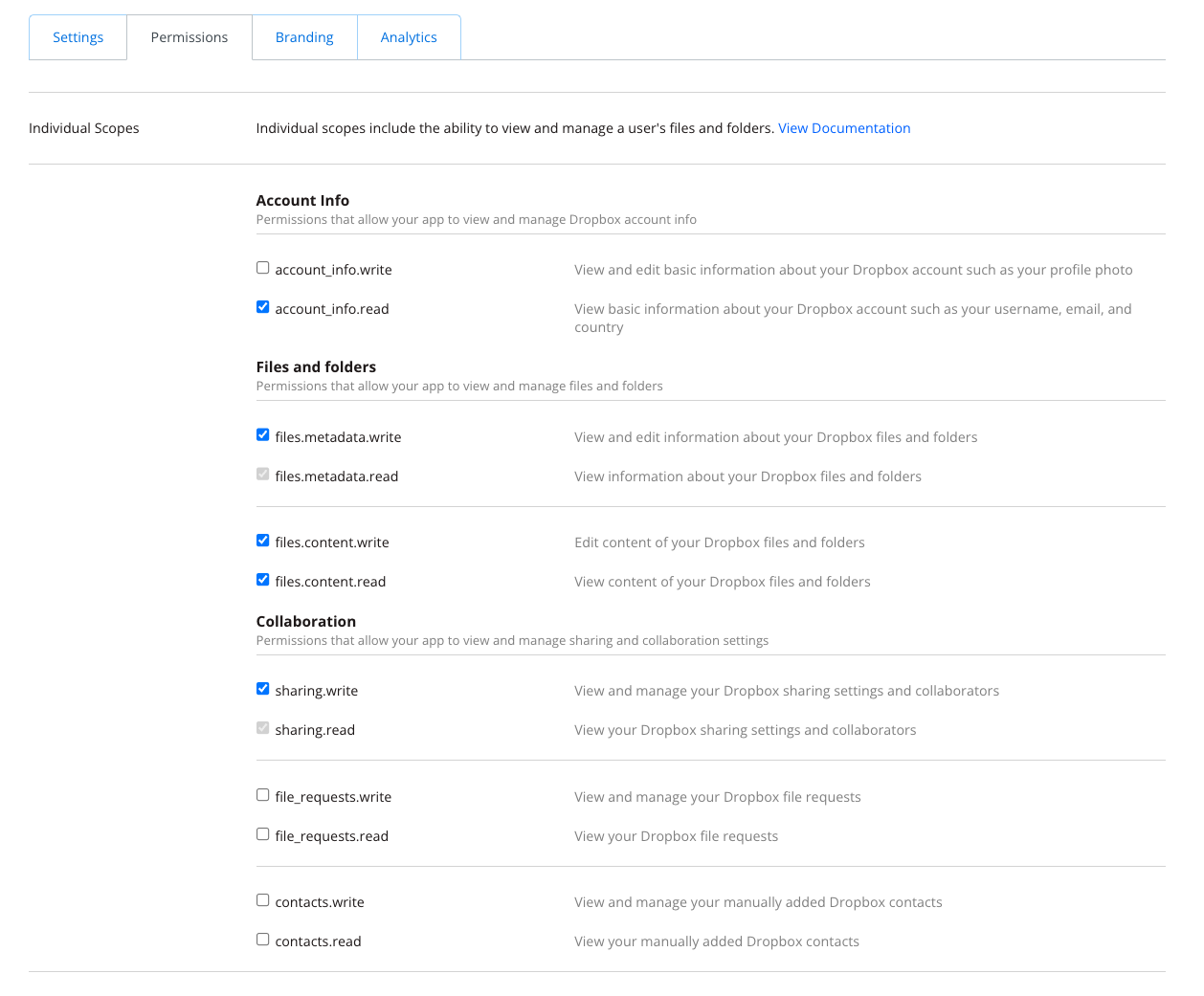
Click Submit in the modal at the bottom to save your changes.
Navigate to Branding and fill in the details of your app.
Step 3: Add your Dropbox app details to Merge
On the Merge Dashboard, navigate to the Integrations > File Storage page.
Identify the Dropbox integration.
Enable the integration using the toggle on the right.
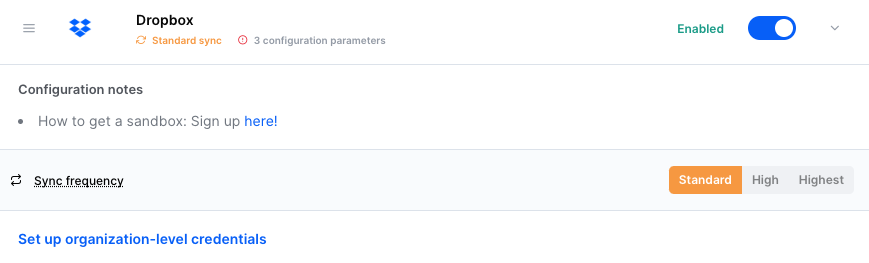
Click Set up organization-level credentials.
Enter the following information in the corresponding fields:
OAuth Client Id: OAuth Client ID from your Dropbox app
OAuth Client Secret: OAuth Secret from your Dropbox app
OAuth Redirect URI:
https://app.merge.dev/oauth/callback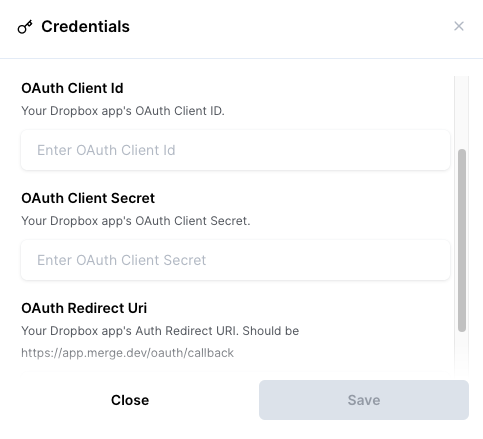
Step 4 (optional): Apply to become a production app
If you have under 50 users or 5 teams, you don't need your Dropbox app to be in production mode in order to support this integration. However, if you'd like to apply for production, follow the steps below:
In your Dropbox App Console, click on the app you want to apply for production.
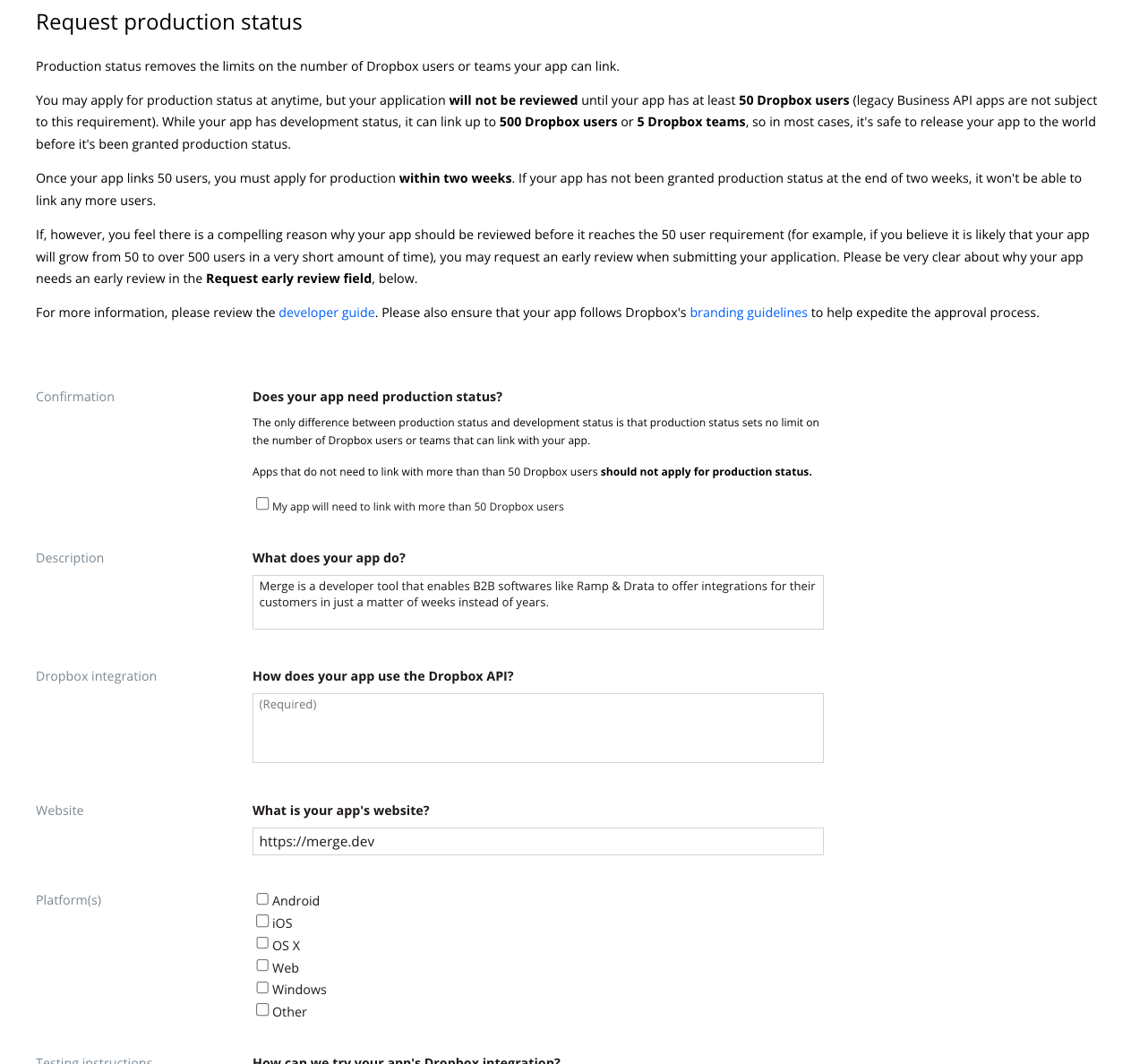
Click Apply for Production.
Fill in the following items:
Check the My app will need to link with more than 50 Dropbox users box.
Fill out the subsequent set of questions that appear:
What does your app do: 2-3 sentences about what your app does. You do not have to include Merge.
How does your app use the Dropbox API: Mention how your product uses a third-party integration tool called Merge Unified File Storage API to power your Dropbox integration. In your integration you will:
GET all Folder/File, so that our customers can sync and view all their files. This utilizes the
/list_foldersendpoint.GET all Users and File Permissions, so that our customers don't see files they shouldn't have access to. This utilizes the
/list_folder_membersand/list_shared_linksendpoints.POST File/Folder, so that our customers can create File/Folder. This utilizes the
/create_folderand/uploadendpoints.Download File, so that we can analyze file content to generate insights for our customers. This utilizes the
/downloadand/exportendpoints.
Click Submit app once you've filled in the required fields. Dropbox should get back to you within a couple of days.
Notes
Permissions by use case
Permission | Dropbox endpoints Merge calls | Use case |
|---|---|---|
|
| To pull the root Dropbox namespace to retrieve files and folders from |
|
| To modify file metadata (in the future) |
|
| Retrieve file and folder metadata like name and size |
|
| Upload file, create folder |
|
| Download file |
|
| Share a file (in the future) |
|
| View sharing settings and collaborators |
Team permissions
In our investigation, if we request any of the team scopes, only the Dropbox Business admin can authenticate. This blocks regular users from linking their own accounts. In the future, Merge may support a separate Dropbox Business integration to handle this.