CezanneHR - How to create a CezanneHR OAuth app
Last updated: October 8, 2025
Overview
This guide walks you through the process of setting up an OAuth application in CezanneHR so you can use your own credentials when connecting via Merge. Using your own credentials provides a branded experience and may offer more control over data access scopes.
Instructions
Step 1: Log in to CezanneHR
Sign in to your CezanneHR account.
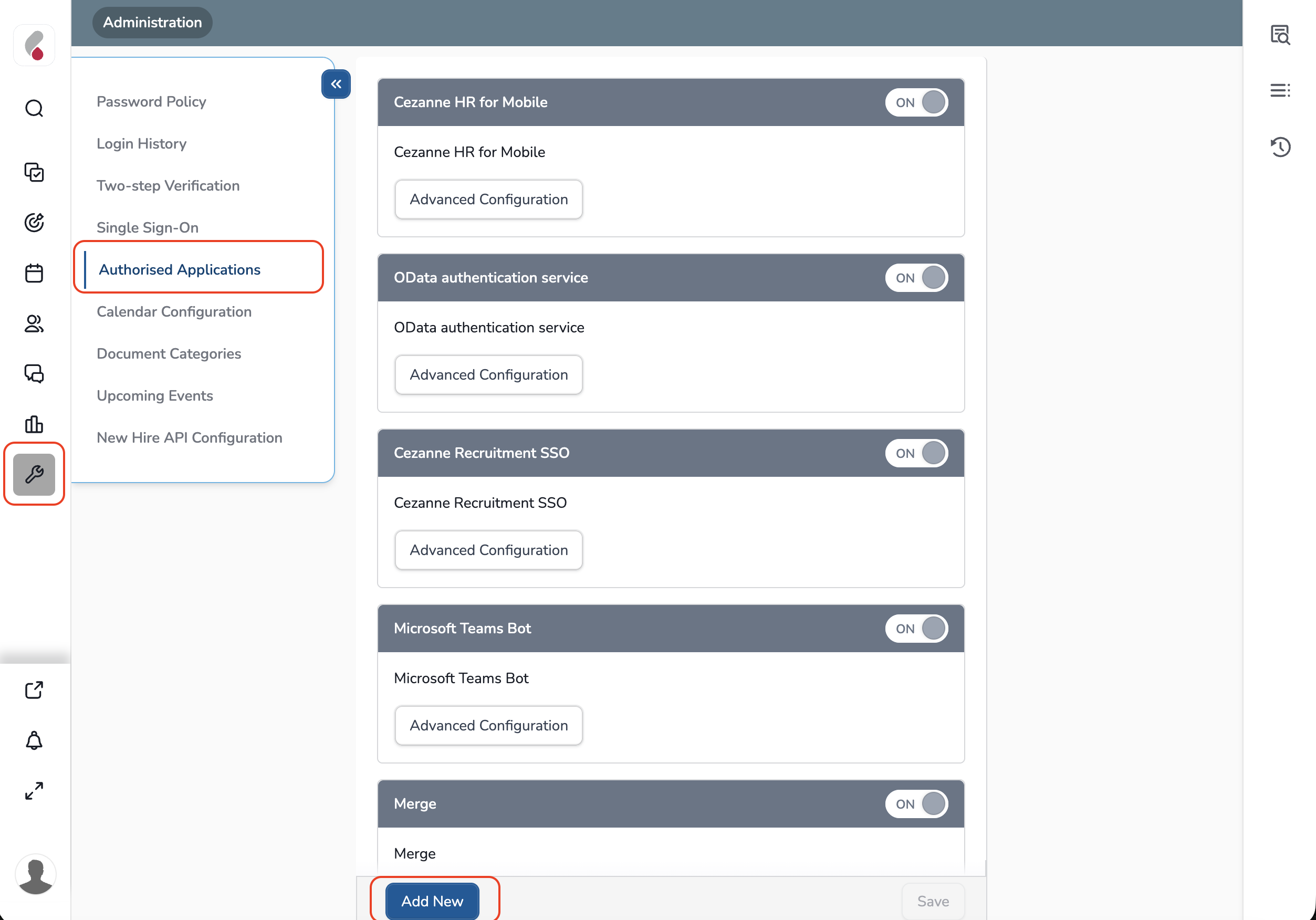
Navigate to the Administration section by selecting the tool icon in the left sidebar.
Step 2: Create a New Authorized Application
In the left-hand menu, click Authorised Applications.
Click Add New at the bottom of the page.
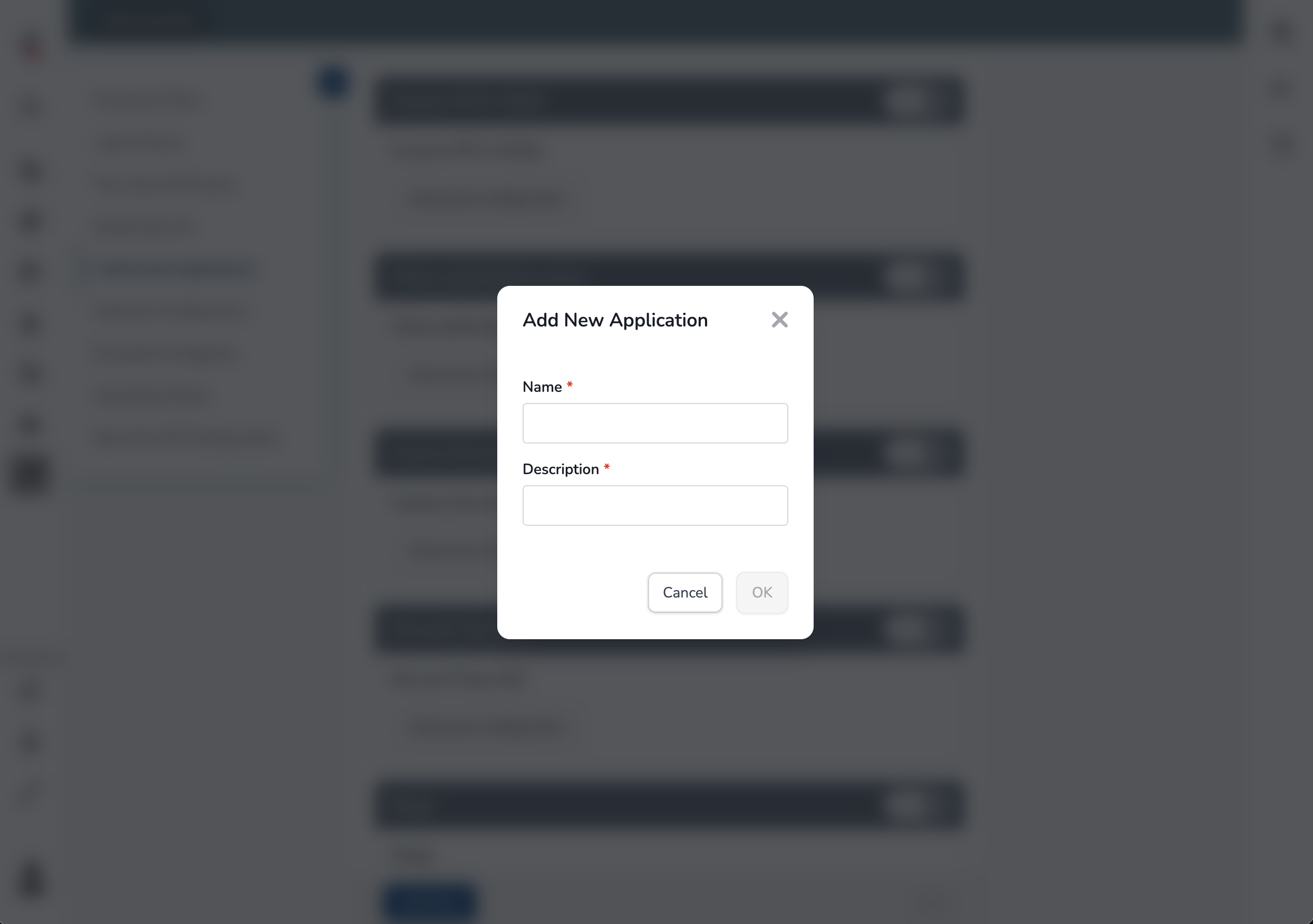
In the pop-up modal, enter:
Name – e.g., “Merge”
Description – e.g., “Integration for Merge platform”
Click OK to create your application.
Step 3: Configure the Application Client
After saving, you’ll see your new application listed under Authorised Applications.
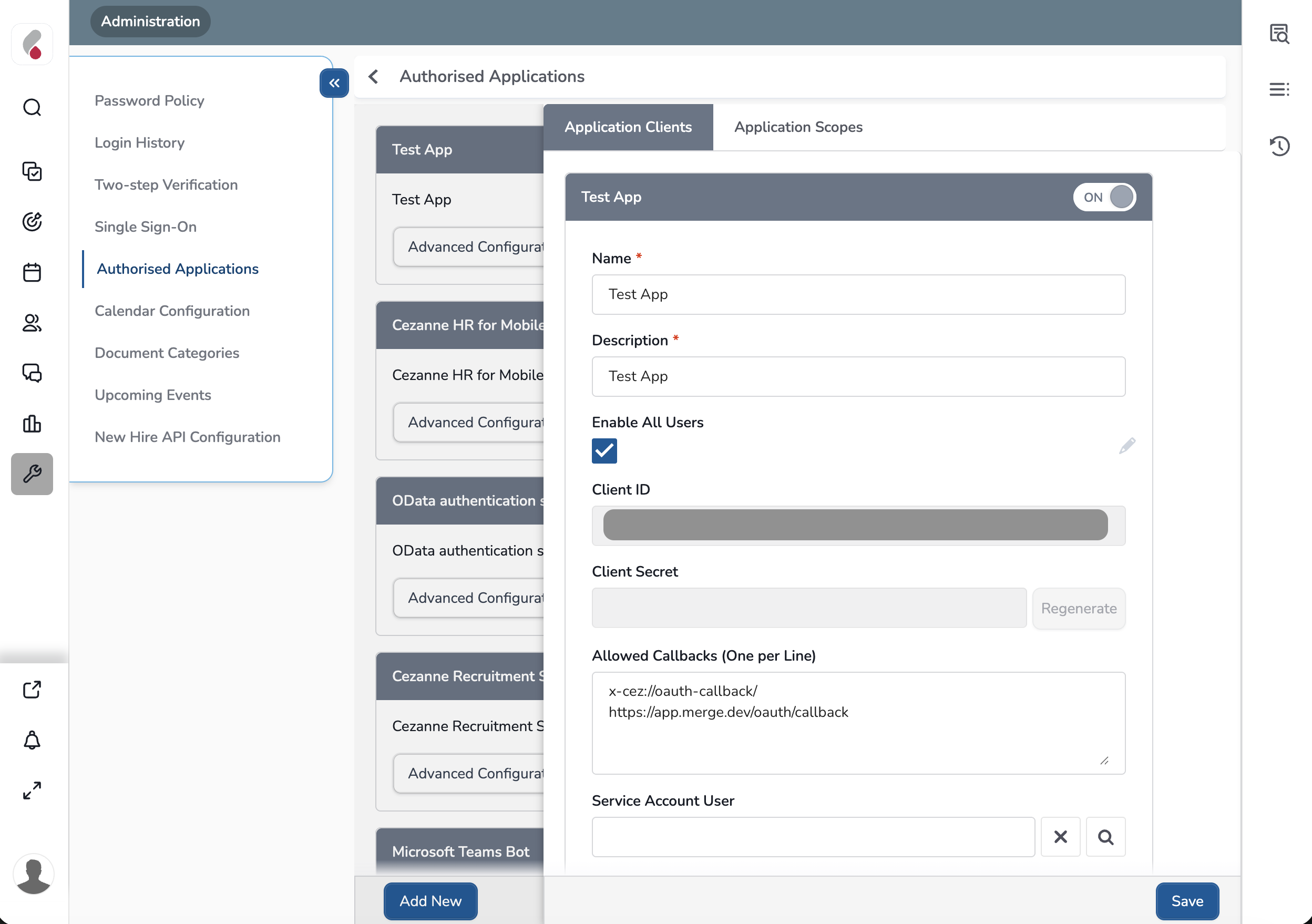
Click Advanced Configuration next to your new app.
Ensure Enable All Users is checked.
Copy the Client ID and Client Secret — you’ll need these for Merge.
Under Allowed Callbacks, add the following callback URLs (each on a new line):
x-cez://oauth-callback/
https://app.merge.dev/oauth/callback
Step 4: Enable Application Scopes
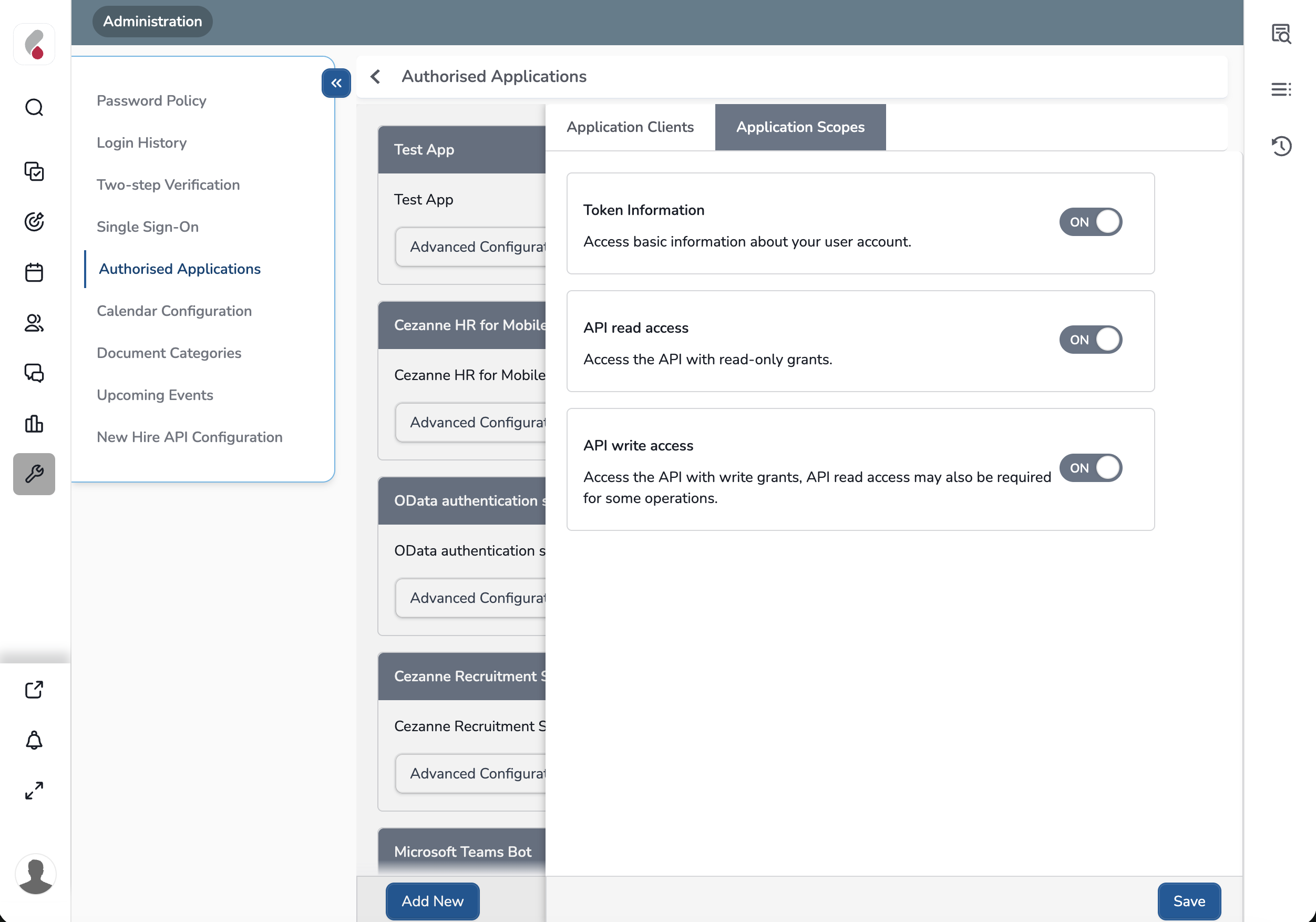
Navigate to the Application Scopes tab.
Turn ON all available scopes:
Token Information
API read access
API write access
Step 5: Add Credentials in Merge
Once your OAuth app is configured in CezanneHR, return to Merge and paste the Client ID and Client Secret into the linking flow.