Notion - How do I set up my partner credentials for OAuth?
Last updated: February 17, 2026
Overview
This guide will walk you through the steps to create your own Notion OAuth integration and configure it as partner credentials in Merge.
Generating and entering your own client credentials is required to launch Notion to customers.
Prerequisites
Before linking setting up your partner credentials, you will need:
A Notion account. You can sign up for one here.
You must be a Workspace Owner of the Notion account
Instructions
Step 1: Create a Notion Integration
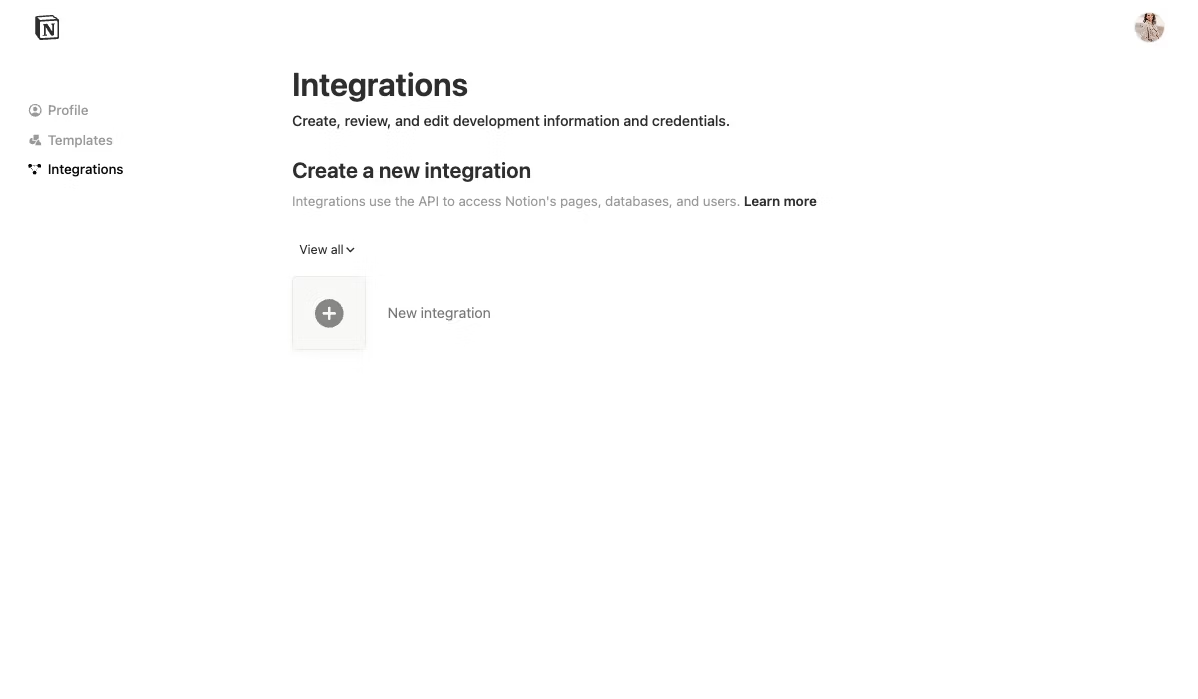
In your Notion workspace, navigate to Settings → Integrations tab
Click Develop your own integrations at the bottom
You'll be redirected to My integrations in your browser
Click + New integration
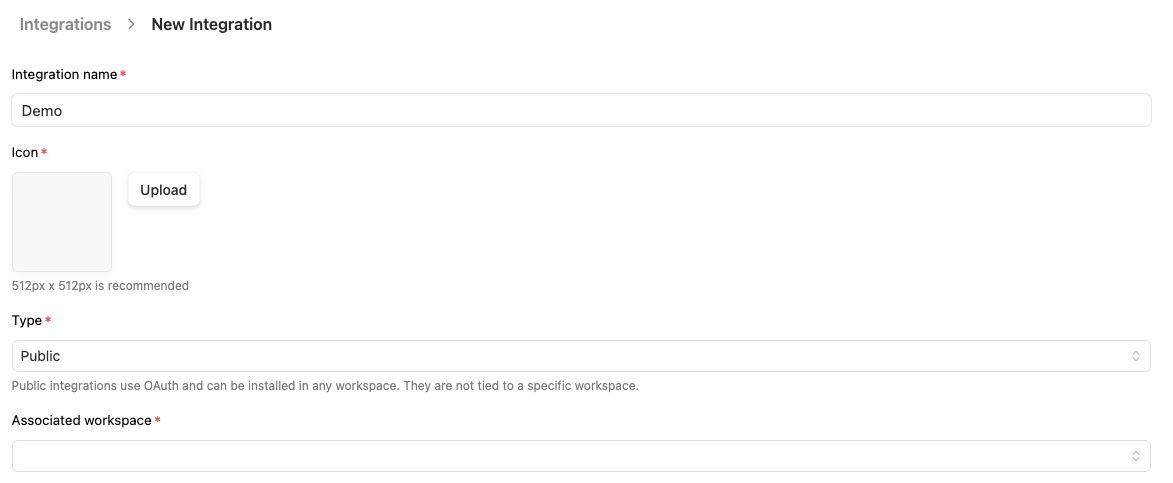
Provide a Name for your integration
Optionally, upload an image to use as a Logo
Choose Public as the integration type to enable OAuth
Select the Associated workspace where you want to use this integration
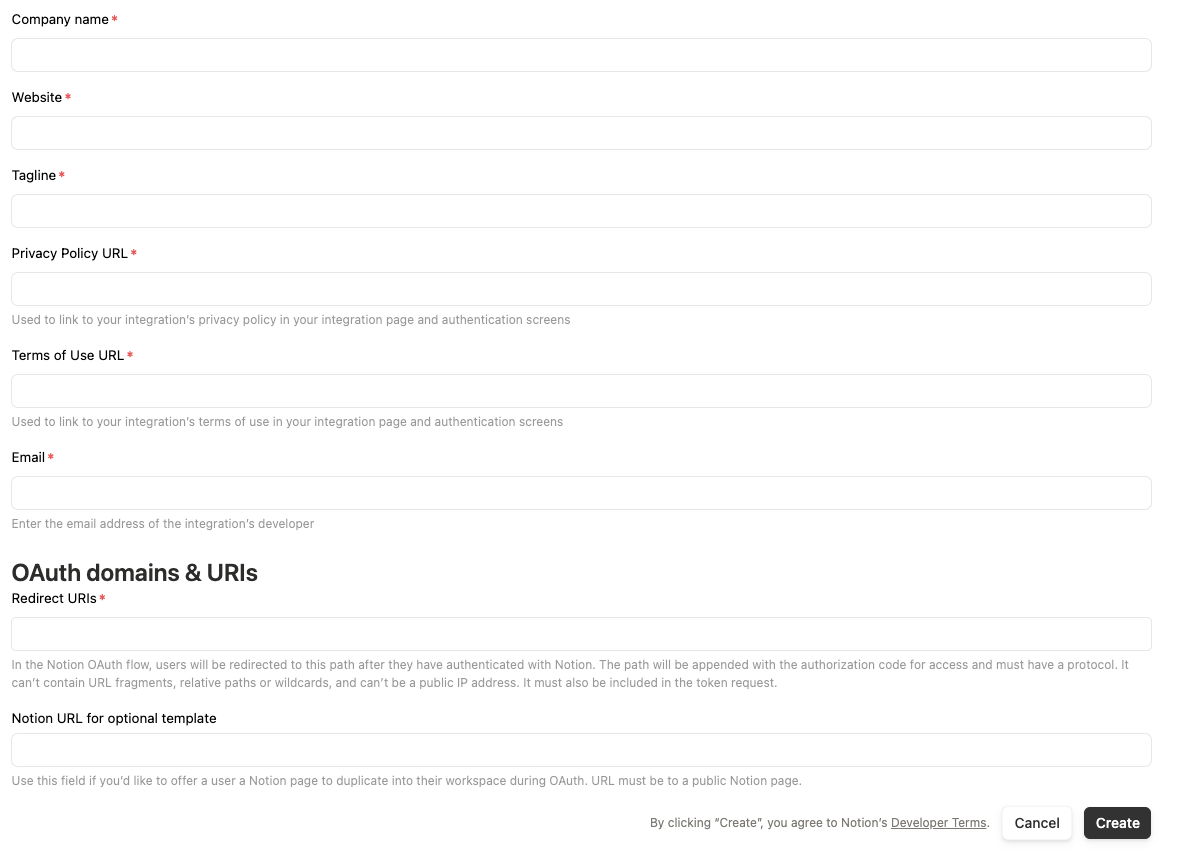
Complete the integration setup by configuring:
Redirect URIs: Add
https://app.merge.dev/oauth/callbackAdditional information, including your company name, website, etc
Step 2: Retrieve your OAuth credentials
After creating your integration:
Navigate to the OAuth Domain & URIs section
Copy your OAuth client ID
Copy your OAuth client secret
Note the redirect URI:
https://app.merge.dev/oauth/callback
Step 3: Add your Notion credentials to Merge
Log into your Merge Dashboard
Navigate to the Integrations tab
Under Knowledge Base, locate the Notion integration
Enable the integration using the toggle on the right
Click Set up organization-level credentials
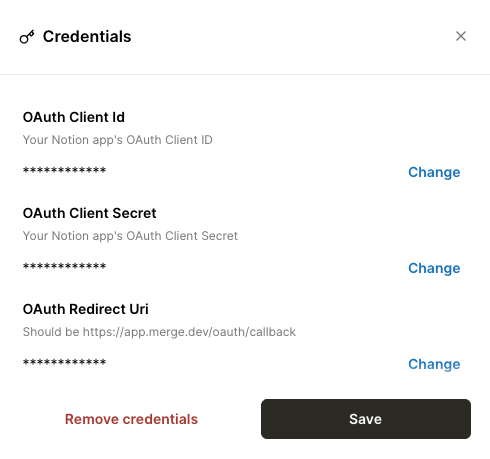
Enter the following information:
OAuth Client ID: Your OAuth client ID from Step 2
OAuth Client Secret: Your OAuth client secret from Step 2
OAuth Redirect URI:
https://app.merge.dev/oauth/callback
Click Save