HiBob - How do I set up partner credentials?
Last updated: October 21, 2026
Overview
Merge is pleased to announce that we're a HiBob-supported Global API provider. Our partnership means you're able to offer an OAuth-based integration to your customers.
To allow your customers to link HiBob accounts, you will need to register as a HiBob tech partner, set up a HiBob OAuth App, and enter your application credentials within Merge by following the steps below.
HiBob requires every partner to use their own OAuth app. You must create an OAuth app and have it approved by HiBob to go live on the Bob Marketplace.
Instructions
Step 1: Register as a HiBob tech partner
Before you'll be able to connect to your customers' HiBob instances, you'll need to register as a HiBob partner by filling out their tech partner application form at the link below.
https://dash.partnerstack.com/application?company=hibob&group=techpartnerapplication&gref=page
The last question in the form asks if you are using a Unified API provider. Select Merge from the dropdown.
The form mentions a marketplace fee, but it does not apply. HiBob has confirmed the fee is fully waived for partners onboarding or migrating to the Bob Marketplace, including Merge customers, and does not plan to bring it back as a flat annual fee. If HiBob's Marketplace pricing changes in the future, HiBob will communicate it well in advance.
Once approved, you’ll have access to the HiBob Partner Portal (via PartnerStack), where accepting the T&Cs will unlock access to a dedicated Bob test account and the HiBob Developer Portal
Step 2: Create your app in the HiBob Developer Portal
Using the credentials you were provided in Step 1, log in to the HiBob Developer portal
Create a new app by selecting the Create app button, and providing a name and description for your app
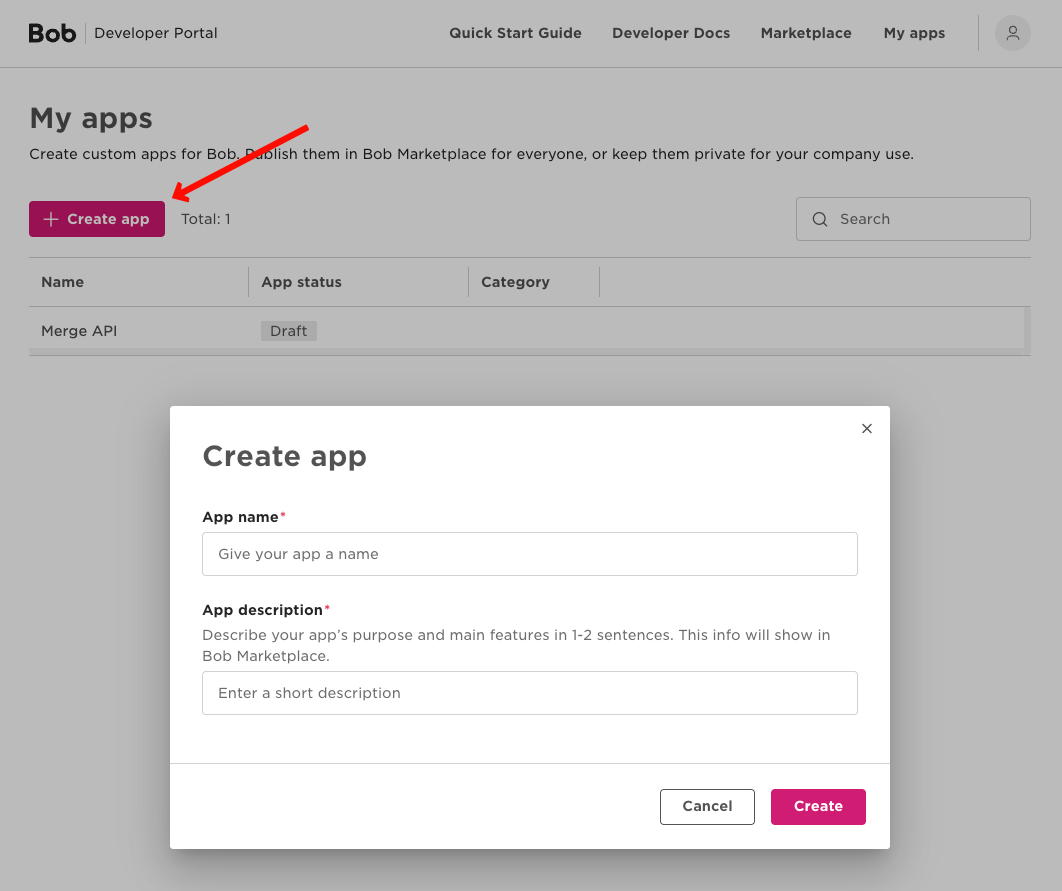
A new row will be added to the table. Click on the row.
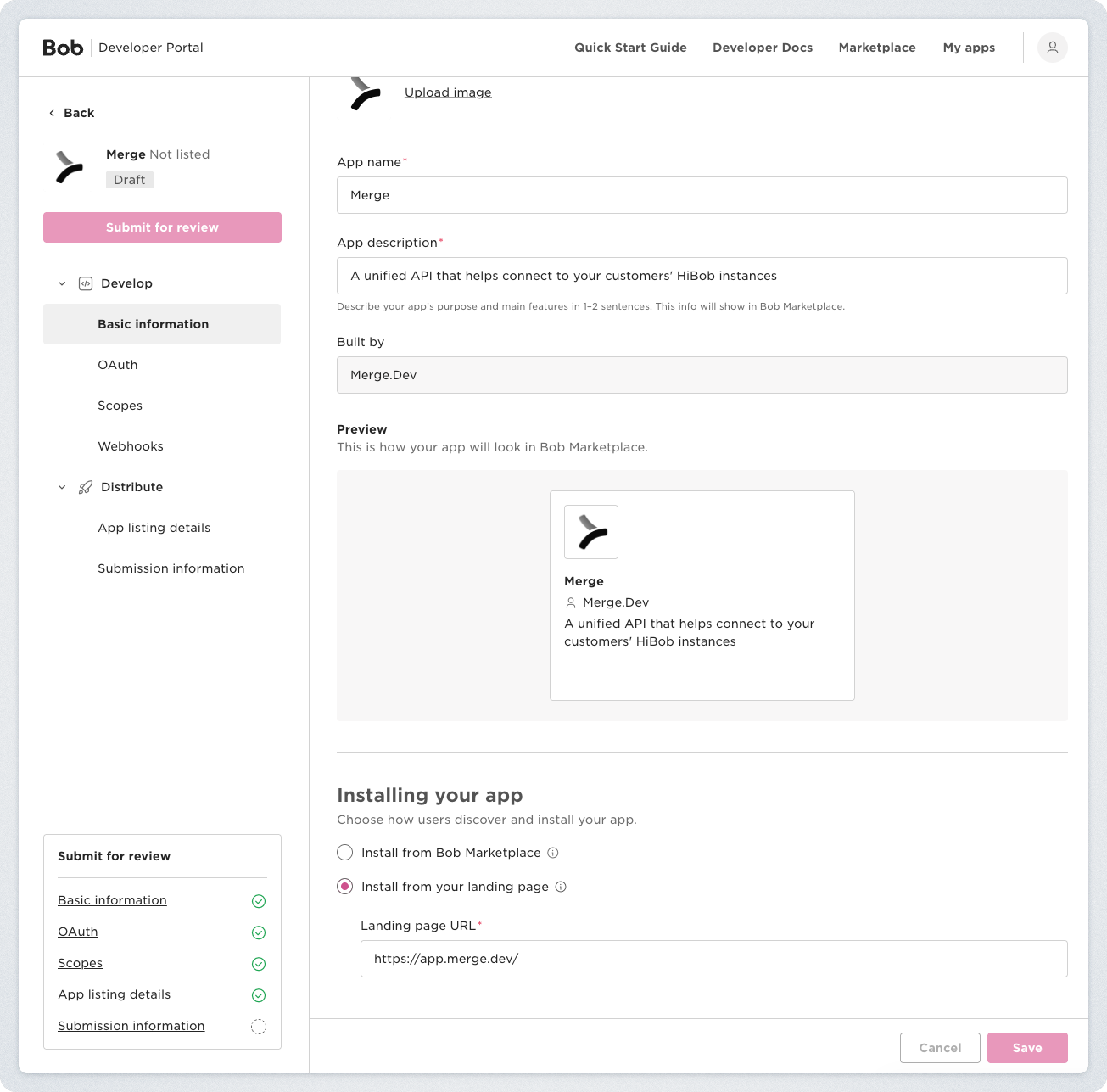
Under Basic information, provide a logo, name, and description for your app
Scroll down to the bottom of the Basic Information page and configure the Installing your app section:
Choose the Install from your landing page option
Populate the Landing page URL
Note: The landing page URL is where your customer will be redirected when they select the "Install" button on your app in the HiBob marketplace. Most customers opt to direct the user to the login/signup page of their app or their integrations page.
Under OAuth, scroll down to Redirect URI and add a Redirect URI of
https://app.merge.dev/oauth/callbackthen click Save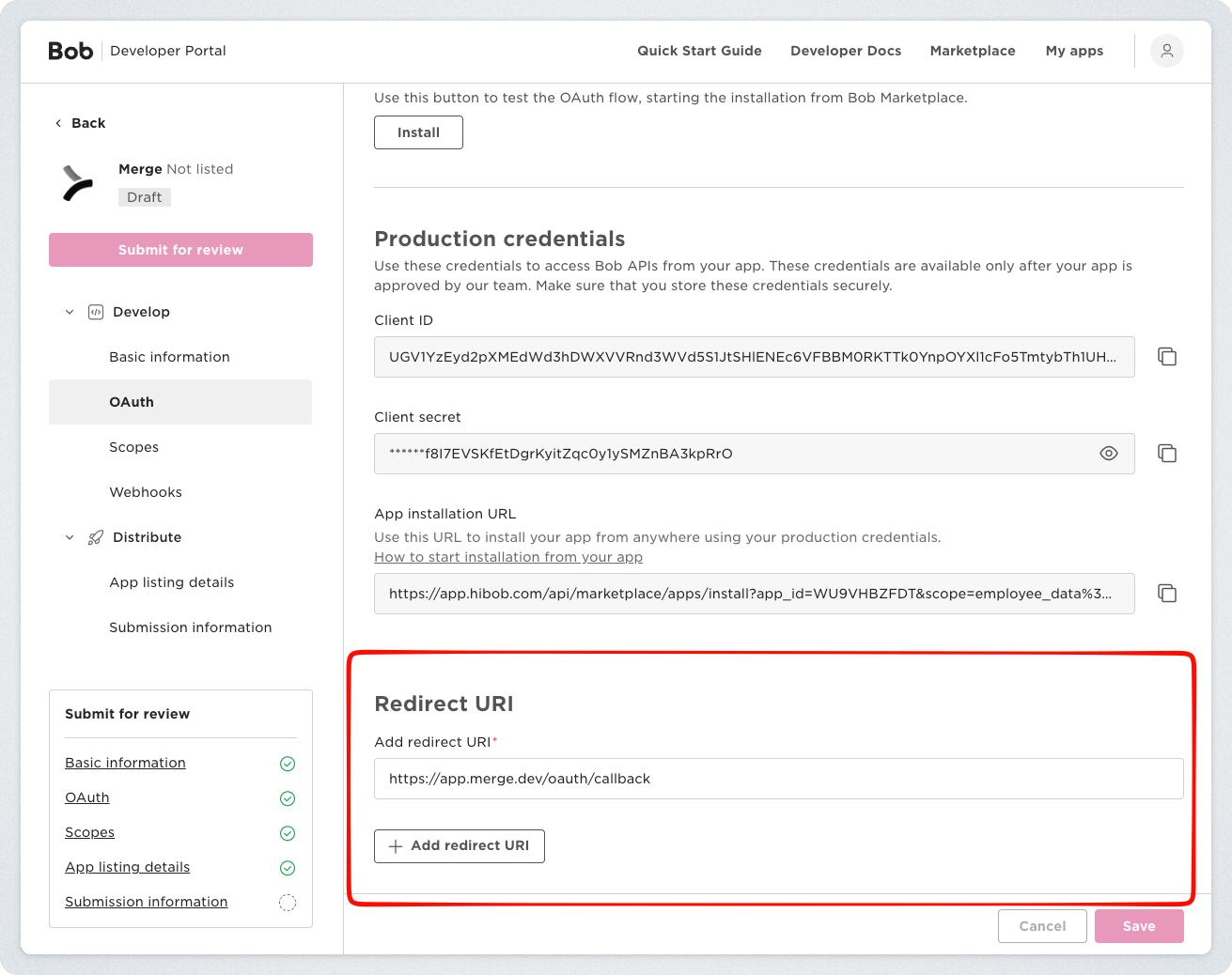
If your Merge organization is on our EU region, also add
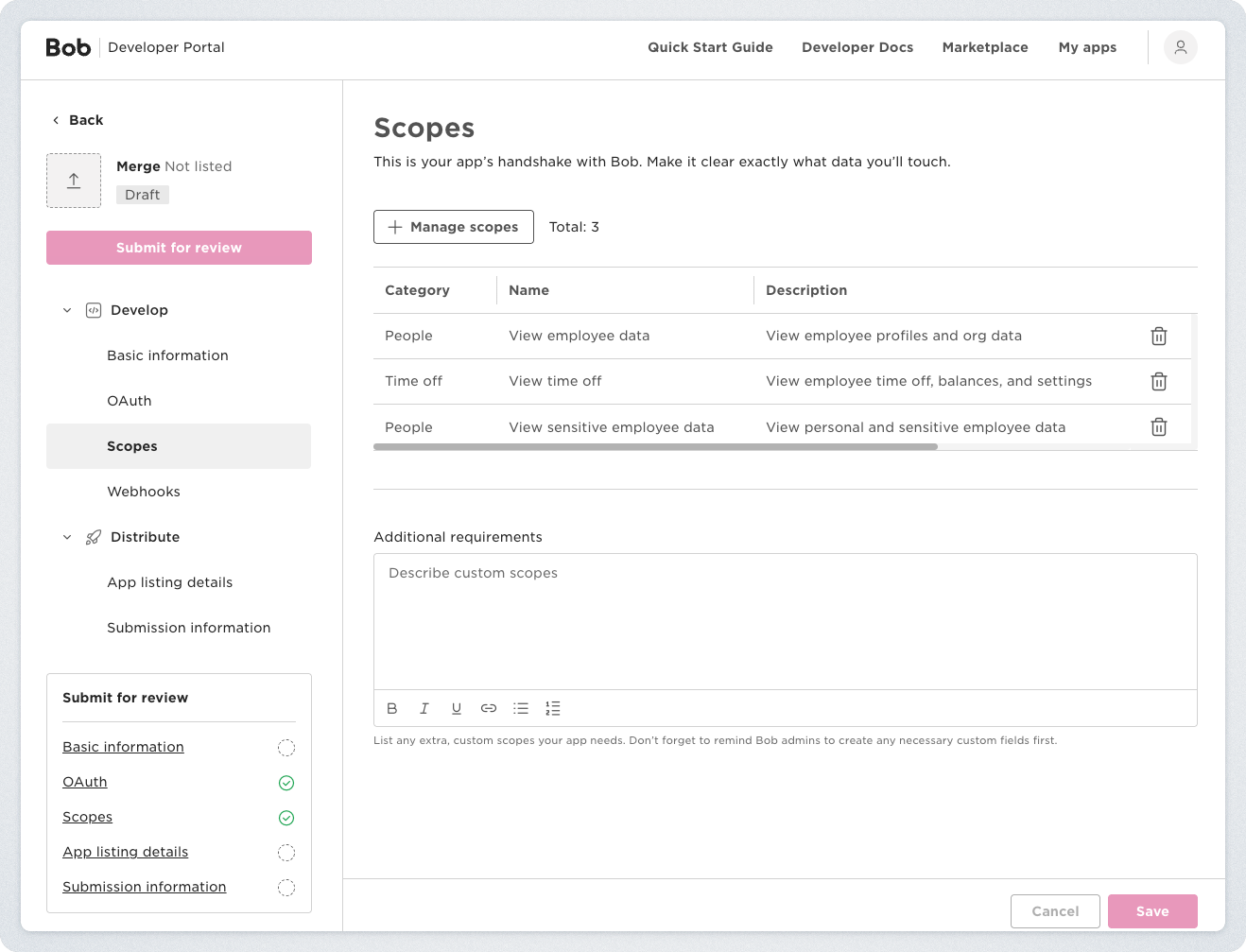
https://app-eu.merge.dev/oauth/callbackas a Redirect URI in your HiBob app, and contact [email protected] before linking any accounts. This is a temporary step while we fix a known issue.Under Scopes, select Manage scopes and add the scopes required for your use case.
Note, you may add additional permissions required for your use case as well
If your app requests fewer than these five scopes, contact [email protected] before your customers link so we can adjust the scopes Merge requests for your organization.
Scope
Required for
Settings > View company metadata
*All use cases
People > View employee data
*All use cases
People > View employee historical data
Employment data
People > View employee sensitive historical data
Pay rate data
People > View sensitive employee data
Sensitive employee data such as Date of Birth and SSN
Time Off > View time
Time off data
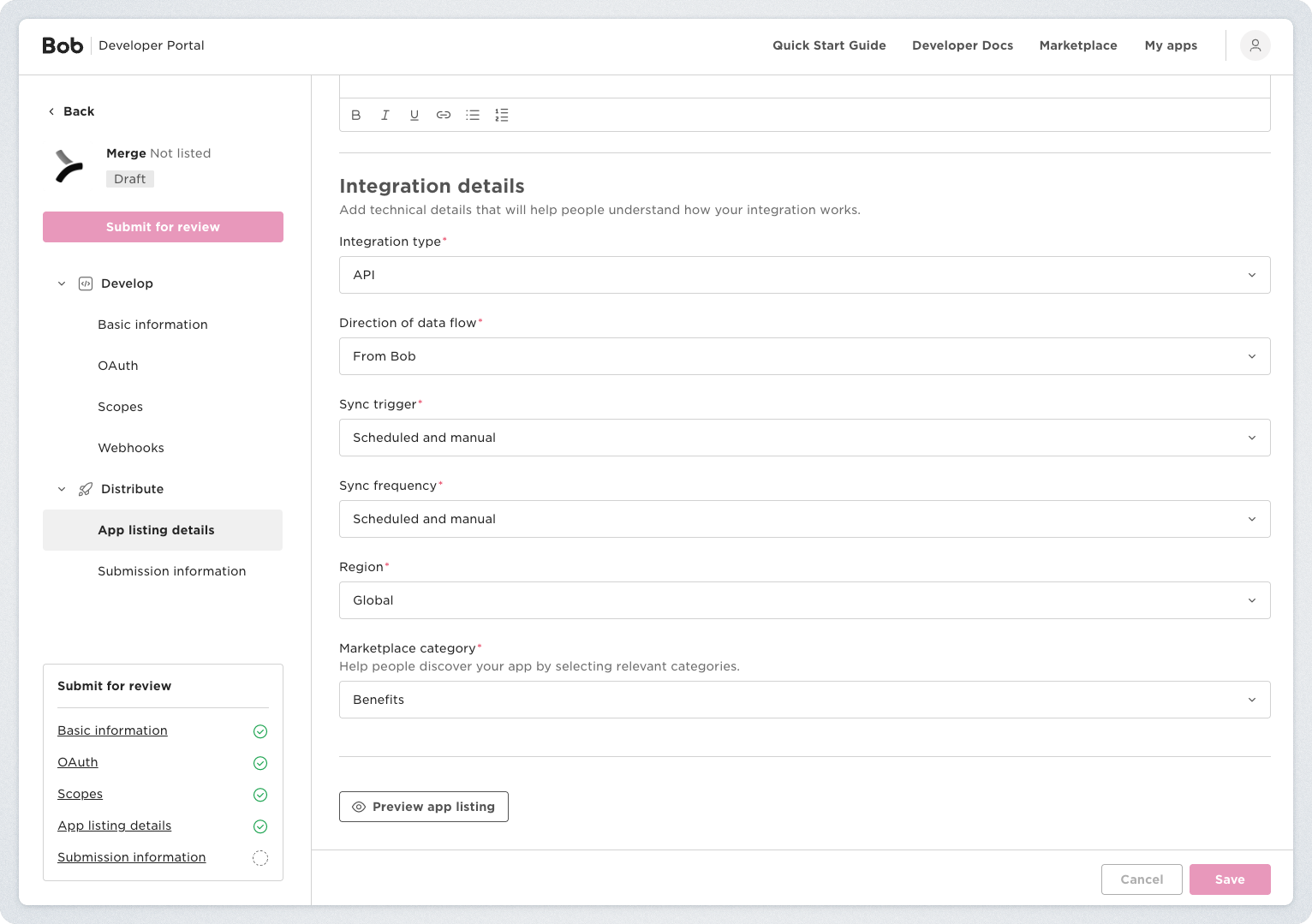
Under App listing details, populate your listing information.
App gallery: these 3 images will appear on your marketplace listing
Value statement: the value statement of your product
Functionality and how the integration works: brief overview of what your integration does
You can refer to the HiBob marketplace for inspiration!
Still under App listing details populate your integration details, then click Save.
Integration type: API
Direction of data flow: From Bob - unless you use passthrough to write data back to HiBob
Sync Trigger: Scheduled and manual
Sync Frequency: Scheduled and manual
Region: The region of your app
Marketplace category: The marketplace category of your app
Step 3: Add your development credentials in Merge
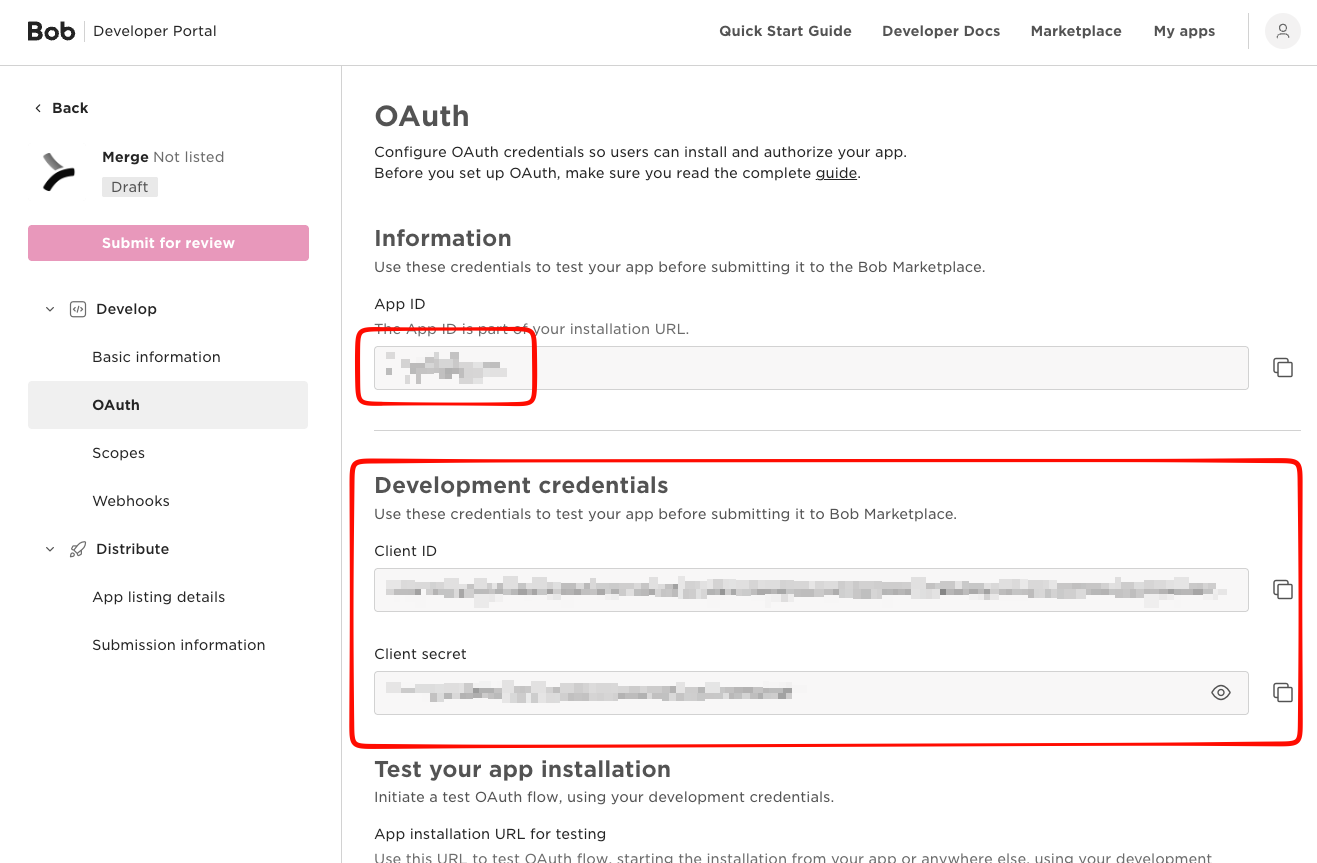
Navigate to the OAuth section of your app and copy your App ID and Development Client ID and Client Secret
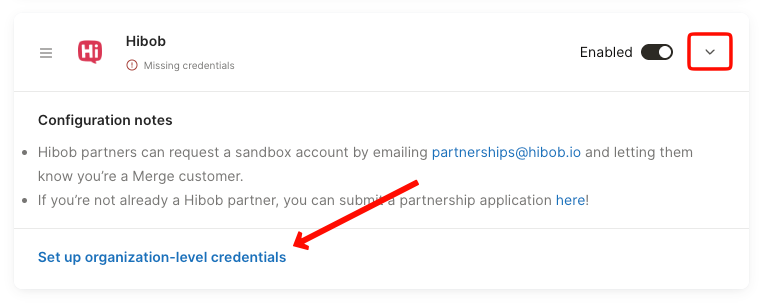
Log in to the Merge Dashboard and navigate to the HRIS Integrations tab
Scroll down to the HiBob integration, open the drawer, and select Set up organization-level credentials
Enter the following information in the corresponding fields, then save.
App ID: App ID
OAuth Client ID: Development Client ID
OAuth Client Secret: Development Client Secret
OAuth Redirect URI:
https://app.merge.dev/oauth/callback
With your Development credentials input, you will only be able to link to a single HiBob Sandbox instance at a time.
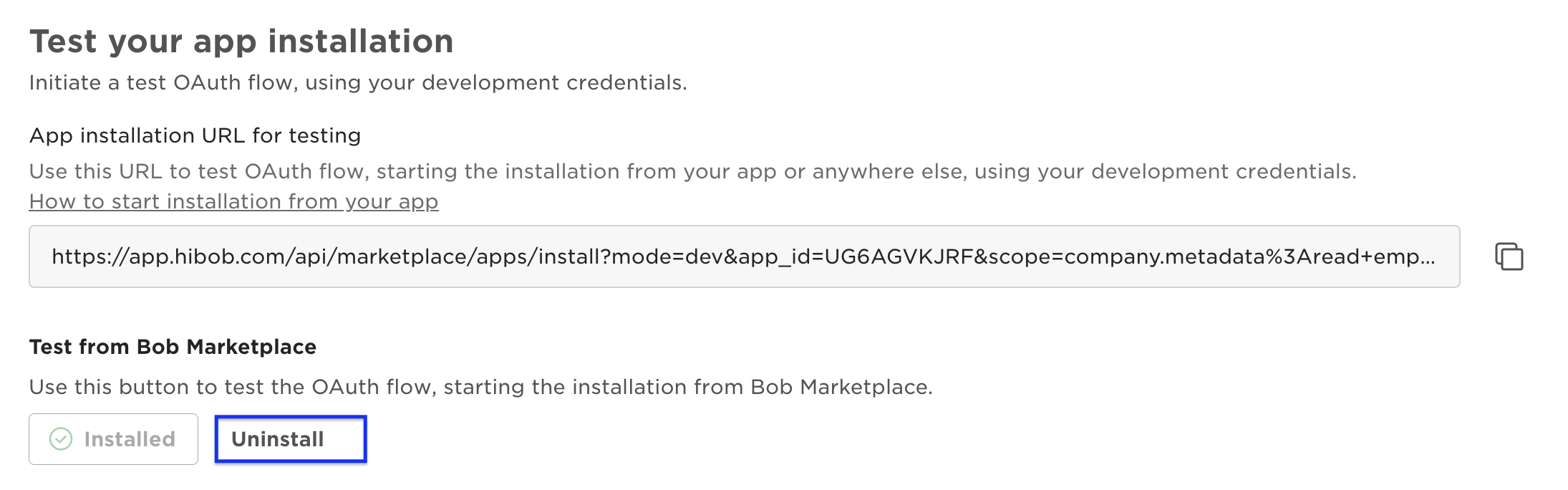
If you run into this error during the linking flow:
{
"success": false,
"errorMessage": "App is already installed in DEV mode: installationId= <installation_id>"
}
In the HiBob Developer Portal, open your app > OAuth, and click Uninstall
Step 4: Test the integration
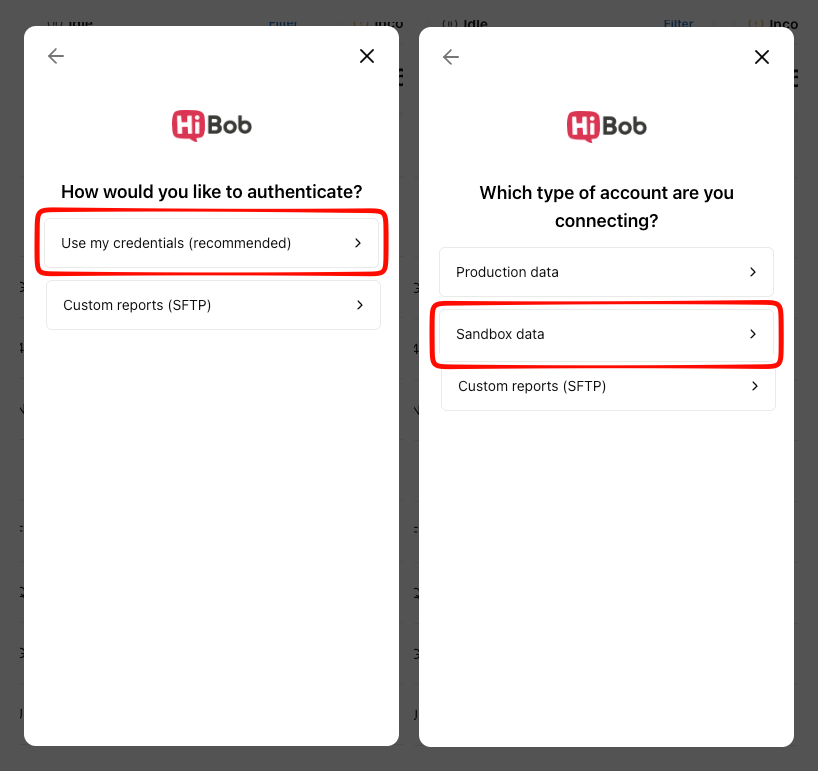
After inputting your Development credentials in the Merge Dashboard, we highly suggest testing the integration
Note, make sure to choose the Use my credentials and Sandbox data options when going through the linking flow
Step 5: Build a customer-facing user guide for your integration
HiBob requires each marketplace partner to provide a user guide to the end user. The user guide should explain your integration and walk your customer through the installation process. The requirements include:
Overview of the integration
Installation steps
Setup in your platform
Data sync flows
Screenshots or short clips
Troubleshooting tips
Support contact info
Step 6: Record a demo video of your integration
HiBob requires a video of your integration before your app can go live.
Your video and user guide must show the OAuth flow only. Do not show the Service User option in Merge Link, since HiBob will reject submissions that use it. Your video must also be recorded within 14 days of submitting your app and show a visible use for every scope your app requests.
The video should detail your integration end-to-end. The full requirements of the video can be found at the link below.
Step 7: Submit your app for review
Once you have your user guide and video, you're ready to submit your app for review!
Log back into the HiBob developer portal and navigate to the Submission information page of your app
Input the URL for your Integration demo and User guide and click Save
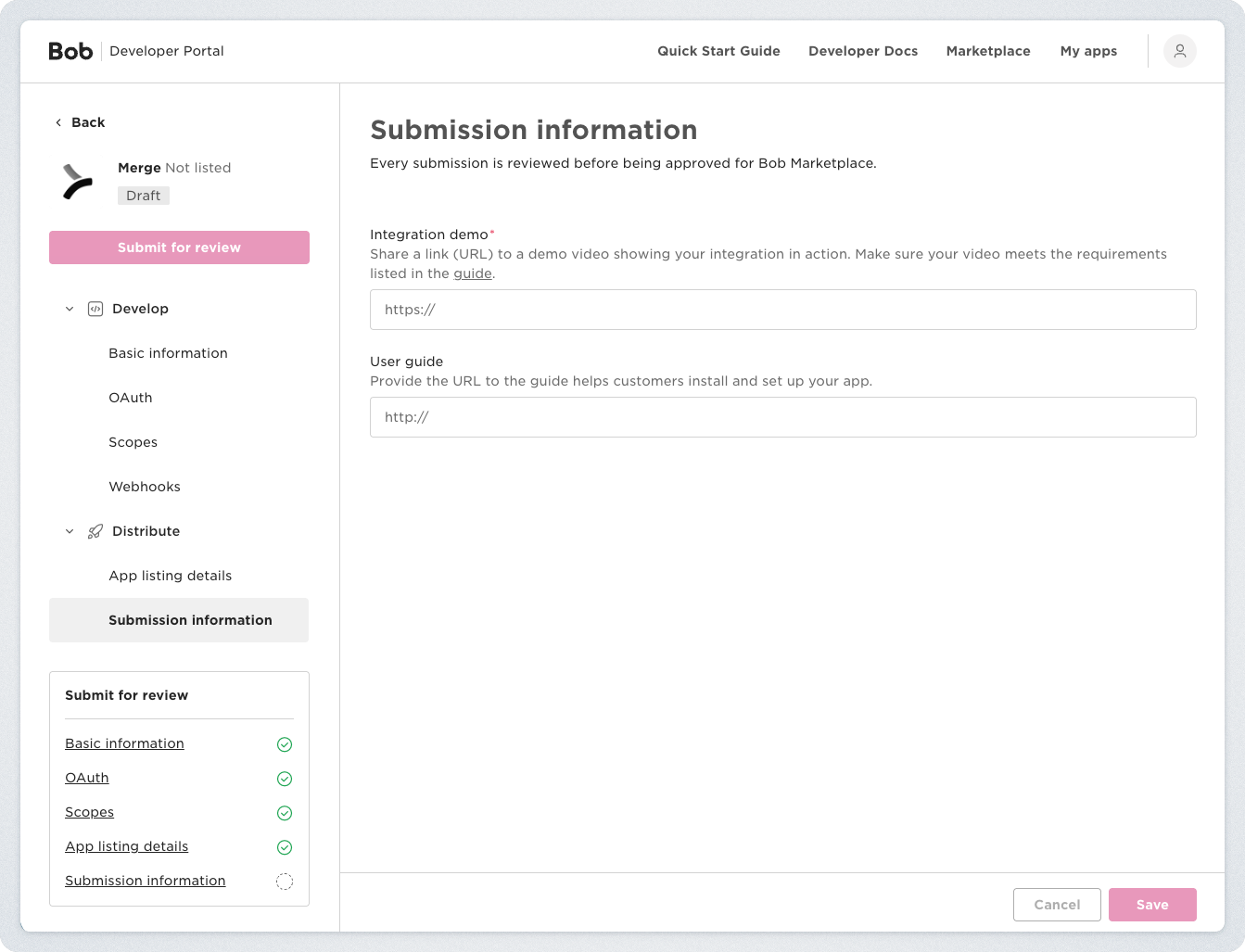
The Submit for review button should now be available
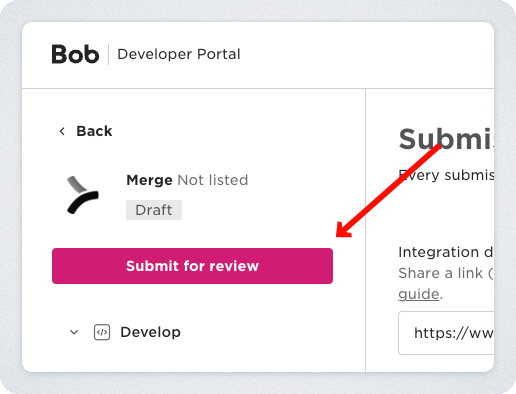
Give your app one final look over and click the Submit for review button to submit your app for review
HiBob will then review your app and follow up if they have any questions
Step 8: After approval, input your production credentials in Merge
Once your app is approved by HiBob, navigate to the OAuth section of your app and copy your App ID and Production Client ID and Client Secret
Log in to the Merge Dashboard and navigate to the HRIS Integrations tab
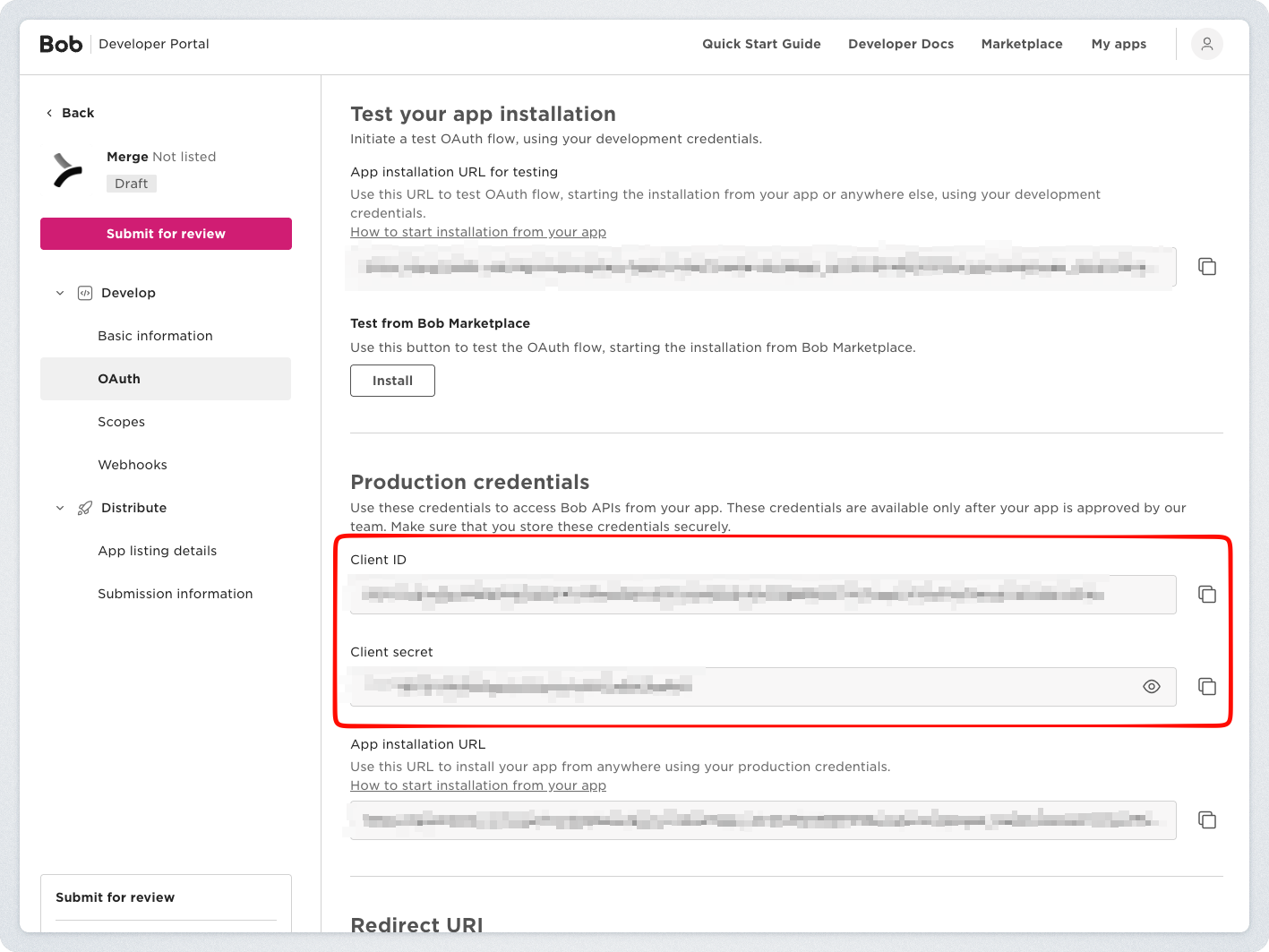
Scroll down to the HiBob integration, open the drawer, and select Edit to modify your credentials
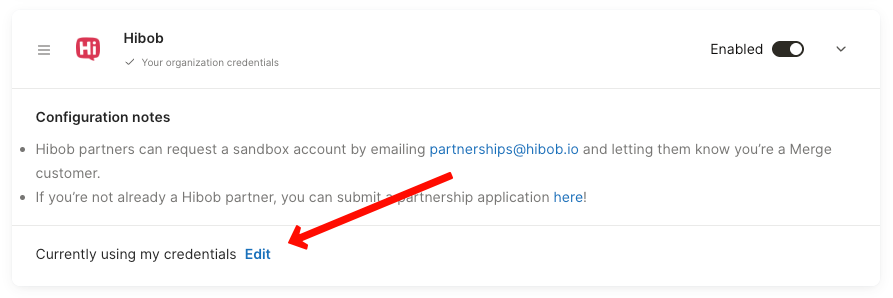
Enter the following information in the corresponding fields, then save.
App ID: leave as is
OAuth Client ID: Production Client ID
OAuth Client Secret: Production Client Secret
OAuth Redirect URI:
https://app.merge.dev/oauth/callback
If you are in EU tenant, the redirect URI should be
https://app-eu.merge.dev/oauth/callback
With your Production credentials input, you will only be able to link to HiBob Production instances
That's it! If you have any questions reach out to your CSM or [email protected]