Pipedrive - How do I set up my partner credentials?
Last updated: June 16, 2026
Overview
You can create and use your own Pipedrive partner credentials to connect to your customers’ Pipedrive workspaces. To set this up, sign up for a Pipedrive Developer account with access to Marketplace Manager.
The steps below walk you through the full setup process:
Instructions
Step 1: Create a Developer account
Go to https://developers.pipedrive.com/ and sign up for a sandbox account.
After signing into your sandbox account, click the profile icon in the upper right and click
Developer Hubin the resulting listClick + Create an app in the upper right corner
Select Public app or Private app.
On the Basic info step, you will be required by Pipedrive to provide an OAuth Redirect URI. Set this url to https://app.merge.dev/oauth/callback.
On the OAuth & access scopes step, select all the access scopes you require. Here are Pipedrive's docs listing all scopes, their permission explanations, and endpoints they cover
Scopes
Level
Deals
Full access
Activities
Full access
Contacts
Full access
Products
Full access
Read users data
See recent account activity
Search for all data
Administer account
Leads
Full access
Goals
Full access
Projects
Full access
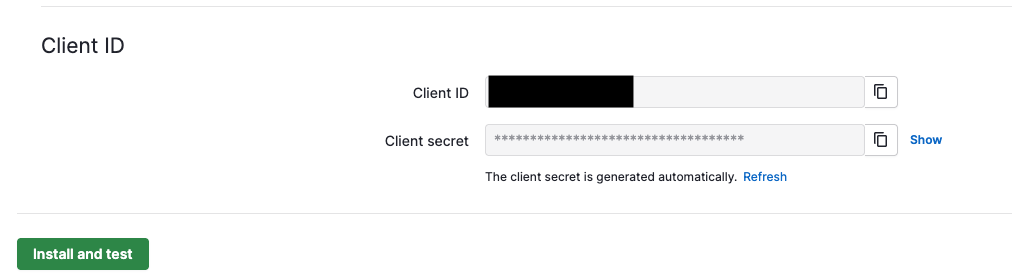
At the bottom of the OAuth & access scopes page copy the Client ID and secret.
Step 2: Enter your app's details in the Merge Dashboard
Navigate to the Integrations > CRM page in the Merge dashboard
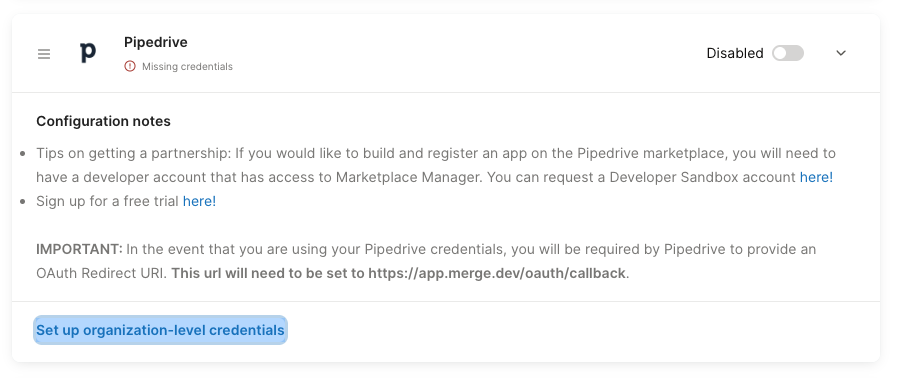
Expand the Pipedrive selection and select Set up organization-level credentials
Populate your credentials:
OAuth Client Id: Your Client ID from the first step
OAuth Client Secret: Your Client secret from the first step
Redirect URI:
https://app.merge.dev/oauth/callback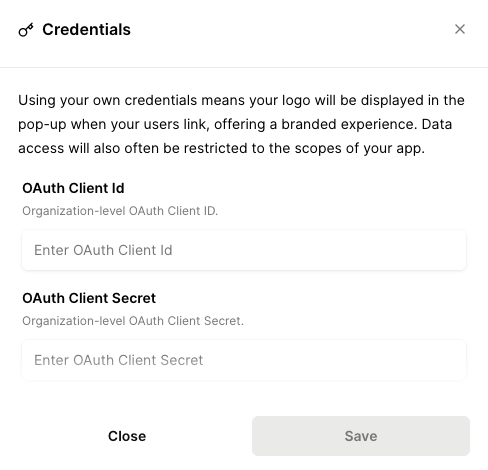
Click Save