Common issues with Jira
Last updated: July 2, 2025
1. Missing Jira emails
You may notice that your user emails are not being returned for your Jira integration. This is because the profile visibility settings in Jira hide email information from a user's profile by default. You can learn how to update those settings to make the user emails visible here!
2. Missing access to projects in Jira
If you're unable to view Jira projects in Merge's Collections model, listed below are a few places to check that the end user has configured the correct permissions within their Jira application.
Confirm user access to the Jira app
Go to Jira Admin → Directory → Users.
Select the user used to connect this account.
Under Roles, confirm that your user has at least
Userrole access to the Jira app.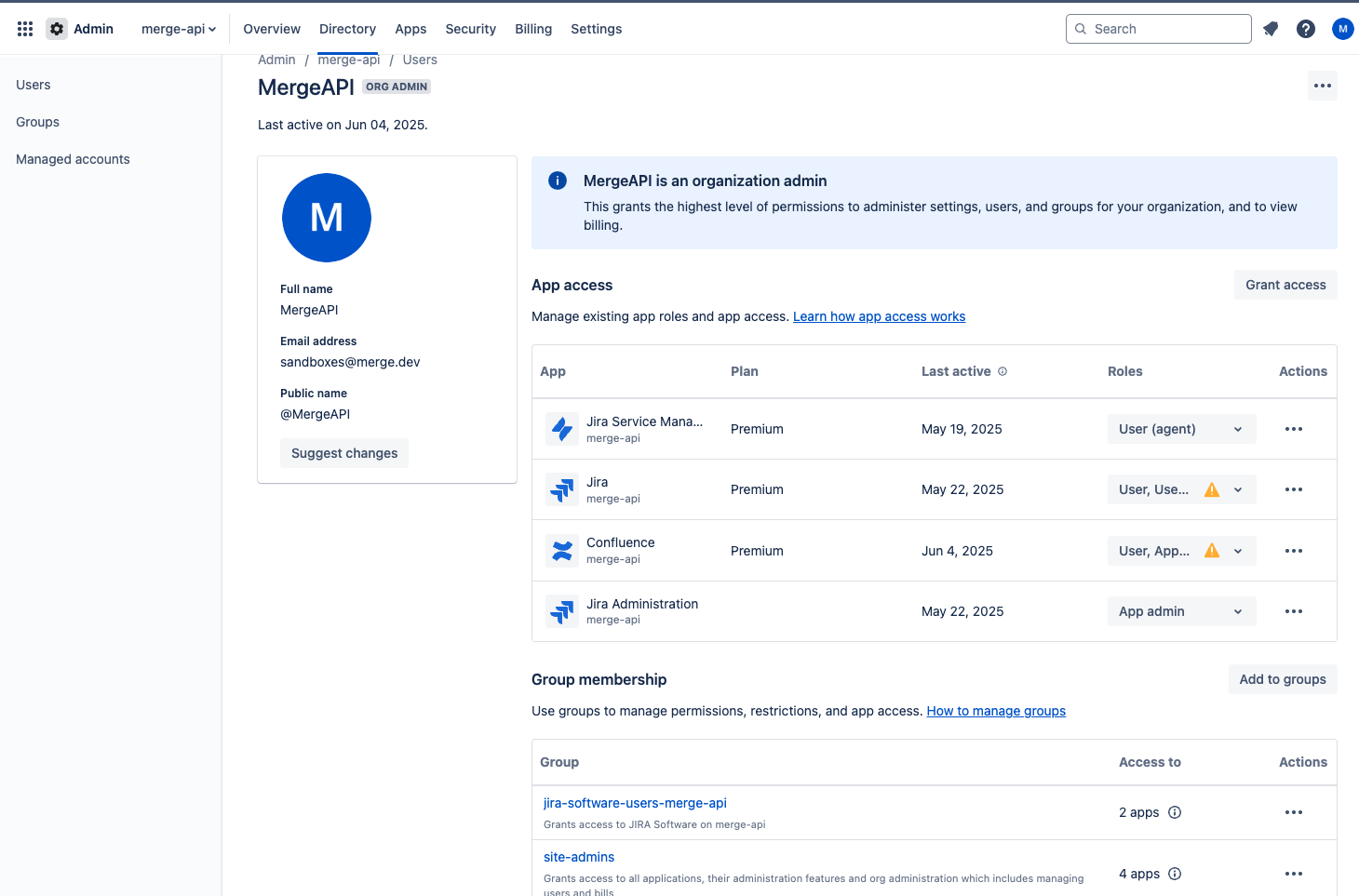
If your organization provisions access at a Group level, navigate to Jira Admin → Directory → Groups.
Under Roles, confirm that the group your user is associated with has at least
Userrole access to the Jira app.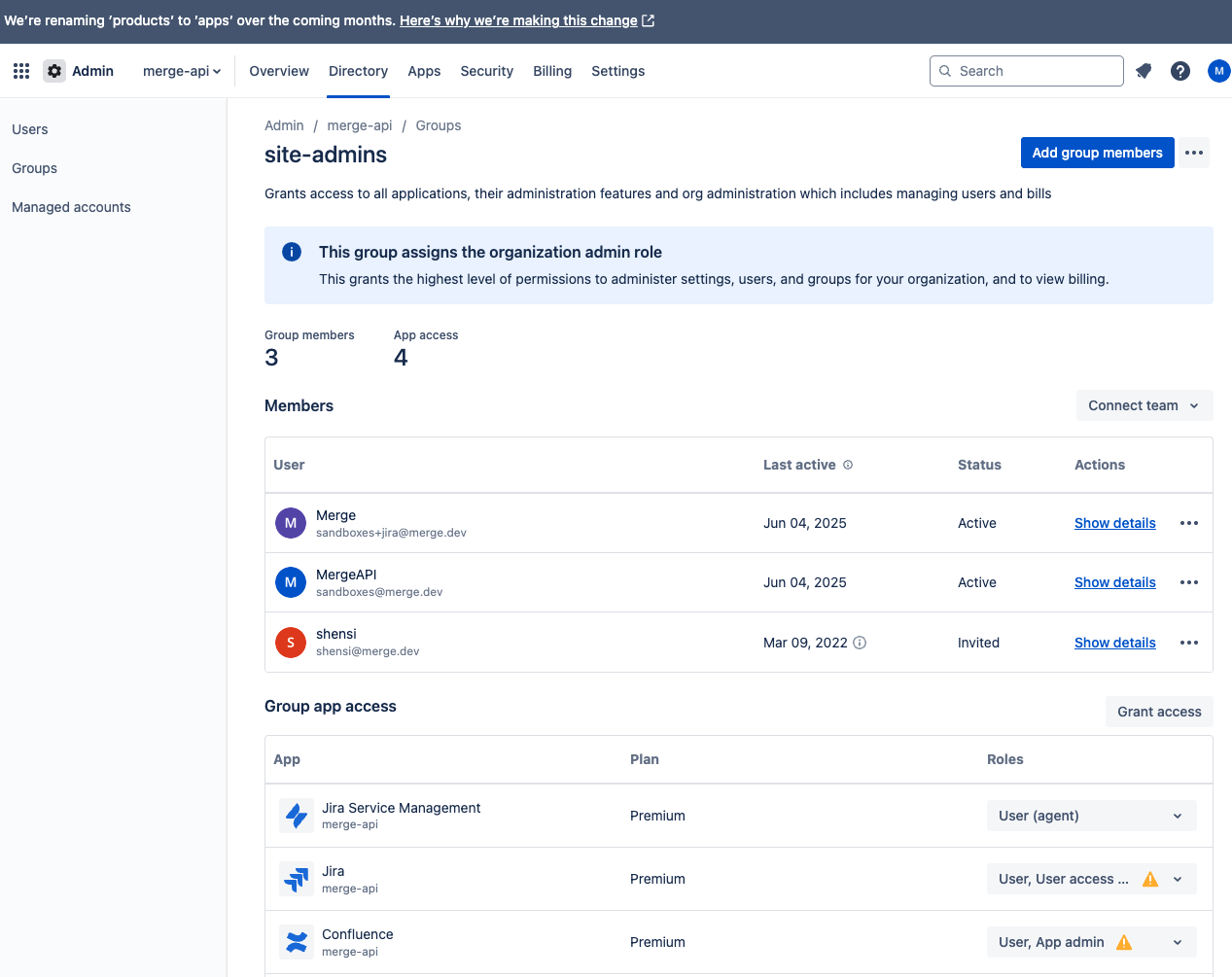
Confirm access to view company-managed projects
Navigate to Project Settings.
Settings → Projects → More actions →
. . .→ Project settings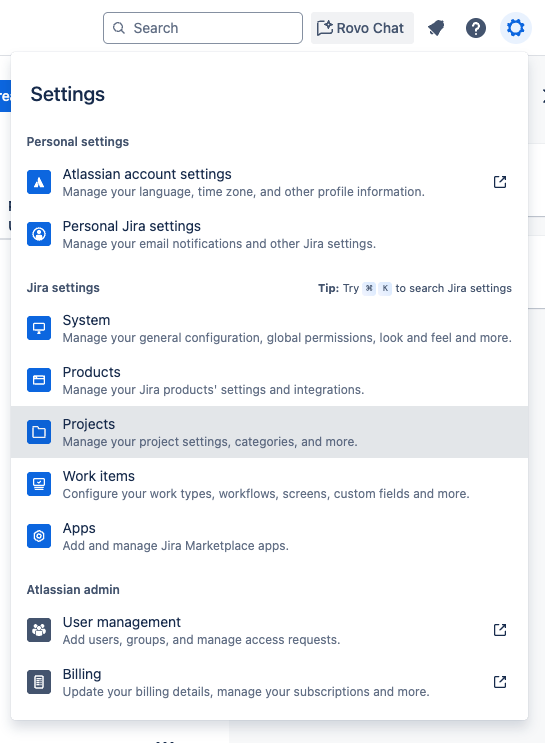
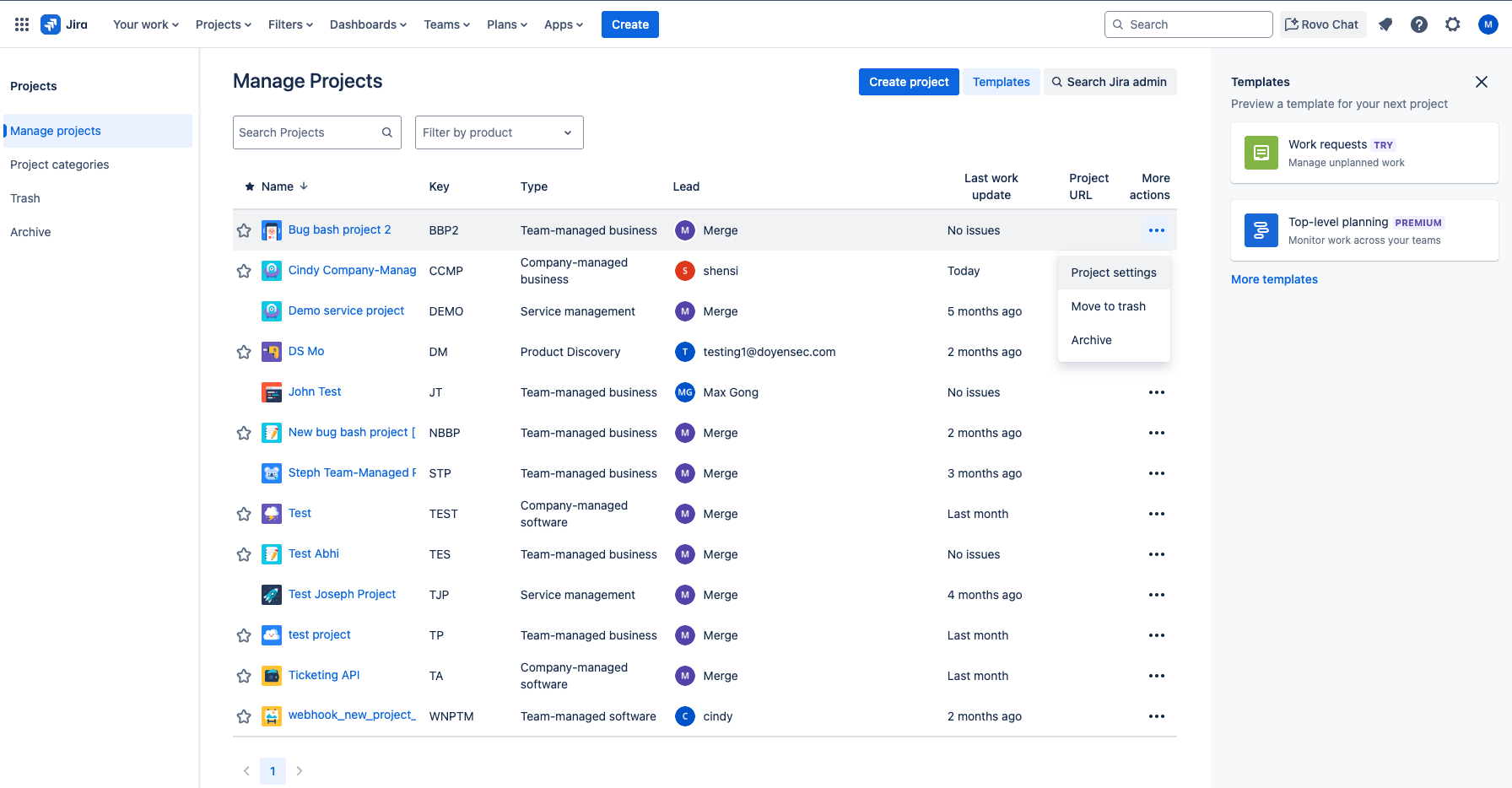
Navigate to Project settings → People
The roles you can choose from defined in System settings (see note here).
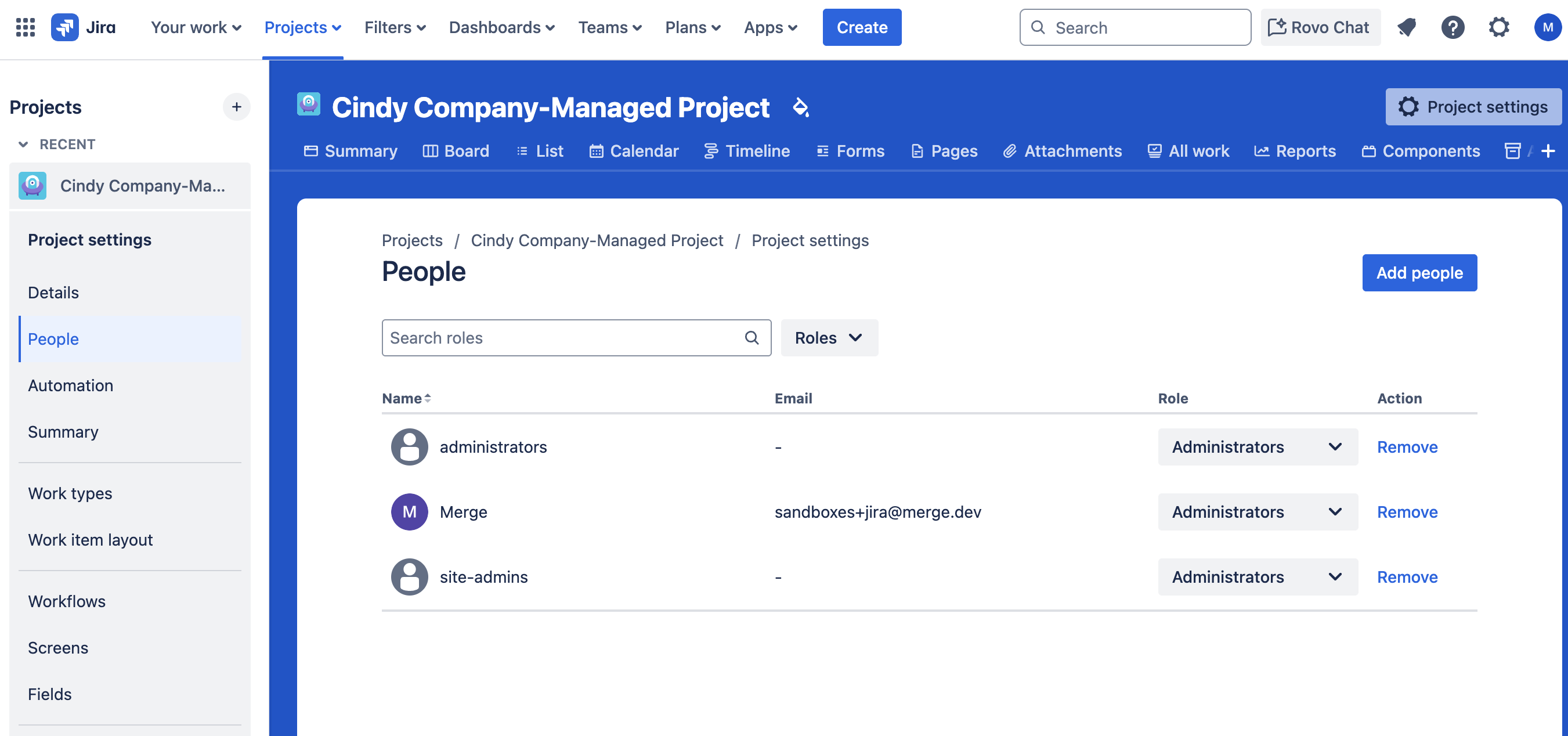
Confirm that your user has access to view this project.
To add yourself as a user, click Add people.
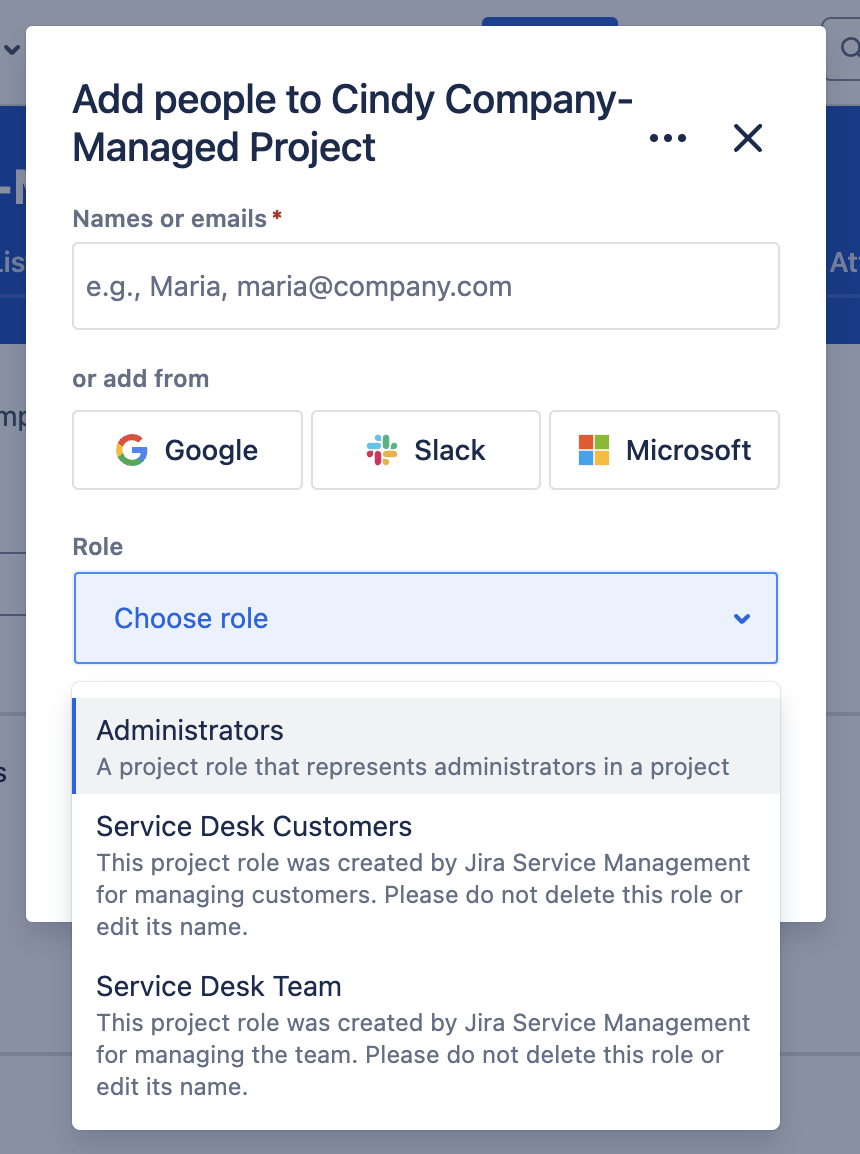
Define permissions for Project Roles
Within Project Settings, navigate to the Permissions tab.
This page notes what Permission Scheme is applied to the Project as well as what issue-level security is defined elsewhere.
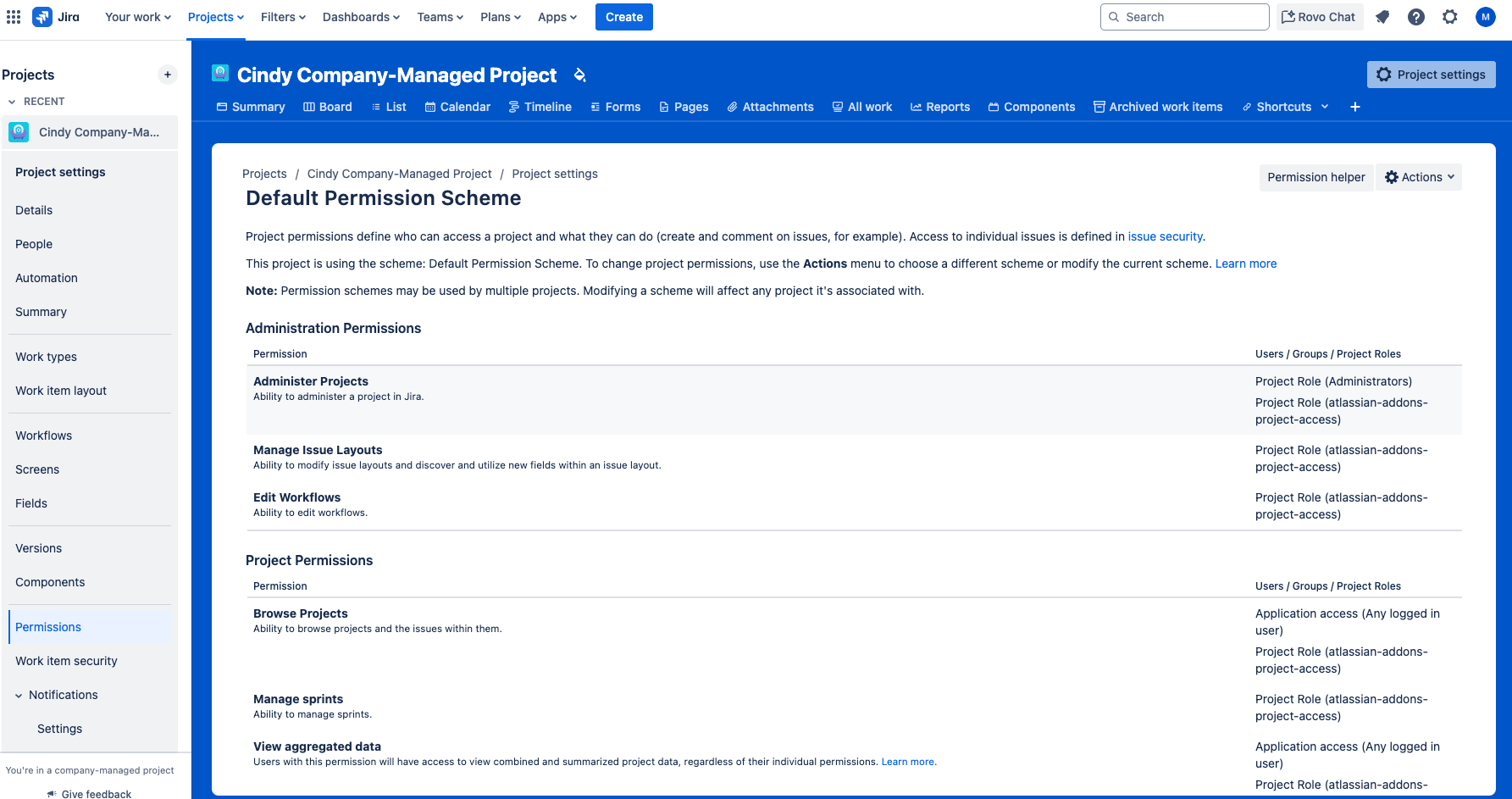
Confirm that that the Browse Projects permissions is enabled for the
Users / Groups / Project Roles that is associated with the user used to connect this Jira account.Confirm that any other additional permissions are enabled for your use case:
Administration
Project
Issue
Voters & Watchers
Comments
Attachments
Time Tracking
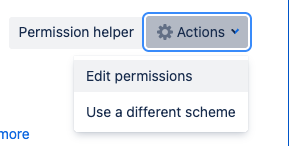
If you need to edit these permissions, navigate to Actions → Edit permissions.
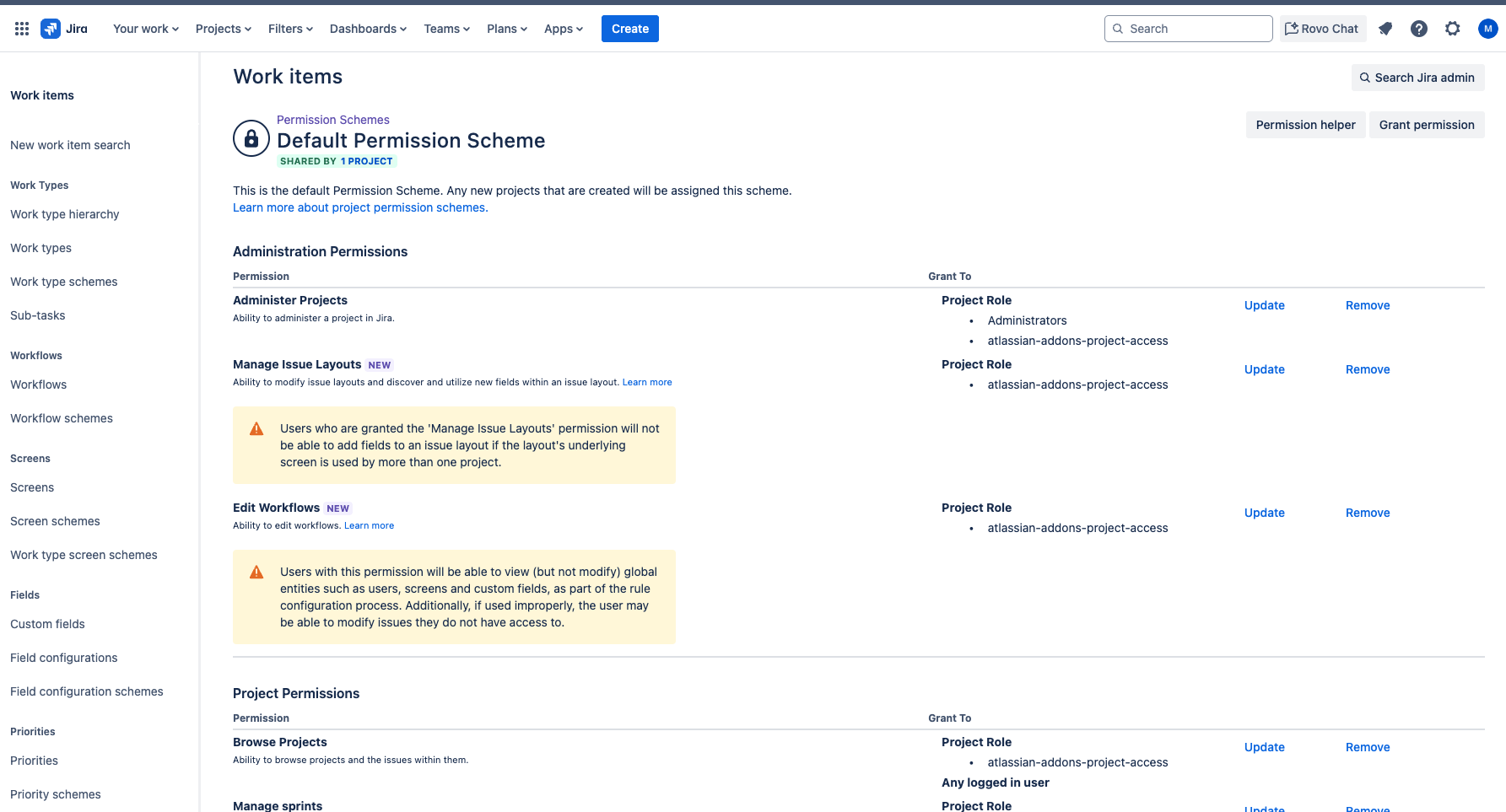
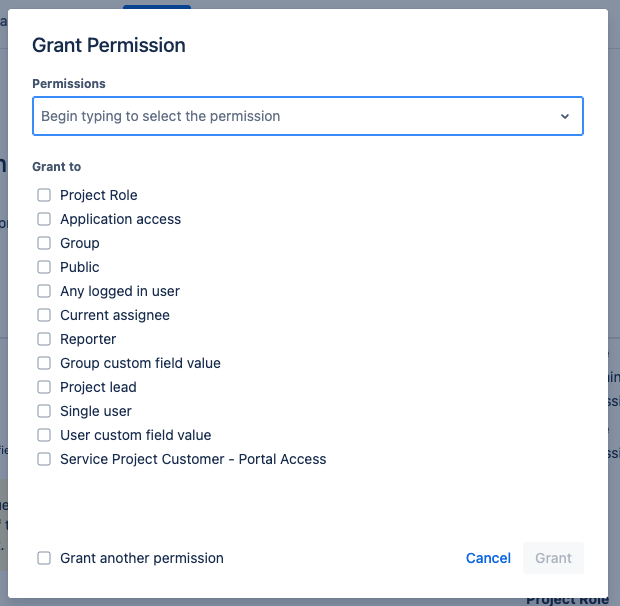
You will be redirected to the Work items page, where you can update the permissions by either clicking Update for each permission or click Grant permissions.
Confirm access to view team-managed projects
From Project Settings, navigate to Access.
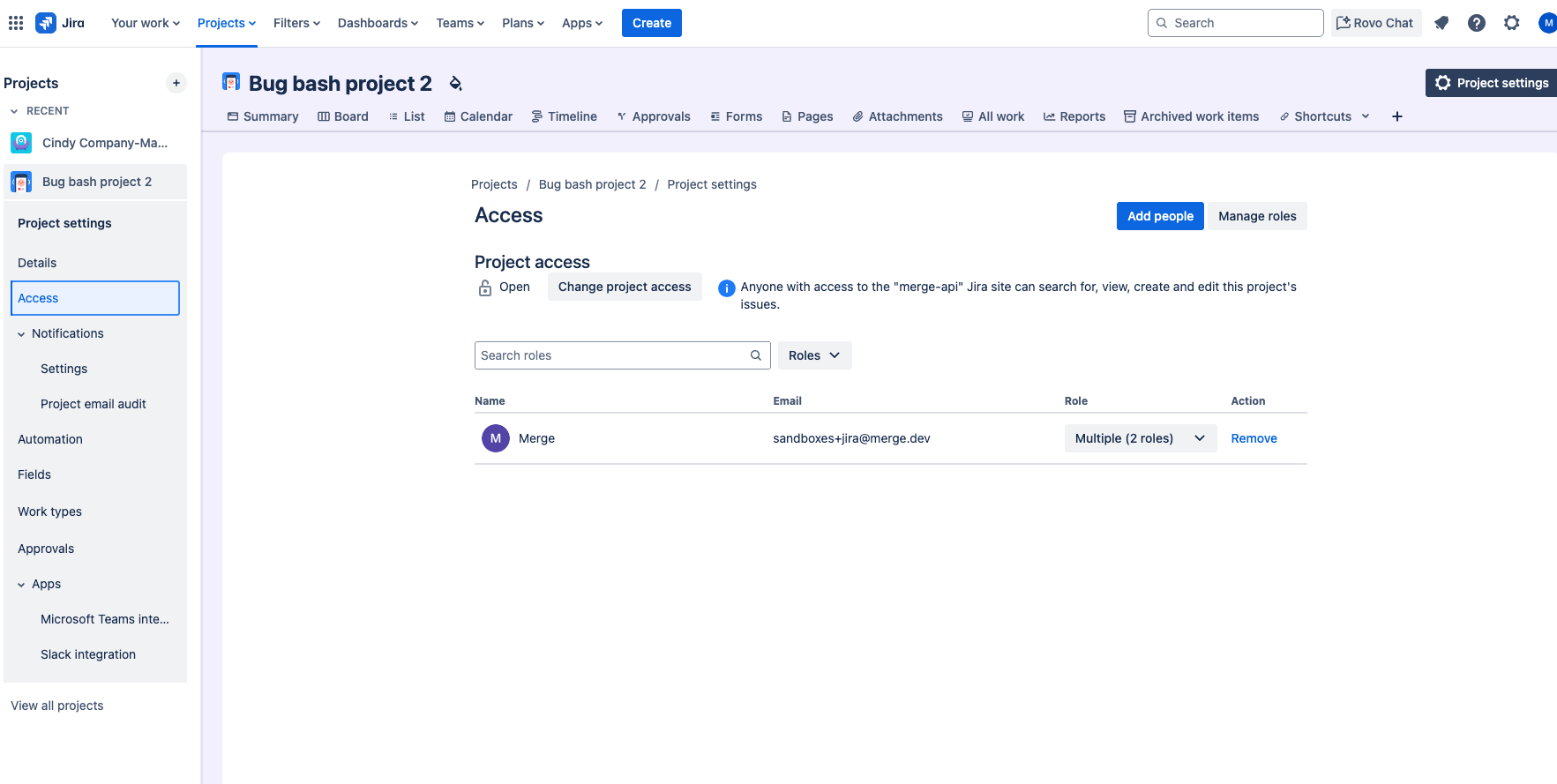
To modify the project access, click Change project access.
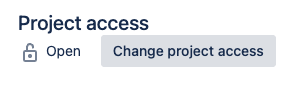
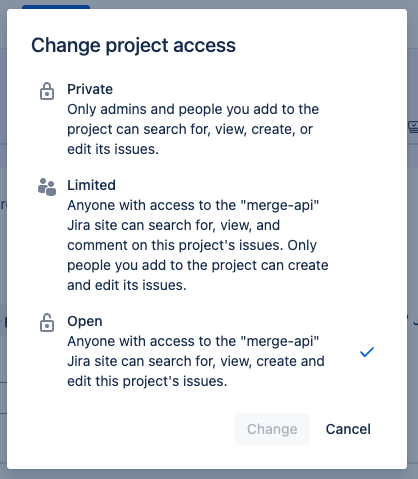
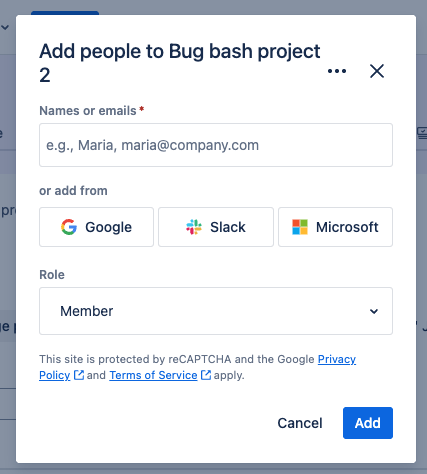
Add users or groups to project access: click Add people.

Search for the user or group and define their role.
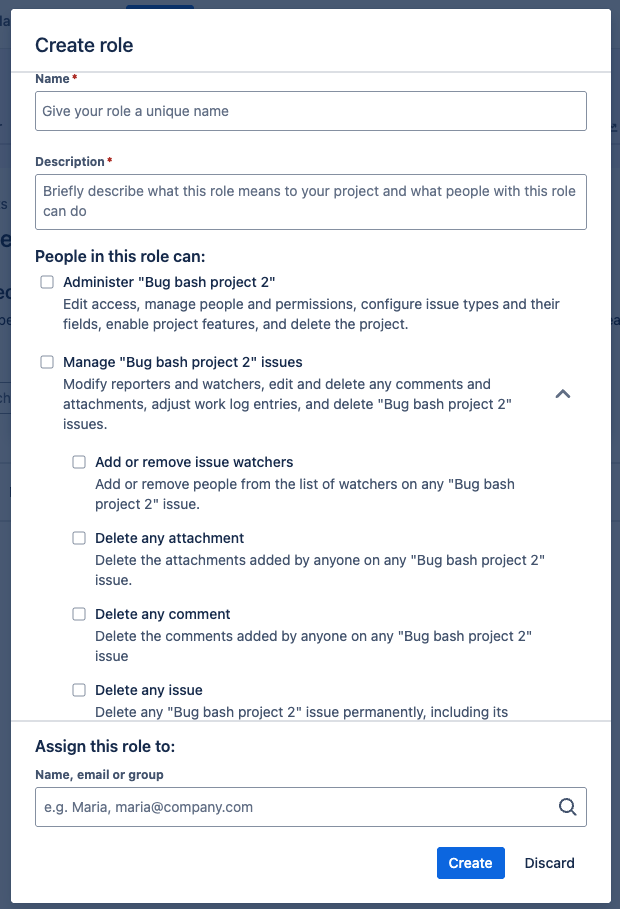
To view existing project roles or to create a new role, click Manage roles.

To create a new project role, duplicate one of the existing project roles. Then define the new role and its permissions, including permissions to CRUD project issues.
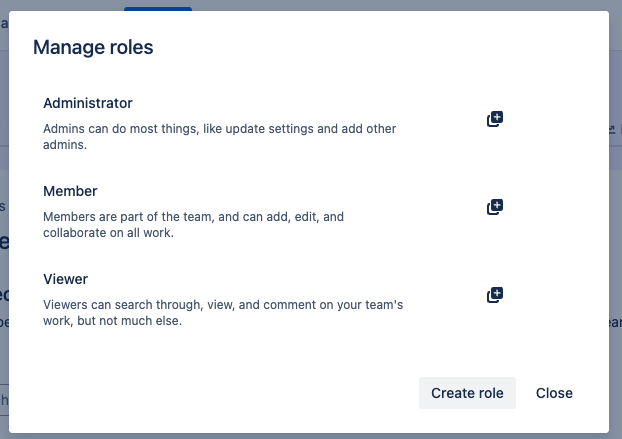
Once the permissions are assigned, click Create role.