How to debug using the Merge Dashboard
Last updated: December 24, 2025
Overview
Welcome to the Merge Dashboard debugging guide, your step-by-step resource for understanding how to troubleshoot and resolve issues with your Linked Accounts. This guide will help you efficiently debug and escalate issues to get things running smoothly again.
What is a Linked Account?
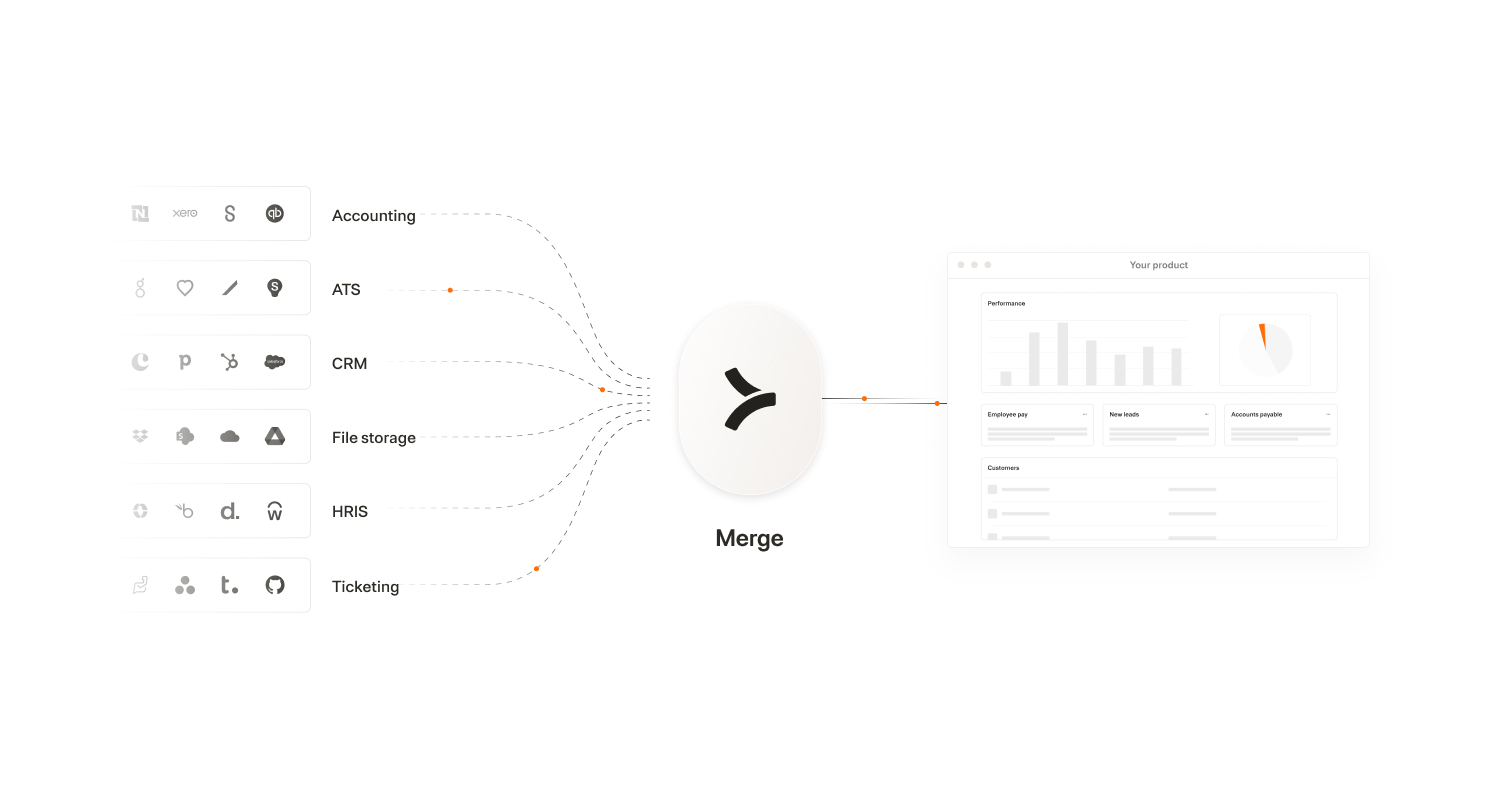
A Linked Account refers to a connection between Merge and a third-party application that you're integrating with. By linking an account, you and your customers allow Merge to pull data from their system.
Common third-party integrations include:
File storage platforms (e.g. Google Drive, Sharepoint)
CRM platforms (e.g., Salesforce, HubSpot)
Accounting software (e.g., QuickBooks)
HR management systems (e.g., BambooHR, Gusto)
Each Linked Account represents a unique connection to one of these services, and understanding how these accounts synchronize and function within Merge is key to troubleshooting any issues.
Overview of the Linked Accounts page
The Linked Accounts page is your hub for managing and monitoring all integrations. It displays a list of all active and inactive accounts, along with organization names and current statuses. Use filters and search to quickly locate Linked Accounts by status, integration, organization, and more.
Key details:
Organization: Displays and the customer connected
Integration: Displays the third-party integration name
Status: Indicates the current connection status (e.g., Linked, Incomplete, Relink Needed)
This page serves as your starting point for assessing integration health and identifying potential syncing or connection issues.
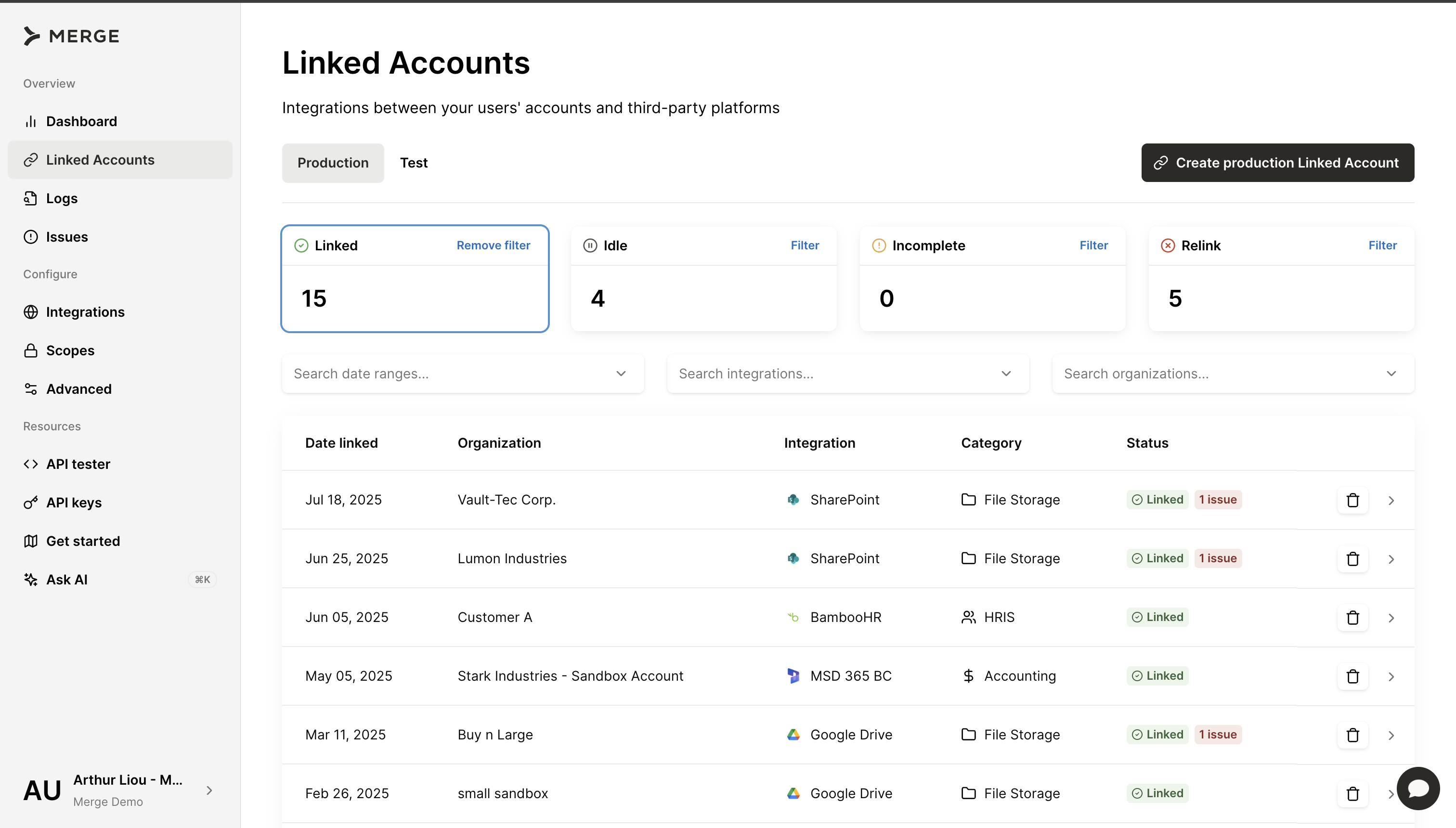
Understanding Linked Account statuses
Linked: The Linked Account is successfully linked!
Incomplete: The Linked Account cannot be successfully linked, which usually happens were permissions are invalid or credentials are entered incorrectly
Relink Needed: Authentication is expired and your customer must re-enter their credentials to resolve the status
Idle: Linked Accounts enter an Idle state if any of the following occurs:
The Linked Account has not had a successful sync in 2 weeks
You have not made an inbound request to the Linked Account for 2 weeks
You have not responded to a webhook for the Linked Account in 2 weeks
Inside a specific Linked Account
When you click into a specific Linked Account, you’ll land on its Overview tab, which provides detailed information for that account.
Key sections of the Overview tab:
Data Sync: Lists each Common Model, its scope settings, sync status, last sync start, and next scheduled sync
Account Details: Displays essential identifiers like the Linked Account ID and account token
Linked Account ID: A unique identifier for a Linked Account
Account Token: This is the permanent token generated by Merge that you include in your API requests to specify which Linked Account the request is for
Send Test API Request: Offers a quick link to the API Tester, pre-selecting this Linked Account for immediate testing
Other Tabs: Easily access Logs, Issues, Field Mappings, and more for advanced troubleshooting and configuration
This account-level view enables both high-level status checks and deep dives into specific integration details.
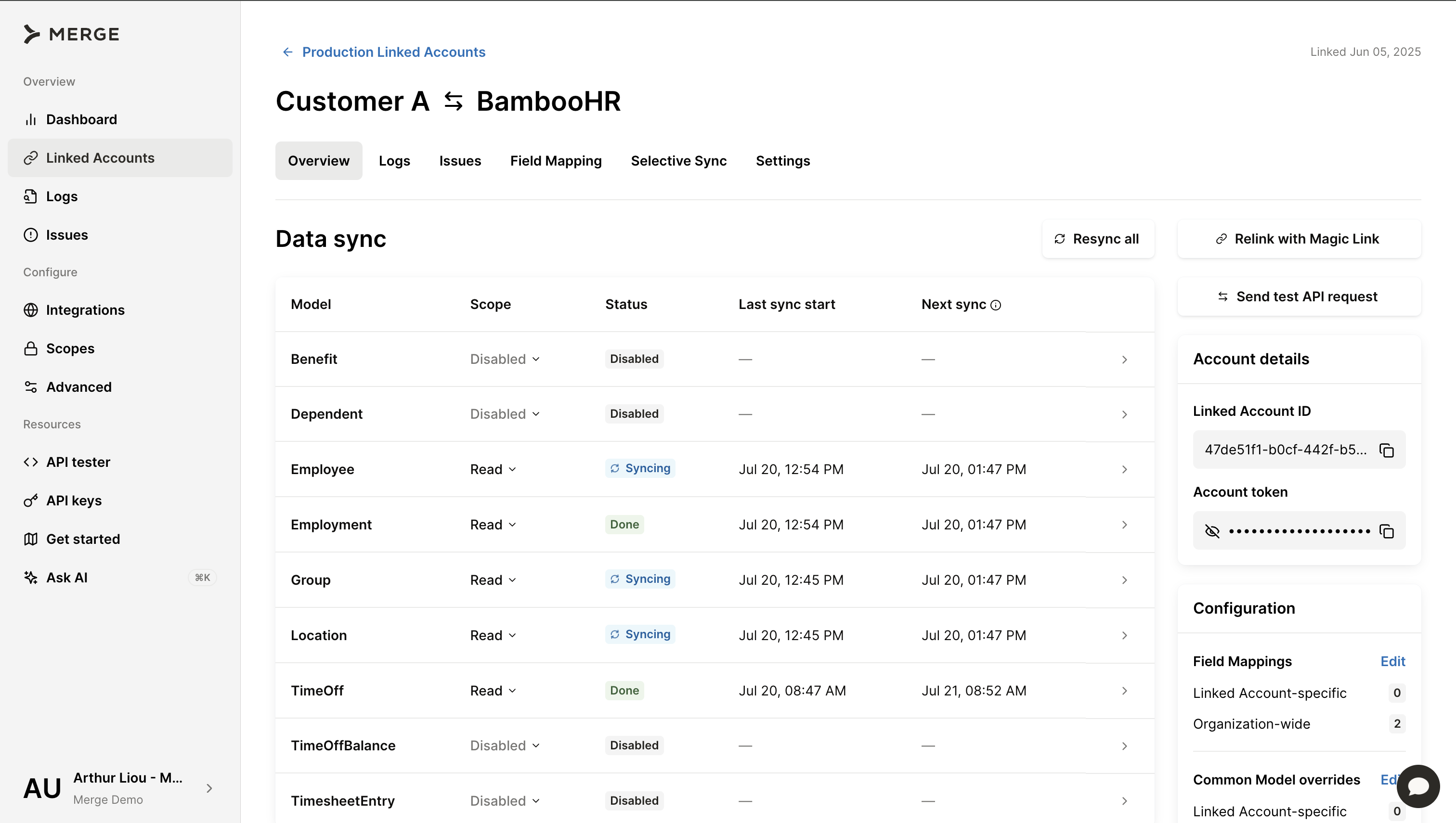
Understanding sync statuses
Sync statuses indicate the current state of data synchronization for a Common Model:
Disabled: The Common Model has been disabled in Scopes
Done: Successfully completed syncing
Failed: Failed to sync this Common Model during the last sync attempt
Partially Synced: Some fields within the Common Model failed to sync, but others were successful. Click here to learn how to identify and troubleshoot the issue
Paused: The Linked Account has not had an inbound API request or webhook for over 2 weeks or failed syncs for over 2 weeks. Learn more here.
Syncing: Merge is actively syncing data, or a sync is in queue for this model
These statuses help you quickly identify where syncing is working as expected and where further troubleshooting may be required.
Understanding Scopes
Read Only: Merge syncs and stores data for the Common Model but blocks write operations
Read + Write: Merge syncs and stores data for the Common Model and enables write operations when supported by the integration
Write Only: Merge allows write operations but doesn't sync or store data for the Common Model or its fields
Disabled: Merge returns null values in API responses for the affected models and fields
When an entire Common Model scope is disabled, all associated field-level scopes are automatically disabled.
Individual fields within a Common Model can be disabled without affecting the entire Common Model scope.
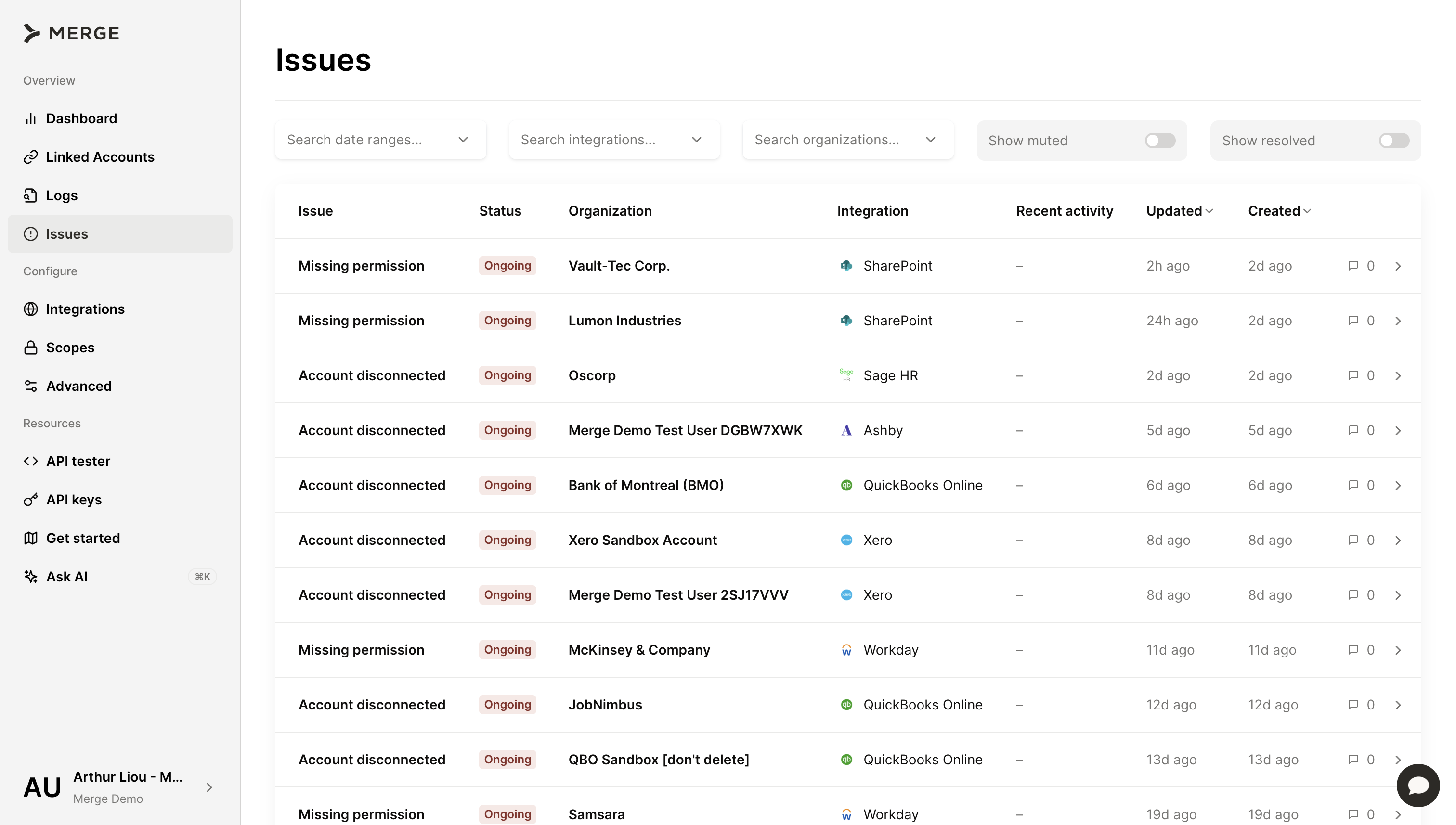
Identifying and managing Issues
The Issues section of the Merge Dashboard surfaces key errors related to a Linked Account. This is a critical area for troubleshooting because it flags known problems that require resolution. These Issues are end-user facing and you can share them directly with your customers.
Here's how to manage issues:
Accessing all Issues
Go here to view all Issues across all your Linked Accounts.
Accessing Linked Account Issues
Go to the Linked Account page.
Scroll down to the Issues section, where any reported problems are listed.
Click on an issue to view more details, including error codes, descriptions, and potential resolutions.
Common types of Issues
Authentication Failures: Often related to expired tokens or incorrect credentials.
Data Sync Failures: Missing or incomplete data that prevents a successful sync.
API Limit Errors: If you’ve hit an API rate limit from the third-party service, you might see this issue.
Resolving Issues
Once you’ve identified the issue:
Fix the Issue(s):
For authentication issues, reach out to your customer to re-authenticate the linked account or updating credentials
Sometimes issues require end-user actions to resolve. In these cases, Merge often outlines the required resolution steps to remediate the issue and you can share these steps with them
If remediation steps are not clear, review the logs related to the issue to investigate further
Retry Sync: After resolving the issue, initiate a new sync to see if it resolves the problem.
How to access and interpret Logs
Logs are an essential tool for debugging sync issues. They contain detailed information about requests you or Merge were making. Here’s how to access and interpret them:
Accessing all Logs
Go here to view logs across all your Linked Accounts.
Accessing Logs for a Linked Account
Navigate to the Linked Account page.
Click on the account you want to investigate.
Scroll down to the Logs section or click on the View Logs button.
Searching Logs
The search bar at the top of the Logs page allows you to filter on certain criteria. Some of those criteria are described below!
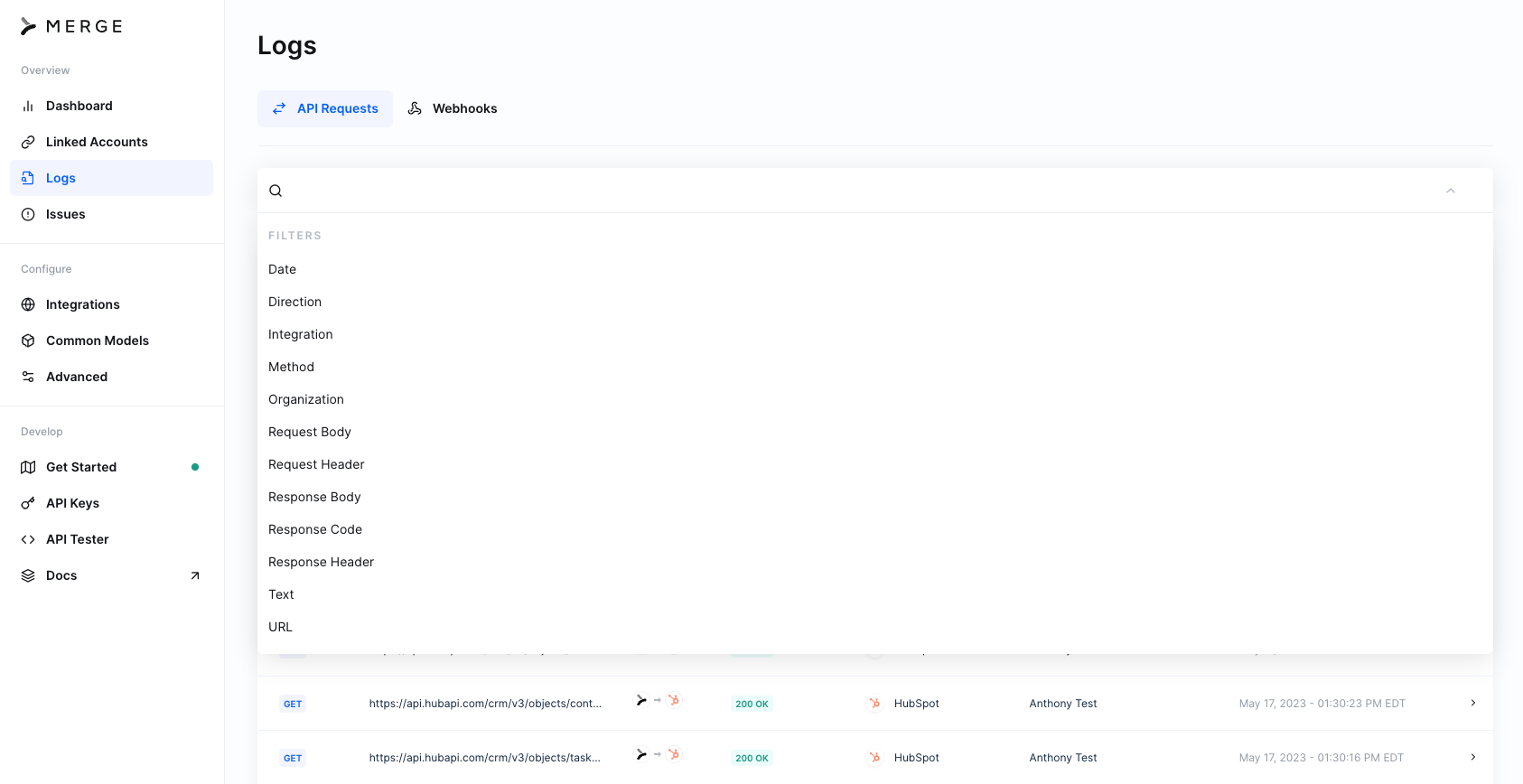
Direction
All Merge logs have a directionality. This allow you to filter for logs that were sent from Merge to 3rd party endpoints, or from your organization to Merge endpoints.
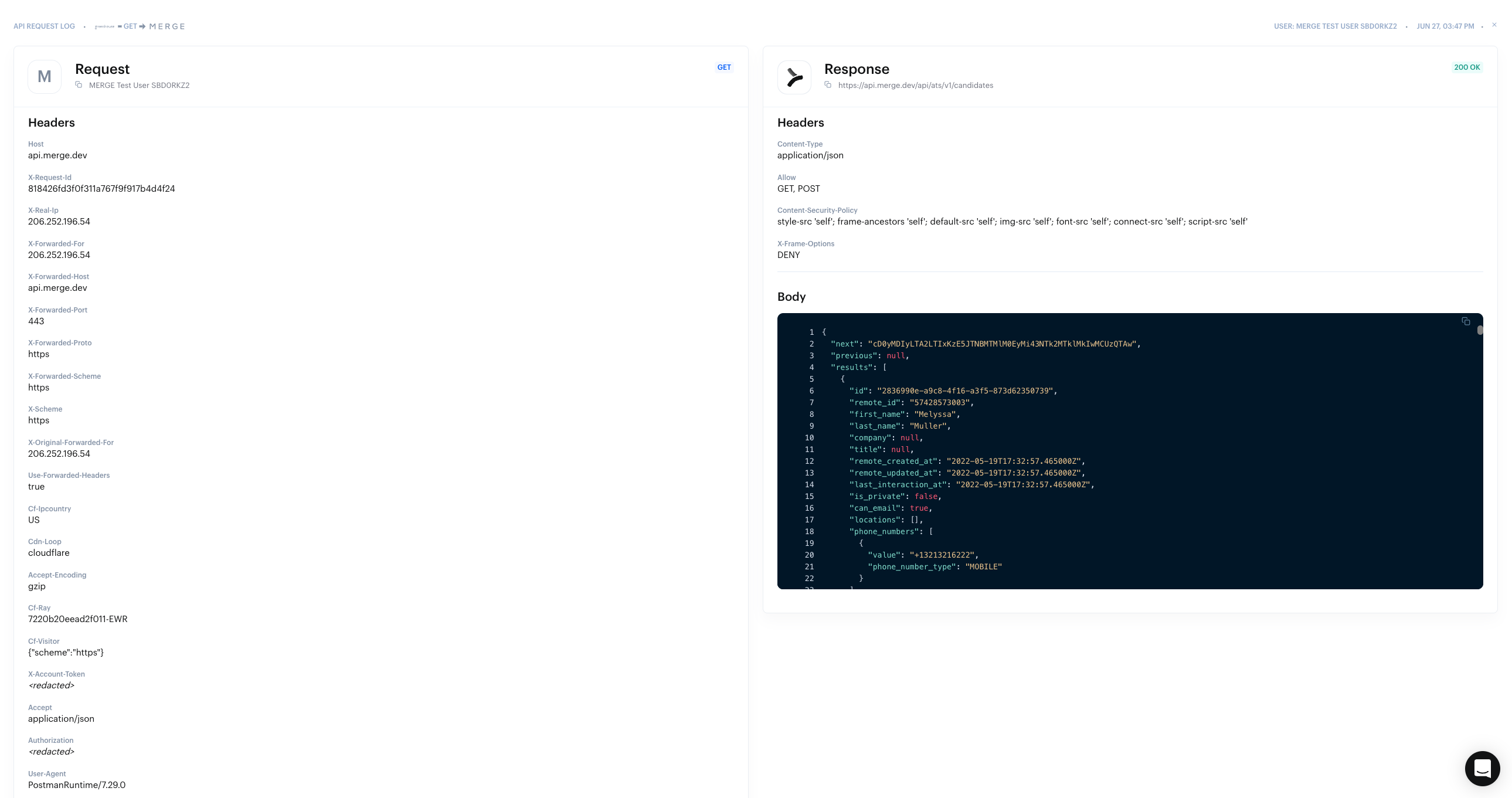
Inbound
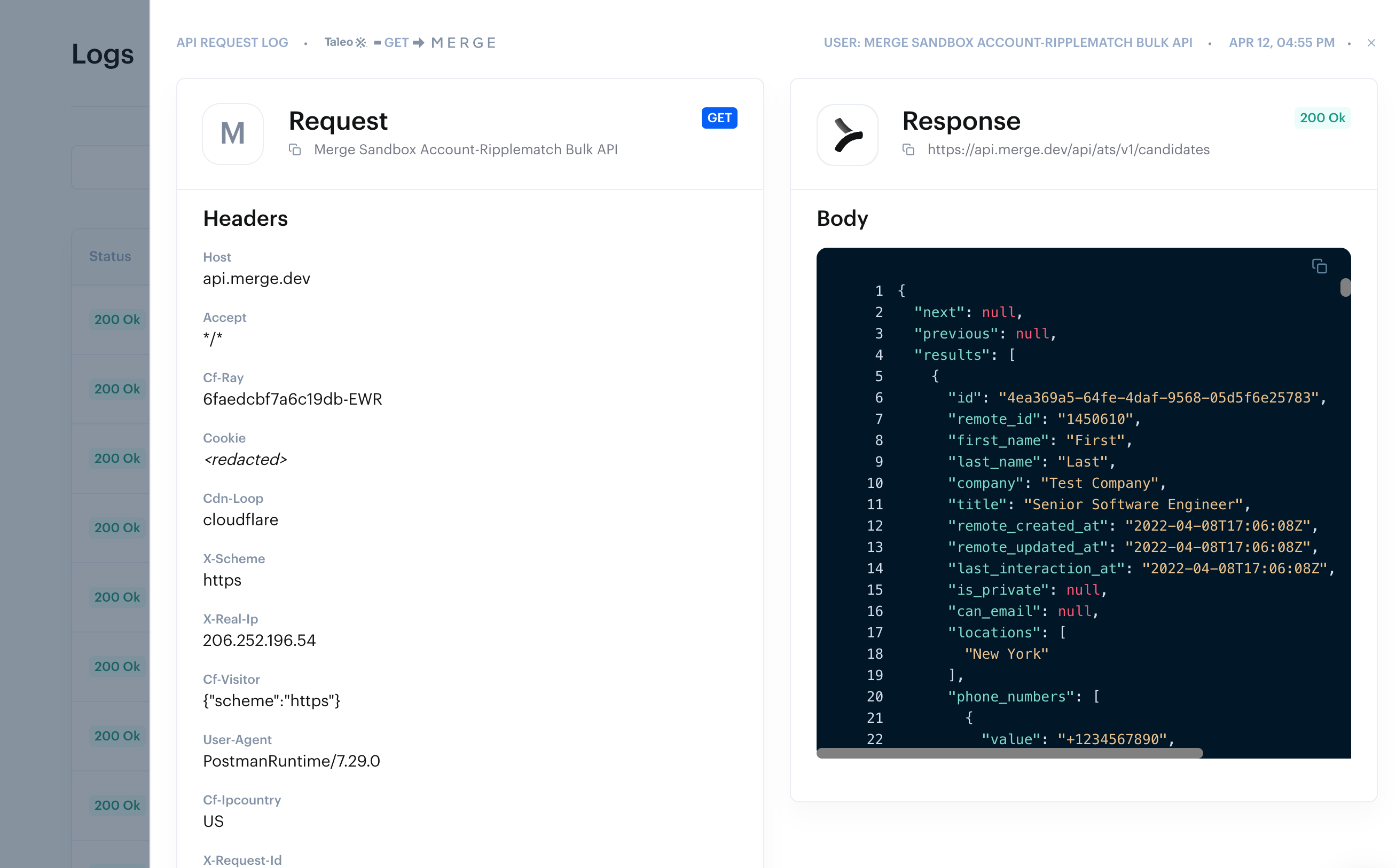
Inbound Direction of API Requests within the Logs Dashboard refers to API Requests made from your organization to Merge. The URL will include the Merge domain, and the icons will show your account initial -> Merge Logo.
These logs are triggered by your backend processes, or from a testing platform like Postman.

An inbound log will display the data Merge is returning to your organization, as well as the url, headers, and query parameters that you included in the request.
Outbound
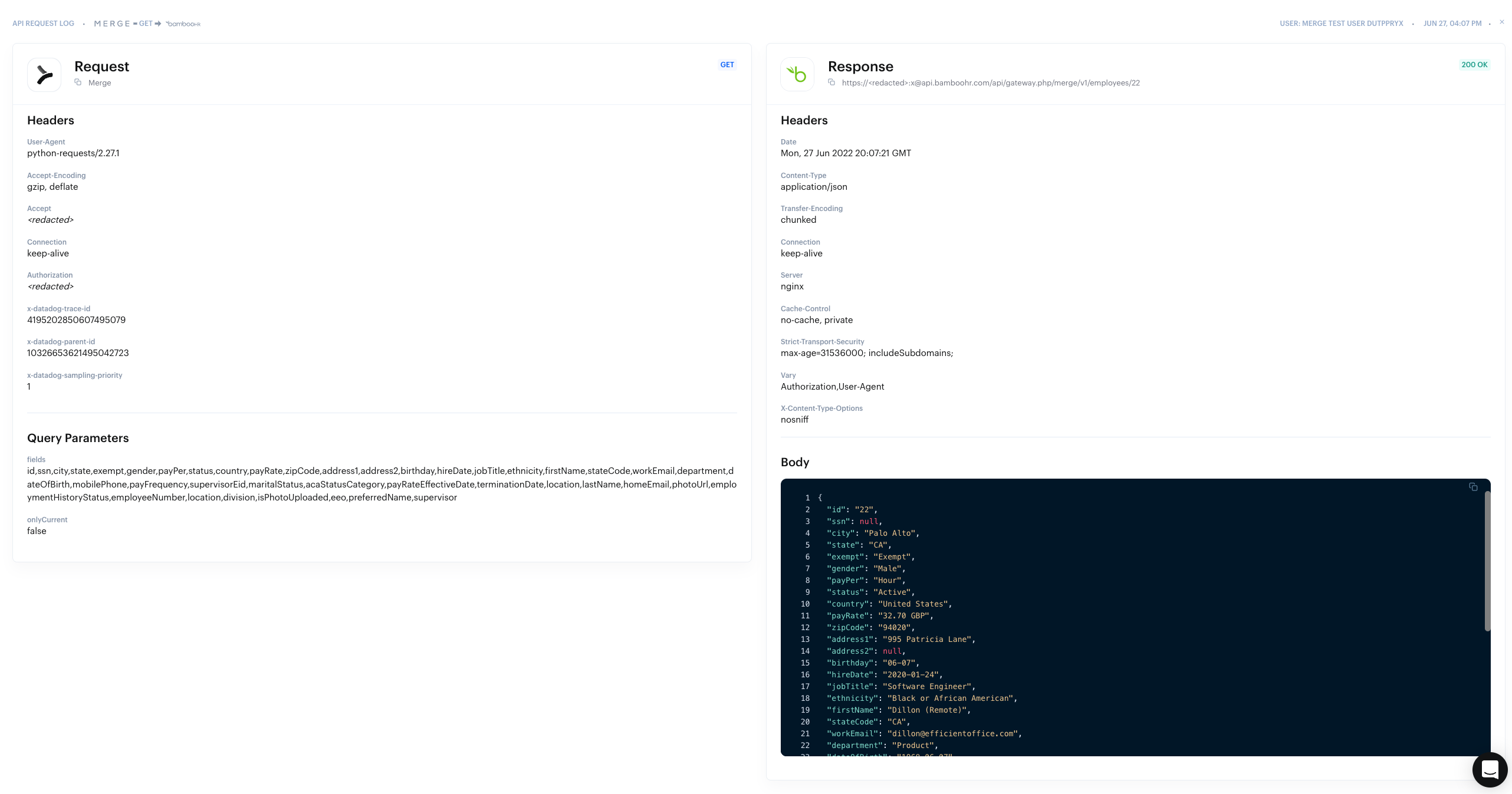
Outbound logs refer to API requests Merge makes to third party platforms on behalf of your organization. Icons will show the Merge Logo -> third party's logo. These requests are triggered automatically via Merge's sync schedules, manually via the API Tester, or via a force resync.

An outbound log will display the data that a third party platform is returning to Merge, which will ultimately be normalized into our common models. We also will display and filters or query parameters used in our syncs.
Text search
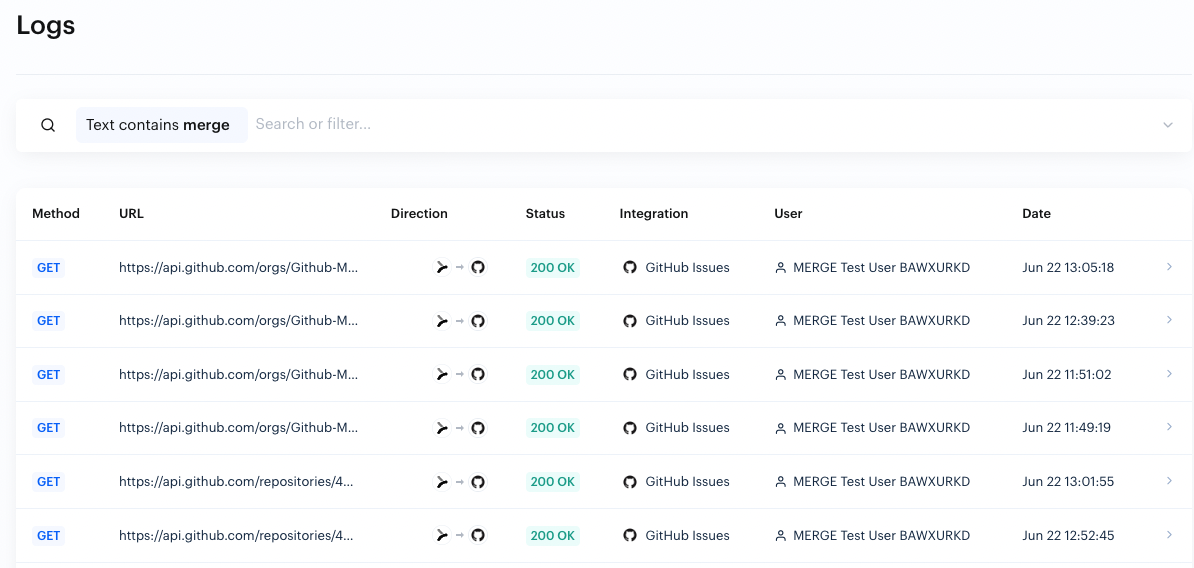
One of the most useful tools debugging will be the Text Search filter. You can query the Logs page for a specific text string, and the Logs Dashboard will return all logs where that string is present. Most importantly, this includes searching through response bodies. This can be incredibly useful if you are searching for a specific Employee, Candidate, email address, etc.
Tips on finding specific logs
Navigate to the Linked Account’s logs page first, then add filters to find the log(s) you want!
Apply these criteria to have the best chance of finding your log!
When multiple filters are used, "AND" logic is applied between filters. We do not currently support "OR" filtering logic.
Filtering criteria
Direction: first determine if you are interested in a Merge response (inbound) or a 3rd party response (outbound)
Method: are you looking for a
GETrequest, aPOSTrequest, or something else?Response code: are you looking for a
200response (good) or a non-200response (something went wrong)URL: are you looking for a specific endpoint?
Date: are you looking within a specific time range?
Logs are only available in the dashboard for up to 7 days!
Redacted Logs
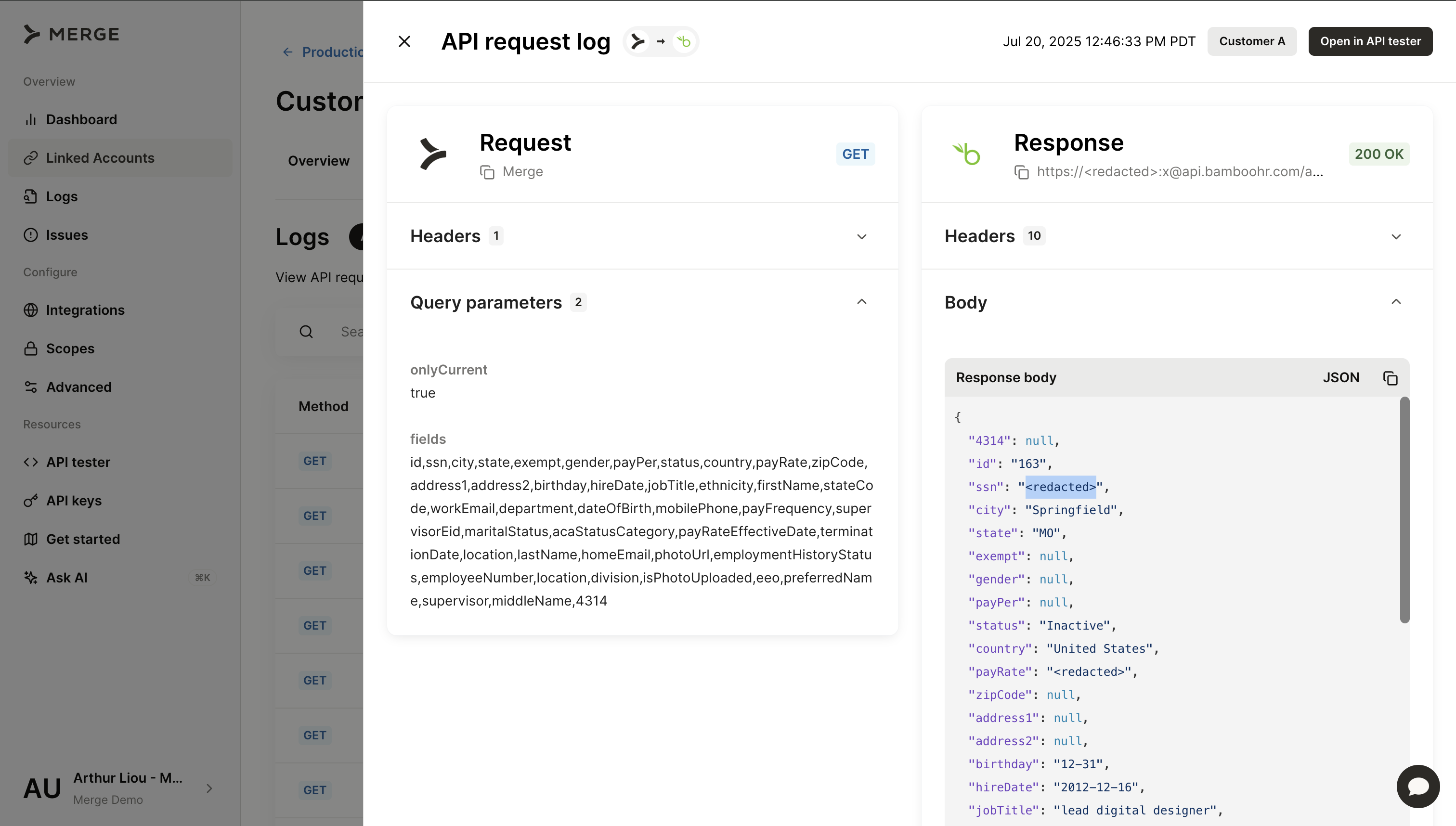
Merge hides certain fields that contain sensitive information in the Logs page, such as account tokens, passwords, etc. We’ll replace these sensitive fields with a <redacted>.
We also automatically redact fields that have been disabled in your common model scopes for inbound and outbound logs.
The Redact Unmapped Data feature will also redact data for fields that are not mapped or disabled via Field Mapping.
Common status codes within Logs
Merge uses standard HTTP codes to indicate when an API request is successful or errored. The codes listed below are Merge’s Codes, and can be used as guide on how to resolve these errors:
Successful status codes: 2xx codes
2xx | Issue | Description |
200 | Success | |
201 | Successfully created data | This is only for writes |
Common inbound error codes: 4xx and 5xx error codes
Code | Issue | Description | Troubleshooting Tips |
400 | Bad Request | Malformed request - data is not present in the 3rd Party System and/or the 3rd party system does not support the request. | Check if the 3rd party system has the data you want to pull. |
401 | Unauthorized | Unauthorized: authorization is either missing or misconfigured. | If this is a test account, make sure you are using the Account Token stored in the bottom right of their Linked Account page. |
404 | URL Not Found | The resource was not found with the given identifier - the request was entered incorrectly. | Check our docs on how to format our requests to the Merge API. |
404 | URL Not Found | The resource was not found with the given identifier - the data does not exist. | Check if the data is present within the 3rd party system. |
404 | URL Not Found | The resource was not found with the given identifier - the integration does not support that endpoint. | Check our docs to see what common models our integrations support. |
404 | URL Not Found | The resource was not found with the given identifier - the subdomain was entered incorrectly. | Check for a valid subdomain. If it is accurate, contact support. |
429 | Too Many Requests | The Merge Organization has reached a rate limits for the requested linked account, preventing any more requests from going through. | Retry after a few minutes. |
500 | Internal Server Error | Merge is experiencing a service interruption. | Retry and contact support. Check Merge’s status page |
Common outbound error codes: 4xx and 5xx error codes
Code | Issue | Description | Troubleshooting Tips |
400 | Bad Request | Data is not present in the 3rd party system | Retry and contact support. |
401 | Unauthorized | Authorization is missing | Update authentication or relink. |
403 | Forbidden | Lack of permissions to access this data in 3rd party system. | Check our authentication guides on what permissions you need for each integration. |
404 | URL Not Found | The resource was not found with the given identifier. Either the request was entered incorrectly, the integration does not support that endpoint, or the subdomain was entered incorrectly. | Check our docs on how to format our requests to the Merge API. |
502/503 | Service Interruption | The third-party integration is likely experience an outage. | Check the 3rd party integration status page, they are likely experiencing an outage |
API Tester
Merge API Tester enables you to send test requests to Merge’s APIs or the APIs of supported third-party platforms. This is useful in debugging when you want to look at the data that is stored in the Linked Account.
Accessing API Tester
There are multiple ways you can navigate to the API Tester:
Select API tester in your Merge Dashboard menu
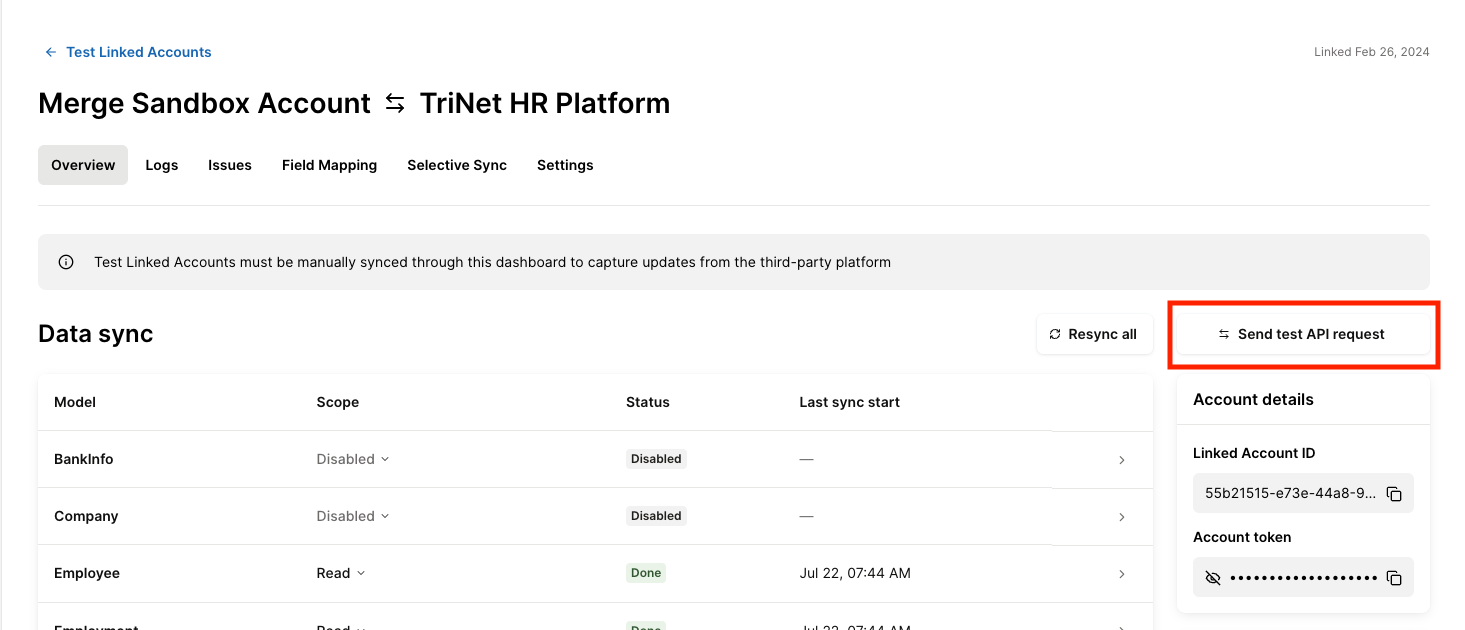
From the Linked Account page, click the Send test API request. This will auto-select the Linked Account in the API Tester!
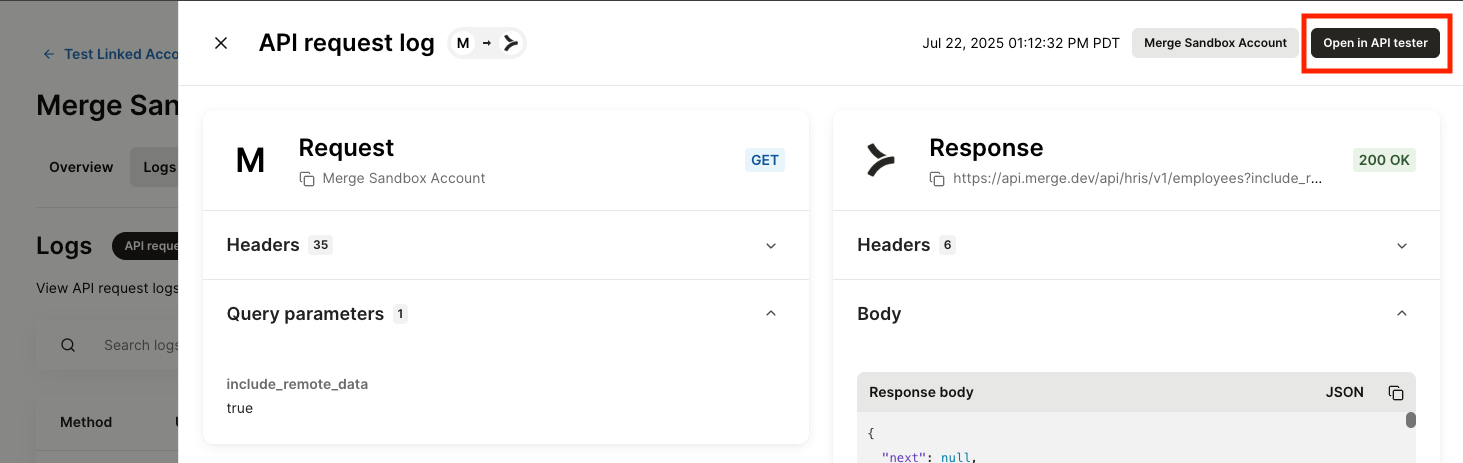
From a log, click the Open in API tester. This will auto-populate the API Log’s request details, such as the endpoint and query parameters
There are also two ways you can use the API Tester, making requests from you to Merge and from Merge to the third party
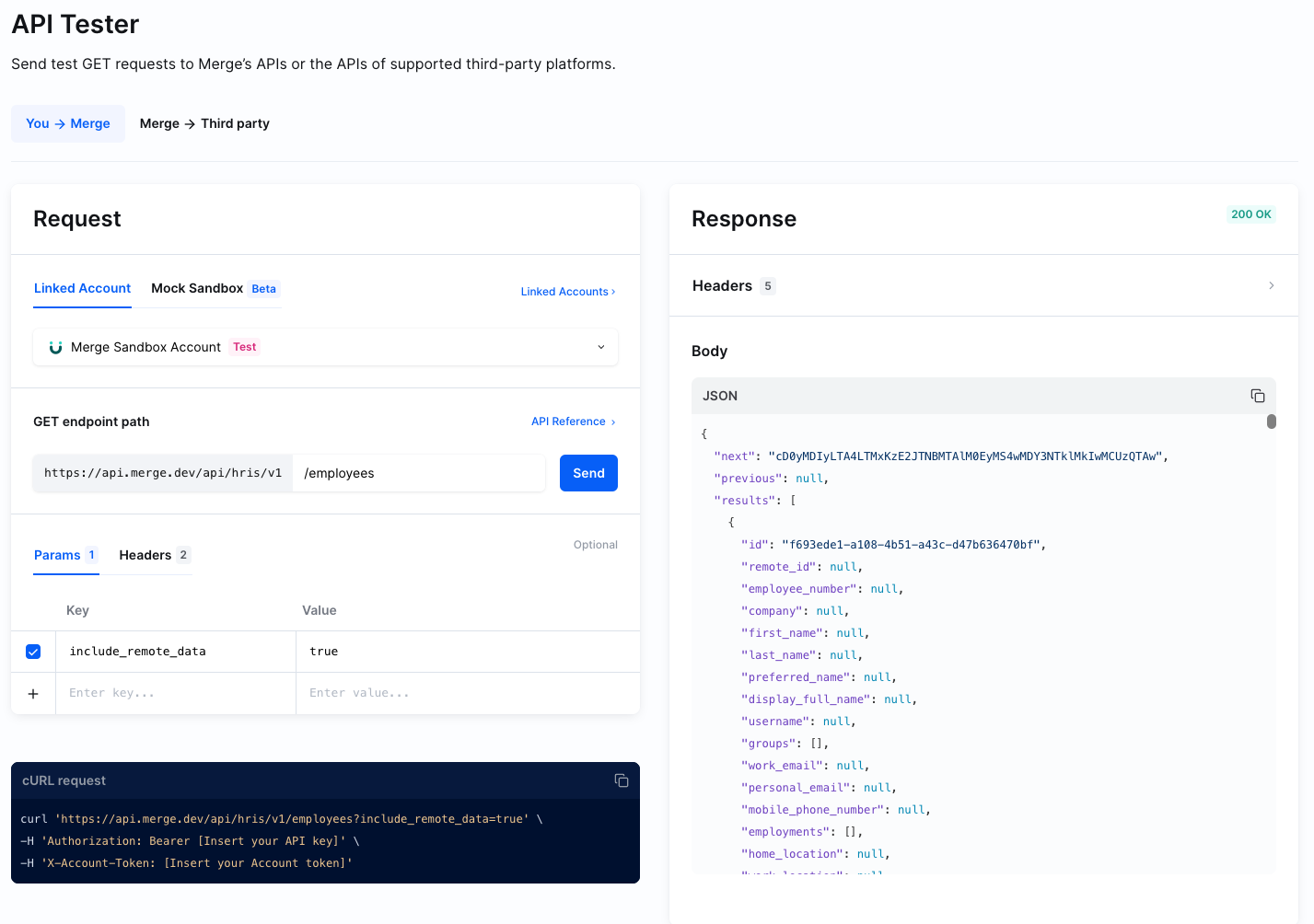
You → Merge
Under the You → Merge section, you can make requests to the Merge API for a given Linked Account.
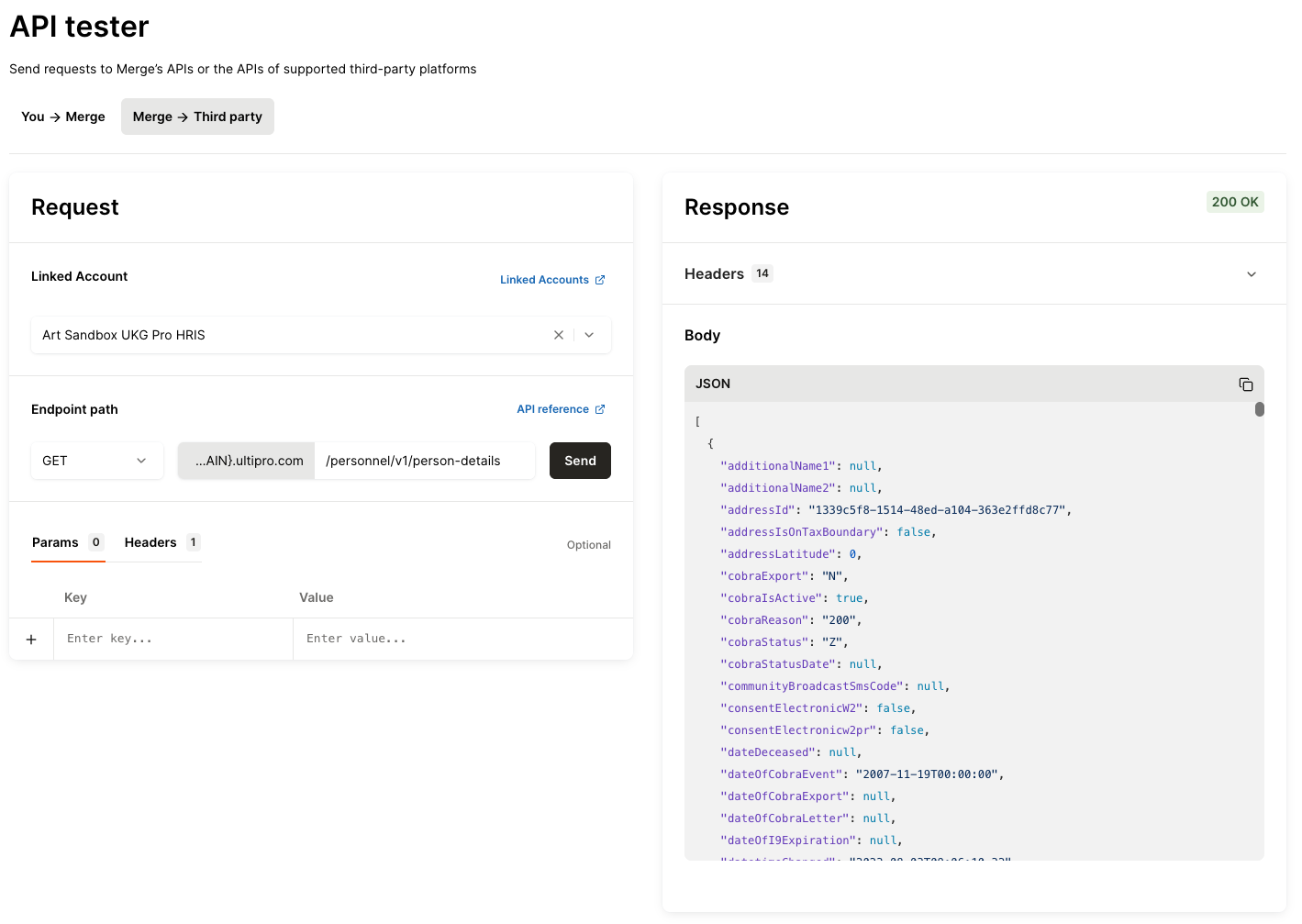
Merge → Third party
Under the Merge → Third party section, you can make requests to the third-party platform for a given Linked Account.
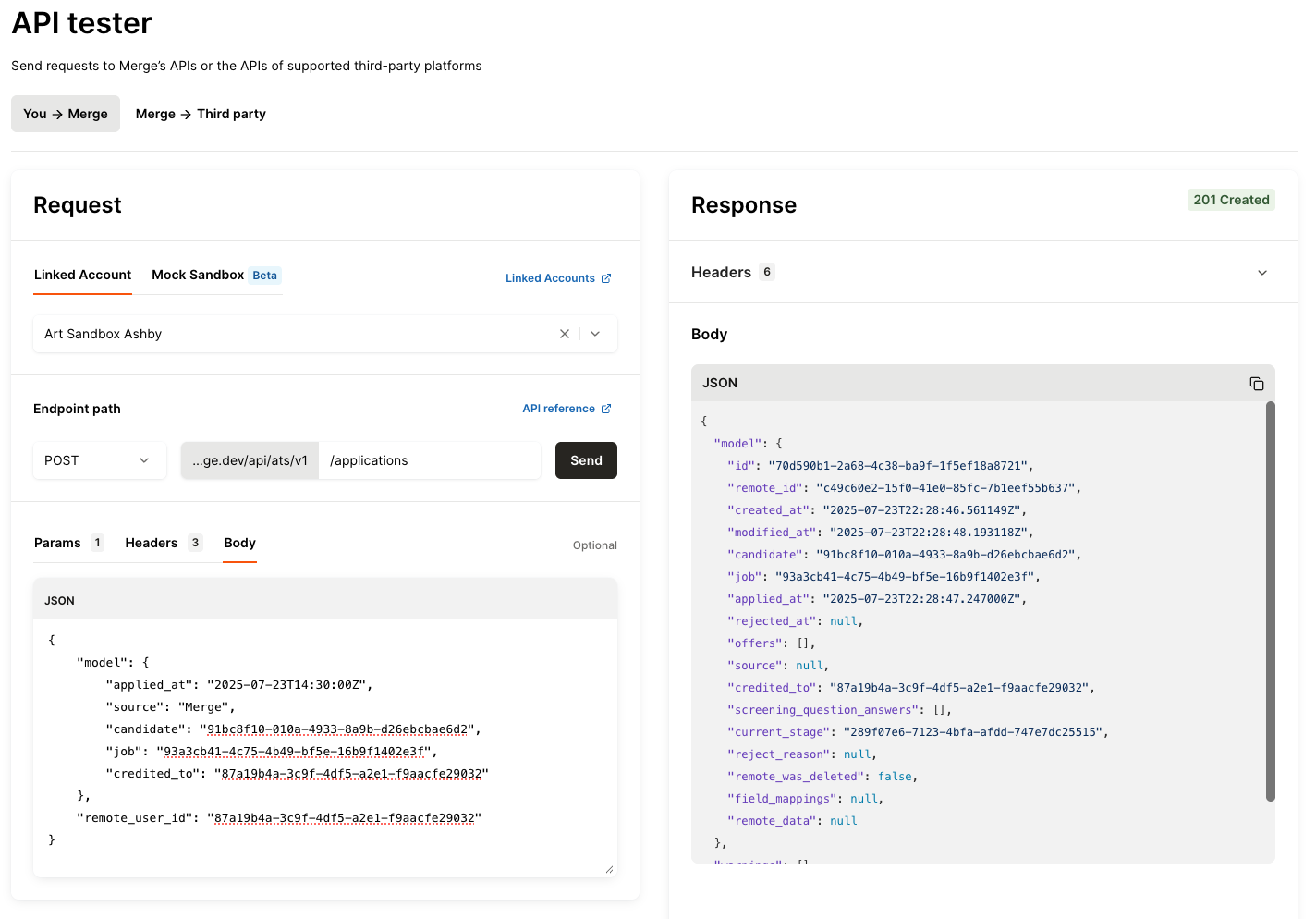
The API Tester supports GET, POST, and PATCH requests. You can also specify query params, adjust the headers, and, for POST and PATCH requests, pass in a request body.
Troubleshooting tips and guidance
Guidance on Partially Synced accounts
When you see a Partially Synced status, there are two ways to best investigate what may be occurring:
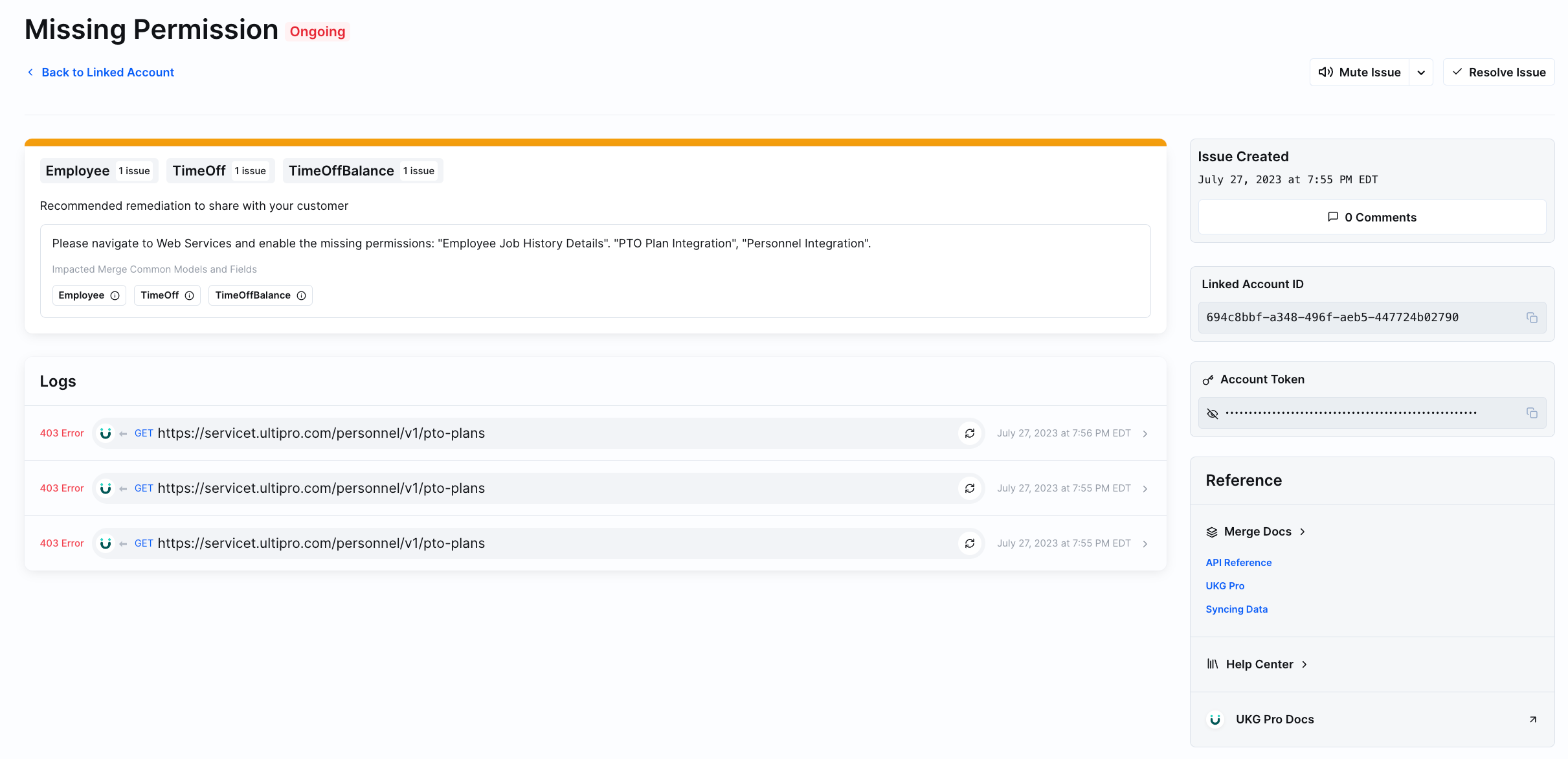
Check to see if an Issue has been generated for the specific Linked Account. If a Common Model was partially linked, the likely scenario is that a specific endpoint is missing permissions for which the API credentials provided are missing. Merge-generated Issues show impacted Common Models, corresponding logs that caused an Issue to be generated, and messaging around how to remediate the Issue.
Check the logs dashboard for outbound API requests with response codes other than 200. This will show every outbound API request that was not successful during the sync. When diving into these non-200 logs, it can be helpful to identify if the partial sync was due to missing permissions, transient third-party downtime, or any other potential errors.
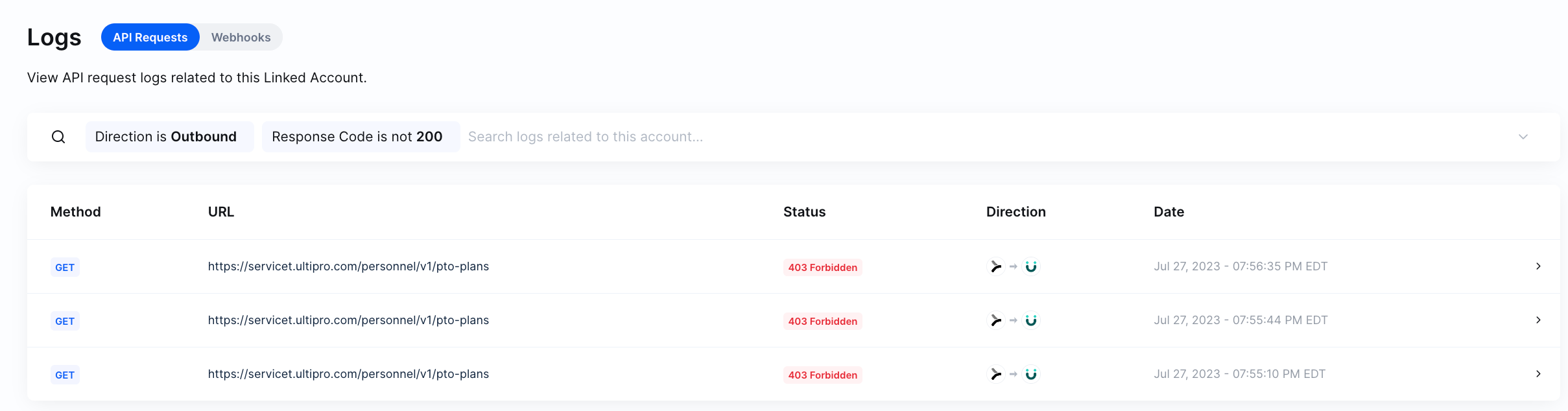
Null field responses
An API response from Merge can return null values for certain common model fields. This might happen for a couple of reasons:
Common Model support: The specific integration does not support the field in our Common Model (find what fields are available in each integrations: here).
Third-party support: The field is supported, but not filled out in the third-party platform.
Sync status: The data is not yet available to Merge. If the information is currently syncing from the third-party platform to Merge, the field values can appear as null. As best practice, Merge recommends waiting until a sync is DONE.
Field Scopes: The given field has been disabled through the configuration scope of the integration
Permissions: The permissions associated with the user authenticating do not grant them visibility to these field values (i.e. they are not an admin or their API key has restricted access).
Recommendations
Clicking the Resync all button on the Linked Account page can help with some cases - but only use this sparingly and when needed!
Where to look first
When your customers report an integration issue, the first step is identifying where the problem originates through the Issues and Logs. Integration issues can stem from three main sources:
1. The third-party system (e.g., Workday, Salesforce, Google Drive)
2. Merge's platform
3. Your application
By utilizing both your own tools and the Merge dashboard, including the API Tester and logs, you can effectively trace the data flow for fields related to the reported issue.
The data flows in this sequence: third-party → Merge → you → your users.
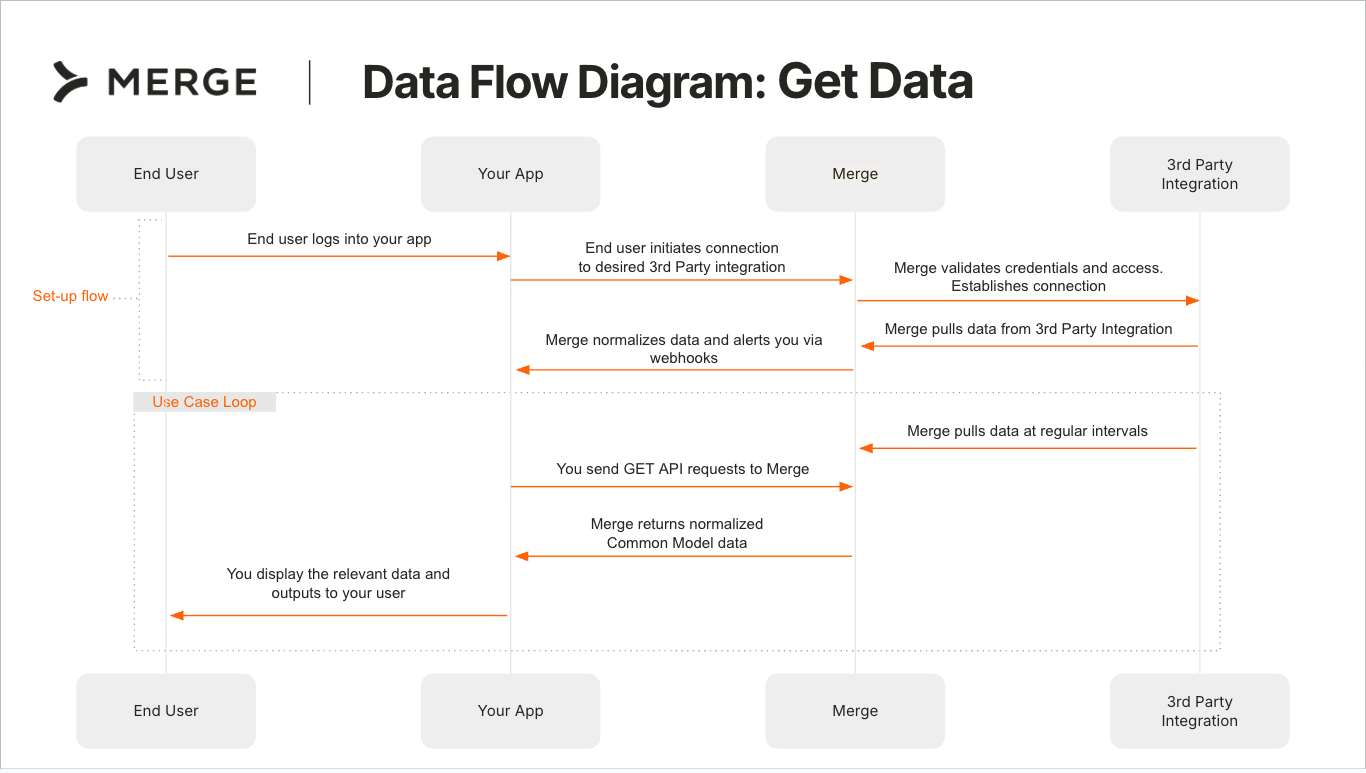
Example troubleshooting process
Let's say a customer reports that an Employee's work email was added today and is missing in your product:
First, check your product's database to confirm the field is indeed empty. Gather details such as the Employee Merge ID, the expected work email, and other unique information
Navigate to the customer's Linked Account by filtering by their Organization Name
Enter the Linked Account details page
Click Send test API Request on the Linked Account page
Query Merge's Employee endpoint to fetch this specific Employee
Analyze the results:
If the work email is populated in Merge but not your system, the disconnect is between Merge and your application (perhaps your product hasn't synced that field)
If the field is empty in Merge as well, further investigation is needed
If the field is empty in Merge
Back on the Linked Account’s page, check the field-level scope for
Employee.work_emailIf you find it’s disabled, this would be the clear cause - a configuration issue for this Linked Account
If you find it’s enabled, investigate the logs and issues:
Filtering outbound logs from today
Looking for any failed requests to the third-party system
Checking for permission errors or authentication issues
Examining any error messages related to the Employee model
Check the Issues tab for any relevant Issues flagged for this account
Use API Tester to call the third-party integration to verify if the expected data is retrievable.
If needed, request a resync of the Linked Account to refresh the data
For persistent issues, gather all relevant details and escalate to Merge Support
By isolating the source of the problem, whether it's in your product, Merge, or the third-party platform, you begin to narrow down the possible causes. A methodical approach using Merge's tools helps you quickly identify where data flow breaks down and determine the appropriate resolution path. With practice, you'll become more efficient at troubleshooting integration issues, providing faster solutions for your customers and maintaining the reliability of your integrations!
Additional tips
Familiarize yourself with the full Merge Dashboard - browse the Issues, Logs, and Linked Accounts pages to get comfortable before critical support moments.
Merge provides detailed documentation and guided videos in the Help Center for various integrations
Check Merge Service Status Page: If an issue persists and is related to a third-party service, check Merge’s service status page for any known outages or disruptions. Merge also flags outages within the third-party service
When escalating, clear context and documentation of your findings accelerates Merge Support’s ability to troubleshoot and resolve issues.
Steps for escalating an issue to Merge
If you are unable to resolve an issue after reviewing logs and issues, escalate using one of the following methods:
Slack: Reach out on the designated Merge support Slack channel
In-app chat: Use the built-in chat on the lower right side on the Merge Dashboard
Email: Contact [email protected], copying relevant stakeholders if necessary.
Your message should include:
The Linked Account ID and its organization name.
A description of the issue
Steps to reproduce the issue
Steps you’ve taken to try to resolve the issue
Links to relevant logs and screenshots, and any error details.
Before escalating, always check the Merge Docs and Help Center to see if your issue or question may already be answered!
The Merge Dashboard offers powerful tools to manage and debug linked accounts. By following the steps outlined in this guide, you can quickly diagnose and resolve problems within your integrations. If needed, escalate issues to Merge Support through Slack, in-app chat, or email for further assistance. With these tools and tips at your disposal, you'll be well-equipped to handle resolving issues!