SharePoint & OneDrive - How do I set up my partner credentials for OAuth?
Last updated: February 6, 2026
Overview
This guide is optional and is intended for teams that want to use their own Microsoft Entra (Azure) OAuth application and configure organization-level OAuth credentials in the Merge Dashboard, so your customers authenticate through your OAuth app during linking.
In this guide, you will:
Create an app registration in Microsoft Entra.
Configure delegated Microsoft Graph permissions (scopes).
Generate a client secret.
Add the credentials in Merge.
(Recommended) Start the verification process of your Microsoft application.
Instructions
Step 1: Create your OAuth app in Microsoft Entra
If needed, apply for a Microsoft 365 Developer account here.
Go to the Azure Portal
Navigate to Azure services → App Registrations → + New Registration
Step 2: Register the application
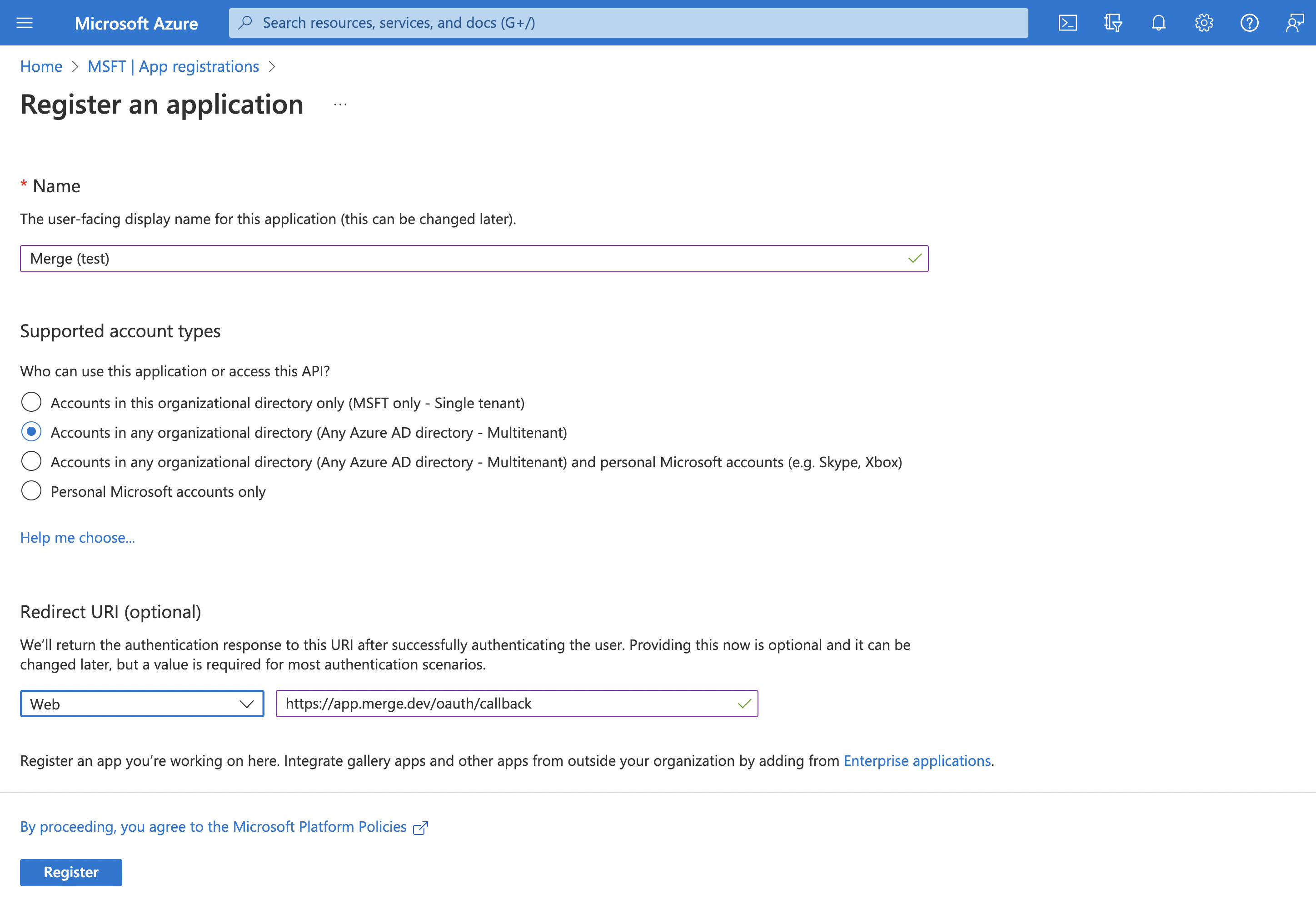
In Register an application, configure:
Supported account types
Select: Accounts in any organizational directory (Any Microsoft Entra ID tenant – Multi-tenant)
Redirect URI
In the "Select a platform" dropdown, select
WebSet the redirect URI to:
https://app.merge.dev/oauth/callback
Make sure this redirect URI matches exactly in both Microsoft Entra and Merge.
Click Register
Step 3: Configure Microsoft Graph permissions (scopes)
The Microsoft Graph scopes you add to your Microsoft Entra app control what access your customer is asked to approve during the OAuth flow.
To pick the right scopes for the access level you want to support, see our File Storage scopes guide.
Add delegated permissions
In your app registration:
Go to Manage → API permissions
Click + Add a permission
Select Microsoft Graph
Select Delegated permissions
Search for and select the permissions you need from the following access-levels
User account (read-only): OneDrive, SharePoint
Admin account (read-only): SharePoint
Admin account (read and write): SharePoint
Click Add permissions
When you use organization-level credentials, the Microsoft Graph scopes configured on your Microsoft Entra app determine what permissions your customer sees and approves on the Microsoft consent screen. As the access tier is determined by the scopes on your app, Merge Link does not prompt end users to choose between “User” and “Admin” during linking.
Step 4: Get your Client ID and create a Client Secret
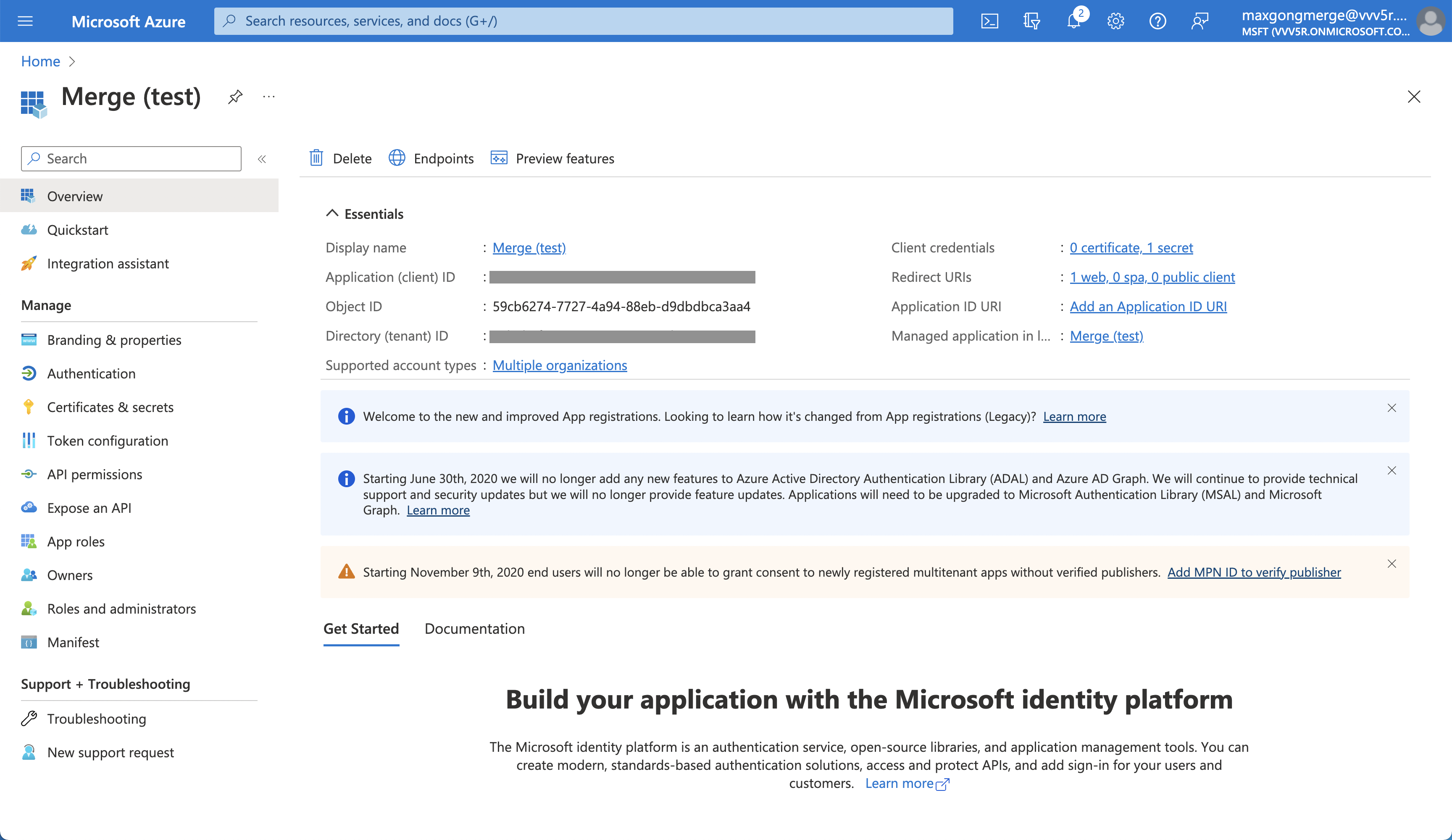
Find your Client ID
Go to Overview and copy the Application (client) ID.
Create a Client Secret
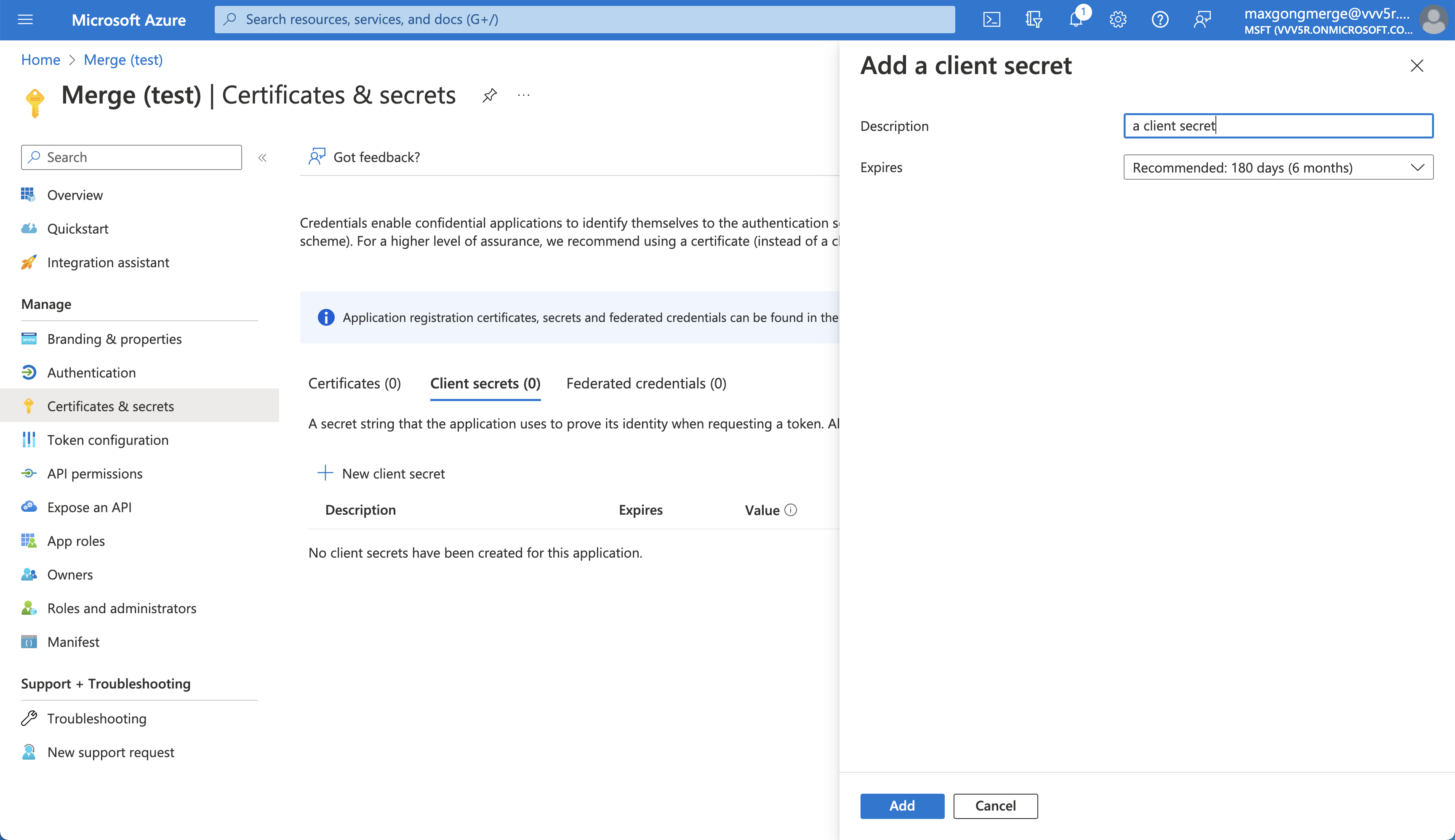
Go to Manage → Certificates & secrets
Under Client secrets, click + New client secret
Add a description and choose an expiration
Click Add
Copy the Value right away
Step 5: Enter your OAuth app credentials in your Merge dashboard
Under SharePoint or OneDrive, click Set up organization-level credentials
Enter
OAuth Client Id: your app’s Application (client) ID
OAuth Client Secret: your OAuth app’s Client Secret > Value
OAuth Redirect Uri:
https://app.merge.dev/oauth/callback
Step 6 (Recommended): Verify your Microsoft OAuth application (Publisher verification)
When the app publisher has completed Microsoft’s publisher verification process, Microsoft shows a blue “verified” badge during the Microsoft consent screen. If your app is not verified, Microsoft may display “unverified” during the consent flow.
We recommend reading the Microsoft docs as you start on the verification process:
Below are the high-level details of the requirements and steps you'll take to get your application published. For the full list and all details, please see the above Microsoft docs.
Requirements (high level)
A Microsoft partner account (CPP/MPN) that has completed Microsoft’s verification process.
The app registration must have a Publisher configured (via “Publisher domain” + linking the verified Partner ID).
The app must be registered with a work or school (Entra) account, not a personal Microsoft account.
The app must be registered in a Microsoft Entra tenant and must have a publisher domain set, and it cannot be
*.onmicrosoft.com.
Steps (in Azure Portal)
Open Microsoft Entra admin center / Azure portal and go to:
App registrations → select your app
Go to Branding & properties
Select Add Partner ID to verify publisher, enter your Partner One ID, then select Verify and save.
Find the Publisher verification section and run Verify (sometimes shown as “Verify and save”). After it processes, you should see a blue verified badge next to the publisher display name.
Domain Verification Identity File
As part of Microsoft’s publisher verification process, you may be asked to host a small JSON “identity” file on your company domain to prove you control the publisher domain for your OAuth app. This file is typically hosted at:
https://YOUR_DOMAIN/.well-known/microsoft-identity-association.json
This file is used for domain/publisher verification only and should not contain any sensitive values like your OAuth client secret.
Verification Timeline
If you already meet Microsoft’s prerequisites, verification can complete quickly. If you still need to complete prerequisites (partner account verification, domain setup, roles, MFA), it can take longer.