Bullhorn Recruitment Cloud - How do I set up my partner credentials for OAuth?
Last updated: October 6, 2025
Overview
This guide will walk you through how to create a Connected App in Bullhorn Recruitment Cloud and enter your OAuth credentials in Merge.
Instructions
Step 1: Create a Connected App in Bullhorn Recruitment Cloud
Log into Salesforce. Click the Gear Icon, and then click "Setup" from the drop down menu.

Using the Quick Find Search box, search Apps, and select External Client App Manager.
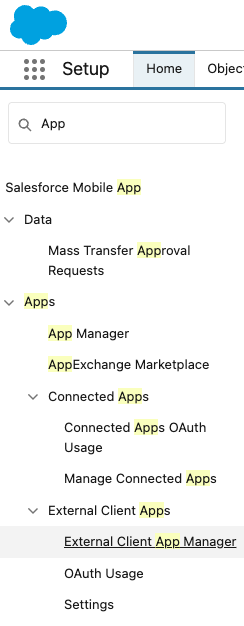
Click New Connected App

Enter a name for the App. Please note that it must be a unique name within your Organization.
Enter an API Name, Contact Email, and select a Distribution State
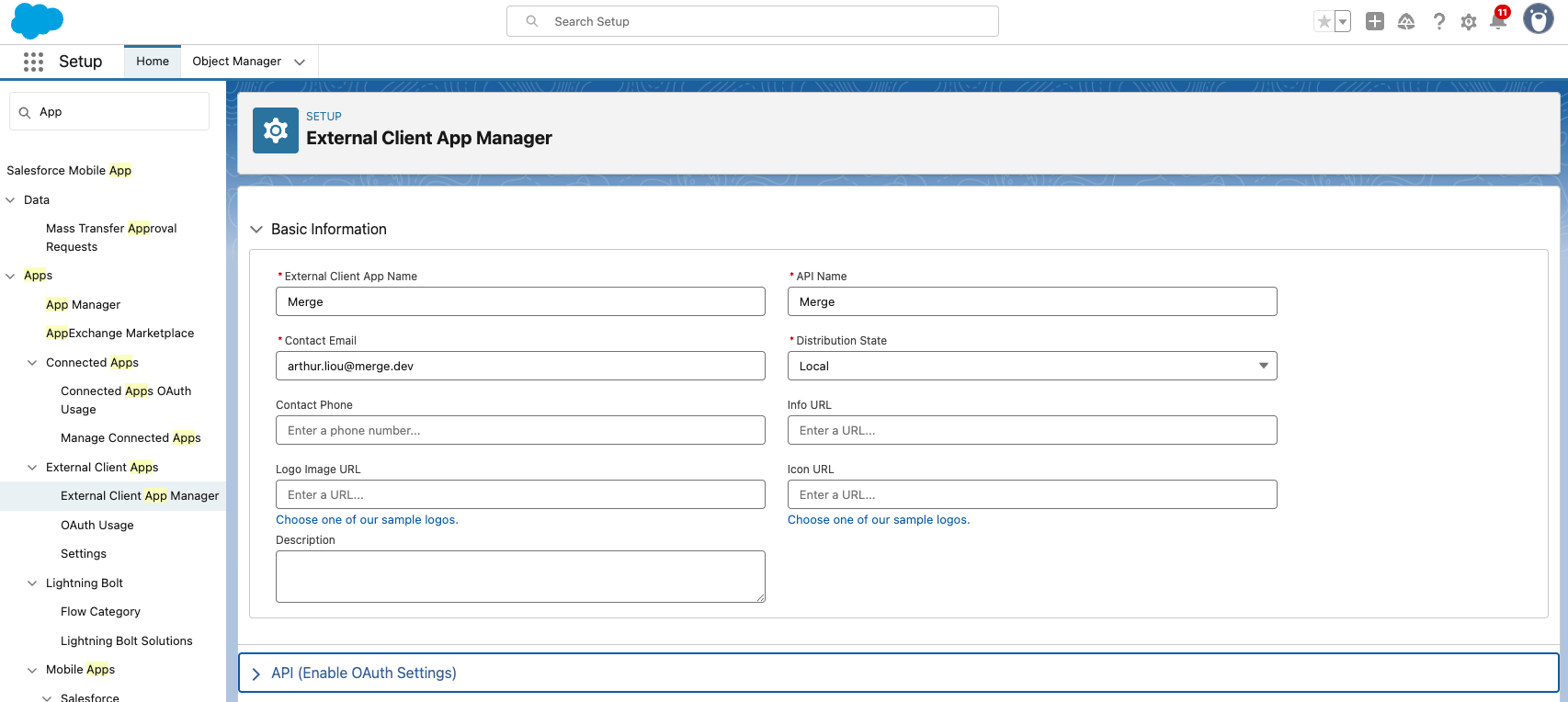
In the API (Enable OAuth Settings) area of the page, check Enable OAuth Settings.
In the App Settings, set the Callback URL to “https://app.merge.dev/oauth/callback”
Add the three scopes below to the Select OAuth Scopes box
Access unique user identifiers (openid)
Manage user data via APIs (api)
Perform requests at any time (refresh_token, offline_access)
Check the Require Secret for Web Server Flow box
Check the Require Secret Refresh Token Flow box
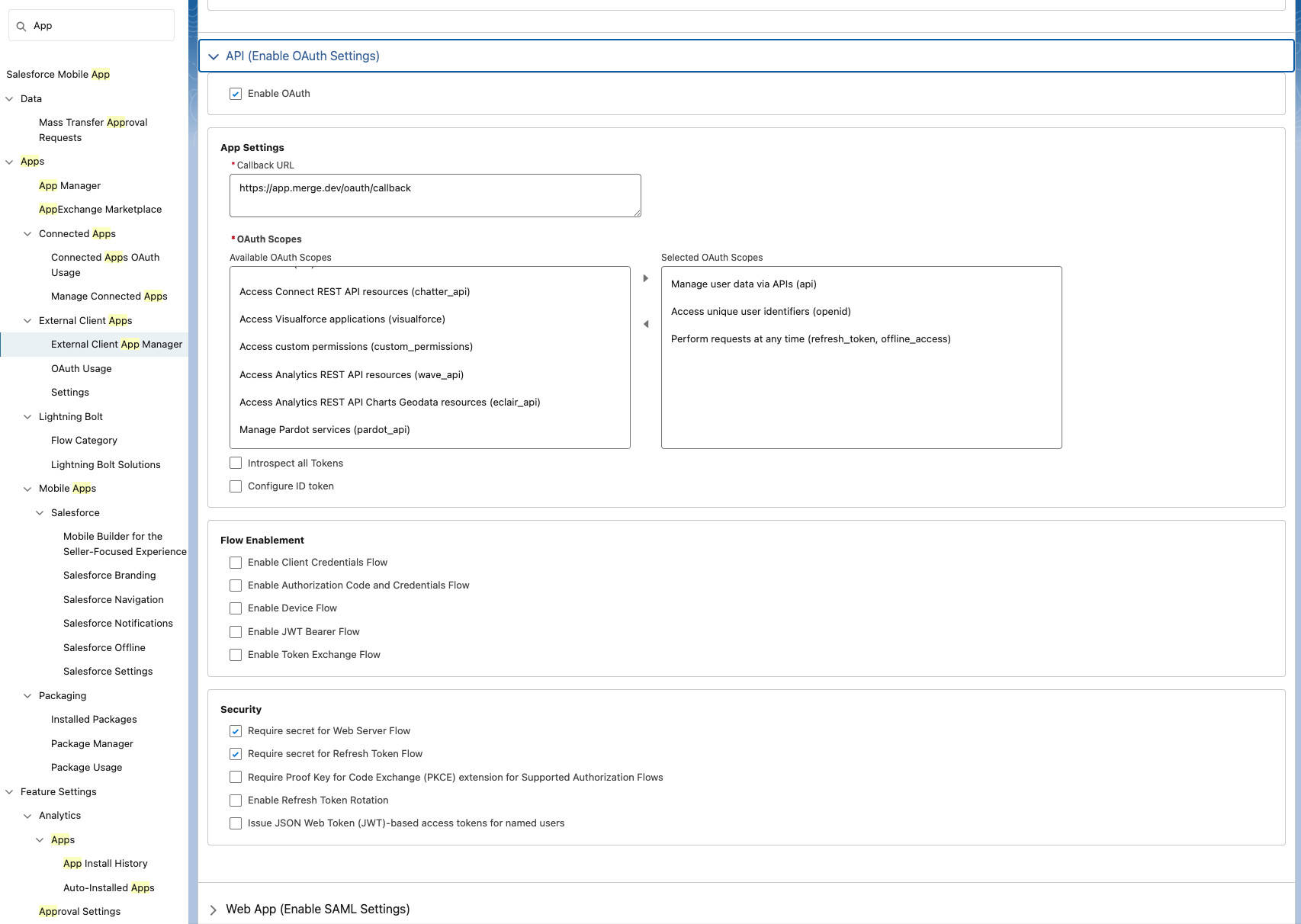
Click Create to finalize completing your app setup.
Step 2: Set OAuth Policies
On the External Client App Manager screen, find the App that you created and click it to open its record
Under the Policies tab, click Edit, then open the OAuth Policies dropdown.
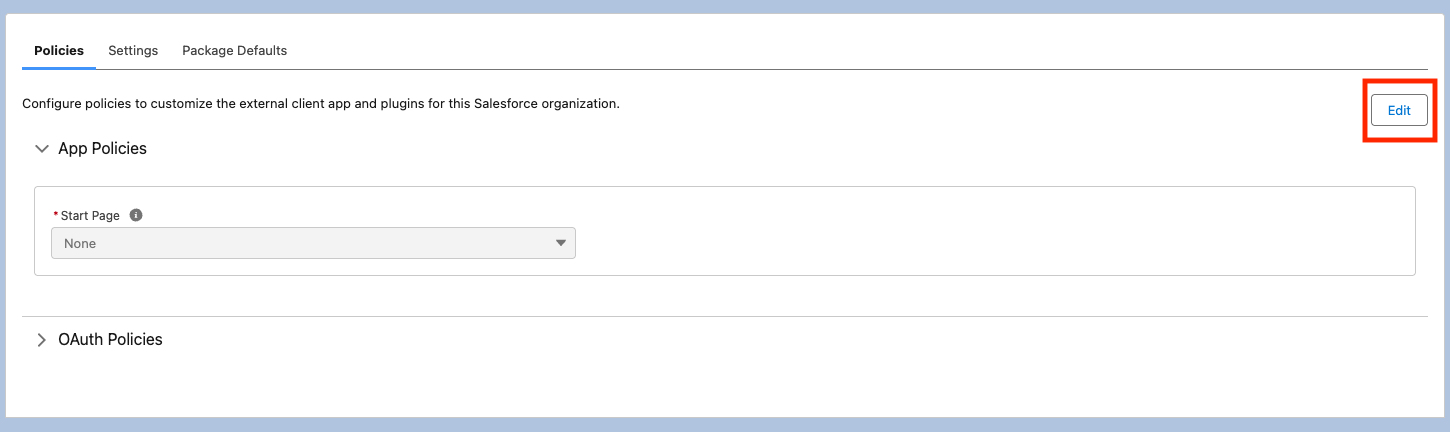
Make sure the Refresh Token Policy is set to: Refresh token is valid until revoked.
Make sure the IP Relaxation is set to: Enforce IP restrictions, but relax for refresh tokens.
Don't leave this page yet!
Step 3: Find and enter your Partnership credentials in Merge Dashboard
On the External Client App Manager screen for your app, click the Settings tab
Click open OAuth Settings
Click the Consumer Key and Secret link
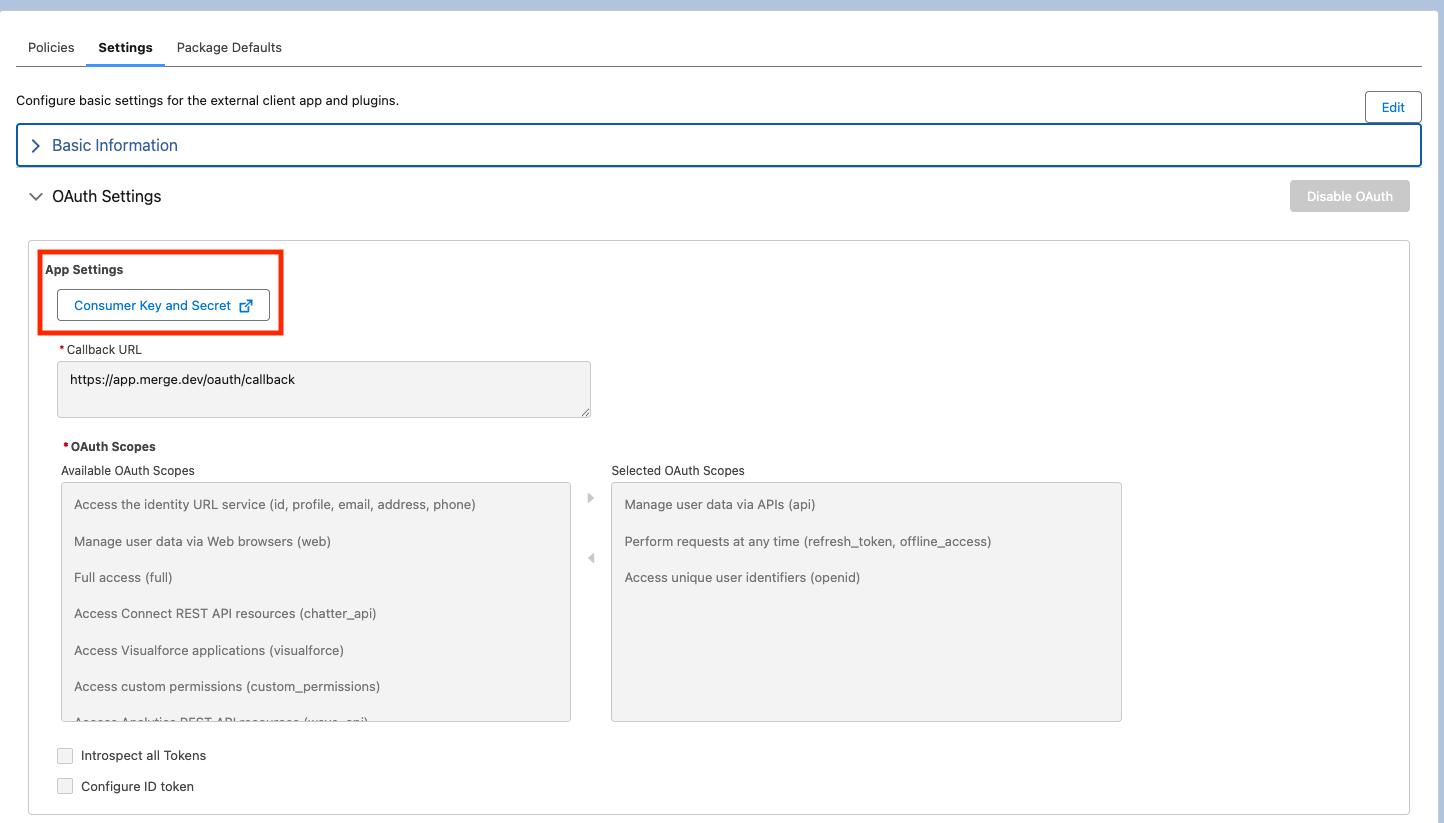
Fetch your Client ID and Secret on the next page and save them for the next step
Copy the following values and enter them in the Merge Dashboard
OAuth Client ID
OAuth Client Secret
Callback: https://app.merge.dev/oauth/callback
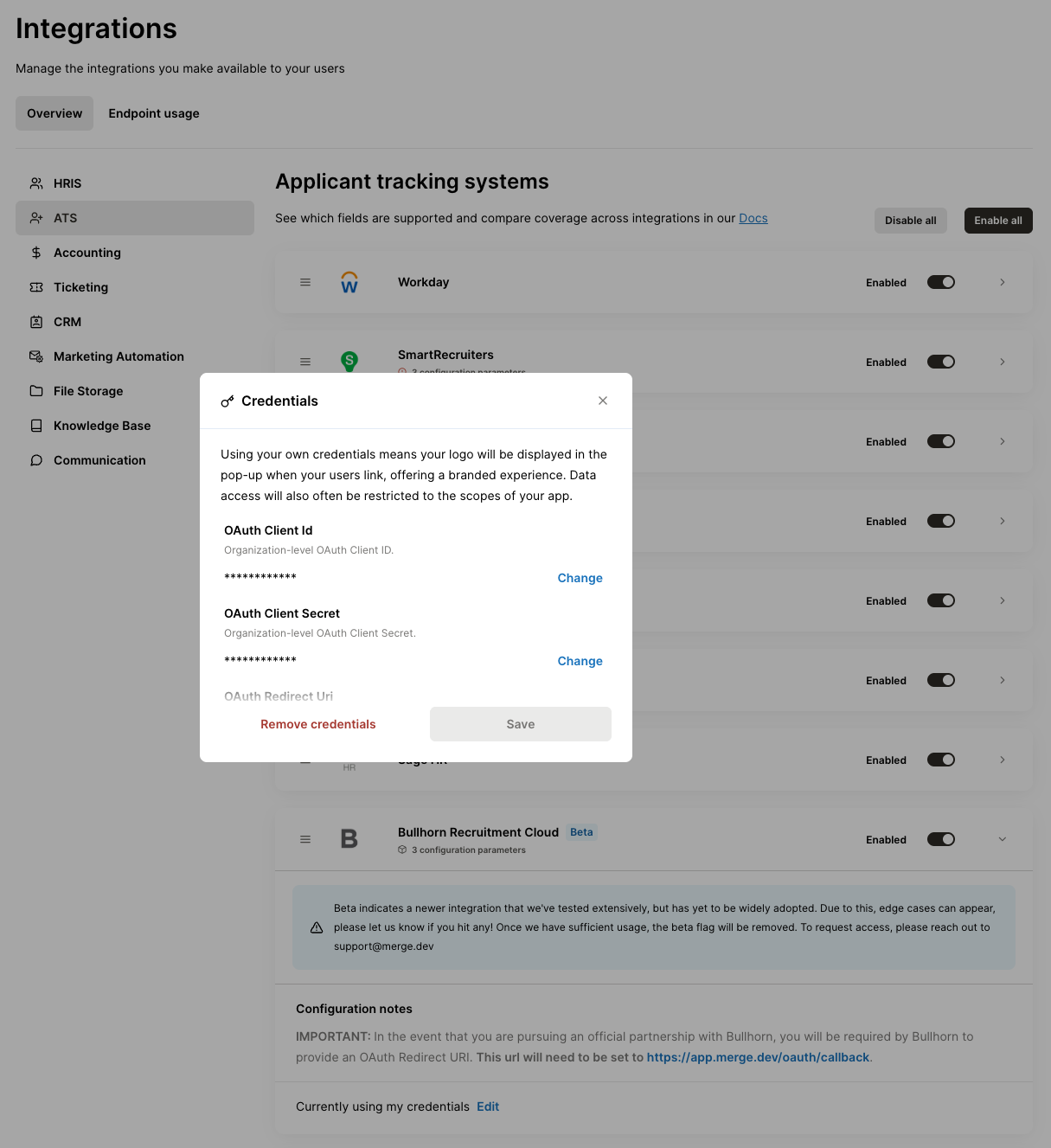
You're all set!