Confluence - How do I link using OAuth?
Last updated: November 21, 2025
Overview
To authenticate Confluence via OAuth, you will need to provide your Atlassian account credentials.
Prerequisites
If you are connecting as an admin, on behalf of your company, before connecting you must:
Have admin access
You have Admin access in your company's Confluence instance
Allow for emails to be accessed (not always required)
This step is required if you need email addresses for your users.
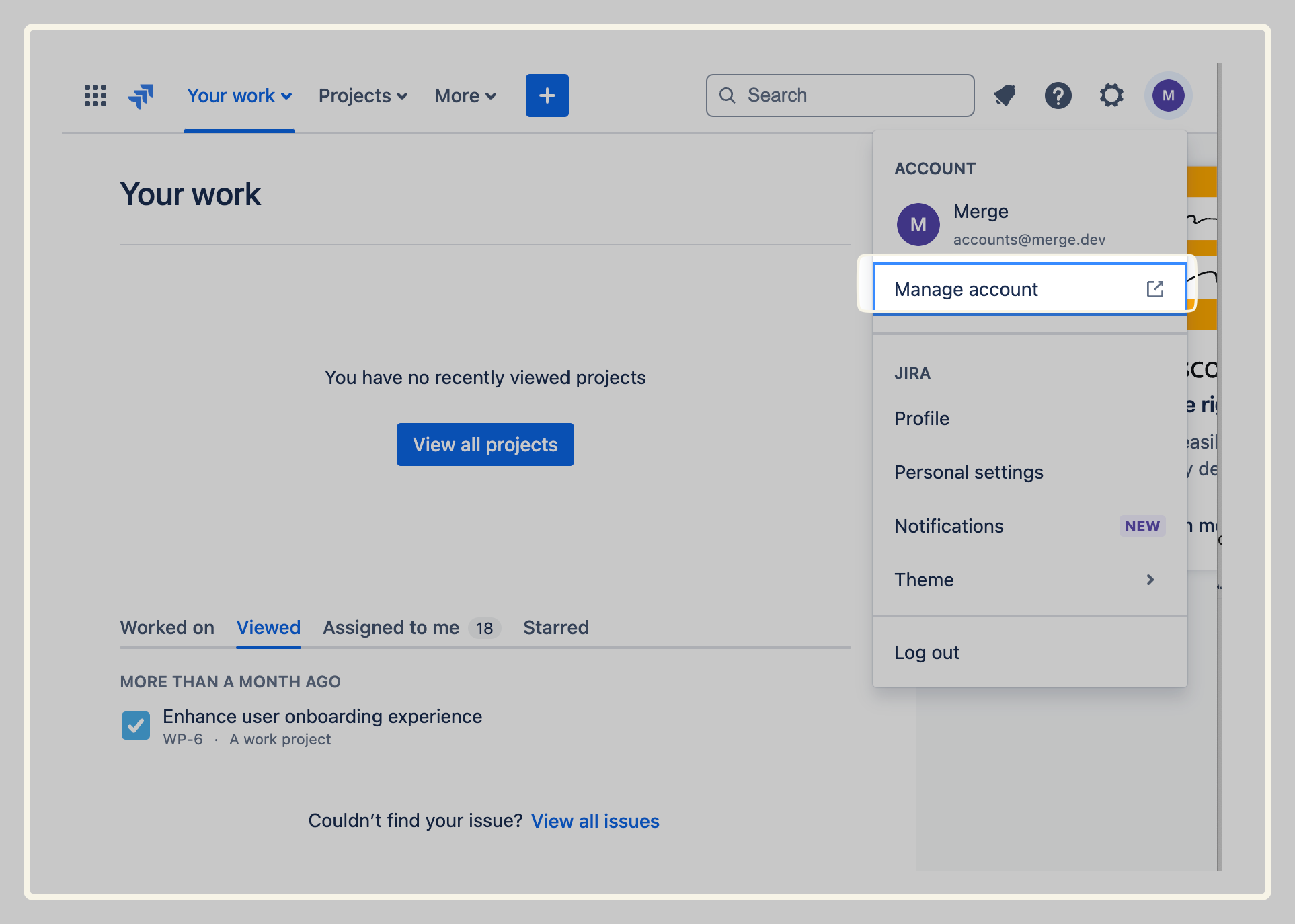
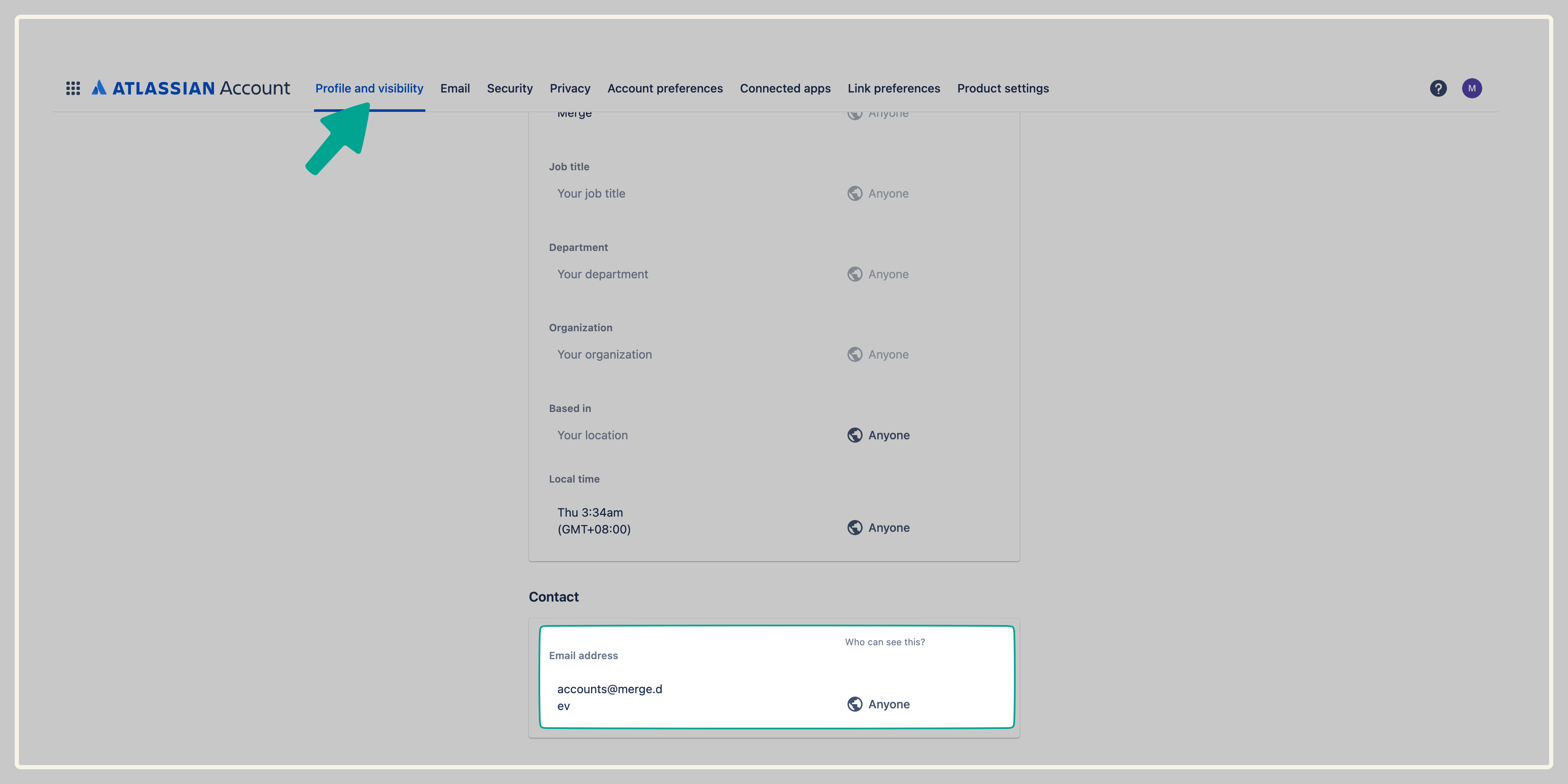
Navigate to Manage account > Profile and visibility on the top navigation bar
Ensure all users have their emails marked as visible by "Anyone"
Instructions
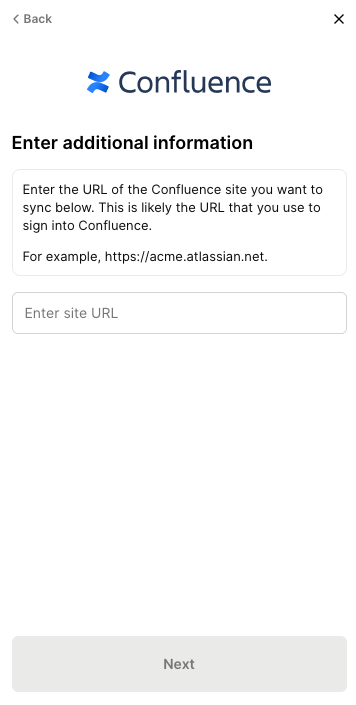
Step 1: Provide your Confluence URL
Enter your Confluence URL for example, https://acme.atlassian.net and click Next
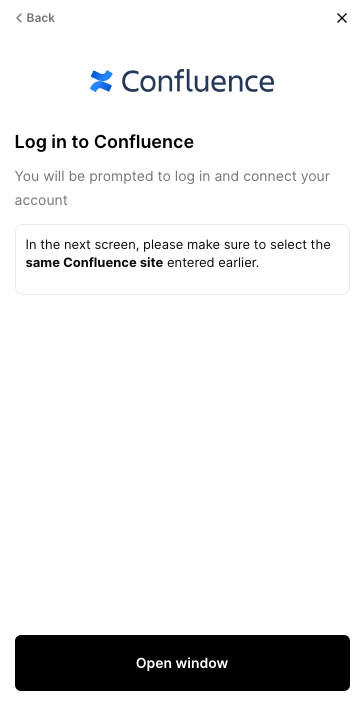
Step 2: Log in to Confluence
You'll be redirected to Atlassian to log in your account
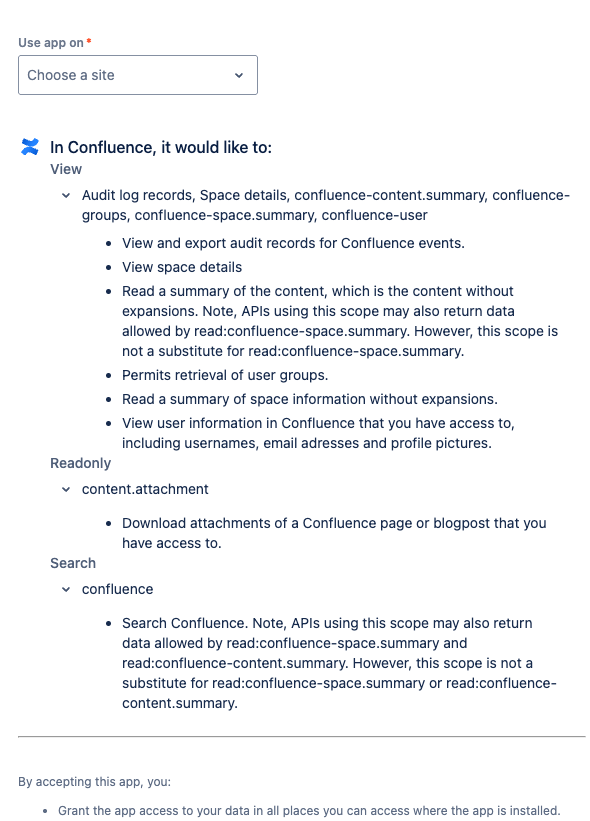
Step 3: Accept Scopes
Review the list of Confluence scopes being requested
Under Use app on, select the same Confluence site you entered in Step 1.
Click Accept
Step 4: Install Forge App (not always required)
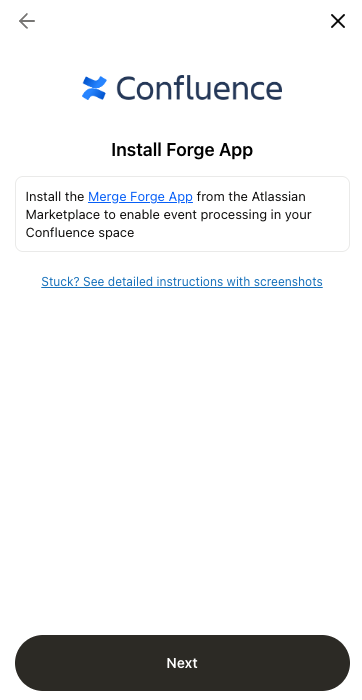
To enable event processing in your Confluence space, install the Forge App from the Atlassian Marketplace. This app automatically captures and forwards Confluence Cloud page events, including content tree moves, permission changes, and deletions, to the integration through webhooks.
Installing the Forge app is required to capture all content moves and permission changes accessible from Confluence Cloud events.
If you plan to share only specific content, you don’t need to install it.
Once installed on your Confluence site, the app will monitor and securely transmit event data for all content it has view access to.