Front - How do I set up my partner credentials for OAuth?
Last updated: June 9, 2026
Overview
You can create and use your own Front partner credentials to connect to your customers’ Front workspaces. To set this up, sign up for an Front Developer account and create an OAuth app.
The steps below walk you through the full setup process:
Instructions
Step 1: Create a Front developer account and create your OAuth app
Sign up for a free Front developer account if you don't already have one.
After signing into your sandbox account, click the gear settings icon in the left side menu bar
Within your Front settings page, select
Company. This may be an icon of a building like in the following image: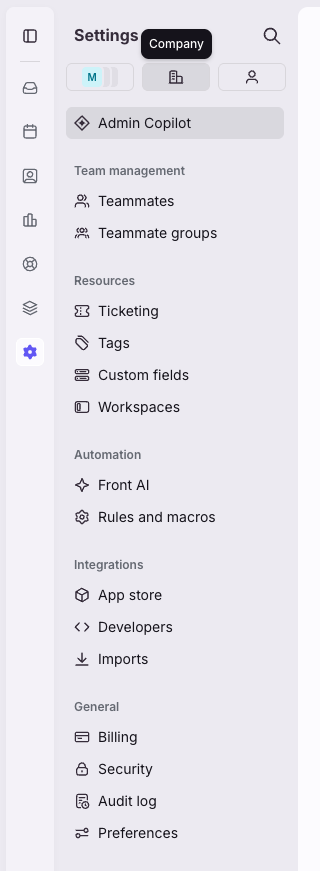
Click Developers in the submenu
Click Create app in the upper right side. This will create an Untitled app and take you to its own page.

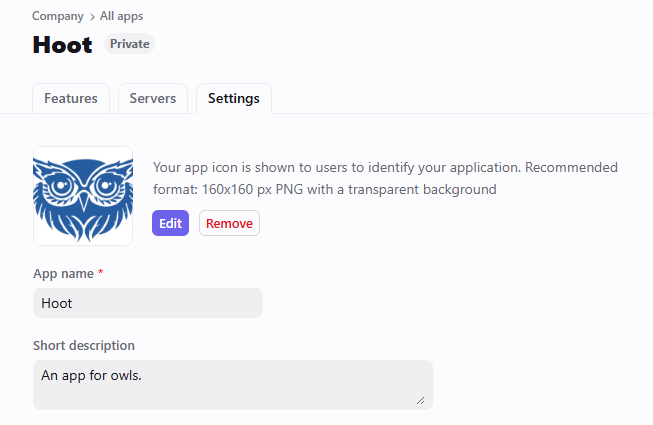
Under Settings tab, provide an App name and Short description.
Edit the default app icon to add your company's icon.
Front recommends using a 160x160 px PNG with a transparent background
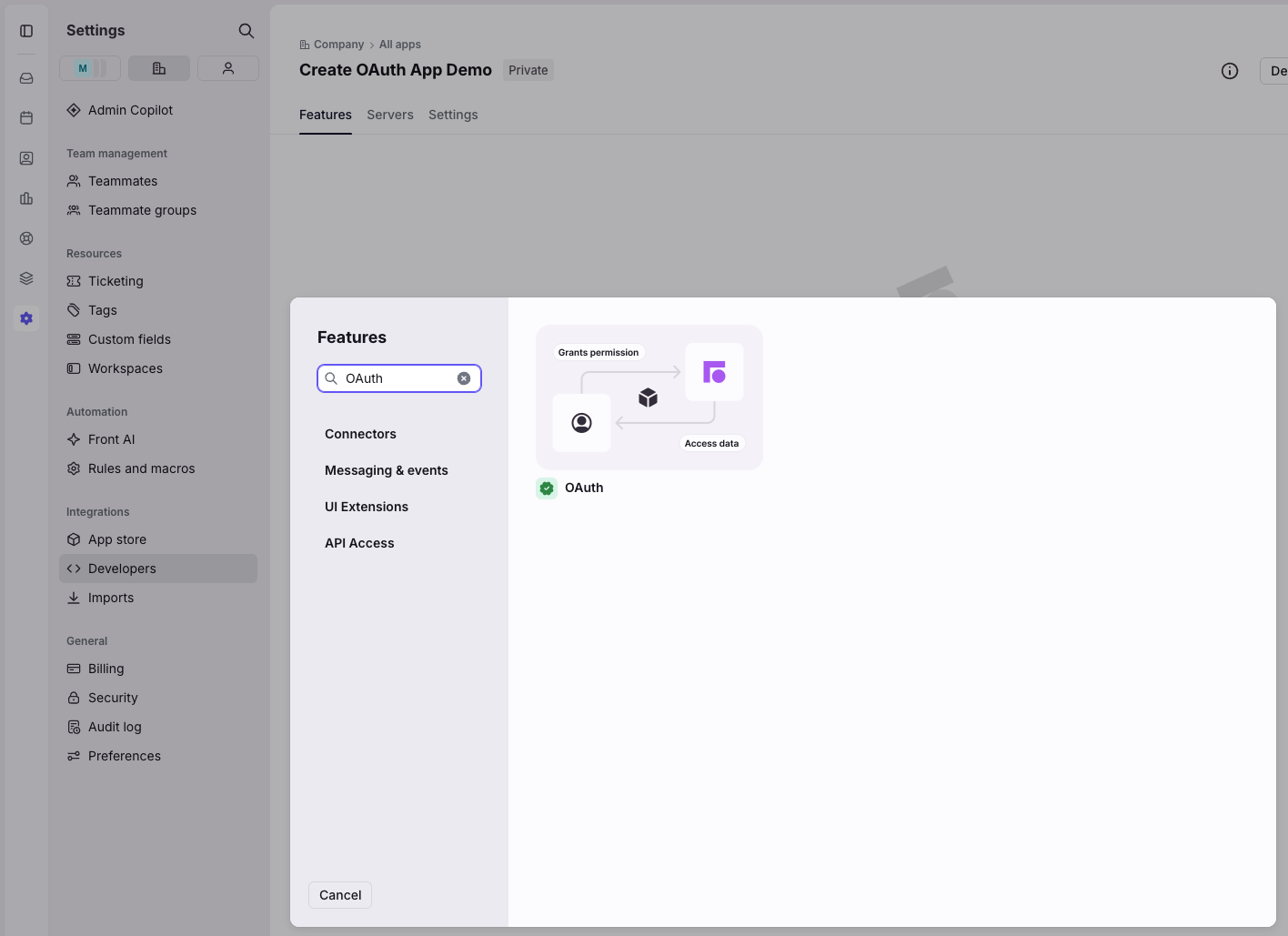
Click on the Features tab
Click Add feature.
Search for and select the OAuth feature.
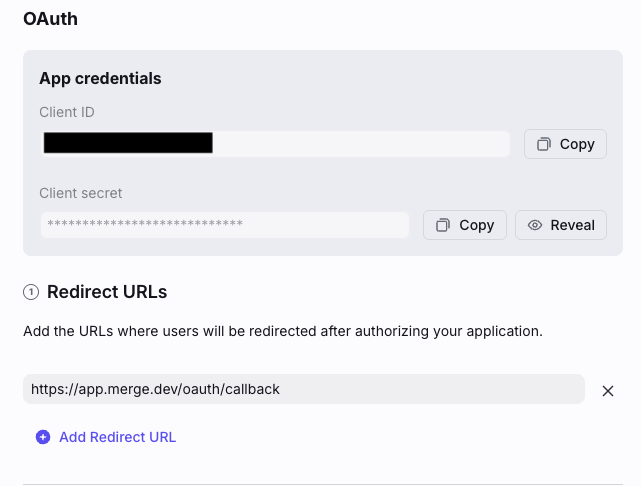
Click Add Redirect URL to authorize a URL for the server to redirect to after a successful authorization.
Set this url to https://app.merge.dev/oauth/callback
Specify the features, namespaces, and permissions that you want users to authorize for your token.
Under Feature access, check Access resources
Under Namespace access, check:
Global resources
Shared resources
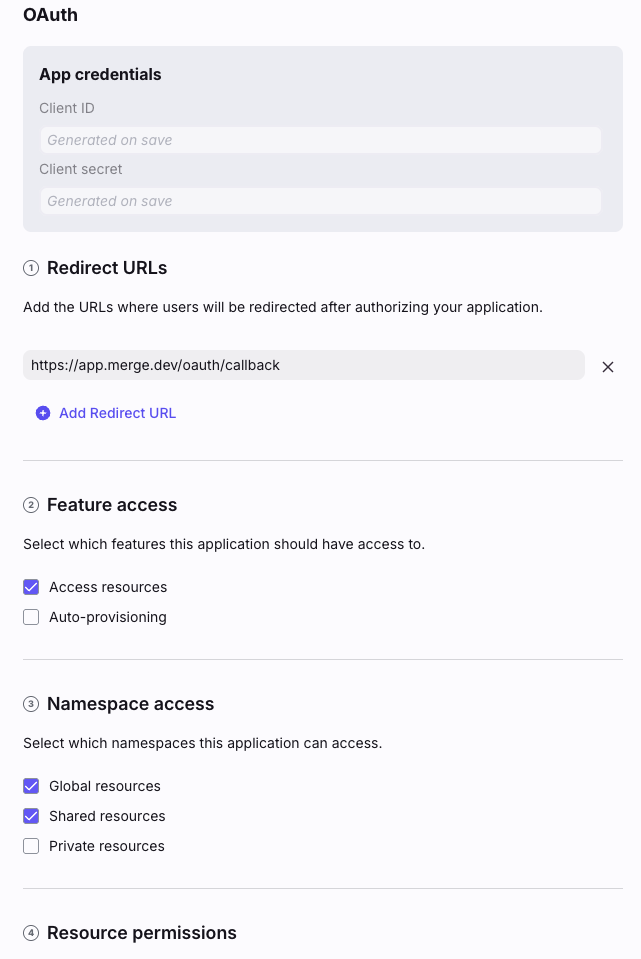
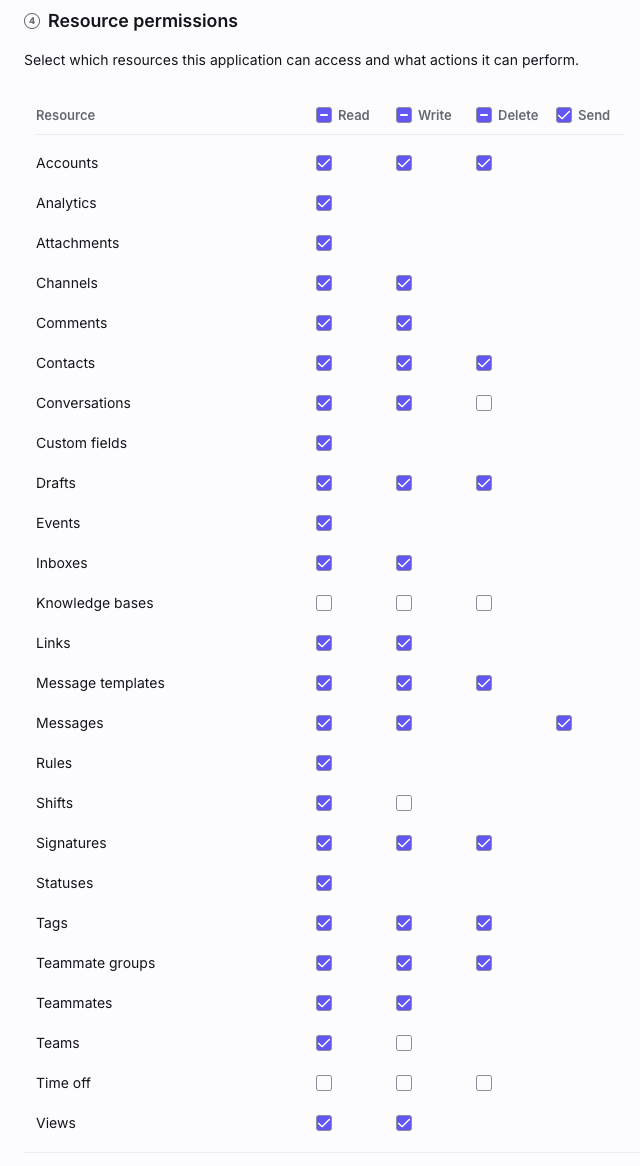
Under Resource permissions, check:
Resource
Description
Accounts
Read, Write, Delete
Analytics
Read
Attachments
Read
Channels
Read, Write
Comments
Read, Write
Contacts
Read, Write, Delete
Conversations
Read, Write
Custom fields
Read
Drafts
Read, Write, Delete
Events
Read
Inboxes
Read, Write
Knowledge bases
Links
Read, Write
Message templates
Read, Write, Delete
Messages
Read, Write, Send
Rules
Read
Shifts
Read
Signatures
Read, Write, Delete
Statuses
Read
Tags
Read, Write, Delete
Teammate groups
Read, Write, Delete
Teammates
Read, Write
Teams
Read
Time off
Views
Read, Write
Click Save
After the page refreshes, copy the Client ID and Client secret.
Step 2: Enter your app's details in the Merge Dashboard
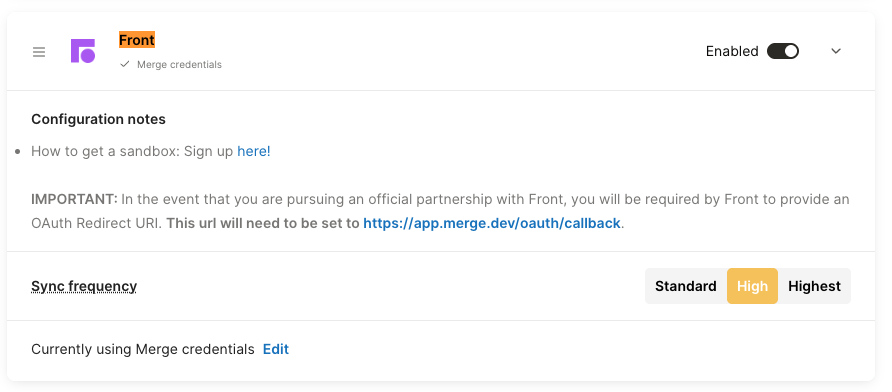
Navigate to the Integrations > Ticketing page in the Merge dashboard
Expand the Front selection and select Edit to enter your credentials, and eventually switch to them.
Select Edit to enter your credentials
Under select credentials, select My credentials
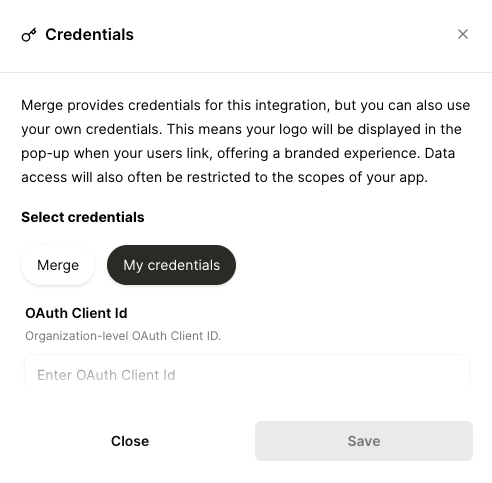
Populate your credentials:
OAuth Client Id: Your Client ID from the first step
OAuth Client Secret: Your Client secret from the first step
Redirect URI:
https://app.merge.dev/oauth/callback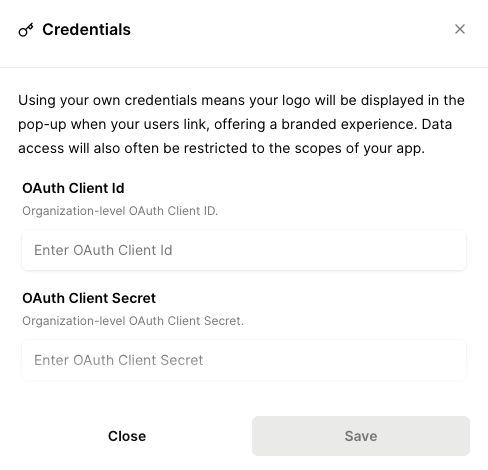
Click Save