Google Drive - How do I set up my partner credentials for OAuth?
Last updated: December 24, 2025
Overview
This guide will walk you through the steps generate your client credentials within Google Drive and input them into the Merge Dashboard. Please note that generating your own client credentials is not required for the Google Drive integration to work, but rather an optional step to create your own OAuth Application.
The process begins with the Merge customer creating a Google Cloud Project and submitting an application. Below are the steps you need to take in the GoogleCloud Console as well as the Scopes relevant for Merge's File Storage integrations.
Instructions
Step 1: Generate OAuth credentials in Google
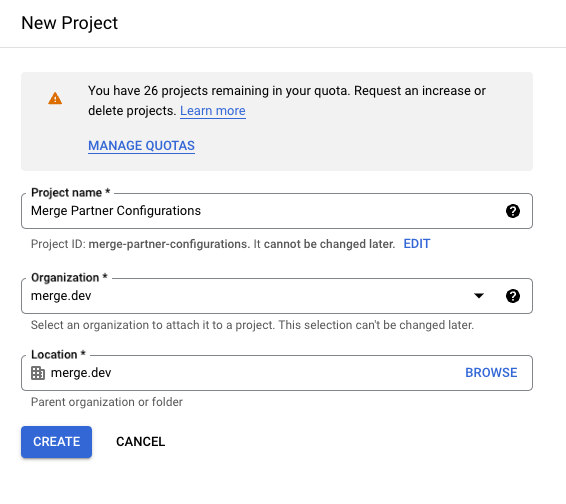
Create a Google Cloud Project here!
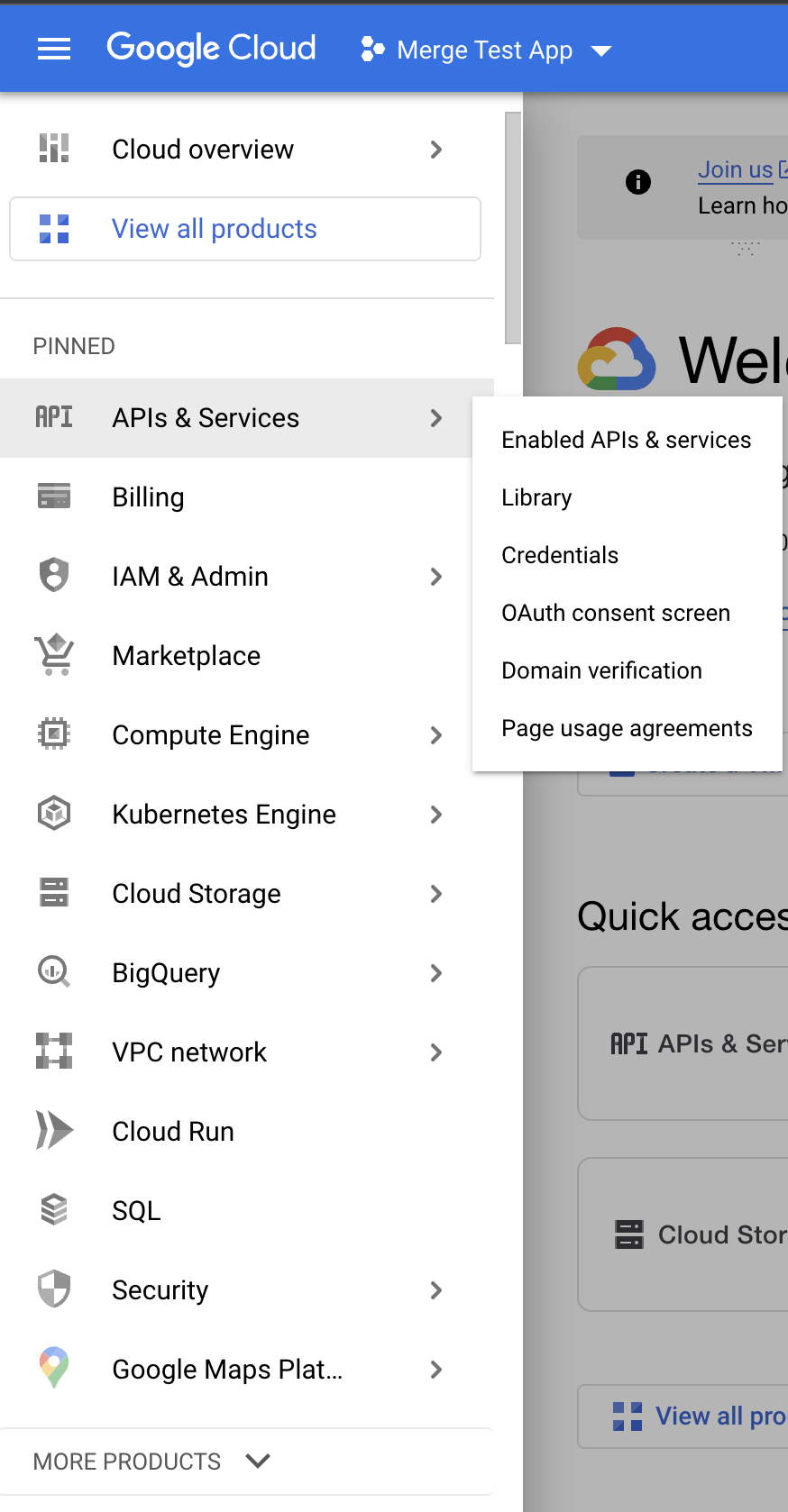
In your Dashboard, go to APIs & Services, and click on Credentials.
Create a Project for the partnership configuration!
Configure your OAuth Consent Screen with User Type: External and Published.
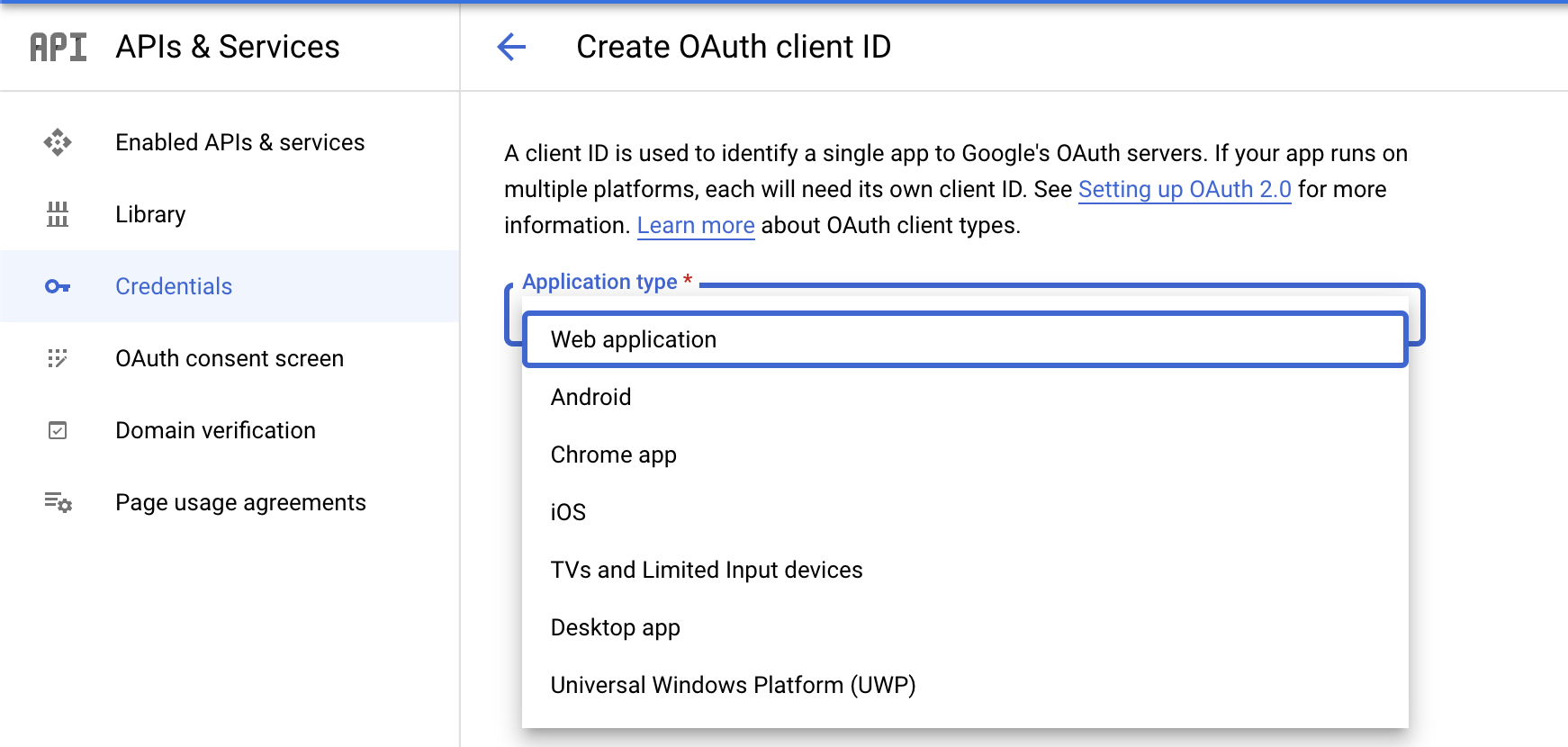
Click +Create Credentials and begin steps to create an OAuth Client ID.
Mark the Application type as Web Application.
Add the Merge Redirect URI as https://app.merge.dev/oauth/callback.
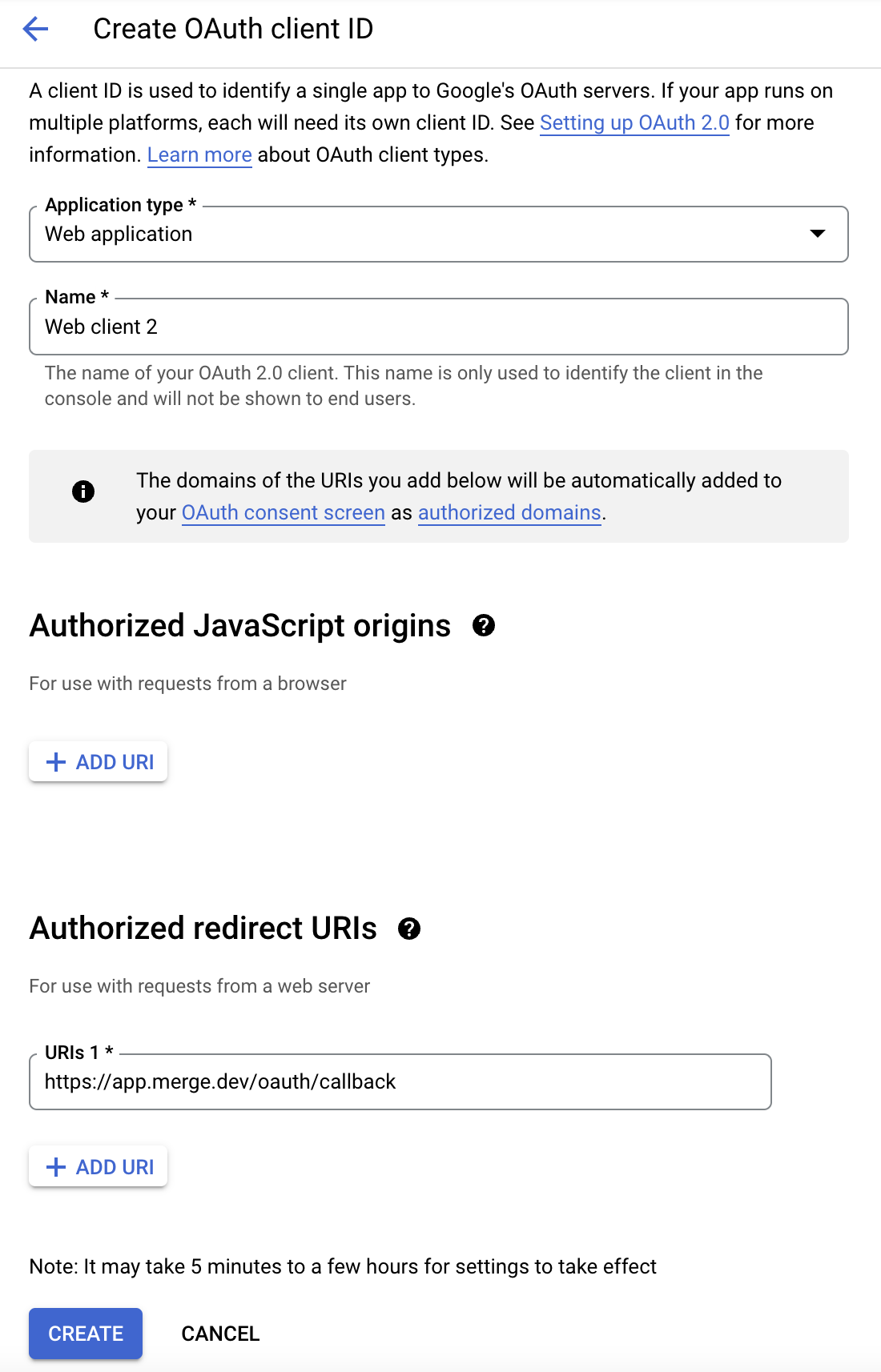
Click CREATE. You will see a screen that shows the OAuth Client ID and Secret for your account.
Step 2: Set your scopes
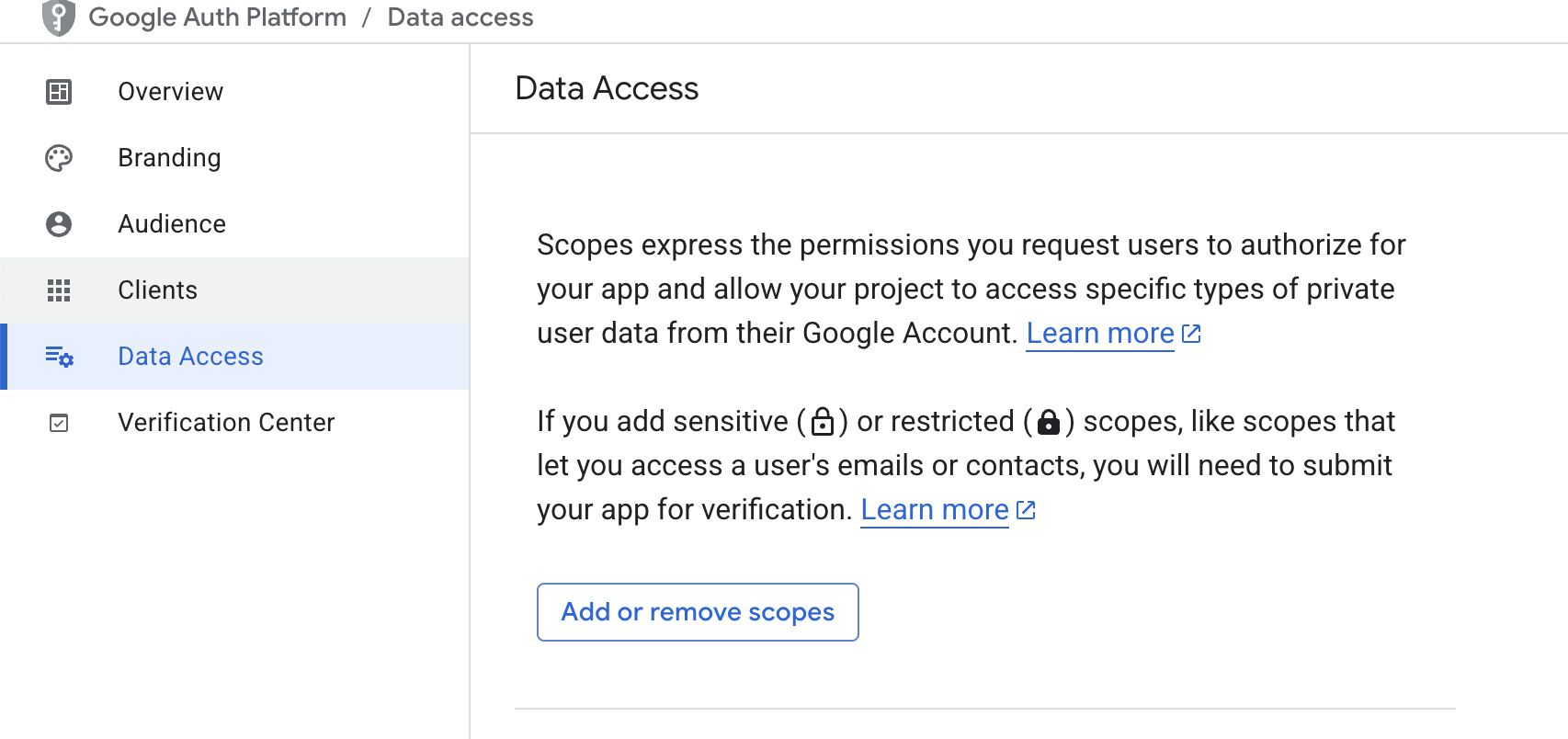
Under Data Access, you'll need to add scopes. Please include the following scopes based upon the authentication method your end users will select in Merge Link:
User account (read-only)
Admin account (read-only)
Admin account (read and write)
Super admin
https://www.googleapis.com/auth/admin.directory.group.readonly
For Super admin, you'll also need to follow this guide to create your Service Account and Super Admin User.
Once the scopes are set, fill out any other required questions about your product and submit your application.
Step 3: Add your Google Drive client credentials to Merge
On the Merge Dashboard, navigate to the Integrations tab.
Under File Storage, identify the Google Drive integration.
Enable the integration using the toggle on the right.
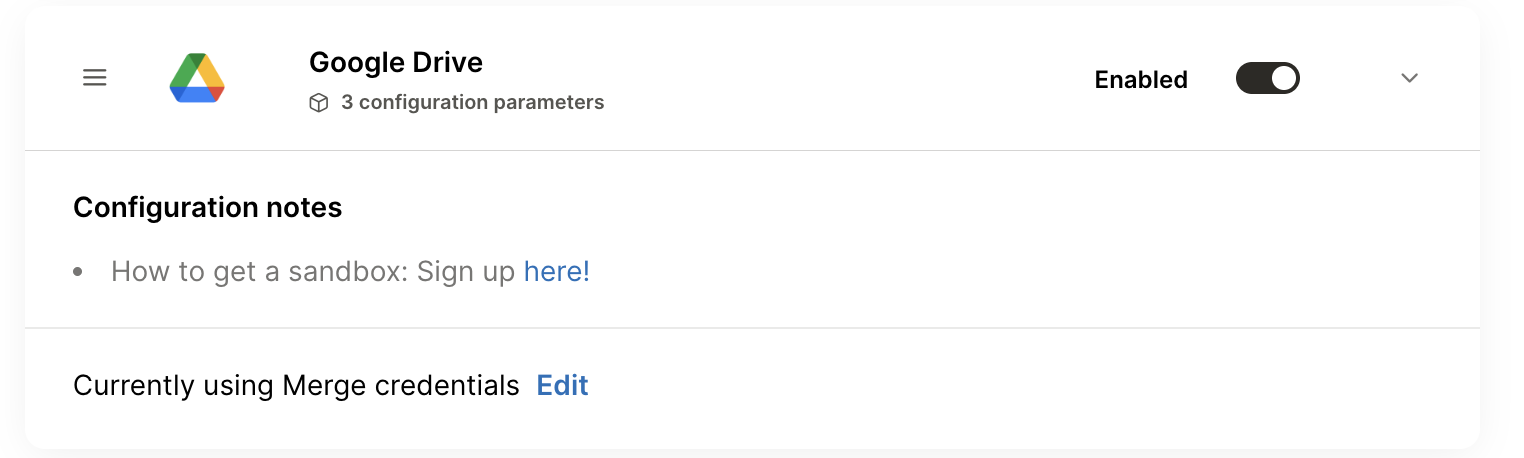
Click Edit.
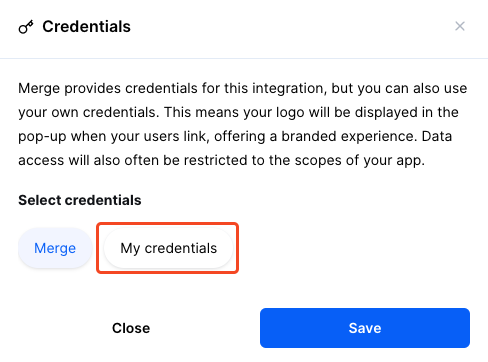
Select My Credentials.
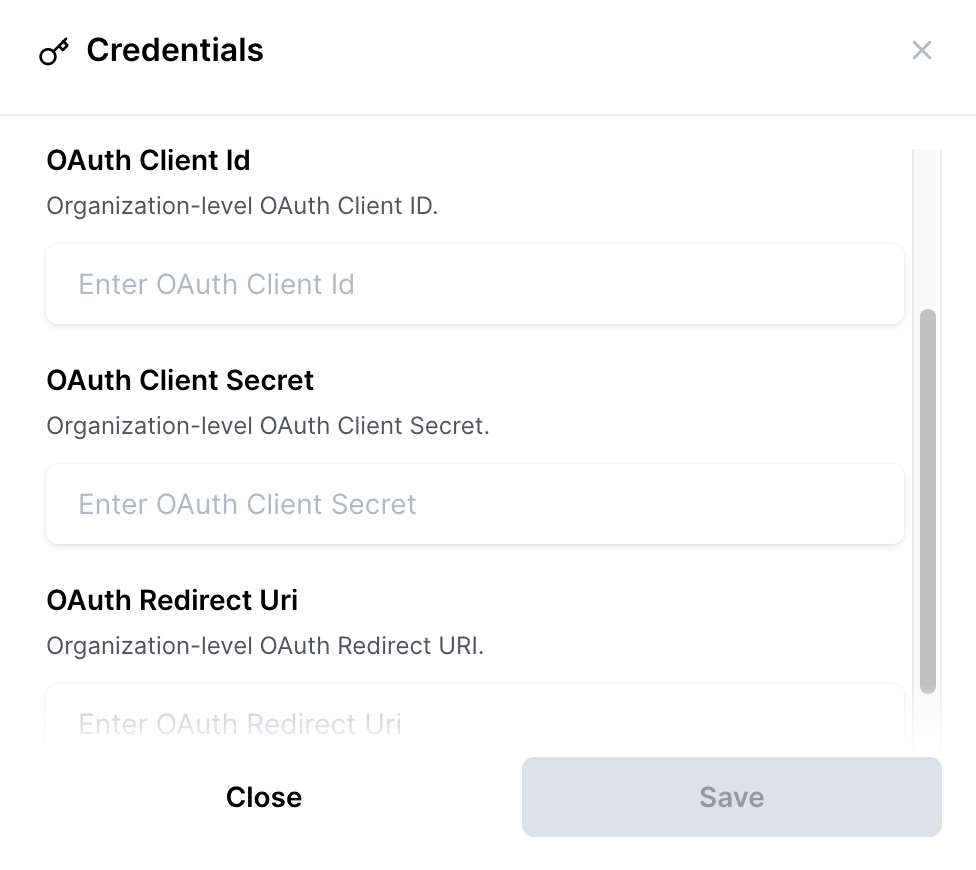
Enter the following information in the corresponding fields
OAuth Client Id: OAuth Client ID
OAuth Client Secret: OAuth Secret
OAuth Redirect URI: https://app.merge.dev/oauth/callback
Notes:
Please confirm that the Admin SDK API is enabled. This can be found in APIs & Services --> Enabled APIs & Services
In your Google Admin account (admin.google.com),
Go to API Access Control and the Settings section,
Ensure the "(Default) Allow users to access any third-party apps" option is selected.
From there you should see the Merge app show up under the "Accessed Apps" list
Please confirm you have Admin access
Please confirm your OAuth Consent Screen is "Published" and "External" user type
Please reach out to your CSM or [email protected] if you have any further questions about the application process