Implementing Merge with an AI coding agent - Merge Link
Last updated: January 15, 2026
Overview
This article is part of a series to help developers accelerate a Merge implementation by leveraging coding agents (e.g., Claude Code, Copilot, or similar). These prompts aren’t intended to fully replace developer work, but to streamline implementation and reduce repetitive coding overhead.
The goal of this article is to implement the Merge Link authentication flow in a way that feels seamless to end users. On the frontend, users should only see business-relevant messaging about connecting their third-party system, without exposure to Merge-specific terminology. Token generation and exchanges needed for linking an integration (link_token → public_token → account_token) will be handled on the backend. By the end of this section, you’ll have a working integration button or app center flow that establishes and manages linked accounts, setting the foundation for syncing data.
Please read before beginning
There are a few pre-requisites and things to keep in mind before continuing through this article:
Agents can hallucinate. Always review the code changes that it suggests.
You should already have a valid Merge API key stored securely.
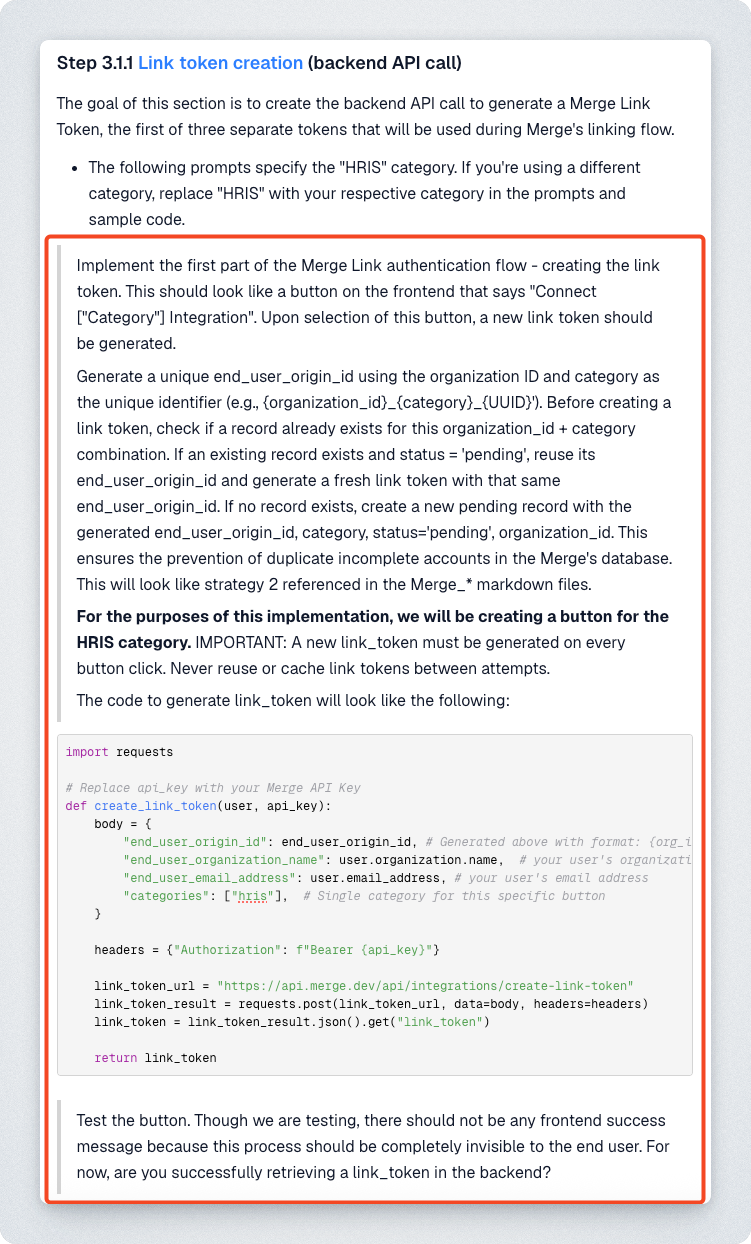
Prompts you should provide to the agent are quoted. For example, in the image below, the prompt should be all of the content in the red box.
Step 1: Context setting
These markdown files should be added to your codebase to provide your coding agent additional context. Before getting started, ask the agent to read through them, so it understands the Merge implementation workflow
We need to start by providing the coding agent context into how Merge works and what changes it may need to make to your code. The markdown files and the prompt below will provide it the necessary context to assist you in building into Merge.
Parse through these links to understand what Merge.dev implementation entails. Merge is a unified API and instead of our engineering team having to build and maintain dozens of individual integrations to different vendor APIs (each with its own schemas, edge cases, auth methods, versions, quirks), we will integrate once with Merge. Integrating into Merge looks like: using the Merge SDK or calling the REST API directly → embedding Merge Link, a prebuilt widget, into our product (the connection flow) → syncing data via Merge's unified API → handling updates via polling and webhooks.
Links to parse through: Merge link guide (https://r.jina.ai/https://docs.merge.dev/get-started/link/), syncing data guide (https://r.jina.ai/https://docs.merge.dev/basics/syncing-data/), and end-user-origin-id guide (https://r.jina.ai/https://help.merge.dev/articles/8032943-end-user-origin-id-best-practices?lang=en)
Do not make changes.
Step 1.1: Merge Link context
We'll start by providing context into what our goal is and what the linking flow will look like.
I want to start by implementing Merge into my Frontend. There should be no mention of any Merge-related concepts on the frontend UI. The Merge Link authentication flow is a series of token exchanges. The entire Merge authentication flow should be completely invisible in the user experience, outside of the Merge Link modal. They should only see business-relevant messaging about connecting their 3rd party system, with zero technical Merge terminology exposed anywhere in the UI. Here is the 3-step authentication flow:
1. Backend: Create link-token with end_user_origin_id → receive link_token. A new link token must be generated for every open of Merge Link, and a unique identifier must be passed in as end_user_origin_id for every integration within a given Merge category (eg. "hris", "ats", "accounting", "ticketing", "crm").
2. Frontend: User completes Merge Link modal → receive public_token
3. Backend: Exchange public_token for account_token → store for API calls
The term "linked account" will mean an integration connection that has completed the 3-step authentication flow (link_token → public_token → account_token). It represents an active, authorized connection that can sync data between the 3rd party system and our application. Each linked account has a unique account_token which, in combination with the API key we have stored, allows API calls to fetch data from Merge pertaining to that specific 3rd party system.
Do not make any changes.
Step 1.2: End user origin ID considerations
You'll need to consider how your organization will generate an end_user_origin_id in accordance with our best practice recommendations. It is the main factor in the determination of a unique linked account. The combination of end user origin id and the resultant category selected from the end user’s interaction with Merge Link will determine a unique linked account. At the very minimum, a table needs to be created in your database with the following information stored:
Property | Purpose |
| PK |
| FK -> to your organizations table |
| end_user_origin_id used in the linking process. Format may look like: |
| Category of the Linked Account |
| Slug of Merge integration ( |
| Status of the linked account ( |
| Merge identifier for the linked account, saved/stored after a successful link |
| Used to seed |
| Audit timestamps |
| The final, permanent token generated through the Merge linking process that identifies a specific end-user's linked account. |
The following prompts assume a multiple integrations per organization implementation strategy. This also assumes that organization/admin-based authentication is used. This assumption works for most use cases, but you'll want to tweak the prompts to match your specific needs. An example that would require modifications would be a scenario where individual auth is required (eg. file storage workflows). You'll want to pass in {user_id} as opposed to {organization_id} .
Step 2: Embedding Merge Link
Two different styles of embedded Merge Link implementation are shown below - a standard "connect integration" button or an app center / integration marketplace. Pick the one that suits your desired user experience. Where sample code is specified, you can pull the exact sample that matches your preferred language from our Merge Link guide.
Option 1: Connect integration button
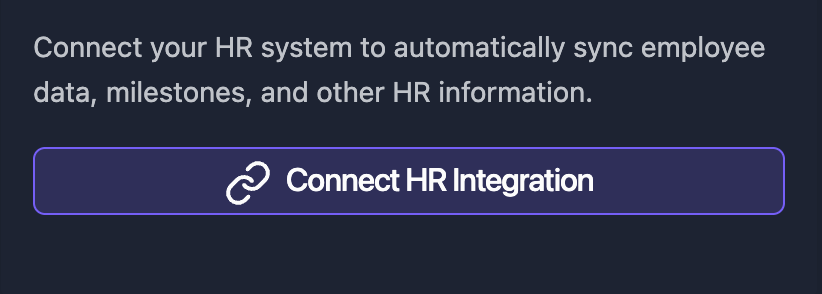
The following frontend implementation is the standard implementation where you may have something similar to the button that allows your customer to connect an integration. This will load the Merge Link UI where your customer selects through the list of available integrations.
Step 2.1.1 Link token creation (backend API call)
The goal of this section is to create the backend API call to generate a Merge Link Token, the first of three separate tokens that will be used during Merge's linking flow.
The following prompts specify the "HRIS" category. If you're using a different category, replace "HRIS" with your respective category in the prompts and sample code.
Implement the first part of the Merge Link authentication flow - creating the link token. This should look like a button on the frontend that says "Connect ["Category"] Integration". Upon selection of this button, a new link token should be generated.
Generate a unique end_user_origin_id using the organization ID and category as the unique identifier (e.g., {organization_id}_{category}_{UUID}'). Before creating a link token, check if a record already exists for this organization_id + category combination. If an existing record exists and status = 'pending', reuse its end_user_origin_id and generate a fresh link token with that same end_user_origin_id. If no record exists, create a new pending record with the generated end_user_origin_id, category, status='pending', organization_id. This ensures the prevention of duplicate incomplete accounts in the Merge's database. This will look like strategy 2 referenced in the Merge_* markdown files.
For the purposes of this implementation, we will be creating a button for the HRIS category. IMPORTANT: A new link_token must be generated on every button click. Never reuse or cache link tokens between attempts.
The code to generate link_token will look like the following:
import requests

# Replace api_key with your Merge API Key
def create_link_token(user, api_key):
    body = {
        "end_user_origin_id": end_user_origin_id, # Generated above with format: {org_id}_{category}_{UUID}
        "end_user_organization_name": user.organization.name,  # your user's organization name
        "end_user_email_address": user.email_address, # your user's email address
        "categories": ["hris"],  # Single category for this specific button
    }

    headers = {"Authorization": f"Bearer {api_key}"}

    link_token_url = "https://api.merge.dev/api/integrations/create-link-token"
    link_token_result = requests.post(link_token_url, data=body, headers=headers)
    link_token = link_token_result.json().get("link_token")

    return link_token
Test the button. Though we are testing, there should not be any frontend success message because this process should be completely invisible to the end user. For now, are you successfully retrieving a link_token in the backend?
Step 2.1.2: Merge link modal & token exchange (frontend & backend API call)
The goal of this section is to initialize a Merge Link session on your frontend using previous Link Token and retrieve an Account Token which will be used for authentication in future requests to Merge's API.
We now need to make Merge Link appear in the frontend by using the link token to open Merge Link. Make sure to handle all MergeLink callbacks (onSuccess, onExit, onError). Reset button states on modal close. You must explicitly call openLink() to get the modal to appear. This is sample code in HTML/JS:
<button id="open-link-button">Start linking</button>
<script src="https://cdn.merge.dev/initialize.js"></script>
<script type="text/javascript">
  const button = document.getElementById("open-link-button");
  button.disabled = true;

  function onSuccess(public_token) {
    // Send public_token to server (Step 3)
  }

  MergeLink.initialize({
    // Replace ADD_GENERATED_LINK_TOKEN with the token retrieved from your backend (Step 1)
    linkToken: "ADD_GENERATED_LINK_TOKEN",
    onSuccess: (public_token) => onSuccess(public_token),
    onReady: () => (button.disabled = false),
    // A value of `true` for `shouldSendTokenOnSuccessfulLink` makes Link call `onSuccess`
    // immediately after an account has been successfully linked instead of after the user
    // closes the Link modal.
    shouldSendTokenOnSuccessfulLink: true,
    // tenantConfig: {
    // apiBaseURL: "https://api-eu.merge.dev" /* OR your specified single tenant API base URL */
    // },
  });

  button.addEventListener("click", function () {
    MergeLink.openLink();
  });
</script>
In the backend, we need to swap the short-lived public_token for a permanent account_token. We need to store this account_token, because it’s used to authenticate API requests to Merge.
Here is sample code in Python for the exchange from public_token to account_token:
import requests

def retrieve_account_token(public_token, api_key):
    headers = {"Authorization": f"Bearer {api_key}"}

    account_token_url = "https://api.merge.dev/api/integrations/account-token/{}".format(public_token)
    account_token_result = requests.get(account_token_url, headers=headers)

    account_token = account_token_result.json().get("account_token")
    return account_token  # Save this in your database
Once we receive the account_token that is generated from a successful integration link, we must store it, and then hit GET /account-details (https://api.merge.dev/api/hris/v1/account-details) using the API key and account_token, which returns the following example response:
{
  "id": "0496d4c2-42e6-4072-80b3-7b69bfdc76fd",
  "integration": "BambooHR",
  "integration_slug": "bamboohr",
  "category": "hris",
  "end_user_origin_id": "3fa85f64-5717-4562-b3fc-2c963f66afa6",
  "end_user_organization_name": "Waystar Royco",
  "end_user_email_address": "[email protected]",
  "status": "COMPLETE",
  "webhook_listener_url": "https://api.merge.dev/api/integrations/webhook-listener/7fc3mee0UW8ecV4",
  "is_duplicate": true,
  "account_type": "PRODUCTION",
  "completed_at": "2024-08-26T20:11:19.277118Z"
}
This will allow us to populate the integration name (account-details.integration), which can be reflected in our existing "Connected Integrations" menu where integrations will be managed. We do not need any additional notifications that a link is successful. Merge will already display that within their Merge Link modal.
When the integration completes successfully, find the existing database record by user_id + category combination and update it with status='active' (if it was pending).
Implement this, and then I'll test the Merge Link modal by linking an integration and testing the account_token swap.
You should now see a successful integration reflected in your UI and in the Merge dashboard.
Step 2.1.3: Relinking & deleting linked accounts
The goal of this section is to handle the full lifecycle of a linked account after the initial Merge Link flow has been completed. Specifically, we’ll implement the ability for users to:
Relink an integration to refresh credentials or permissions without altering existing database records.
Delete an integration to permanently remove a linked account, including its stored account_token and end_user_origin_id.
By the end of this section, you’ll have backend endpoints and corresponding UI buttons for relinking and deleting integrations, ensuring that users can maintain control over their connected accounts.
For a given connected integration, I want the following buttons to appear "Relink integration" and "Delete integration". In the backend, for the "Relink integration" button, this equates to passing in the same end_user_origin_id for the given integration into the POST /link-token endpoint to initiate the Merge Link modal for a user to relink the integration. During relinking, the end_user_origin_id, account_token, and integration_name all remain unchanged - relinking only refreshes credentials/permissions on Merge's side to fix a potential broken integration status. From our application's perspective, nothing in the database changes during relinking except potentially updating the status back to 'active' if it was marked as having issues.
For the "Delete integration" button, the backend will hit POST /delete-account (https://api.merge.dev/api/hris/v1/delete-account). This will delete the associated linked account in Merge, so the account_token and end_user_origin_id of that integration should also be deleted from our database. Implement this and I'll test the relinking flow and the deletion flow. Only the deletion flow will need a warning menu - 'This action is permanent. Do you want to proceed?' This should also delete the integration from our integrations page.
Option 2: App center/integration marketplace (single integration link flow)
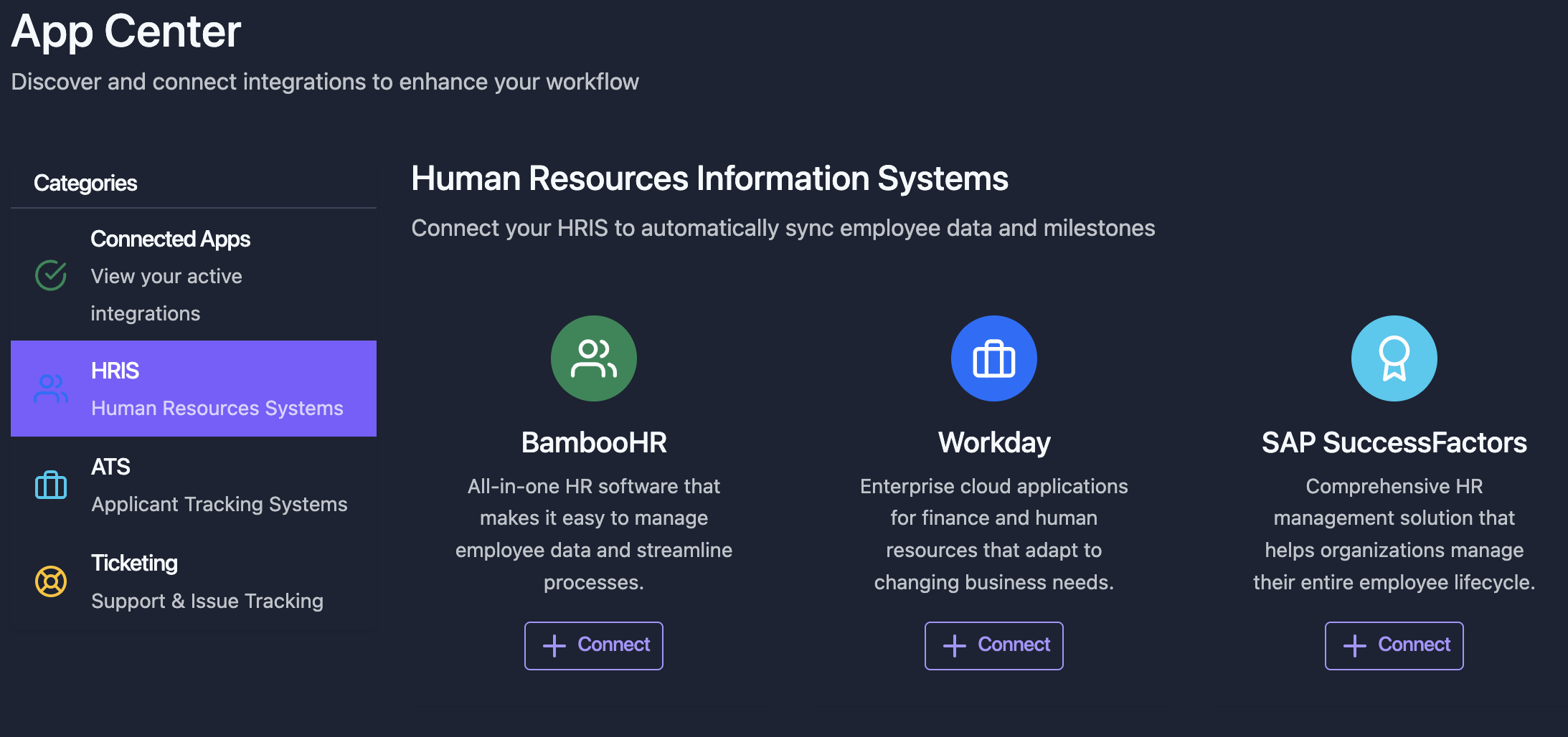
The following frontend implementation allows you to customize your user experience to skip integration selection and guide your customer directly to a specific integration's configuration step in Merge's integration authorization component. This might look similar to the App Center UI below where your users can browse and discover all available integrations and choose which one to connect to.
This callout is for those who want to populate brand accurate logos for the integration marketplace.
Merge provides an endpoint where you can fetch integration names and logos programmatically. To do so, use the following prompt:
"Parse through the Integration Metadata guide (https://r.jina.ai/https://docs.merge.dev/basics/integration-metadata/) to understand how the integration metadata endpoint works. In the backend, use Merge's Integration Metadata endpoint (GET /api/organizations/integrations - https://api.merge.dev/api/organizations/integrations) to fetch integration names, identifiers, images, brand colors, and other details. You'll need to use the Merge API key. Additionally, the response is paginated. Don't make any immediate changes, but these can be used to update our UI in the future."
Step 2.2.1 Link token creation (backend API call)
The goal of this section is to create the backend API call to generate a Merge Link Token, the first of three separate tokens that will be used during Merge's linking flow.
The following prompts specify the "HRIS" category. If you're using a different category, replace "HRIS" with your respective category in the prompts and sample code.
Begin by parsing through this link on setting up a single integration for Merge link (https://r.jina.ai/http://docs.merge.dev/guides/merge-link/single-integration/). This will guide our user directly to a specific integration's configuration step in Merge's integration authorization component by showing them a single integration in Merge's component. The integration identifier that will be passed into POST /link-token will be the application on the frontend that the user selects. For example, if they select the BambooHR integration, "hris" will be passed as the category and "bamboohr" will be passed as the integration identifier. Don't make any immediate changes.
That step will give the coding agent context into how the integration marketplace should be created in accordance to Merge best practices. The prompts below will begin implementing this into your code base.
Implement the first part of the Merge Link authentication flow - creating the link token. This will be the connect button on the frontend that says "Connect" for a selected integration in the marketplace. Upon selection of this button, a new link token should be generated.
Generate a unique end_user_origin_id using the organization ID and category as the unique identifier (e.g., {organization_id}_{category}_{UUID}'). Before creating a link token, check if a record already exists for this organization_id + category combination. If an existing record exists and status = 'pending', reuse its end_user_origin_id and generate a fresh link token with that same end_user_origin_id. If no record exists, create a new pending record with the generated end_user_origin_id, category, status='pending', organization_id. This ensures the prevention of duplicate incomplete accounts in the Merge's database. This will look like strategy 2 referenced in the Merge_* markdown files.
For the purposes of this implementation, we will be creating tiles for integrations in the HRIS category. IMPORTANT: A new link_token must be generated on every button click. Never reuse or cache link tokens between attempts.
Here is sample code in Python to generate this single-integration Merge Link flow:
import requests

# Replace api_key with your organization's production API Key
def create_link_token(user, api_key):
    body = {
        "end_user_organization_name": end_user_origin_id, # Generated above with format: {org_id}_{category}_{UUID}
        "end_user_email_address": user.email_address,
        "end_user_origin_id": user.id,
        "categories": ["hris"],
        # identifier of desired integration
        "integration": "bamboohr",
    }

    headers = {"Authorization": f"Bearer {api_key}"}

    link_token_url = "https://api.merge.dev/api/integrations/create-link-token"
    link_token_result = requests.post(link_token_url, data=body, headers=headers)
    link_token = link_token_result.json().get("link_token")

    return link_token
Test the button. Though we are testing, there should not be any frontend success message because this process should be completely invisible to the end user. For now, are you successfully retrieving a link_token in the backend?
Step 2.2.2: Merge link modal & token exchange (frontend & backend API call)
The goal of this section is to initialize a Merge Link session on your frontend using previous Link Token and retrieve an Account Token which will be used for authentication in future requests to Merge's API.
We now need to make Merge Link appear in the frontend by using the link token to open Merge Link. Make sure to handle all MergeLink callbacks (onSuccess, onExit, onError). Reset button states on modal close. You must explicitly call openLink() to get the modal to appear. This is sample code in HTML/JS:
<button id="open-link-button">Start linking</button>
<script src="https://cdn.merge.dev/initialize.js"></script>
<script type="text/javascript">
  const button = document.getElementById("open-link-button");
  button.disabled = true;

  function onSuccess(public_token) {
    // Send public_token to server (Step 3)
  }

  MergeLink.initialize({
    // Replace ADD_GENERATED_LINK_TOKEN with the token retrieved from your backend (Step 1)
    linkToken: "ADD_GENERATED_LINK_TOKEN",
    onSuccess: (public_token) => onSuccess(public_token),
    onReady: () => (button.disabled = false),
    // A value of `true` for `shouldSendTokenOnSuccessfulLink` makes Link call `onSuccess`
    // immediately after an account has been successfully linked instead of after the user
    // closes the Link modal.
    shouldSendTokenOnSuccessfulLink: true,
    // tenantConfig: {
    // apiBaseURL: "https://api-eu.merge.dev" /* OR your specified single tenant API base URL */
    // },
  });

  button.addEventListener("click", function () {
    MergeLink.openLink();
  });
</script>
In the backend, we need to swap the short-lived public_token for a permanent account_token. We need to store this account_token, because it’s used to authenticate API requests to Merge.
Here is sample code in Python for the exchange from public_token to account_token:
import requests

def retrieve_account_token(public_token, api_key):
    headers = {"Authorization": f"Bearer {api_key}"}

    account_token_url = "https://api.merge.dev/api/integrations/account-token/{}".format(public_token)
    account_token_result = requests.get(account_token_url, headers=headers)

    account_token = account_token_result.json().get("account_token")
    return account_token  # Save this in your database
We do not need any additional notifications that a link is successful. Merge will already display that within their Merge Link modal. The respective integration should also now appear in the "Connected Apps" management page once we receive and store the account_token. When the integration completes successfully, find the existing database record by user_id + category combination and update it with status='active' (if it was pending).
Implement this, and then I'll test the Merge Link modal by linking an integration and testing the account_token swap.
Step 2.2.3: Relinking & deleting linked accounts
The goal of this section is to handle the full lifecycle of a linked account after the initial Merge Link flow has been completed. Specifically, we’ll implement the ability for users to:
Relink an integration to refresh credentials or permissions without altering existing database records.
Delete an integration to permanently remove a linked account, including its stored account_token and end_user_origin_id.
By the end of this section, you’ll have backend endpoints and corresponding UI buttons for relinking and deleting integrations, ensuring that users can maintain control over their connected accounts.
Within the integration management page, I want the following buttons to appear for each connected integration - "Relink integration" and "Delete integration". In the backend, for the "Relink integration" button, this equates to passing in the same end_user_origin_id for the given integration into the POST /link-token endpoint to initiate the Merge Link modal for a user to relink the integration. During relinking, the end_user_origin_id, account_token, and integration_name all remain unchanged - relinking only refreshes credentials/permissions on Merge's side to fix a potential broken integration status. From our application's perspective, nothing in the database changes during relinking except potentially updating the status back to 'active' if it was marked as having issues.
For the "Delete integration" button, the backend will hit Merge's POST /delete-account endpoint (https://api.merge.dev/api/hris/v1/delete-account) for that integration. This will delete the associated linked account in Merge, so the account_token and end_user_origin_id of that integration should also be deleted from our database. Implement this and I'll test the relinking flow and the deletion flow. Only the deletion flow will need a warning menu - 'This action is permanent. Do you want to proceed?' If the user proceeds, the integration should also be deleted from the application's UI.