Sharepoint - How do I link my account?
Last updated: February 20, 2026
Overview
To authenticate your Sharepoint account, you will need to provide the following information: Sharepoint username and password
What access level should I choose?
You may not have to choose an access level as this may be defaulted for you.
When you connect your account to a file storage system, it must already have the correct access level (user or admin). We then request the matching scopes (permissions) so our system can do only what you’ve approved - for example, viewing files, creating new ones, or managing groups.
The sections below explain what each access level means and how to confirm your account has the right permissions before connecting.
User account (read-only)
Let us see the files, folders, and sites you have access to. Basic profile info is included. Does not grant access to the permissions of files and folders.
Admin account (read-only)
Adds visibility into groups, memberships, and admin settings. Needed if your company uses SharePoint groups to control access.
Admin account (read and write)
Full access to create and manage files, folders, and site content across your organization.
When and why is an admin required to connect?
In some cases, a SharePoint/Microsoft admin must authenticate the connection. This is required to determine who has access to what files. Microsoft's API doesn't expose this information if anyone but an admin authenticates.
Just because an admin authenticates, though, doesn't mean the integration will have access to everything.
The integration uses delegated permissions - meaning if the authenticated user only has access to view a few sites, the integration will only have access to view a few sites
The integration only requests access to a subset of actions. It will not have access to everything the admin user can do
If you want to explore setting up an admin user with access to a subset of sites, refer to the below guide.
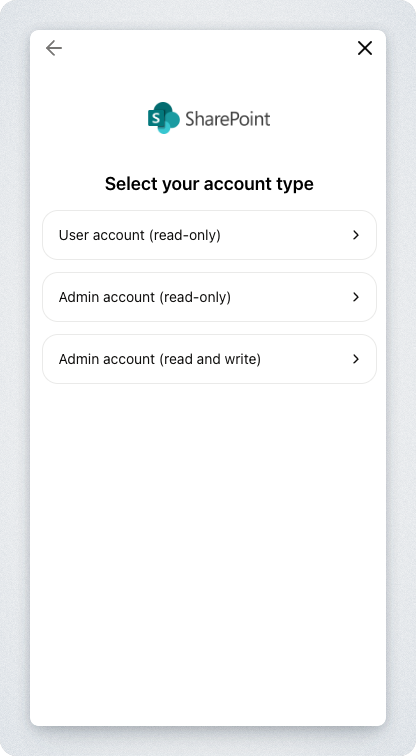
Step 1: Select access level
Select the permissions option that fits your use case then select Submit to proceed to the next page
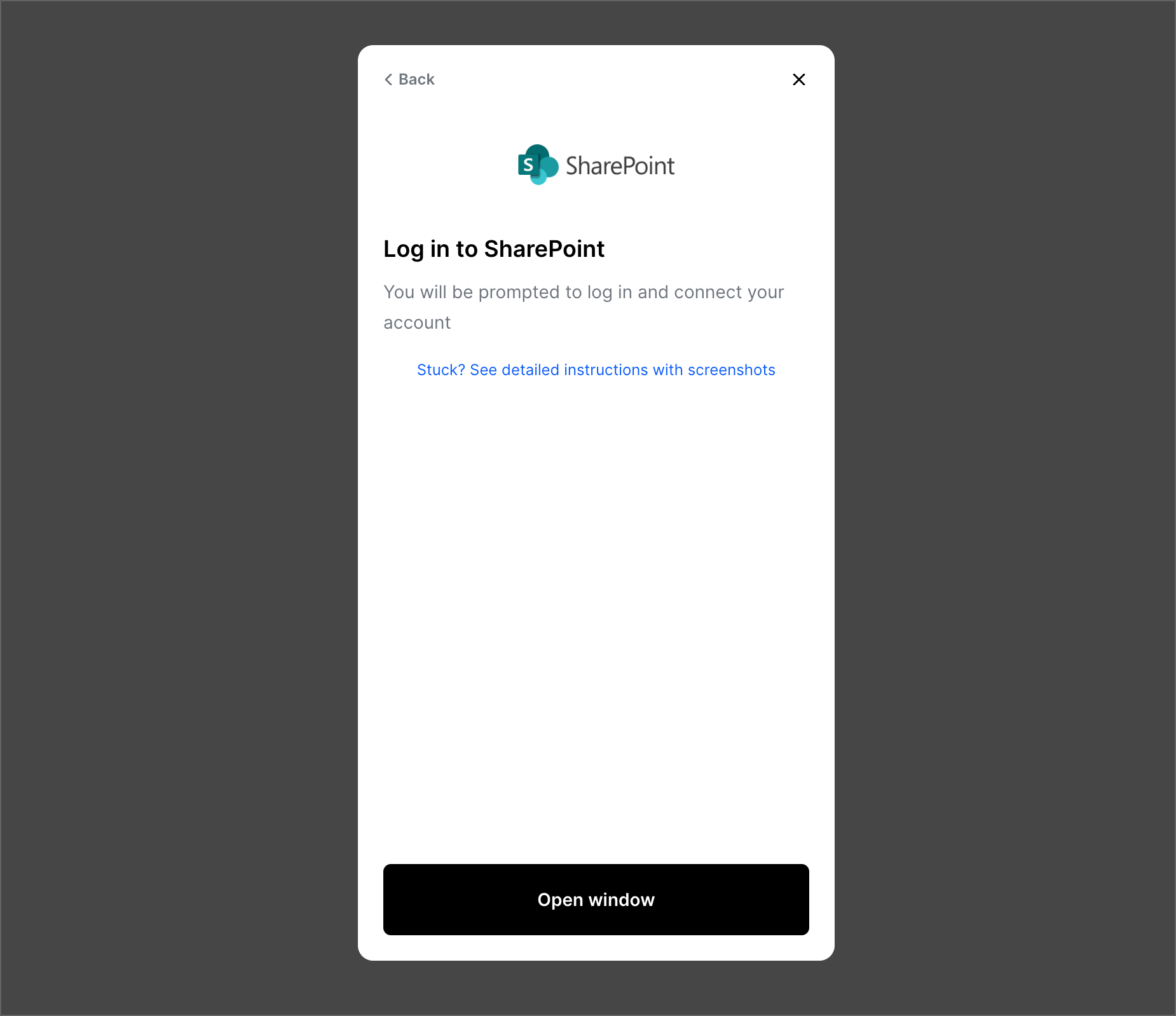
Step 2: Authorize using SharePoint's website
Select Open window, to be redirected to SharePoint's website. Enter your SharePoint credentials when prompted.
Specific OAuth scopes will be requested, depending on the permissions you previously selected. Learn more.
User (read-only)
Microsoft Graph
Files.Read.All: Read all files that user can accessSites.Read.All: Read items in all site collections that user can accessUser.Read: Sign in and read user profileUser.ReadBasic.All: Read all users' basic profiles
Admin (read-only)
Microsoft Graph
Files.Read.All: Read all files that user can accessGroup.Read.All: Read all groupsGroupMember.Read.All: Read all group membershipsRoleManagement.Read.All: Used to check if the authenticated user is an AdminRoleManagementPolicy.Read.Directory: Used to check if the authenticated user is an AdminRoleManagementPolicy.Read.Directory: Used to check if the authenticated user is an AdminSites.Read.All: Read items in all site collections that user can accessUser.Read.All: Read all users' full profiles
SharePoint
Sites.Search.All: Run search queries as a user
Admin (read+write)
Microsoft Graph
Files.Read.All: Read all files that user can accessFiles.ReadWrite.All: Have full access to all files user can accessFiles.ReadWrite.All: Read and write files in all site collectionsGroup.Read.All: Read all groupsGroupMember.Read.All: Read group membershipsRoleManagement.Read.All: Used to check if the authenticated user is an AdminRoleManagementPolicy.Read.Directory: Used to check if the authenticated user is an AdminSites.Manage.All: Create, edit, and delete items and lists in all site collectionsSites.ReadWrite.All: Edit or delete items in all site collections that user can accessUser.Read.All: Read all users' full profilesSites.FullControl.All: Maintain drive level permissions.
--- You're done! See below to learn more about why certain scopes are required ---
Why each scope is needed
Refer to Microsoft’s permissions reference for an in-depth explanation as to why we need each requested scope. Also, see the attached screenshots at the bottom of the article for a description of each requested scope.
Note that the integration uses delegated permissions which inherit the permissions of the authenticated user. Explanation of differences between delegated and application permissions.
Files.Read, Files.Read.All, Files.Read.All
Sample relevant endpoint that requires these scopes:
We use information enabled by these scopes to read files and folders that a user has access to. This enables us to populate file and folder information, such as descriptions, the drive the file or folder belongs to, file thumbnails and URLs, file and folder names, and file mime types. Note that, with selective sync enabled, we’ll only process the files, folders and drives that the end user would like to have synced.
We also use these scopes to show the list of files, folders and drives to select from in the file picker UI.
Group.Read.All, Group.Read.All, GroupMember.Read.All, GroupMember.Read.All
Sample relevant endpoints that require these scopes:
We use information enabled by these scopes to populate group information, such as the name of the group and the users which belong in the group.
Sites.Read.All
Sample relevant endpoints that require these scopes:
We use information enabled by these scopes to surface sites and populate file and folder information in sites that the user has access to. We also use these scopes to show the list of files, folders and drives to select from in the file picker UI.
User.Read, User.Read.All, User.ReadBasic.All
Sample relevant endpoints that require these scopes:
We use information enabled by these scopes to populate information about users, such as names and email addresses.
Files.ReadWrite, Files.ReadWrite.All, Files.ReadWrite.All
Sample relevant endpoints that require these scopes:
POST /drives/{drive-id}/items/{parent-item-id}/children
POST /groups/{group-id}/drive/items/{parent-item-id}/children
POST /me/drive/items/{parent-item-id}/children
POST /sites/{site-id}/drive/items/{parent-item-id}/children
POST /users/{user-id}/drive/items/{parent-item-id}/children
We use information enabled by these scopes to read and create files and folders.
Sites.Manage.All, Sites.FullControl.All
Sample relevant endpoints that require these scopes:
We use information enabled by these scopes to read and write items in site collections. These scopes also enable us to populate information about permissions such as the group that is granted permission, which permissions are enabled, and what type of people have access to the file. We also use these scopes to show the list of files, folders and drives to select from in the file picker UI.