Viewing and resolving issues in the Merge Dashboard
Last updated: September 30, 2026
Overview
Merge raises an issue whenever a Linked Account hits a problem that stops the integration from working normally, such as a missing permission in the third-party system or an API key that no longer authenticates. This article covers where to find issues in the Dashboard, what each issue tells you, and how to use Solve with AI to work through a fix without leaving the page.
For the full list of issue types and how Merge resolves them, see Issue tracking and Detailed error messaging.
Where do I find issues?
Open the Issues page in the Dashboard to see every active issue across your Linked Accounts. Each row shows the affected Linked Account, the integration, the end user, when Merge first detected the issue, and the current status.
You can also see the issues for a single account on its Linked Account page, which is usually the faster path when a customer writes in about one integration.
How do I filter the Issues page?
The Issues page filters by:
Status — active, resolved, or muted issues
Timeframe — the date range in which Merge created the issue
Integration — the third-party platform
User — the end user affected
What does an issue show me?
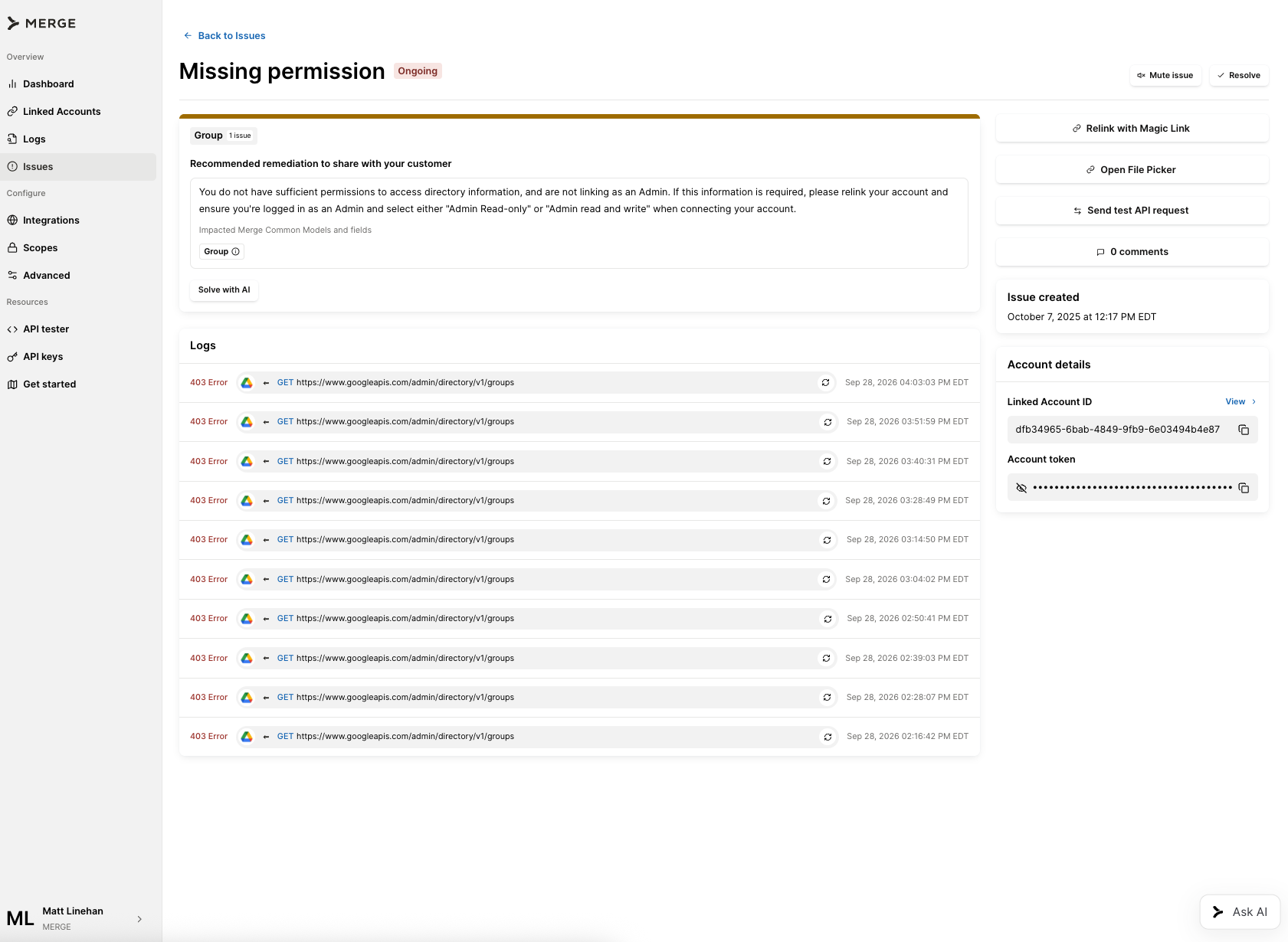
Selecting an issue opens its detail page, which includes:
What went wrong — Merge's description of the error and the underlying cause
Impacted Common Models — on missing permission issues, the Common Models the missing permission blocks
Recommended remediation to share with your customer — the steps that resolve the issue, written so you can pass them to your end user as they are
Related logs — the API request logs that triggered the issue
Mute — silences an issue you have already decided not to act on
How do I solve an issue with AI?
Click Solve with AI in the remediation card on any issue detail page. Merge opens the AI assistant with a question about that issue already asked, and answers using Merge's help center and documentation along with how that specific integration behaves.
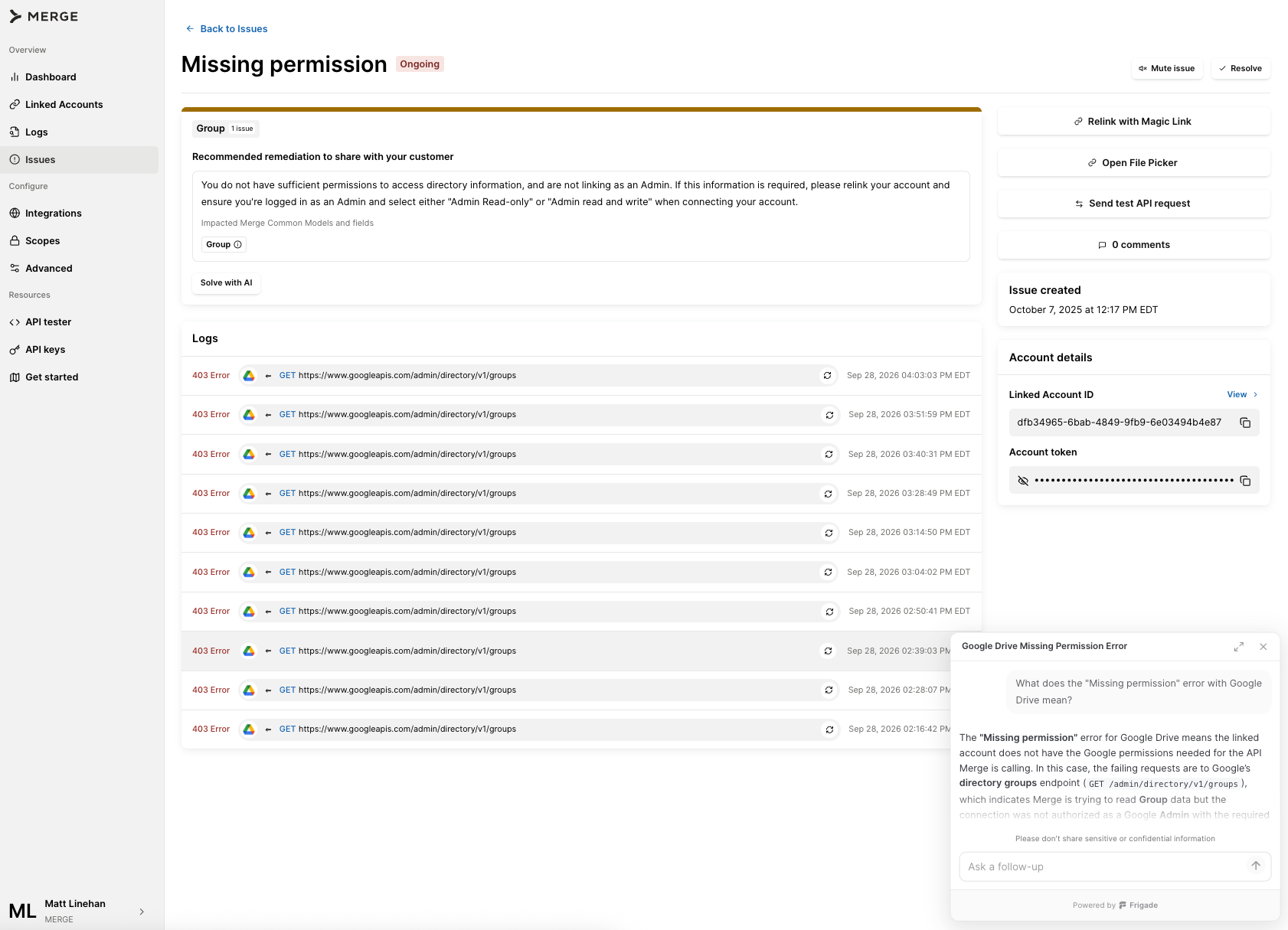
The answer takes one of two shapes, depending on where the fix lives:
The fix is in your Dashboard. The assistant explains the issue and offers to walk you through the change step by step. Accepting the offer moves you across Dashboard pages and points at the control you need, for example relinking the account with a Magic Link, or turning off a Common Model scope in Scopes.
The fix is in your customer's system. The assistant writes a short explanation you can send to your customer, covering the setting or permission their admin needs to change.
As an example, a Google Drive missing permission issue whose failures are confined to Group data has two real resolutions: relink with broader permissions, or turn off the Group scope if you do not need that data. The assistant names the Groups common model, gives you both paths, and walks you to Scopes, then the File Storage category, then the Group row itself.
Can I ask follow-up questions or reach a person?
Yes. The panel stays open for follow-up questions about the same issue or anything else in the Dashboard. Press Cmd+K to open it from any Dashboard page.
If you ask for a Merge employee, support, or a ticket, the assistant opens Merge's support chat and fills it in with the questions you already asked, so you do not have to retype the background.
What does Merge send to the assistant?
The question Merge asks on your behalf names the integration, plus the error description when it matches one of Merge's own issue descriptions. Error text that could carry your content or your customer's content stays out of the question, and Merge masks those fields from the page snapshot the assistant reads.
How do I catch new issues without checking the Dashboard?
Configure Issues webhooks to get notified when Merge creates or resolves an issue.
Who should I contact for help?
Email [email protected] with questions about a specific issue or an error you want help interpreting.