SharePoint - How do I work around SharePoint Group limitations?
Last updated: September 11, 2025
Overview
Microsoft does not support retrieving SharePoint group memberships through their Graph API, which means Access Control Lists (ACLs) for SharePoint group-only sites don't work out of the box. To resolve this limitation, you can create an M365 Group and grant it permissions to your SharePoint site, allowing ACLs to sync properly.
Prerequisites
You have Microsoft admin access
You are an admin of the SharePoint site you want to configure
Steps
Create an M365 Group by following Microsoft's official guide
The members of this Group should be the same users in the SharePoint site's groups
Make note of the group name as you'll need it in the next steps
Navigate to the Advanced Permission Settings of the SharePoint site that is currently using SharePoint Groups
You can navigate to the Advanced Permission Settings by appending
/_layouts/15/user.aspxto your site URLFor example, if your site is
https://vvv5r.sharepoint.com/sites/testsitename, you would go tohttps://vvv5r.sharepoint.com/sites/testsitename/_layouts/15/user.aspxThe page looks like the below screenshot
If you see a permissions error, that means you are not an admin/owner of the SharePoint site
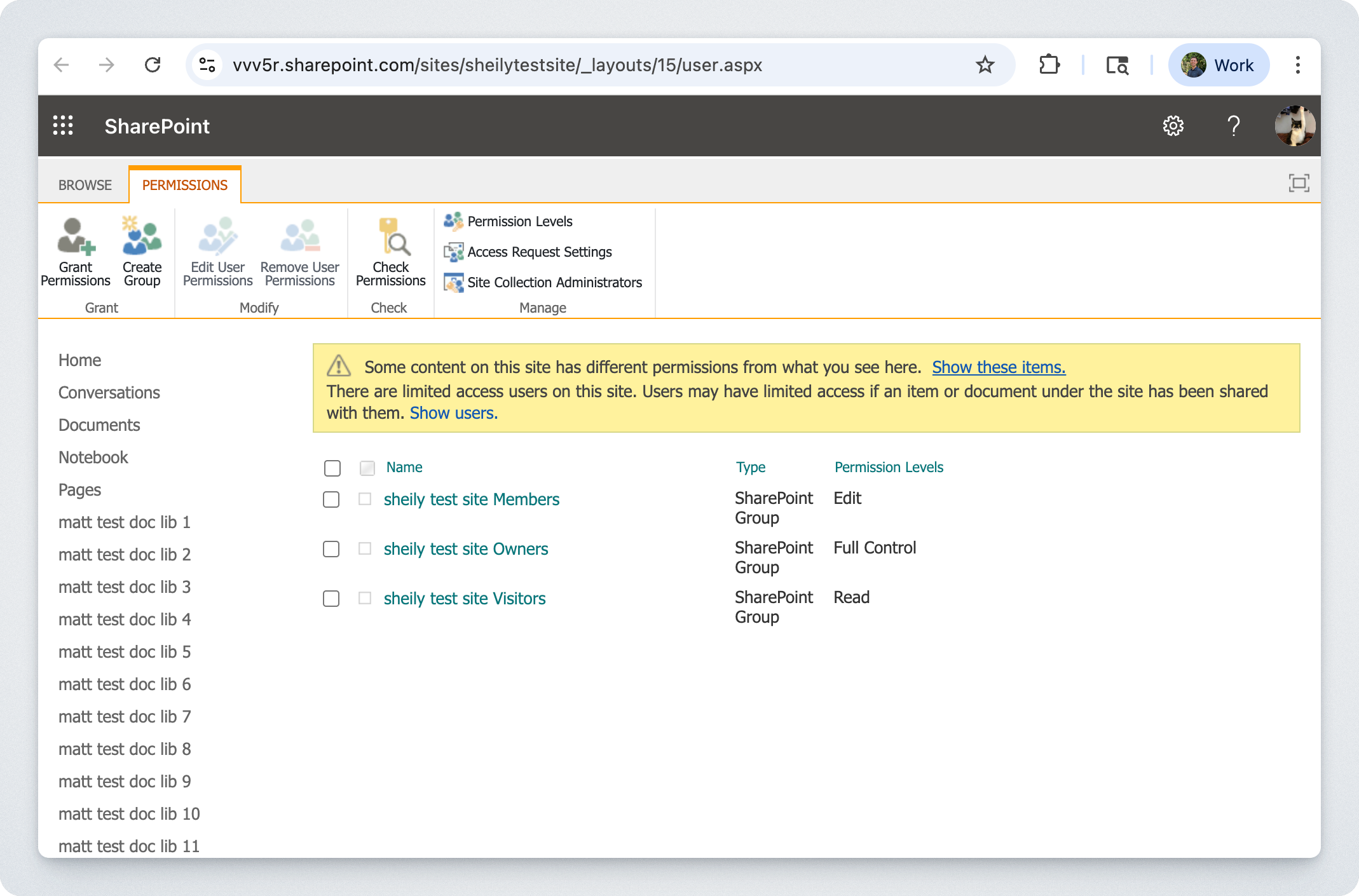
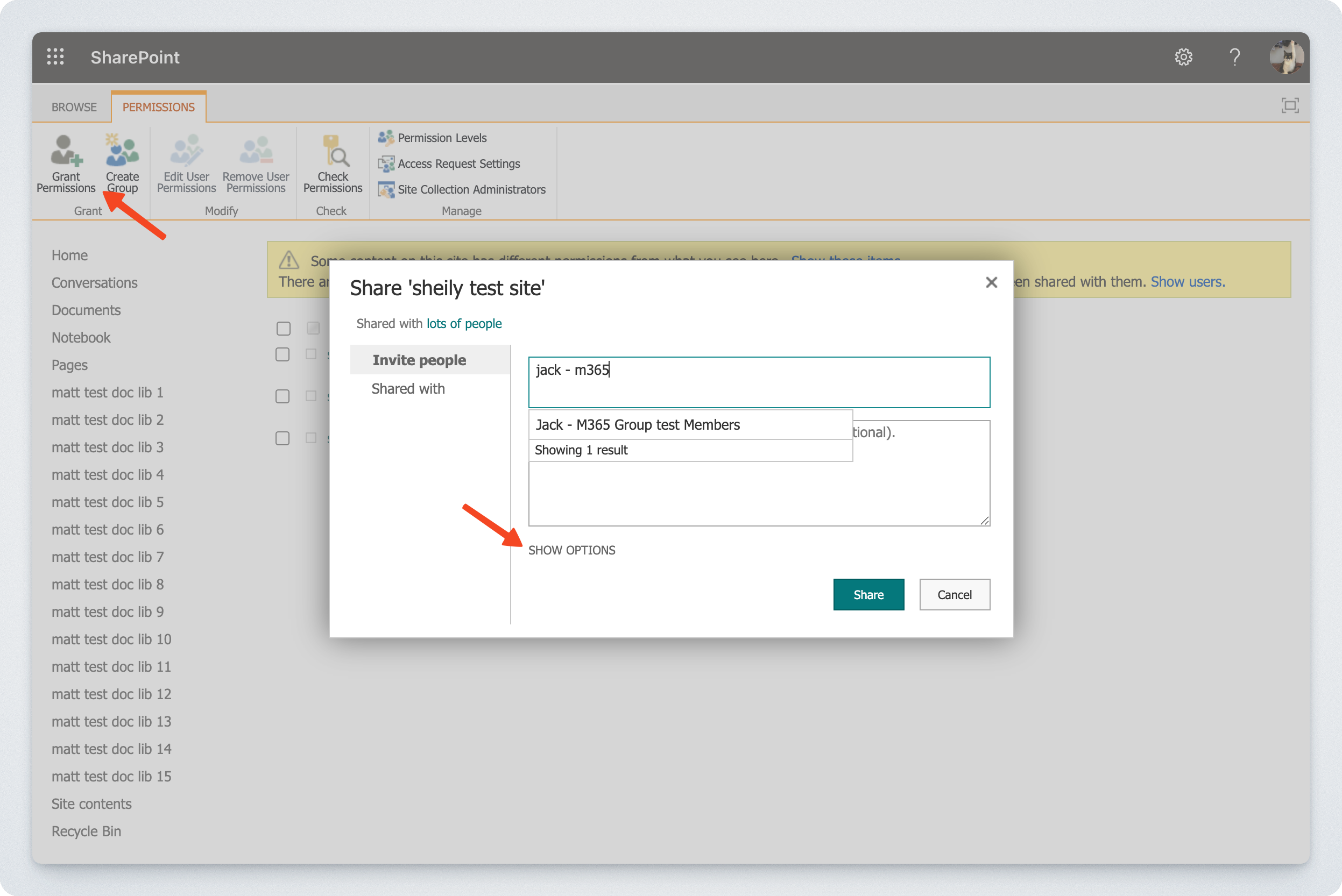
Select the Grant Permissions button in the top left corner to begin granting access to the M365 Group
Search for and select the M365 Group you created in Step 1
Important: Click Show Options to expand the permission settings
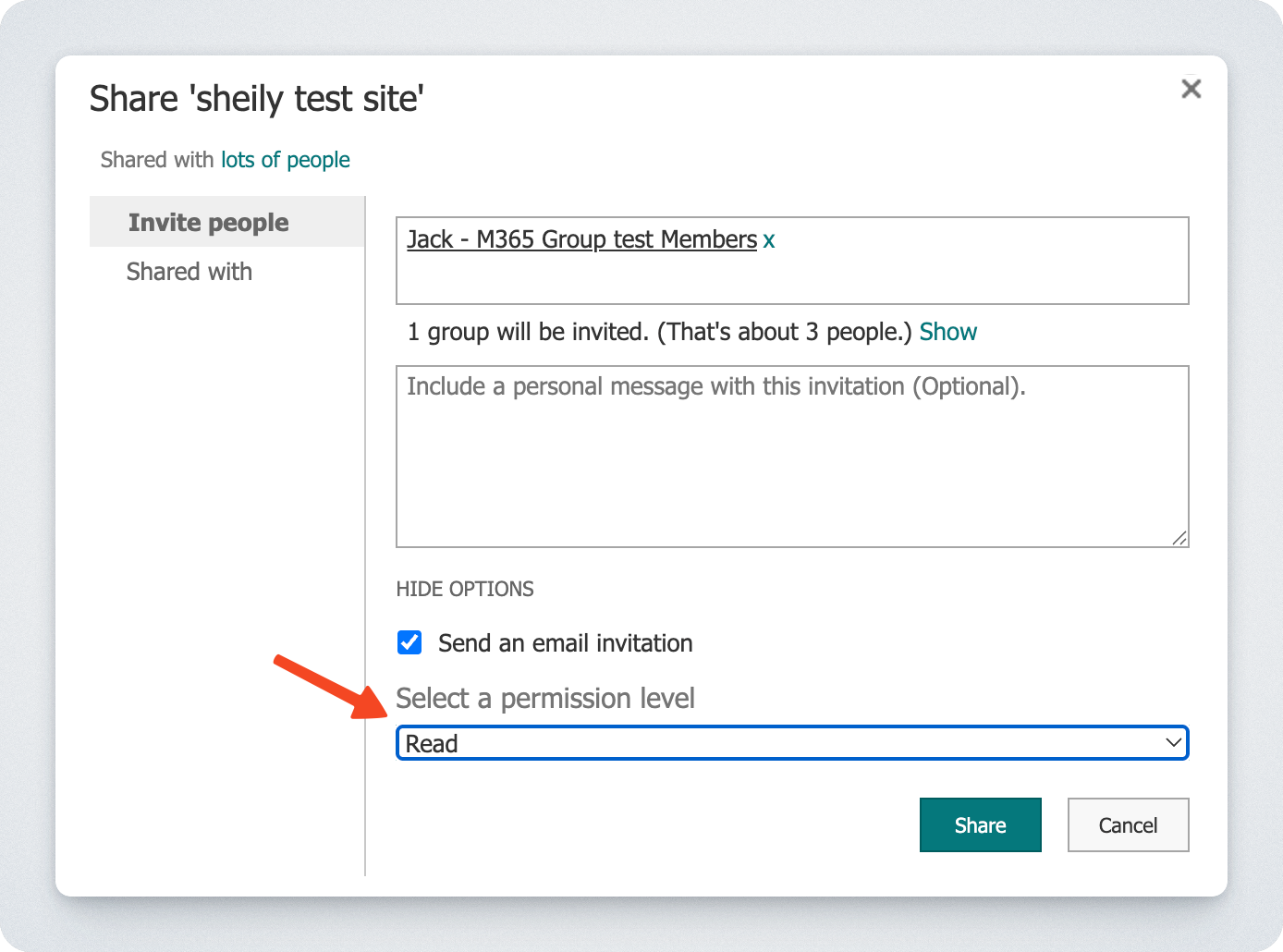
Update the permission level to Read and click Share
If you don't update the permission level, the group will be added to the "Site Members" group, which again the Graph API does not expose
Once completed, this M365 Group will be added as a permission to all Drives/Folders/Documents that inherit permission from the overall SharePoint site (which is all in the SharePoint site, by default)