Testing Merge linking using CodeSandbox
Last updated: December 8, 2025
Overview
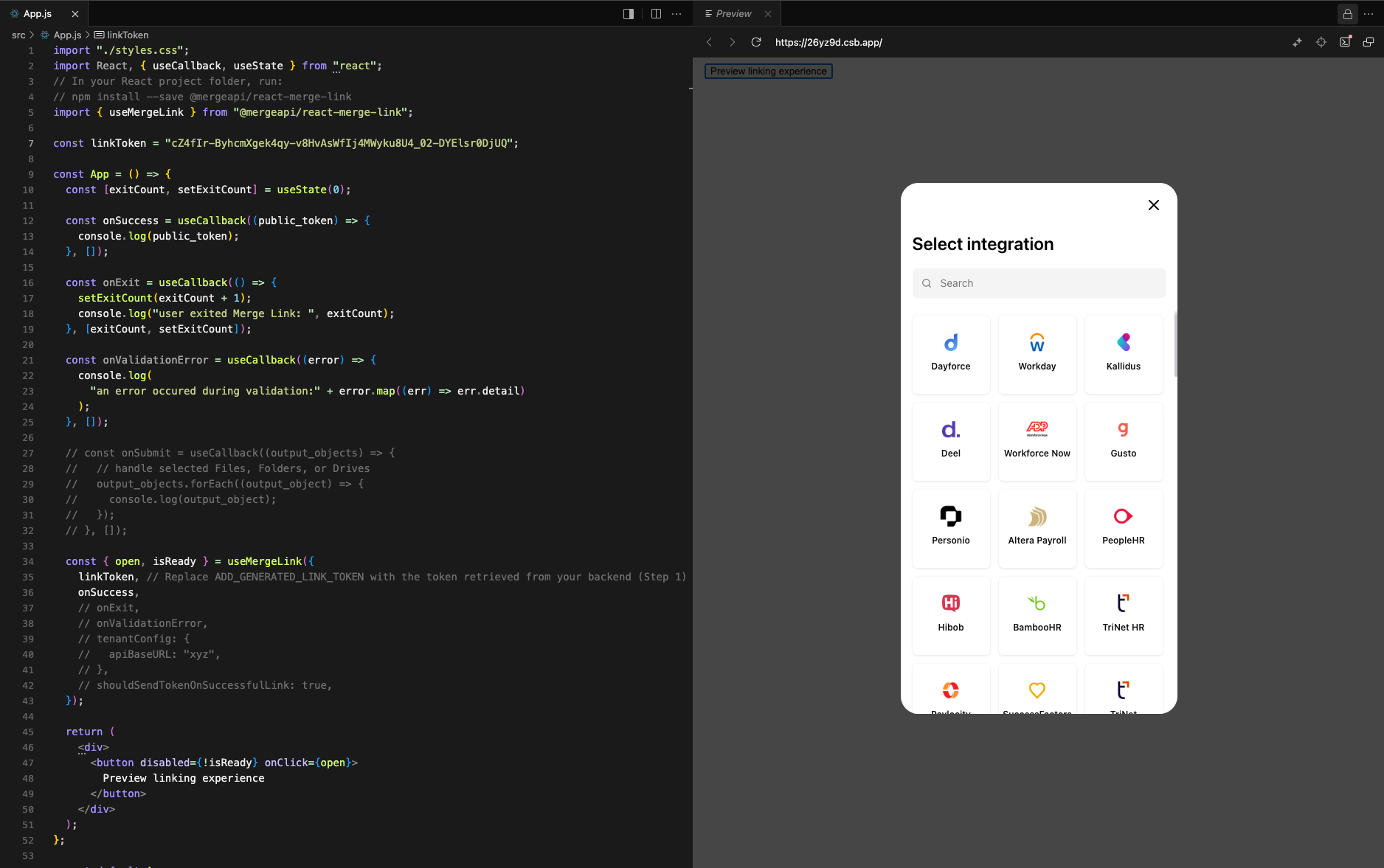
When implementing Merge, you might want to see Merge Link in action before wiring it into your own product. This public sandbox provides a fast, low-lift way to do exactly that.
This sandbox is designed to help newly onboarding customers experience the full Merge Link connection flow without needing to build any backend or frontend code. By generating a single link_token and pasting it into the sandbox, you can instantly launch Merge Link, test different categories and integrations, and walk through the exact flow your end users will see. It’s an easy, low-effort way to validate your configuration, understand how Merge Link behaves, and get hands-on familiarity with the linking experience before integrating it into your own product.
Prerequisites
Before you start, you'll need
A Merge account
An API key from the Merge dashboard
The ability to make an HTTP request (cURL, Postman, or your own script)
If you're new to Merge Link, you can read the full guide here (optional but helpful).
Instructions
1. Generate a link_token
The sandbox doesn’t generate tokens for you. Each visitor creates their own link_token using the Merge API, then pastes it into the sandbox.
Call this endpoint:
POST https://api.merge.dev/api/{category}/v1/link-tokenUse your API Key in the Authorization header.
Example (cURL)
curl -X POST 'https://api.merge.dev/api/hris/v1/link-token' \
-H 'Authorization: Bearer [Insert your API key]' \
-H 'Content-Type: application/json'
-d '{
    "end_user_origin_id": "sandbox-user-123",
    "end_user_organization_name": "Sandbox Org",
    "end_user_email_address": "[email protected]",
    "categories": ["hris"]
  }'
Required fields (simplest setup):
end_user_origin_id: Unique ID for this end user in your systemend_user_organization_name: Your customer’s organization nameend_user_email_address: Their emailcategories: Which Merge categories to show in the Link UIe.g.
["hris", "ats", "accounting", "ticketing", "crm", "filestorage", "knowledgebase"]
Optional:
integration: Skip the selection menu and jump straight to a specific integration. Note: if a single integration is specified, only one category can be included.link_expiry_mins: Customize how long the token is valid (default 30).should_create_magic_link_url:true/falseto also generate a Magic Link URL. Note: magic link url creation is only supported for a single category.
The response will look like:
{
    "link_token": "Ha8xBFvbXT2CYDEfjUqAILB247B5fI7J4L2rC-tiWf1J0xc7UndVTw",
    "integration_name": null,
    "magic_link_url": null
}
Copy the value of link_token – you’ll use it in the sandbox.
2. Plug your link_token into the sandbox
Open the public sandbox:
Sign in to fork and edit the sandbox.
In the UI, find the
linkTokeninitialization.Paste your
link_tokenfrom the API response.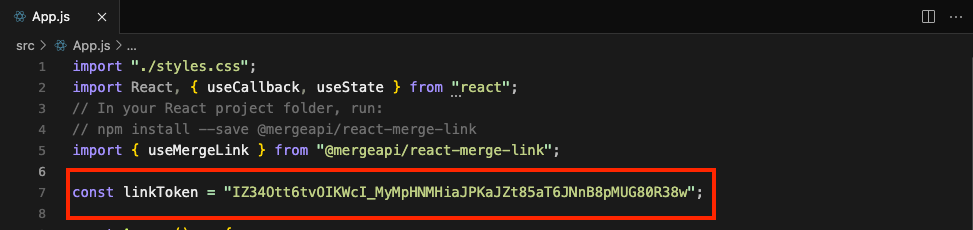
Refresh the Preview and then click the Preview linking experience button to launch Merge Link.
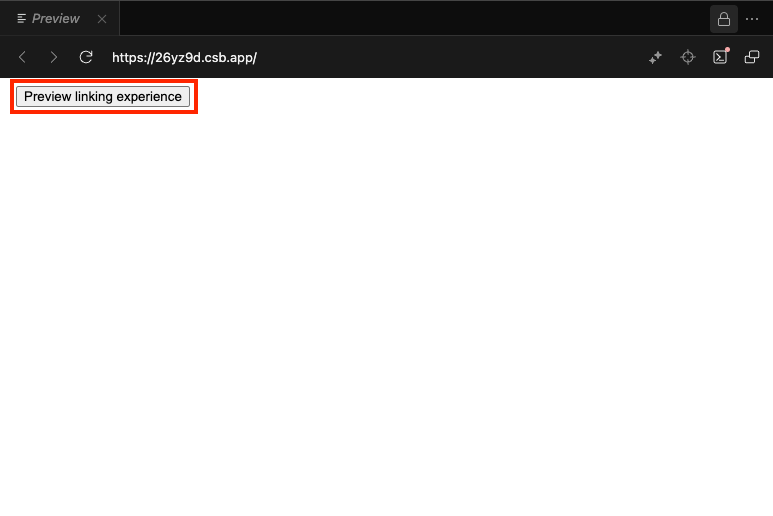
The sandbox will use that token to render the Merge Link component, just like you would in your own frontend.
3. Go through the linking experience
In the Merge Link modal:
Pick a category (e.g. HRIS, ATS, CRM) based on what you included in
categoriesin your request.Choose an integration (e.g. “BambooHR”, “Workday”, etc.).
Complete the provider’s auth flow (login, OAuth, API key, etc.).
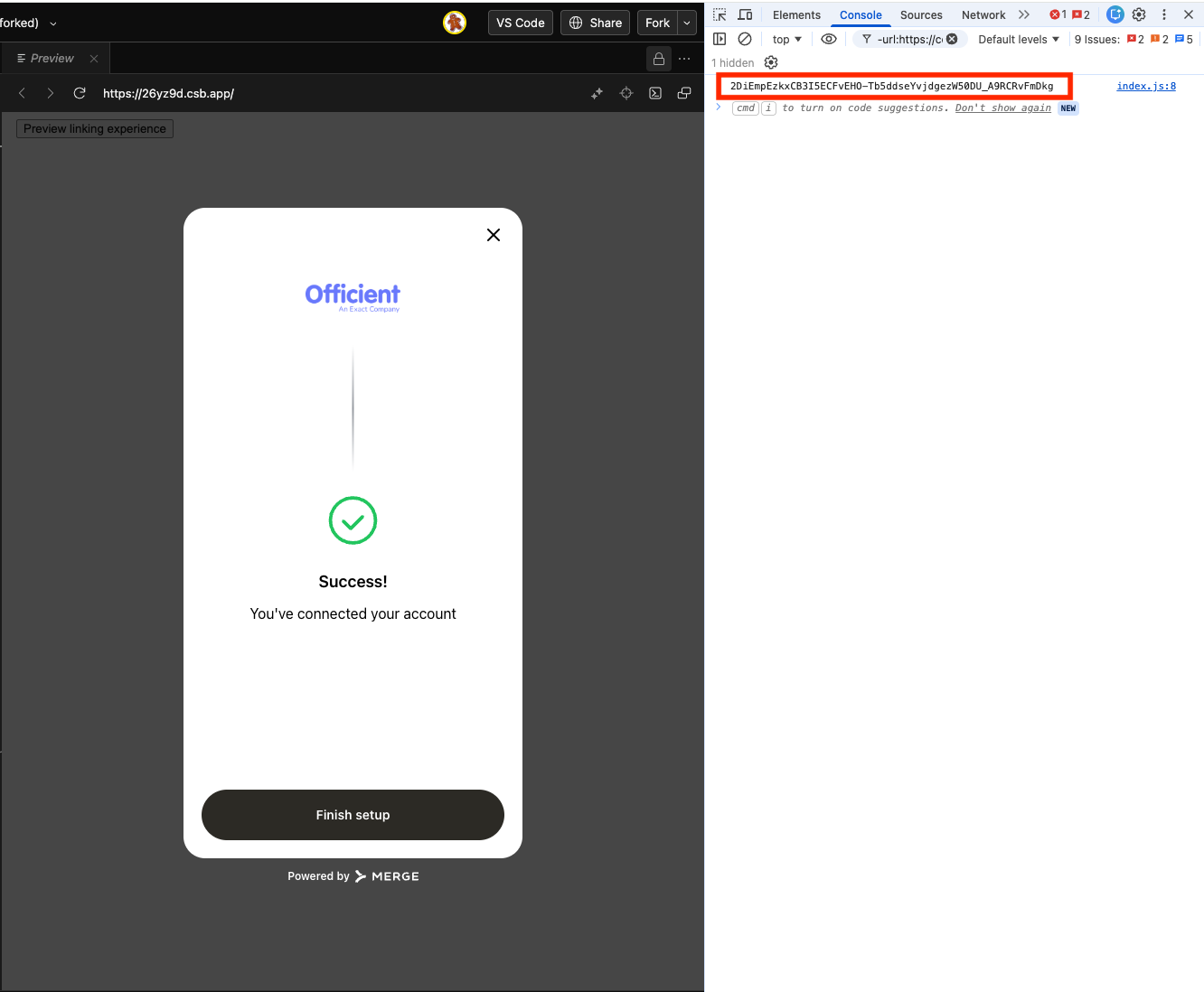
When the flow completes successfully, Merge Link returns a public_token to the frontend via the onSuccess callback.
In this sandbox, that value is logged to the browser console:
Open up Developer Tools in your web browser → Console and look for a message containing a string.
4. What this would look like in your own app
The sandbox is only simulating the frontend part. In a real integration, the flow is:
Backend: Create a
link_token(same as you did above).Frontend: Initialize Merge Link with that
link_token.Frontend: When Merge Link returns a
public_tokeninonSuccess, send it to your backend.Backend: Exchange the
public_tokenfor anaccount_tokenusing the category-specificaccount-tokenendpoint, e.g.:
GET https://api.merge.dev/api/hris/v1/account-token/{public_token}Backend: Store the
account_tokensecurely – that’s what you’ll use asX-Account-Tokenwhen calling the Unified API on behalf of this linked account.