How do I set up SAML for my Merge Organization?
Last updated: June 18, 2026
Overview
We're excited to support SAML as a common Single Sign-on (SSO) protocol for your Merge organization. This guide outlines the prerequisites and the steps to configure SAML, broken down by each provider.
If your organization is using Google SAML (not the standard Sign in with Google button on our login page, which uses OAuth), you will be using these setup instructions from Google.
Prerequisites
SAML is currently only offered on Professional and Enterprise plans. If you want to upgrade your plan, please contact us at [email protected] and our team will assist you.
Setup process
Contact your Customer Success Manager (CSM) to set up a SAML provider for you within Merge. Let them know:
The SAML provider you are using
The tenant you want SAML configured in
The name of the Merge organization you want SAML configured for
Use the sections below to receive and configure the SAML parameters for your identity provider. Instructions are organized by provider type and Merge organization configuration.
The following sections are available:
Okta (US multitenant) — follow this section if your identity provider is Okta and your Merge organization is based in the US multitenant.
OneLogin — follow this section if your identity provider is OneLogin.
Other providers or non-US Merge organizations — follow this section if your identity provider is not Okta or OneLogin, or your Merge account is a sandbox, EU-based, or single-tenant organization.
If you're unsure which section applies to your setup, please contact your Customer Success Manager (CSM) for guidance.
Okta (US multitenant)
We support SSO with Okta via SAML, as opposed to other Okta login options such as OAuth or Open ID Connect (OIDC). To get set up with Okta on Merge:
Find Merge in the Okta OIN and connect it for your organization.
After connecting, go to the Sign On tab and click Edit to enter the following details:
Customer ID: Will be provided by your CSM
Default Relay State:
https://api.merge.dev/api/users/sso/saml/relayCredential details: email
After you have configured those, send the following to your CSM:
Metadata XML
OR
IdP Certificate (also known as Public Certificate, or X.509 Certificate)
IdP Issuer (should be a URL)
IdP SSO URL
Your CSM will use that info to finalize the SAML config for your organization in Merge and will enable SAML at that time. After confirmation that SAML is working, you will have the option to make it the only allowed login method for your organization in Merge.
OneLogin
You will need to create a new integration within the OneLogin portal and configure the below:
Log in to the OneLogin Admin Dashboard, hover over the Applications tab, and click Applications > Add Apps in the top right.
Search for SAML, and select SAML Test Connector (IdP w/attr).
When prompted, change the Display Name of your app to Merge API.
Click Save.
Go to the SSO tab, copy the value for Issuer URL and SAML 2.0 Endpoint (HTTP), then click the View Details link at the X.509 Certificate field and copy the X.509 Certificate.
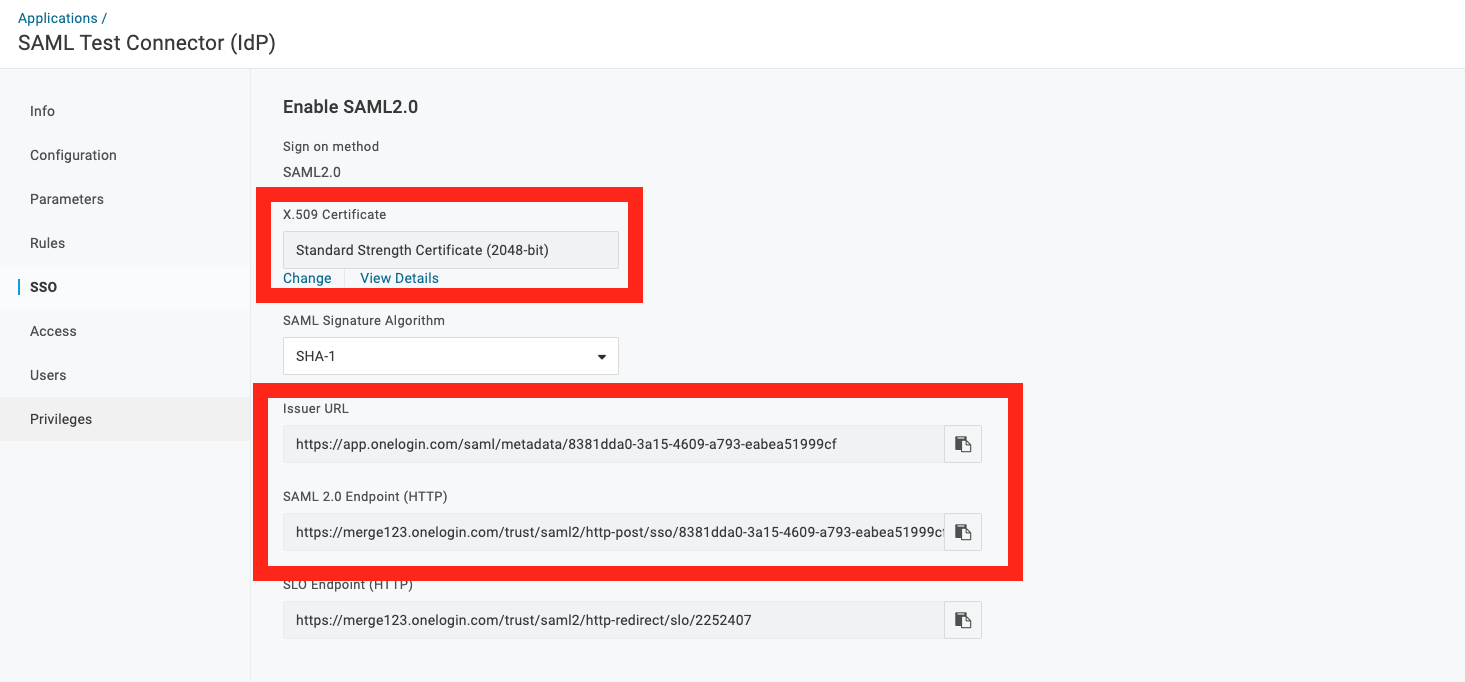
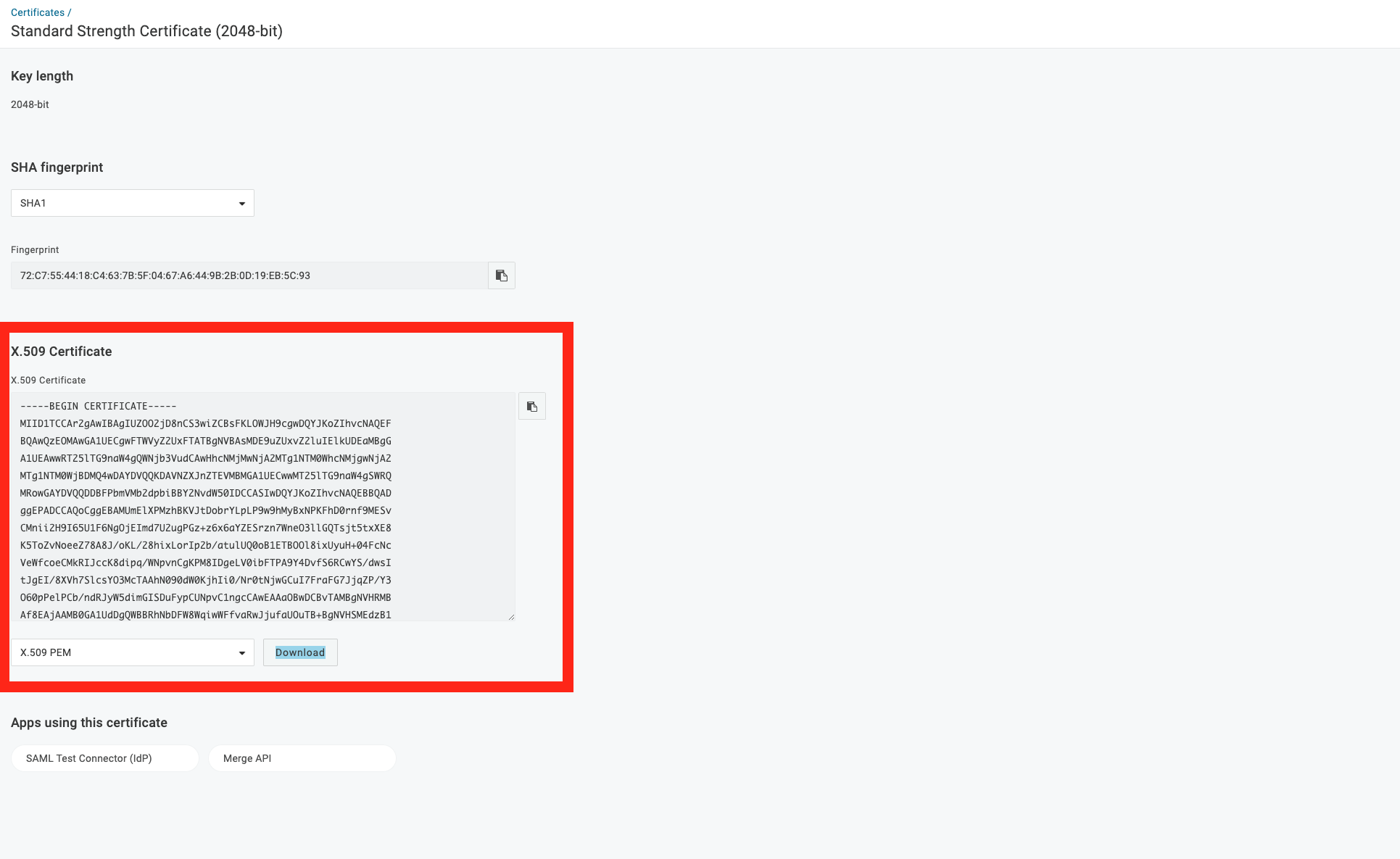
Send your CSM the Issuer URL, SAML 2.0 Endpoint (HTTP), and X.509 Certificate.
Go to the Configuration tab.
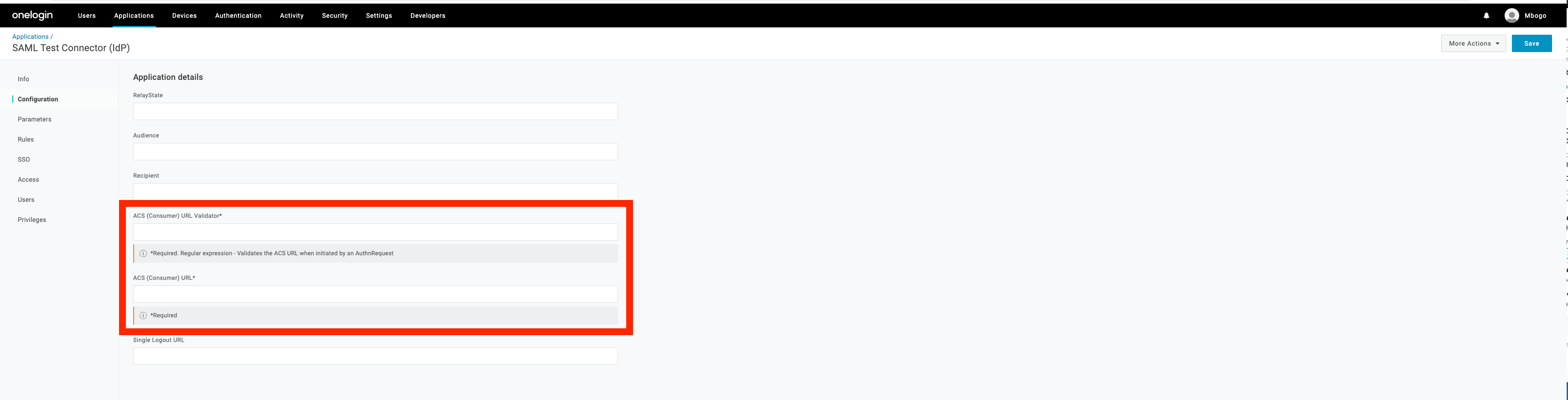
Enter this regex into the ACS (Consumer) URL Validator field:
https:\\/\\/[a-z0-9-]+\\.[a-z]+\\.[a-z]+\\.[a-z]+\\/sso\\/saml\\/[a-z0-9-]+\\/acs\\/Enter this URL into the ACS (Consumer) URL field:
https://<DOMAIN>/sso/saml/<SAML_PROVIDER_ID>/acs/<SAML_PROVIDER_ID>will be provided by your CSM.<DOMAIN>is your tenant-specific URL. For example:US multitenant:
api.merge.devEU multitenant:
api-eu.merge.dev
Other providers or non-US organizations
If you're not using OneLogin, using Okta but not in the US multitenant, or using another provider, you'll need to create a new SAML integration with the details below.
The details below have some placeholders:
<SAML_PROVIDER_ID>: Your CSM will provide this.<DOMAIN>: This is your tenant-specific URL. For example:US multitenant:
api.merge.devEU multitenant:
api-eu.merge.dev
To get set up:
In your identity provider's admin console, create a new SAML integration and configure the following parameters:
Single Sign On URL:
https://<DOMAIN>/sso/saml/<SAML_PROVIDER_ID>/acs/This may also be called the ACS URL.
Make sure to include the trailing slash.
Check the box Use this for Recipient and Destination URL in Okta.
Audience URI (SP Entity ID):
https://<DOMAIN>/sso/saml/<SAML_PROVIDER_ID>/Make sure to include the trailing slash.
Default Relay State:
https://<DOMAIN>/api/users/sso/saml/relayTrailing slash not necessary.
Name ID Format: EmailAddress
Application username: Email
Under Advanced settings, configure:
Response: Signed
Assertion Signature: Signed
Signature Algorithm: RSA-SHA256
Digest Algorithm: SHA256
Assertion Encryption: Unencrypted
SAML Request: Unsigned (or SAML Signed Request: Disabled)
Enable Single Logout: Unchecked
Assertion Inline Hook: None (disabled)
Authentication Context Class: PasswordProtectedTransport
Honor Force Authentication: Yes
Attribute Statements: leave blank
Group Attribute Statements: leave blank
If using Okta, also configure:
SAML Issuer ID for Okta users:
http://www.okta.com/${org.externalKey}
If using Microsoft Entra, also configure:
Signing Option: Sign SAML response and assertion
After you have configured the above, send your CSM the following values:
Metadata XML (called IDP Metadata in Google)
OR
IdP Certificate (also known as Public Certificate, or X.509 Certificate)
IdP Issuer (should be a URL)
IdP SSO URL
Final steps
After configuration is completed, confirm to your CSM that SSO is working. If you'd like, we can make SAML required for your organization.